
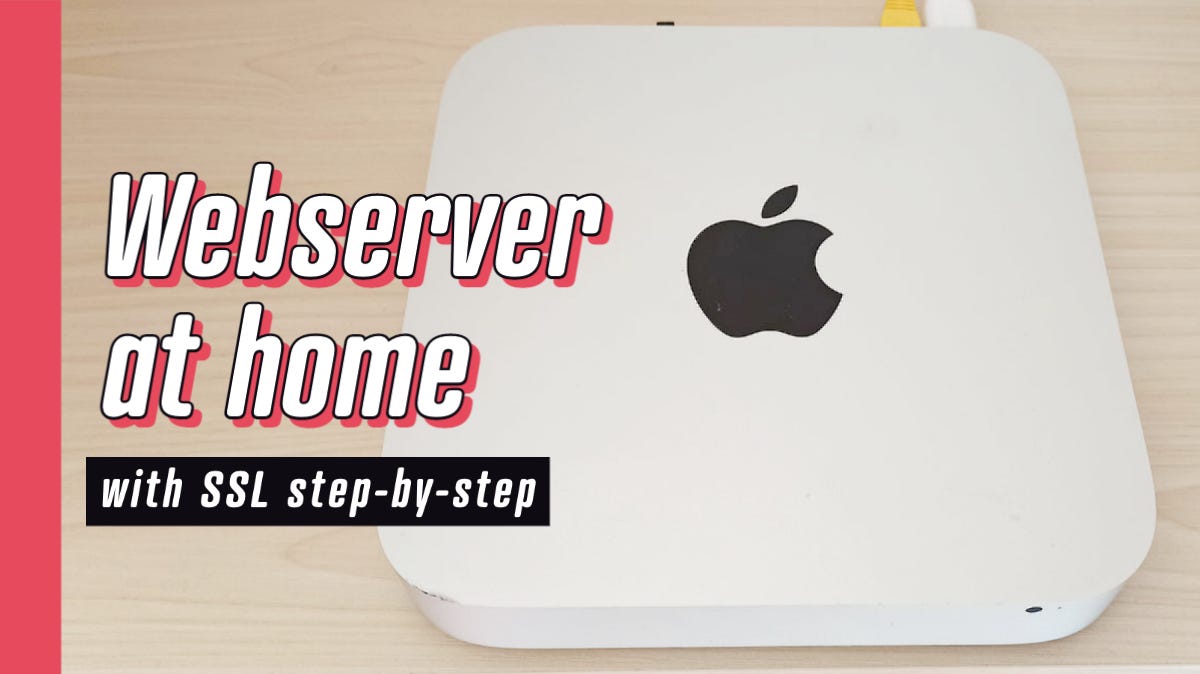
Are you curious about how to host a web server on your Mac? If you’ve ever dreamed of launching your website or testing a project locally, your Mac is more than capable of handling it.
With its robust capabilities and user-friendly interface, your Mac can transform into a powerful web server. Whether you’re a budding developer or a curious tech enthusiast, setting up a web server on your Mac can open up a world of possibilities.
Don’t worry about complex jargon or intimidating steps. In this guide, you’ll discover how straightforward it can be to turn your Mac into a reliable server. Get ready to dive in and unlock the potential of your Mac, step by step.
Credit: medium.com
Setting Up Your Mac Environment
Your Mac needs some basic tools. It must have at least 4GB of RAM. Your Mac should also have enough storage space. At least 10GB free for smooth functioning. A stable internet connection is also necessary. This ensures that you can download files quickly. macOS should be up-to-date. Latest versions have better security and features.
First, download and install Xcode from the App Store. It provides essential developer tools. Then, install Homebrew, a package manager. Open Terminal and type: /bin/bash -c "$(curl -fsSL https://raw.githubusercontent.com/Homebrew/install/HEAD/install.sh)". After that, use Homebrew to install Apache. Type: brew install httpd. Apache is now ready on your Mac. Test it by opening your browser. Type localhost in the address bar. You should see the Apache welcome page.
Choosing The Right Web Server Software
Apache and Nginx are popular web servers. Apache is older and very stable. Many people use it because it’s easy. Nginx is newer and very fast. It handles many users well. Apache uses more memory than Nginx. Nginx is good for static pages. Apache is better for dynamic pages. Choose based on your needs.
Customizing settings makes your server work better. Change the port number if needed. Adjust the timeout settings for better performance. Set up security rules. Use firewalls to block bad traffic. Regularly check and update your server. These steps help keep your server safe and fast.
Configuring Your Web Server
Setting up a web server on a Mac can be simple. Start by opening the Terminal application. Type sudo apachectl start to launch Apache. Check the server status in your browser by entering localhost. If you see “It works!”, your server is running. Next, locate the Apache configuration file. This file is named httpd.conf. It’s found in the /etc/apache2/ directory. Edit this file to set server parameters. Use a simple text editor for this task. Remember to save changes.
User permissions are vital for security. Begin by opening the Terminal. Navigate to the /etc/apache2/ directory. Use the chmod command to set permissions. For example, type chmod 755 /your-directory. This allows users to read and execute files. But only the owner can write. Always check permissions after changes. Ensure that sensitive files remain protected. Keeping permissions correct ensures safety and functionality.
Deploying Your Website
First, gather all your website files. These include HTML, CSS, and images. Use an FTP client to connect to the server. Enter your server’s address, username, and password. Then, choose the folder where your website will live. Drag and drop files into this folder. Make sure everything uploads correctly. Check for missing files or errors.
Visit your website using a browser. Check if all pages load. Ensure links work and images display. Test forms and buttons. Look for any errors on the page. Ask a friend to visit your site. Get feedback on how it works. Fix any problems they find. Repeat these tests often. Good testing ensures a great user experience.
Ensuring Security And Performance
Hosting a web server on a Mac involves configuring security and optimizing performance. Start by installing necessary software like Apache or Nginx. Regularly update your system and software to protect against vulnerabilities.
Implementing Security Protocols
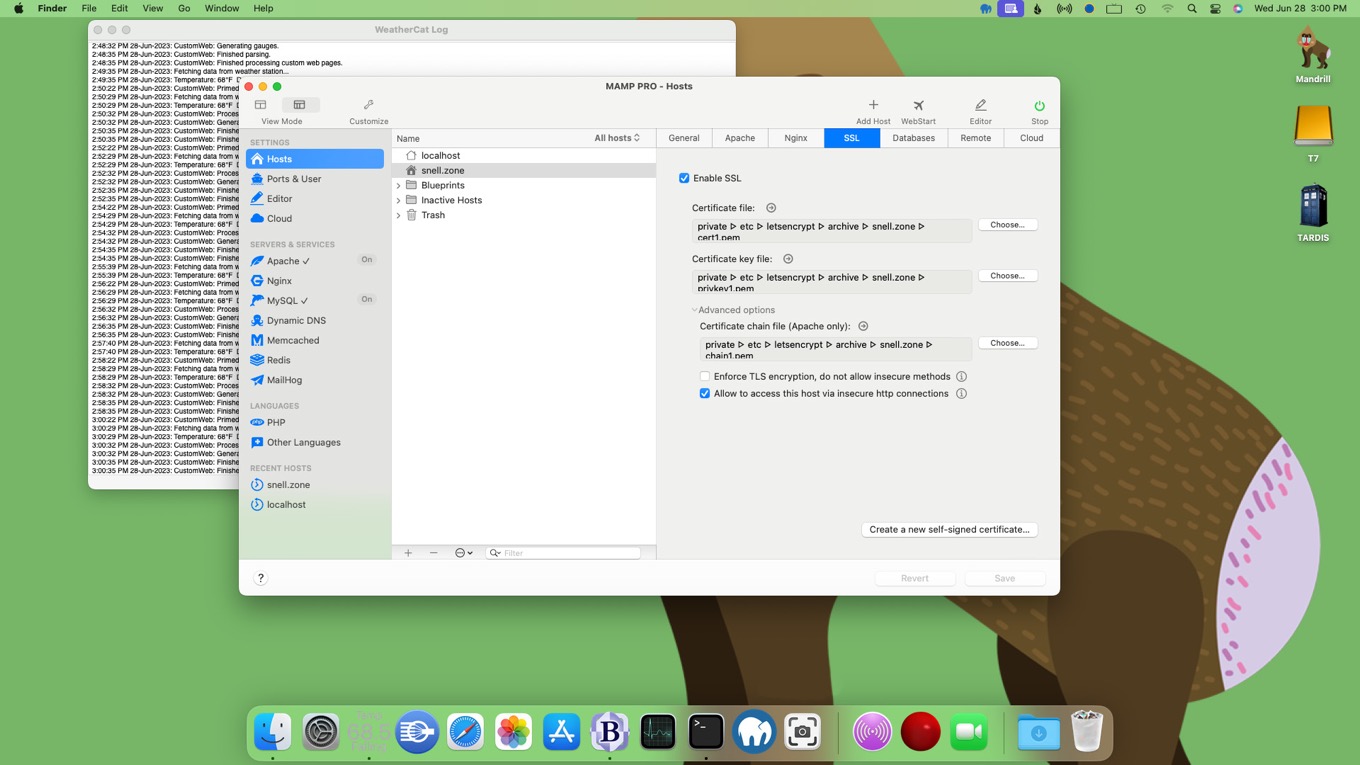
Protect your server with strong passwords. Keep software updated to fix bugs. Enable firewalls to block unwanted access. Use SSL certificates for secure connections. Encrypted data keeps information safe. Regular backups prevent data loss. Monitor server activities to detect threats early. Disable unused services to reduce risks.
Optimizing Server Performance
Allocate enough RAM for smooth operations. Regular updates enhance speed and security. Limit the number of requests to prevent overload. Use caching to speed up page loads. Optimize images to reduce loading times. Check server logs for errors and fix them. Periodic restarts help clear memory. Keep server software updated for better performance.
Credit: coolestguidesontheplanet.com
Troubleshooting Common Issues
Sometimes, installation errors pop up during setup. Check if all software is up-to-date. Ensure you have the right version of the server software. Verify your Mac’s system requirements. Missing files can cause trouble. Re-download if needed. Make sure you follow each step carefully. Skipping steps leads to problems.
Connectivity problems can stop your web server from working. Check your internet connection first. Restart your router if needed. Ensure your server is set to the correct IP address. Update your firewall settings to allow traffic. Sometimes, the network settings need a reset. A simple restart might fix it.
Maintaining Your Web Server
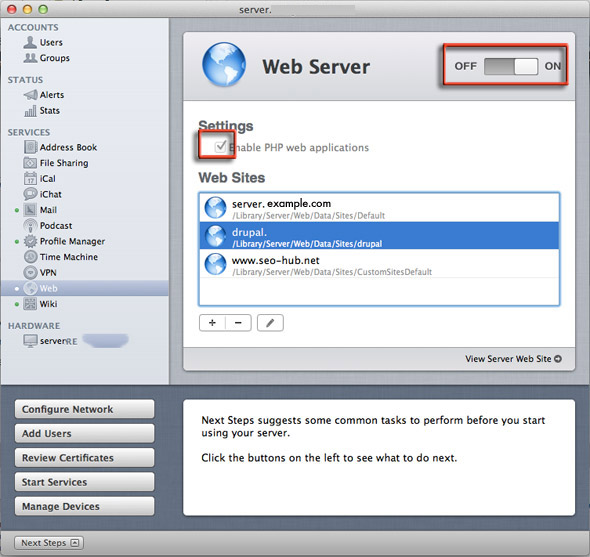
Set up a web server on a Mac by using built-in tools like Apache. Install and configure Apache through System Preferences for easy hosting. Regular updates and monitoring ensure smooth server operations.
Regular Updates
Keeping your server software up to date is crucial. Updates fix bugs and improve security. Regular updates protect your server from threats. Check for updates weekly. Install them promptly. Use auto-update features if available. This ensures your server runs smoothly.
Monitoring Server Health
Regularly check your server’s health. Monitor CPU and memory usage. High usage can slow your server. Use tools to track server performance. Watch for unusual activity. Spot issues early to avoid problems. Set alerts for critical conditions. Quick response keeps your server stable.
Credit: sixcolors.com
Frequently Asked Questions
Can I Host A Server On A Mac?
Yes, you can host a server on a Mac. Use software like Apache, Nginx, or MAMP. Ensure your Mac meets system requirements and has a stable internet connection. Hosting on a Mac is suitable for development or small-scale projects. Regularly update your software for security and performance.
Can You Host A Website On A Mac?
Yes, you can host a website on a Mac using software like MAMP. It provides Apache, PHP, and MySQL. Ensure your Mac is always running to maintain website accessibility. For larger sites, consider external hosting services for reliability and performance.
Is A Mac Server Free?
A Mac server isn’t free. You need to purchase macOS Server software from the Mac App Store. It costs a small fee. The hardware also requires an investment, as you need a compatible Mac computer. Mac servers are ideal for small businesses or personal use due to their user-friendly interface.
How Do I Host My Own Web Server?
To host your own web server, select suitable hardware and install server software like Apache or Nginx. Configure DNS settings, ensure a static IP address, and secure your server using firewalls and SSL certificates. Test your setup and regularly update software to maintain security and performance.
Conclusion
Setting up a web server on your Mac is quite straightforward. You now have the tools and steps to get started. Remember, practice helps you improve your skills. Keep exploring and experimenting with different configurations. This journey will enhance your understanding of web servers.
Your Mac can efficiently host your projects. Stay curious and keep learning. Troubleshooting issues is part of the process. Don’t hesitate to seek help if needed. With time, you’ll become more confident in managing your server. Happy hosting!


