
Are you ready to get your web page online and visible to the world? Hosting a web page on Apache can seem daunting, but it’s simpler than you might think.
Imagine the satisfaction of seeing your creation live on the internet, accessible to anyone with a click. You’re about to unlock a skill that empowers you to showcase your ideas, projects, or business to a global audience. In this guide, we’ll walk you through the process in straightforward steps, ensuring you feel confident every step of the way.
By the end, you’ll not only have your web page live but also a new feather in your cap. Let’s dive into the practical world of Apache hosting and get your web page up and running.
Setting Up Apache Server
Apache is a popular web server. It works on many operating systems. Windows, Linux, and Mac are common ones. On Windows, use tools like XAMPP to install Apache. Linux users often use the Terminal. Type simple commands to get it. On Mac, use Homebrew for easy installation. Always check for the latest version.
After installation, configure Apache to start. Find the configuration files. They are usually in the conf or etc folder. Open the httpd.conf file. Make basic changes like setting the port number. Add your website’s document root. This is the main folder for web files. Save changes and restart Apache. Your web page is now ready to host.

Credit: www.wikihow.com
Preparing Your Web Page
HTML files are best for web pages. They are easy to use. CSS files help make your page look nice. JavaScript files add fun actions. Keep your files simple. Avoid very big files. They load slowly on the web. Choose JPEG or PNG for pictures. They are clear and small.
Create a main folder for your web page. Inside, make folders for images, CSS, and JavaScript. This keeps things tidy. Name your files clearly. Use simple names like index.html or style.css. Avoid spaces in file names. Use dashes or underscores instead. Organizing well makes it easier to find files later.
Uploading Files To Apache
FTP helps move files from your computer to the server. FTP stands for File Transfer Protocol. It is a simple way to upload files. Use an FTP client like FileZilla. Enter your server’s IP address, username, and password. Click Connect to access your server. Drag and drop files from your computer to the server. This makes your web page files available online.
Files and directories need the right permissions. Permissions control who can see or edit them. Use the chmod command to set permissions. Numbers like 755 or 644 are common. 755 means everyone can read and execute, but only you can edit. 644 means everyone can read, but only you can edit. Check your permissions with the ls -l command. Ensure your files are safe and accessible.
Configuring Apache For Your Web Page
Open the Apache configuration file. Usually, it’s named httpd.conf. Use a text editor for this. Find the line that says DocumentRoot. This line tells Apache where your files are. Change it to the folder of your web page. Save and close the file. Then, restart Apache to apply changes.
Virtual hosts allow multiple sites on one server. Open the httpd-vhosts.conf file. Add a new block for each site. Include the ServerName and DocumentRoot for each. It looks like this:
    ServerName www.example.com
    DocumentRoot "/path/to/webpage"
Save the file. Restart Apache to see your changes. Now, different domains point to different folders. This keeps them separate.
Testing Your Web Page
Hosting a web page on Apache involves setting up a server to display content online. Start by installing Apache, configuring settings, and uploading your files to the server. Ensure the server is running to view your page.
Accessing The Page Locally
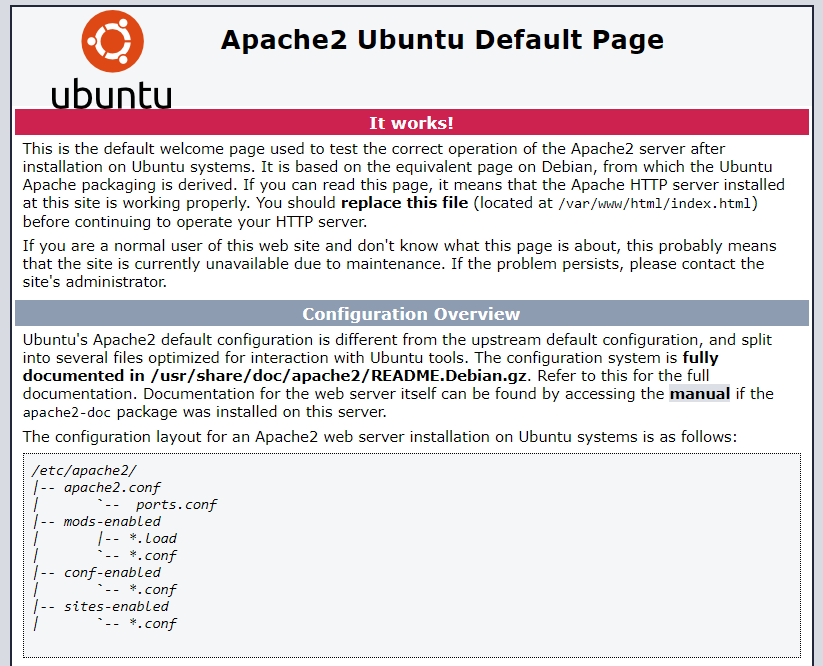
Open a web browser on your computer. Type localhost in the address bar. Press enter to see your web page. If your page does not load, check the server. Make sure Apache is running. Check the file path. The page must be in the correct directory. If all settings are correct, your page should appear.
Troubleshooting Common Issues
Sometimes, pages do not load. Check the Apache configuration. Make sure all settings are correct. Look for errors in the log files. They show problems with the server. Check the file permissions. Files must be readable by the server. If the page still fails, restart the server. This often fixes small issues.

Credit: www.wikihow.com
Securing Your Apache Server
Installing Apache allows you to host web pages effectively. Begin by setting up Apache on your server. Ensure security by configuring firewalls and permissions properly. Regularly update your Apache server to protect against vulnerabilities. Following these steps ensures a safe and reliable hosting environment for your website.
Implementing Https With Ssl/tls
Use SSL/TLS to keep data safe. It adds a lock icon in the browser. This shows your site is secure. Get a certificate from a trusted source. It helps build trust with visitors. Install the certificate on your server. This makes all connections encrypted. No one can eavesdrop on data.
Setting Up Firewalls And Security Modules
Firewalls block unwanted access to your server. They keep bad traffic away. Use the Apache Security Module to help. It checks every request for problems. This keeps your site safe from attacks. Keep your modules updated. Updates fix security holes. Always check for new updates regularly.
Monitoring And Maintaining Apache
Hosting a web page on Apache involves monitoring server performance and maintaining software updates. Regular checks ensure smooth operations, while updating helps protect against vulnerabilities. Simple practices can enhance the reliability of your web hosting experience.
Using Logs For Monitoring
Logs are important for keeping an eye on Apache. They show what happens on your server. Look at logs every day. This helps find problems early. Apache has two main logs. The access log and the error log. Access logs show who visits your site. Error logs show mistakes on the server. Understanding these logs is key. They help you fix issues quickly. Without logs, problems can grow.
Regular Updates And Maintenance
Keep Apache updated for safety. Updates fix bugs and add new features. Check for updates often. Install them as soon as you can. Maintenance is also crucial. Clean up old files and logs regularly. This keeps the server running fast. Strong maintenance prevents slowdowns. It also stops security issues. A well-maintained server is a happy server.
Credit: www.arubacloud.com
Frequently Asked Questions
How To Host A Website In Apache?
Install Apache server software and configure it. Place your website files in the Apache directory. Update Apache’s configuration file to point to your website. Restart Apache to activate your site. Ensure your domain points to your server’s IP address. Test your website for functionality and accessibility.
How To Deploy An Html Page In An Apache Http Server?
Place your HTML file in the Apache server’s root directory. Restart the server to apply changes. Access your HTML page using the server’s IP address or domain name in a browser. Ensure permissions are set correctly for public access.
How To Set Up A Virtual Host In Apache?
To set up a virtual host in Apache, edit the httpd.conf or apache2.conf file. Add a “ block specifying the domain, directory path, and port. Include necessary directives like DocumentRoot and ServerName. Save the file and restart Apache to apply changes.
Is The Apache Web Server Free?
Yes, the Apache web server is free. It is open-source software, available under the Apache License 2. 0. Apache is widely used for hosting websites and supports numerous features. Users can modify and distribute it freely, making it a popular choice for developers and businesses worldwide.
Conclusion
Hosting a web page on Apache is simple and effective. Follow the steps for setup, and your site will be ready. Apache is reliable for managing web pages. Beginners can easily understand its workings. Keep your configurations clear and organized.
Regular updates ensure security and functionality. Apache helps your website run smoothly. It’s a trusted tool for many users worldwide. Practice and patience will improve your skills. With Apache, your website can reach and serve your audience well. Happy hosting!


