
Have you ever felt overwhelmed trying to host a WebEx meeting? You’re not alone.
Whether you’re preparing for a crucial business meeting or connecting with friends and family, mastering WebEx can transform your virtual interactions. Imagine effortlessly navigating the platform, engaging your participants, and achieving your meeting goals without stress. By the end of this article, you’ll have the confidence and skills to host your own WebEx meeting like a pro.
Dive in to discover the secrets to seamless online communication and make every meeting memorable. Your perfect virtual gathering is just a few clicks away!
Setting Up Your Account
Visit the WebEx website to start. Click on the sign-up button. Enter your email address. You will get a confirmation email. Open it and click the link. This will confirm your email. Now, fill in your personal details. Choose a strong password. Then, agree to the terms. Click the create account button. Your account is ready to use.
WebEx offers different plans. Some are free; others are paid. Look at the features each plan offers. A free plan is good for small meetings. Paid plans have more features. These include recording and larger meetings. Decide what you need. Choose the plan that fits your needs. Click to select your plan. Follow the steps to set it up.
Preparing For The Meeting
Choose a good time for everyone. Check each person’s calendar. Use a scheduling tool. This helps avoid conflicts. Ensure everyone is free.
Send invitations early. Include the meeting link. Add the time and date. Ensure all details are clear. Remind participants a day before the meeting.
Set up the meeting settings. Enable video and audio. Allow screen sharing if needed. Check security settings. Make sure everyone can join easily.
Technical Requirements
WebEx works on many devices. Laptops, tablets, and smartphones are good choices. Windows, Mac, and Linux systems are compatible. Check your device is updated. This helps WebEx run smoothly.
A strong internet connection is important. Wi-Fi or wired connections work well. Slow internet can cause issues. Video may freeze or sound may cut out. Test your internet speed before meeting.
Installing WebEx is easy. Go to the WebEx website. Download the software for your device. Follow the instructions to install. Make sure you have the latest version. This keeps your meetings secure.

Credit: www.youtube.com
Hosting The Meeting
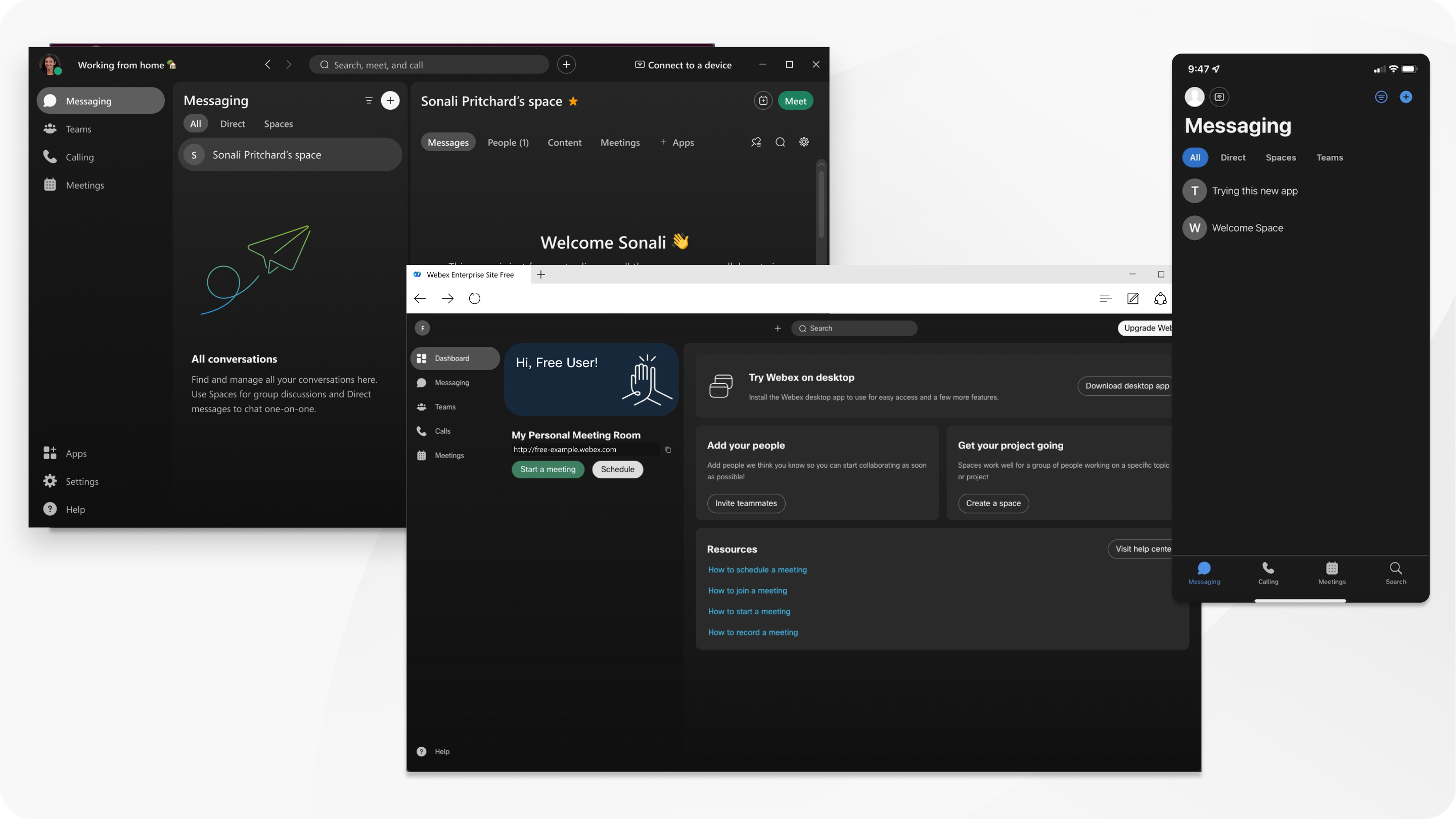
Begin by opening the WebEx app. Click on the “Start Meeting” button. Ensure your camera and microphone work. Choose a comfortable place for your meeting. Invite participants by sending the link. This link lets them join quickly. Check the time. Be punctual.
View the list of attendees. Click on “Participants” to see who joined. Mute people who make noise. This keeps the meeting clear. Allow others to speak by unmuting them. If someone leaves, they can join again. Just share the link once more.
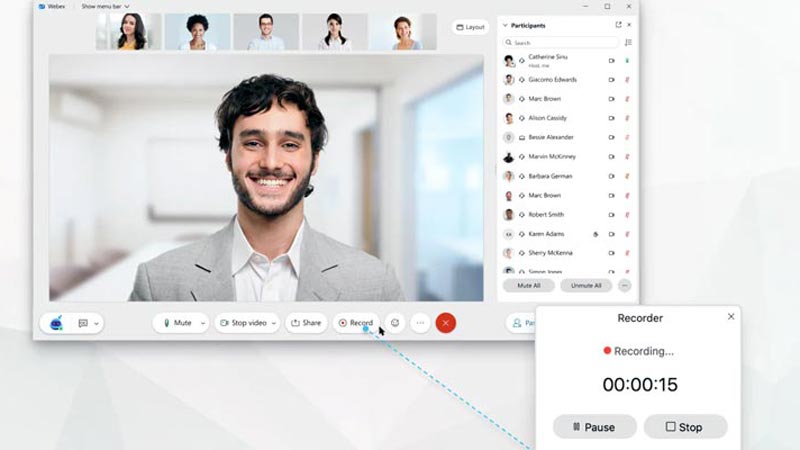
The control panel helps you manage. Use it to share your screen. Show slides or documents easily. Record the meeting if needed. This helps others who couldn’t join. End the meeting by clicking the “End” button. Thank everyone for coming. Ensure all leave the meeting safely.
Engaging Your Audience
Presentation tools keep your audience focused. Use slides to show key points. Highlight important data with graphs. Images make information memorable. Keep slides simple. Less text is better.
Interactive elements make meetings fun. Use polls to get opinions. Ask for feedback through chat. Encourage group discussions. Interactive tools make everyone feel involved. People enjoy sharing thoughts.
Questions show audience interest. Listen to questions carefully. Repeat them for clarity. Give short answers. If unsure, admit it. Promise to find answers. Respect all questions.
Credit: help.webex.com
Troubleshooting Common Issues
Encountering issues while hosting a WebEx meeting is common. Poor audio quality often disrupts communication. Ensure your microphone is properly connected to avoid sound problems.
Audio And Video Problems
Check if the microphone is muted. Unmute if needed. Ensure the camera is on for video. Sometimes, restarting the device helps. Verify permissions for camera and mic. Make sure the volume is up. Try using headphones for better sound.
Connectivity Challenges
Ensure your internet connection is stable. Use a wired connection if possible. Restart the router to refresh the network. Check if other apps are using bandwidth. Close them if needed. Move closer to the Wi-Fi source.
Participant Access Issues
Ensure participants have the correct link. Resend the invite if lost. Check if the meeting ID is correct. Confirm passwords are entered accurately. Ensure participants use updated software. Verify timezone settings for all.
Post-meeting Actions
Always share the meeting records with everyone. This helps in keeping track of what was discussed. Ensure all important points are noted. Send them in a format everyone can access. PDF or Word files are good choices. Make sure the files are not too large. Everyone should be able to download them easily.
After the meeting, send a follow-up email. Include main points and action items. This keeps everyone on the same page. People will know what to do next. Clear instructions are important. Avoid using complex words. Simple language helps everyone understand.
Feedback is very important. Ask for opinions on the meeting. Use a simple survey form. This helps improve future meetings. Make sure the questions are easy to answer. Feedback helps you understand what went well and what needs improvement. Always thank everyone for their feedback.
Credit: www.hungerford.tech
Frequently Asked Questions
How Do I Create A Webex Meeting?
Open Webex and log in. Click “Schedule” or “Start Meeting. ” Enter details like title and time. Invite participants by adding their emails. Confirm settings and click “Schedule” or “Start” to create your meeting.
How To Be A Host In A Webex Meeting?
To host a Webex meeting, log in to your Webex account. Schedule a meeting, or start an instant meeting. Click “Start Meeting” and ensure you’re the host. Adjust settings as needed. Share the meeting link with participants and manage the session using host controls.
Can You Host A Webex Meeting For Free?
Yes, you can host a Webex meeting for free. The free plan allows up to 100 participants, HD video, and screen sharing. Access basic features without any cost. Sign up easily on the Webex website to start hosting meetings today.
How Do I Use Webex For The First Time?
Download and install Webex from the official site. Create an account using your email. Launch Webex, sign in, and schedule or join meetings. Use the toolbar for video, audio, and chat options. Ensure your microphone and camera are enabled for seamless interaction.
Conclusion
Hosting a Web Ex meeting can be simple and efficient. Follow the steps outlined for a smooth experience. Prepare your agenda and invite participants early. Test your audio and video settings in advance. Engage your attendees with clear communication. Keep the meeting organized and on track.
Address any questions promptly. Wrap up with a brief summary. Ensure participants know the next steps. Practice makes perfect, so keep refining your skills. With these tips, you can host successful Web Ex meetings every time. Your confidence will grow with each session you conduct.


