
Are you ready to take your web application to the next level? Hosting your Web API in Internet Information Services (IIS) is a crucial step that can boost your app’s performance and security.
If you’re wondering how to do it effectively, you’re in the right place. Imagine the satisfaction of having your application run smoothly and securely, providing users with a seamless experience. Sounds appealing, right? In this guide, you’ll discover simple, step-by-step instructions to host your Web API in IIS.
Whether you’re a seasoned developer or just getting started, these insights will empower you to streamline your hosting process. Let’s dive in and unlock the full potential of your web application together.
Understanding Web Apis
A Web API allows computers to talk. It lets apps share data. Developers use it to connect software. It is like a bridge. It helps different systems work together. Web APIs are like helpers. They make things easy. They are important in tech.
Hosting Web APIs gives many advantages. It is easy to manage. You can control access. It is secure. Your data stays safe. Hosting saves time. It is always available. Users get data faster. It improves performance. It supports many users at once.
Credit: geeksarray.com
Preparing Your Environment
A computer with Windows is needed. Windows 10 or Windows Server are good. Ensure your computer has enough RAM. At least 4 GB of RAM is recommended. Check if your computer has enough space. You need 10 GB of free disk space. Make sure your processor is fast. A dual-core processor or better is suitable. This helps your web API run smoothly.
Open Control Panel on your computer. Look for Programs and Features. Click on Turn Windows features on or off. A list will appear. Find and check Internet Information Services (IIS). Click OK to install. Wait for the installation to finish. After installation, restart your computer. IIS is now ready for use. You can host your web API now.
Configuring Iis For Web Api
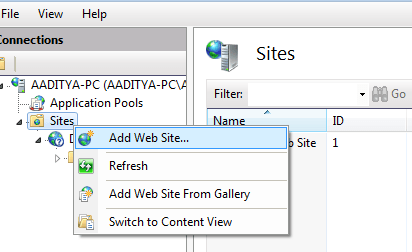
Open IIS Manager. Find the Sites node in the left panel. Right-click and choose Add Website. Fill in the site name. Choose a physical path. Set the port number. Click OK to create the site.
Each site needs an application pool. In the IIS Manager, click on Application Pools. Right-click and select Add Application Pool. Name your pool. Set the .NET version. Click OK. Assign this pool to your website.
Right-click on your website. Choose Add Virtual Directory. Enter an alias. Set the physical path. Click OK. This helps organize files. Virtual directories make access easy.

Credit: learn.microsoft.com
Deploying The Web Api
Open Visual Studio and find your project. Click on Build and select Publish. A window will appear. Choose Folder as the publish target. This will create files on your computer. These files are ready for the server. Click Publish. Wait for it to finish. Check the folder for your files.
Use FTP or a file manager. Connect to your server. Find the folder for your Web API. Copy the published files from your computer. Paste them into the server folder. Make sure all files are there. Check permissions. Ensure the server can read the files. You are ready to host your Web API.
Configuring Application Pool
Choose the correct .NET version for your application. Check compatibility with your code. Use the latest stable version for best performance. Ensure your code runs smoothly. Older versions might not support new features. Always double-check version requirements. Install necessary updates if needed.
Application pool identity keeps your app secure. Choose a strong identity for your pool. It ensures safety and efficiency. Avoid using default settings. Customize identity settings for your needs. Monitor identity regularly to prevent issues. Updates can change settings. Stay informed and adjust as required. This helps keep your app running smoothly.
Security And Authentication
HTTPS keeps data safe. It uses encryption to protect data. To enable HTTPS, get an SSL certificate. Install it on your server. This makes sure your data is secure. All data travels safely.
Authentication checks who you are. IIS supports many authentication methods. Use Windows authentication for secure access. Or use Basic authentication. But it needs extra care. Choose the right method for your needs. Always keep security in mind.
Testing And Troubleshooting
After setting up your Web API, it’s time to test. Open a web browser. Enter the API’s URL. Check if the data shows up. If not, your API might have issues. Use tools like Postman or cURL. These tools help test API requests. Make sure all endpoints work fine. Test each one separately. If errors show, check your code. Look for typos or missing pieces.
Sometimes, IIS shows errors. A 404 error means the page isn’t found. Check the URL again. A 500 error is a server problem. Look at your server logs. Logs tell what went wrong. Another issue is permission errors. Ensure that your files have the right permissions. Always check the Application Pool. It must be running. If stopped, start it again.
Monitoring And Maintenance
Setting up a Web API in IIS involves regular monitoring and maintenance to ensure smooth operation. Keep track of performance metrics and promptly address any issues to maintain optimal functionality. Regular updates and checks are essential for security and efficiency.
Using Iis Logs
IIS logs help track web API activities. They record visits and errors. These logs show how the API performs. Check them regularly for issues. They help find slow pages or broken links. Use logs to improve API speed. It’s important to keep the logs safe. Store them in a secure place. They contain sensitive data. Ensure only trusted people can see them.
Performance Tuning Tips
Improve API performance with simple steps. Update IIS regularly for better speed. Check server resources often. Avoid overloading the server. Keep the server clean and organized. Use cache to make responses faster. Minimize content sent by API. Monitor traffic to control load. Adjust settings for better efficiency. Test changes to see results. Document changes for future reference.

Credit: www.dotnetcurry.com
Frequently Asked Questions
Can Web Api Be Hosted In Iis?
Yes, you can host Web API in IIS. It supports ASP. NET applications, including Web API, enabling efficient hosting and management. Ensure proper configuration for optimal performance.
How Do I Host My Web Api?
Host your Web API on cloud platforms like AWS, Azure, or Google Cloud. Use Docker for containerization. Set up a server with Node. js, Apache, or Nginx. Secure your API with SSL certificates. Deploy your code using CI/CD pipelines for efficient updates.
How To Host A Web Service In Iis?
To host a web service in IIS, install IIS via Control Panel. Open IIS Manager, add a new site, and configure bindings. Deploy your web service files to the site’s directory. Ensure your application pool is set correctly, and test the service by navigating to its URL in a browser.
Can Web Api Be Self Hosted?
Yes, Web API can be self-hosted. Use tools like IIS, Apache, or self-contained hosting options. This allows full control over the server environment, security, and configuration. Self-hosting is ideal for custom solutions and better performance management. Ensure proper setup for optimal functionality and security.
Conclusion
Hosting a Web API in IIS simplifies access and management. It ensures your API runs smoothly and securely. This setup allows easy integration with existing systems. Users benefit from enhanced performance and reliability. Troubleshooting becomes straightforward with IIS tools. Follow the steps shared to avoid common pitfalls.
A properly hosted API improves user experience. It supports your application’s growth and scalability. Remember, good hosting practices are key. Ensure regular updates and maintenance for optimal performance. Hosting in IIS is a smart choice for stable API management. Embrace this approach to enhance your web application’s efficiency.


