
Have you ever created a Unity game and wondered how to share it with the world on the web? Hosting your game online can open doors to a global audience, allowing players from all corners to experience your creative masterpiece.
Imagine the thrill of seeing people enjoy and interact with your game, while you gain recognition and feedback from a wider community. You might think that bringing your Unity game to the web is complex, but it’s simpler than you expect.
You’ll discover the step-by-step process to host your Unity game online, ensuring it runs smoothly and efficiently. Don’t miss out on this opportunity to showcase your talent and let your game shine in the vast digital landscape. Keep reading to unlock the secrets of web hosting for Unity games and make your mark in the gaming world!
Unity Webgl Build
First, open your Unity software. Create a new project for your game. Choose 3D or 2D based on your game type. Ensure everything is organized. This helps in building later. Save your project often to avoid loss. Keep all assets in one folder. It makes things simpler.
Go to File and then select Build Settings. Choose WebGL from the list. Click on Switch Platform. Wait for it to finish loading. Now, click on Player Settings. Set the game resolution. Lower resolution means faster load times. Check other settings too. They affect game performance.
Return to the Build Settings window. Click on Build. Choose a folder to save your game. This process takes some time. Be patient. Once done, you will see a folder. It contains your WebGL build. This is what goes online. Make sure everything works fine. Test your game before hosting.

Credit: unity.com
Choosing A Hosting Platform
Some platforms offer free hosting. These can be great for beginners. You can test your game without spending money. But free options may have limits. Paid hosting gives more features. You get better support and performance. Paid plans often handle more traffic.
Many services can host your Unity game. GitHub Pages is popular for simple projects. Netlify offers easy setup and good speeds. AWS is more complex but very powerful. Heroku and Firebase are also good choices. Each has its own strengths and weaknesses.
- Think about your budget. How much can you spend?
- Consider the traffic. Will many people play?
- Check the features. Do you need special tools?
- Look at support. Can you get help if needed?
- Review ease of use. Is the platform simple to use?
Uploading Game Files
First, ensure your Unity game is ready to upload. Export it as a WebGL build. This format works well on the web. Check if the build folder has an index.html file. This file is important for the web.
FTP clients help transfer files to a server. Use a tool like FileZilla. Connect to your web server with your login details. Drag and drop your game files into the public_html folder. This makes them accessible online.
Some web hosts offer direct upload. Log into your host’s control panel. Use their file manager to upload your game files. Select your build folder and upload it directly. This process is quick and easy.
Configuring Server Settings
MIME types tell the browser about file formats. They help display files correctly. Add Unity’s MIME types to your server. This makes sure the game loads right. Check your server’s config files. Look for files like .htaccess or nginx.conf. Add new lines for Unity files there. Update for .unityweb and .data.gz types. Save changes and restart the server. Now, Unity files should work fine.
Cross-Origin Resource Sharing (CORS) allows resources from different origins. Enable CORS on your server. This helps your game access assets. Edit your server’s headers. Allow requests from different sites. Use Access-Control-Allow-Origin to permit requests. Set it to asterisk () for all origins. Or list specific sites. This makes sure resources load without errors.
Secure connections keep data safe. Use HTTPS for your game. It protects your data. Get a SSL certificate for your domain. Install it on your server. Update config files to use HTTPS. Check your URLs. They should start with https://. Secure connections build trust with users. They also improve game performance.
Testing And Debugging
Start by checking your game in different browsers. Each browser acts differently. Test on Chrome, Firefox, and Safari. Look for visual glitches. Listen for sound issues. Use tools like BrowserStack for testing. Fix any problems you find. Keep checking after each update.
Sometimes, games have load issues. Check the size of your files. Large files can slow down loading. Compress images and sounds. Another common problem is controls not working. Ensure your code is correct. Debug using developer tools. Always keep your game simple.
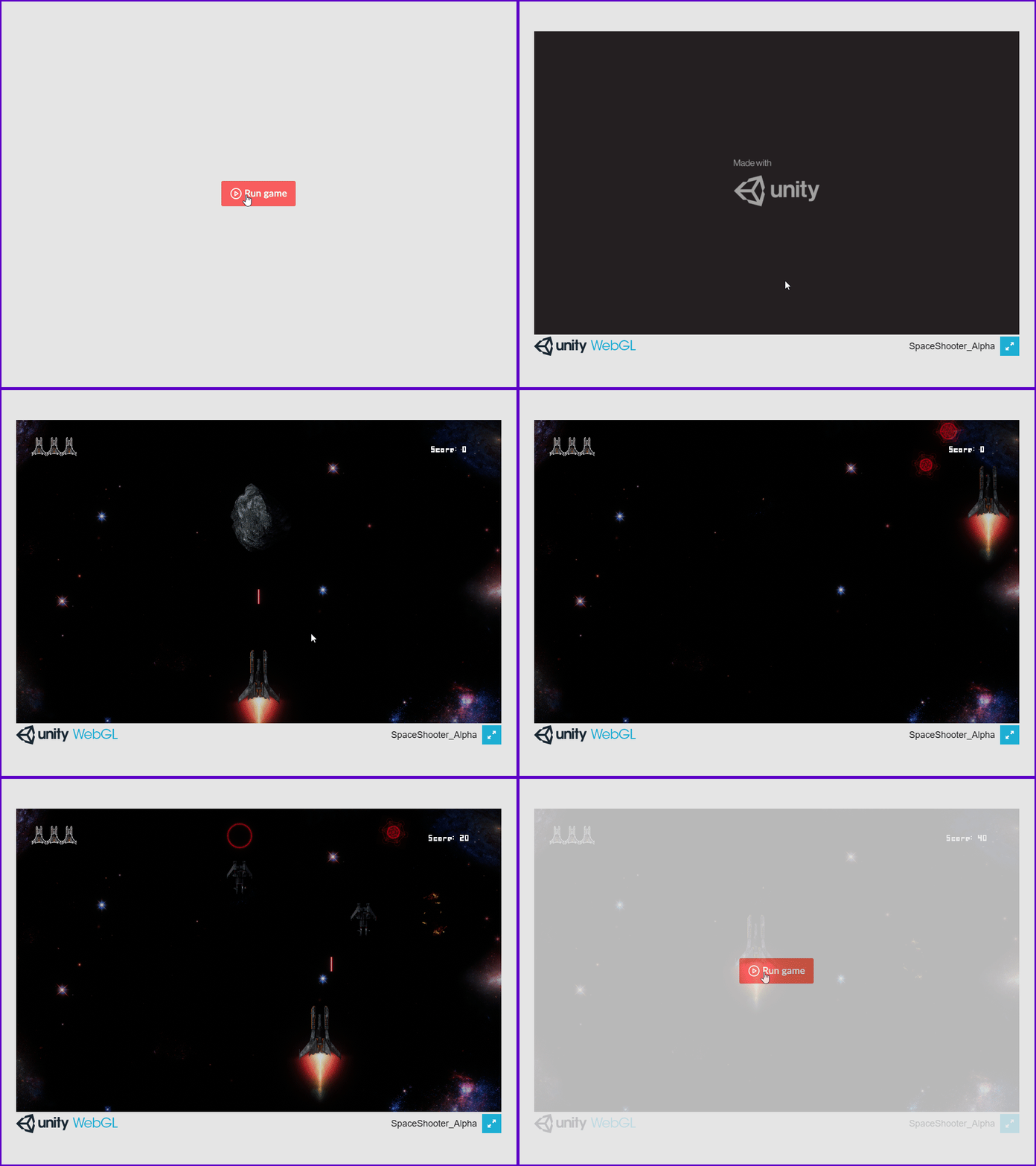
Make sure your game runs smoothly. Reduce the number of assets in your game. Use lazy loading for images. Minimize scripts and animations. Optimize textures and models. Keep your code clean and efficient. Regularly monitor game performance.
Credit: medium.com
Deploying Updates
Keeping track of changes is vital. Use a version control system. This helps in managing different versions of your game. It is like saving your work at different stages. You can go back if needed. This ensures stability and avoids errors.
Automating makes updating easy. Use tools to automate the deployment. This saves time and reduces mistakes. Changes go live faster. Every update gets delivered without much hassle. This keeps the game fresh for players.
Monitoring helps in catching issues early. Use tools to watch the game performance. Collect feedback from players. They can tell you what works and what doesn’t. This helps in making better updates. Happy players mean a successful game.

Credit: jibransyed.wordpress.com
Frequently Asked Questions
Can You Host Unity Games On A Website?
Yes, you can host Unity games on a website. Use WebGL to export your Unity game. Upload it to a web server. Ensure the server supports WebGL. This allows users to play your game directly in their browsers.
How To Make A Unity Game Run On A Website?
Build your Unity game using WebGL. Host the WebGL build on a web server. Embed the game in your website using an HTML iframe or a similar method. Ensure your server supports the required file types for Unity WebGL. Test the game to ensure it runs smoothly on different browsers.
How To Publish A Unity Game On The Web?
Export your Unity game using WebGL. Host the exported files on a web server or a platform like itch. io. Create an account on the hosting platform, upload your files, and publish. Ensure you test your game for compatibility and performance before going live.
Can You Run Unity Games On A Browser?
Yes, you can run Unity games in a browser using WebGL. WebGL builds allow Unity games to be played without additional plugins. This feature enhances accessibility and user experience. Ensure your browser supports WebGL for optimal performance.
Conclusion
Hosting a Unity game online involves simple steps. Begin with setting up your project. Ensure your game is WebGL compatible. Choose reliable hosting platforms. Upload your game files. Test thoroughly for bugs. Update regularly to improve performance. Engaging players is key to success.
Keep your content fresh. Monitor player feedback. Use analytics to understand user behavior. Make adjustments based on data. Stay informed on new tools and technologies. Unity offers powerful features for web games. With patience and practice, hosting your game becomes manageable.
Dive in and start sharing your creative ideas with the world.


