
Are you ready to unlock the full potential of SharePoint by hosting a custom web app? Imagine combining the robust capabilities of SharePoint with the flexibility and functionality of a tailor-made application, designed to meet your specific needs.
Whether you’re looking to streamline your business processes or enhance team collaboration, hosting a custom web app within SharePoint can be a game-changer for your organization. You might be wondering if this task is complex or time-consuming, but worry not! This guide will walk you through the entire process, breaking it down into manageable steps that you can easily follow.
We’ll show you how to integrate your web app seamlessly, ensuring it works perfectly within your SharePoint environment. By the end of this article, you’ll have the knowledge and confidence to take your SharePoint experience to the next level. Stay with us, and discover how you can transform your SharePoint into a powerful hub for your custom web applications.
Setting Up Sharepoint Environment
Start by creating a new SharePoint site. Choose a site template that fits your needs. Next, enter a name for your site. This will help others find it. Then, add a brief description. This tells others what your site is about. After that, select your site’s privacy settings. You can keep it public or private. Remember to click “Create” to finish.
Permissions control who can access your site. Go to the site settings page. Find “Permissions” under “Users and Permissions”. Click on it. Here, you can add people to your site. Choose their role: Owner, Member, or Visitor. Each role has different access levels. Owners can do everything. Members can edit. Visitors can only view. Always check your settings to ensure they are correct.
Credit: sharepoint.handsontek.net
Developing The Custom Web App
Picking tools is key for building a web app. Visual Studio is great for coding. Node.js helps with server tasks. React or Angular can build nice user interfaces. SharePoint APIs are important for connecting to SharePoint. Each tool has its own role. Choose tools based on your needs. Pick tools that fit your skills. This makes work easier and faster.
Start with the frontend. Create buttons and menus. Make sure they are easy to use. Backend is for data. Connect frontend to backend. Use APIs for this. Testing is crucial. Fix errors before launch. Security is vital. Protect data from hackers. Documentation helps future updates. Write clear instructions. This keeps the app running smoothly.
Integrating Web App With Sharepoint
Connecting a web app to SharePoint data is important. SharePoint has lists and libraries. These hold useful information. Apps can use this data to work better. Developers need to know how to link these. A good connection makes the app smart. It helps in fetching and updating data quickly.
SharePoint APIs are like special tools. They help apps talk to SharePoint. These APIs are easy to use. They help in retrieving and sending data. Developers must understand how APIs work. Using them can make apps fast. APIs improve the app’s performance with SharePoint. Proper use ensures data is safe and reliable.
Deploying The Web App
Package your web app for SharePoint. Use a zip file format. Ensure all files are included. This should have HTML, CSS, and JavaScript files. A manifest file is important too. It tells SharePoint about your app. A manifest file uses XML format. Make sure the file paths are correct. Double-check for any missing files.
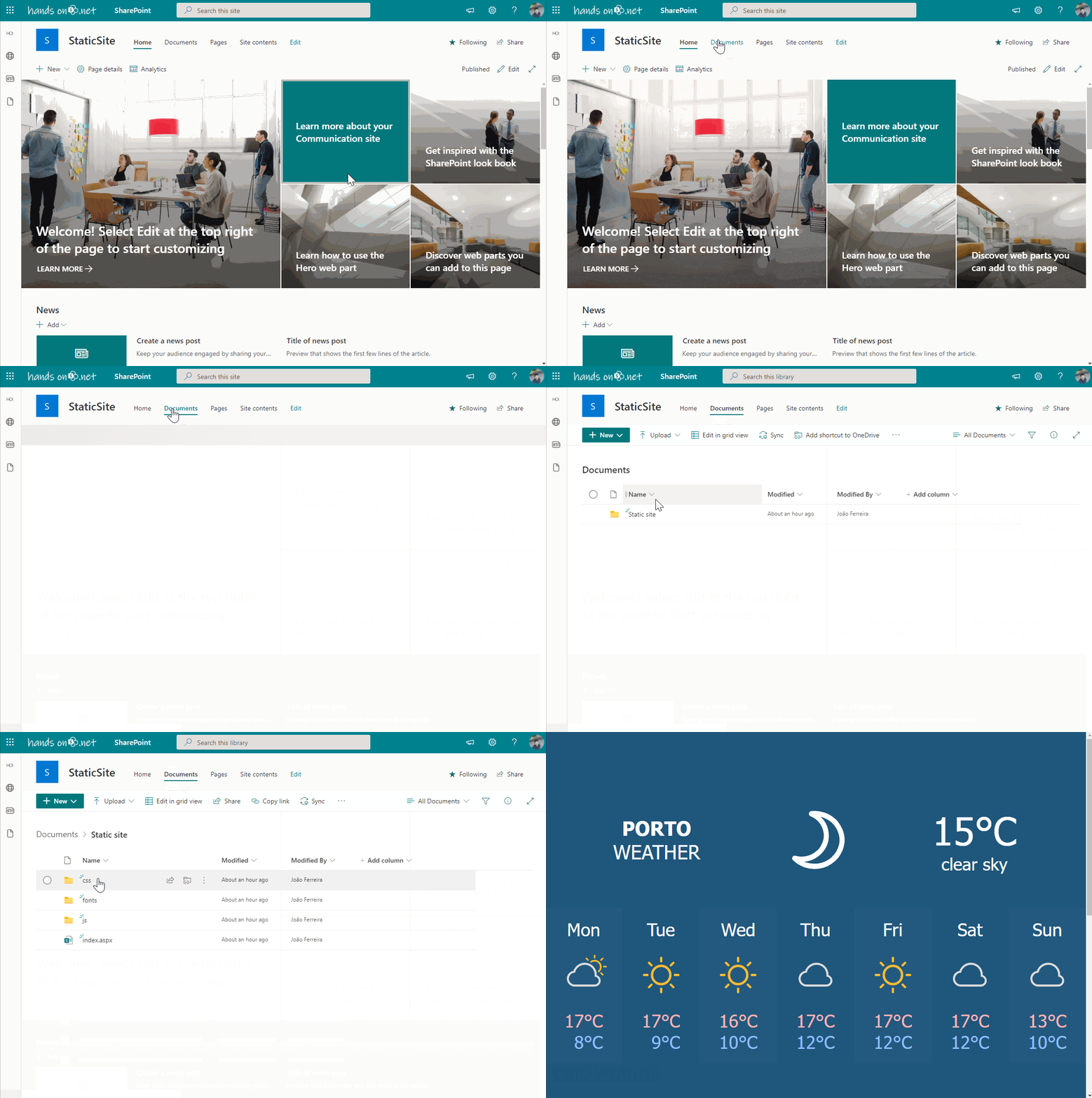
Log into your SharePoint site. Navigate to Site Contents. Find the Add an App option. Click it to begin. Choose Upload to add your package. Select your zip file. Click OK to upload. Wait for it to complete. After upload, your app is in SharePoint. Check if it appears correctly. Test the app for any errors.
Testing And Debugging
Testing your web app is important. Start with simple tests. Check if the app opens in SharePoint. Make sure buttons work. Test the forms for errors. Look at the layout. Is everything aligned? Open the app on different devices. Try it on a phone and a computer. Watch out for loading times. Does the app load fast? Ensure all links go to the right pages. These steps help find early problems.
Sometimes, things break. Error messages show up. Check the code for mistakes. Look at the console for clues. Is a file missing? Check file paths. Are permissions set? Make sure users can access the app. Restart the server if needed. Clear the cache to fix display problems. Ask a friend to test the app too. They might see what you missed. Keep logs to track issues. This helps find what went wrong.
Credit: learn.microsoft.com
Optimizing Performance
Fast load times are key for happy users. Use lightweight code for better speed. Minimize the use of large images and videos. They can slow down your app. Compress files to make them smaller. This helps them load quicker. Use content delivery networks (CDNs) to distribute data. CDNs store your data in multiple places. Users get data from the closest server. This reduces wait times.
Clear navigation makes apps easy to use. Users find what they need faster. Simple layouts help users focus. Limit the number of clicks to reach a goal. Responsive design is important. It makes apps work on all devices. Test your app on phones, tablets, and computers. Make sure all features work well. User feedback helps improve the app. Ask users what they like and dislike. Improve based on their input.
Maintaining And Updating
Keeping a web app in SharePoint needs care. Regular backups are very important. They save your data from getting lost. Check the app’s performance often. Slow apps make users unhappy. Clear cache to make the app run faster. Monitor security settings. Security keeps your app safe from hackers. Update any expired certificates. Expired certificates can lead to access issues. Train your team on new changes. Well-trained teams handle problems better.
Updates keep your app fresh. Install patches as soon as possible. Patches fix known bugs. Test updates in a small group first. This helps in catching errors early. Schedule updates during low-use hours. This avoids disrupting users. Keep a record of all updates. Records help in tracking changes. Communicate with users about the changes. This reduces confusion and keeps everyone informed.
Credit: mundrisoft.com
Frequently Asked Questions
How To Add A Custom App In Sharepoint Online?
Go to SharePoint Online, select “Site Contents,” click “Add an App,” and choose “Custom App. ” Upload your custom app package, then follow the prompts to install it. Ensure you have the necessary permissions.
How To Create A Web Application In Sharepoint?
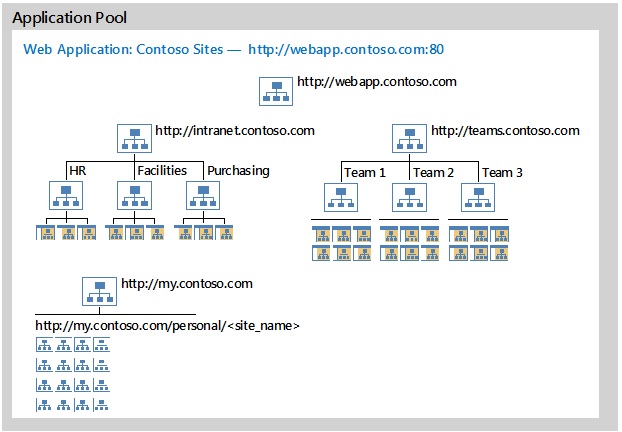
Create a SharePoint web application by accessing SharePoint Central Administration. Select “Application Management” and click “Manage web applications. ” Click “New” to configure the application settings. Set authentication and permissions, then finalize by clicking “OK. ” Ensure proper configuration for optimal performance and security.
How Do I Create A Custom Webpart In Sharepoint?
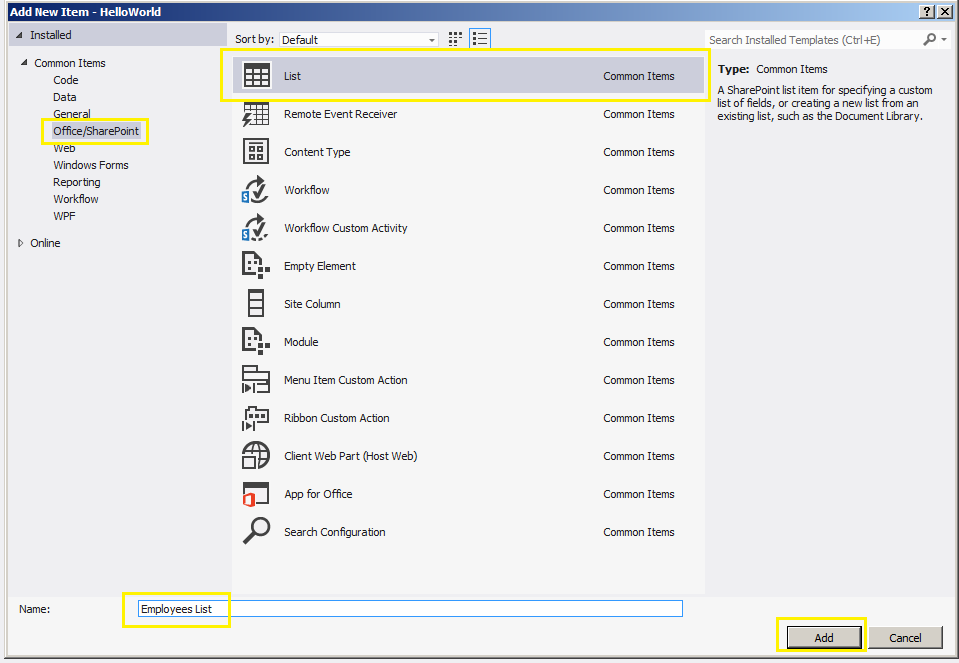
To create a custom webpart in SharePoint, use Visual Studio. Choose “SharePoint Add-in” template. Develop your code, build the project, and deploy it. Access the webpart from SharePoint’s “Site Contents” and add it to a page. Ensure you have SharePoint Designer or admin rights for deployment.
Can Sharepoint Be Used To Host A Website?
SharePoint can host a website, but it’s mainly designed for intranet portals and document management. For public-facing sites, consider using SharePoint Online or other hosting platforms. It offers customization options, but performance and scalability might be limited compared to traditional web hosting services.
Consider your specific needs before deciding.
Conclusion
Hosting a custom web app in SharePoint offers great flexibility. You can enhance your team’s collaboration effortlessly. Follow the steps carefully to ensure smooth integration. Check your permissions and configurations. Test your app frequently to avoid issues. Keep your interface user-friendly to boost engagement.
Tweak your settings as needed to optimize performance. SharePoint’s features can help maintain your app efficiently. Remember to update your app regularly for security. Hosting within SharePoint keeps everything centralized. Your team will appreciate the streamlined workflow. Embrace the ease of SharePoint for your web apps.


