
Struggling to make your text stand out in the WordPress Divi Theme? You’re not alone.
Whether you’re looking to emphasize a crucial point, draw attention to a special offer, or simply make your content more engaging, highlighting text is a powerful tool. But how do you do it effectively in Divi? The good news is, it’s easier than you think, and you don’t need to be a coding wizard to get it right.
This guide will walk you through simple steps to highlight text seamlessly, ensuring your message captures attention and keeps your readers hooked. Ready to transform your content with a splash of color and emphasis? Let’s dive in and make your words pop like never before!
Credit: www.elegantthemes.com
Setting Up Divi Builder
First, make sure the Divi Theme is installed. Go to your WordPress dashboard. Click on “Appearance”, then “Themes”. Find the Divi Theme. Click “Activate”. Your theme is now active. Check your site’s look to see changes.
Open a new or existing page. Look for the “Enable Divi Builder” button. Click it to start. The Divi Builder is now ready. You will see many options. These help you design your page. Try dragging modules into place. Use text modules to add words. Highlight text by selecting it. Then choose a highlight color. It’s easy and fun.
Customizing Text Modules
To highlight text, first choose a Text Module. Click on the module you wish to edit. The module will open for customization. Ensure you select the correct module. This is important for editing. Look for the settings icon. It appears as a gear symbol. Click this to start editing.
Text settings allow you to change styles. You can make text bold or italic. Change the font size for emphasis. Adjust colors to highlight key information. Choose bright colors for visibility. Use the background color option. This helps text stand out. Ensure your changes are visible and clear. Save changes when you finish. This applies them to your website.
Highlighting Text With Css
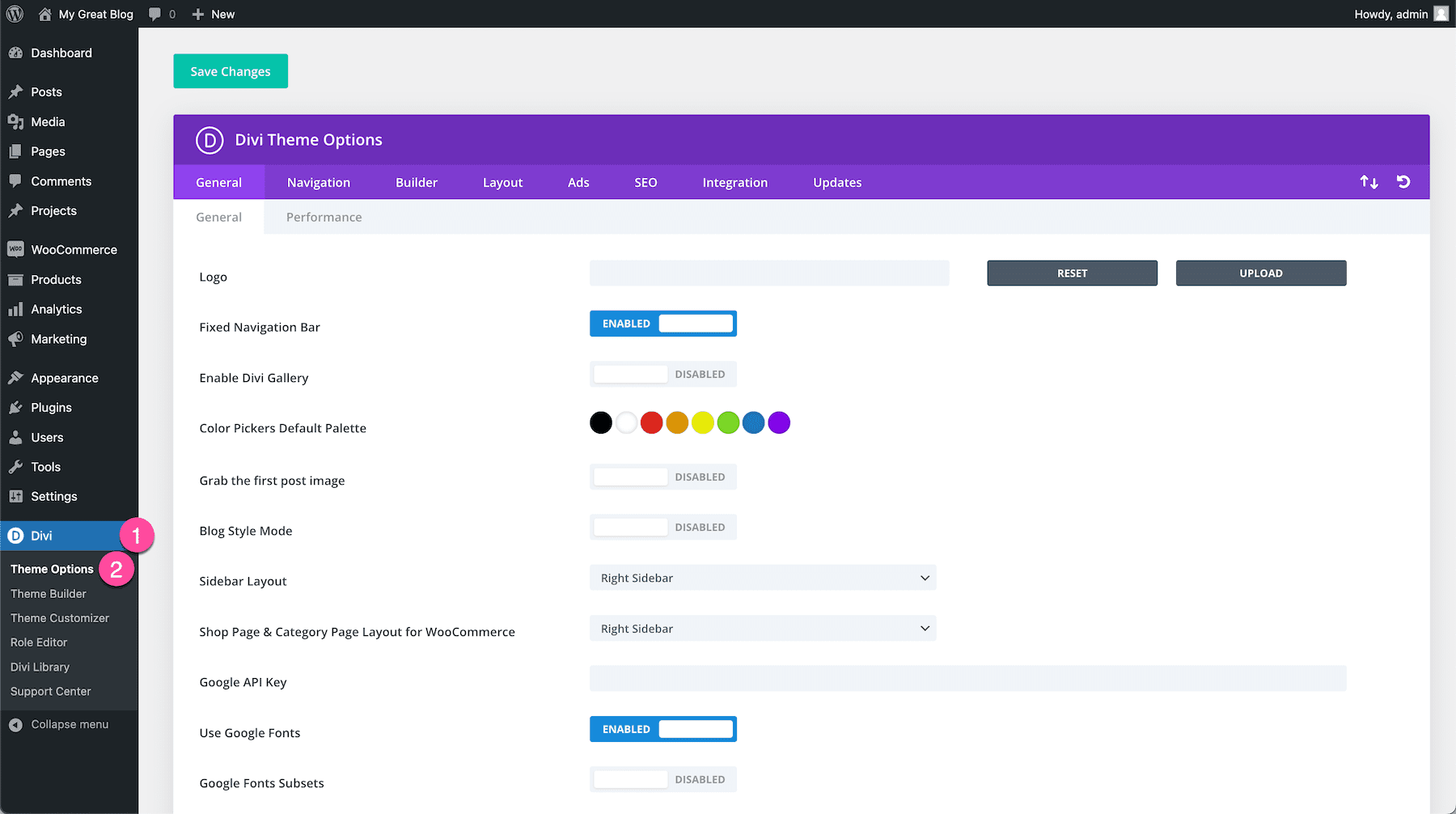
To highlight text in WordPress Divi Theme, use CSS code. First, open your WordPress dashboard. Go to Divi Theme Options. Click on the Custom CSS tab. Here, you can add your own CSS code.
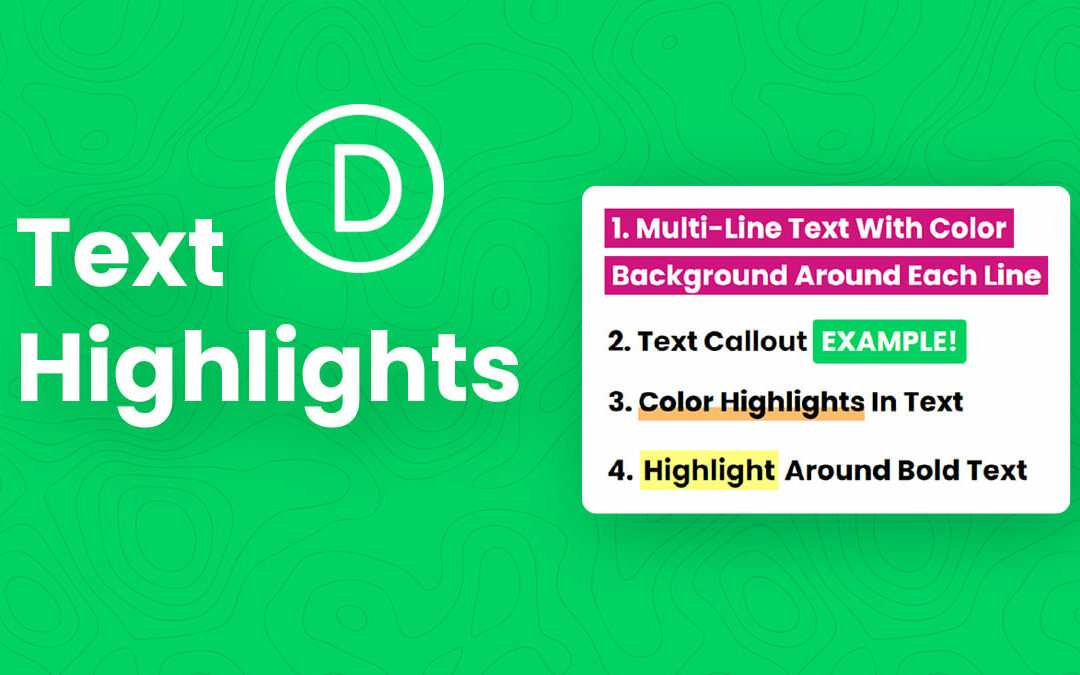
Use the CSS background-color property to make text stand out. For example, add background-color: yellow; to change text background to yellow. This makes it easy to see.
Targeting specific text with CSS is simple. Use a class or id to style only that text. First, add a class or id to your text in the WordPress editor. Then, in the Custom CSS, use .my-text-class or #my-text-id. Add your styling rules there.
This method keeps your design clean. It also ensures only the chosen text is highlighted. Always preview changes to see how they look on your site.
Credit: www.peeayecreative.com
Using Divi’s Built-in Features
Divi offers many text styles for your needs. You can make text bold, italic, or even underlined. These styles help your text stand out. Use the text module in Divi. Here, you find all these options easily. Choose the style you like. It changes the look instantly. Mixing styles can make text interesting. But, too many styles can confuse readers.
Highlighting text adds color behind words. This helps important words pop. In Divi, choose the text you want. Then, find the color option. Pick a bright color for the best effect. This makes your text easy to spot. Remember, too much color is not good. Use it to highlight only key points. This keeps your page neat and easy to read.
Enhancing Text With Backgrounds
Boost visibility by highlighting text in WordPress Divi Theme. Use background colors to make text stand out. Easy steps ensure your content captures attention and enhances readability.
Setting Background Color
Adding a background color makes text pop. Open the Divi Builder and select the text module. Find the background settings. Choose a color from the palette. Pick a color that complements the theme. Avoid clashing colors for readability.
Adjusting Transparency
Transparency adds depth to text. Open the background settings again. Look for the opacity slider. Slide to adjust transparency. Lower numbers mean more see-through. Higher numbers mean less see-through. Test different levels for best effect. Keep text easy to read against the background. Experiment to find the right balance.
Responsive Design Considerations
Ensure your text looks good on small screens. Text size is important. Make it large enough to read easily. Spacing between lines helps too. It makes text clear. Use simple fonts. They are easy to read. Avoid too many colors. Two or three are enough. They keep the design clean.
Check your design on different devices. Tablets, phones, and computers are important. Each device shows text differently. Preview mode in Divi helps. It shows how your site looks. Make changes if needed. This ensures all users have a good experience. Regular testing finds problems early. Fix them for better results.
Troubleshooting Common Issues
Easily highlight text in WordPress Divi Theme by using the built-in text module options. Adjust font color, background color, or use CSS for custom styles. Troubleshoot common issues like incorrect text color by checking settings and ensuring CSS codes are applied correctly.
Resolving Css Conflicts
CSS conflicts can cause issues. Text might not highlight as expected. This occurs when multiple styles clash. You should check your custom CSS settings. Ensure there are no overlapping style rules. Look for conflicting selectors. Remove or adjust them. This helps fix the problem.
Fixing Display Errors
Display errors make text appear wrong. The highlighted text might be hidden or misaligned. Ensure your theme settings are correct. Check if the correct text color is applied. Inspect the page using browser tools. Identify if the error is due to CSS. Adjust the code to fix display issues. Sometimes, clearing cache helps too.

Credit: www.elegantthemes.com
Frequently Asked Questions
How Can I Highlight Text In Divi?
To highlight text in Divi, use the Text Module’s custom CSS. Access the module settings, navigate to “Advanced” and “Custom CSS. ” Add the desired CSS code to highlight your text. You can also use inline CSS in the text editor for specific text highlights.
Can I Change Highlight Color In Divi?
Yes, you can change the highlight color in Divi. Use custom CSS to modify the background color property. Simply adjust the color code to your desired shade. This will apply the new color to the highlighted text throughout your Divi theme.
Does Divi Support Text Highlighting Plugins?
Yes, Divi supports text highlighting plugins. You can install WordPress plugins that offer enhanced text styling features. These plugins integrate seamlessly with Divi, allowing you to easily highlight text. Ensure the plugin is compatible with Divi before installation.
Is Coding Required To Highlight Text In Divi?
Basic coding knowledge can be helpful but isn’t necessary. Divi’s built-in options allow text highlighting with custom CSS. However, using inline CSS or plugins simplifies the process. Experimenting with Divi’s settings can achieve similar results without coding expertise.
Conclusion
Mastering text highlighting in Divi enhances your WordPress site’s appeal. It draws attention to important content, improving user engagement. Simple adjustments in Divi’s settings make a big difference. Now, your text stands out, guiding readers effortlessly. Remember, practice makes perfect.
Experiment with colors and styles to find what fits. Highlighting isn’t just a design choice; it’s a communication tool. Use it wisely to improve readability. With these skills, your website becomes more user-friendly. Enjoy crafting a visually appealing website with Divi.
Happy designing!


