
Imagine having a WordPress site where every page is perfectly tailored to your needs, even those that aren’t meant for public eyes. You might have pages that are still under construction, or perhaps you want to keep certain content exclusive to specific users.
Deleting these pages isn’t the solution, but hiding them could be. If you’ve ever wondered how you can manage your WordPress site more effectively without sacrificing valuable content, you’re in the right place. You’ll discover practical methods to hide WordPress pages without deleting them.
This is not just about keeping your site clean and organized; it’s about having the control to present the right information to the right audience. You’ll learn simple techniques that will empower you to manage your site like a pro, while maintaining the integrity of your content. Curious about how this can transform your site management? Keep reading to unlock these strategies and enhance your WordPress experience.
Reasons To Hide Pages
Some pages need to stay private. Privacy is key for many websites. Sensitive information is often shared on these pages. Not all pages are meant for everyone. User experience can improve when some pages are hidden. Search engines might not need every page. Organize your site better by hiding some pages.
Some pages are only for admin use. Keep these hidden from visitors. Draft pages are not yet ready for public view. Testing pages might confuse users. Old content can clutter your site. Hide it to keep your site clean. SEO is better when unimportant pages are hidden. Focus on important content by hiding less important pages.
Credit: docs.wpbeaverbuilder.com
Using Password Protection
Password protection is a simple way to hide pages. First, find the page you want to hide. Open the page settings. Look for visibility options. Choose “Password Protected”. Enter a unique password. Save your changes. Now, only people with the password can see the page.
Setting Up Passwords
Pick a strong password. Avoid common words. Use numbers and symbols. This makes the password hard to guess. Write the password down. Keep it safe. Share it only with trusted people. Make sure they understand the page is hidden.
Managing User Access
Control who sees the page. Only share the password with certain users. This keeps the page private. Review who has the password. If someone should not have access, change the password. Update users about new passwords. This ensures only authorized users see the page.
Adjusting Visibility Settings
WordPress gives three visibility options for pages. First is the Public option. Here, everyone can see your page. Next, there is the Private setting. Only you and site admins can view these pages. The last option is Password Protected. Users need a password to see this page.
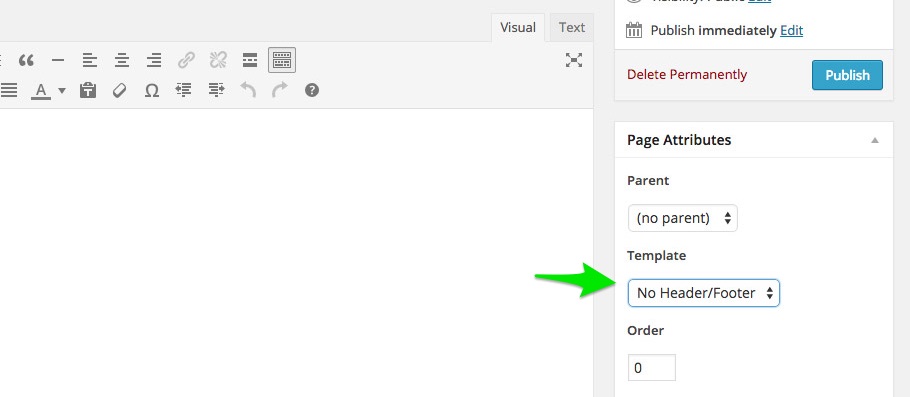
Changing these settings is easy. Go to the page editor. Look for the Visibility section. Choose your preferred option. This helps keep your page hidden, but not deleted. It’s a simple way to manage your content.
Utilizing Plugins
Plugins can help hide your WordPress pages. Simple Page Hiding is one of them. It’s easy to use. Another one is WP Hide Post. This plugin hides posts from different places. Like search results or feeds. Yoast SEO also offers a hide option. Use this to hide pages from search engines.
First, install the plugin. Go to the WordPress dashboard. Click on Plugins, then Add New. Search for your plugin. Click Install Now. After that, click Activate. Now, find the plugin settings. These are usually under Settings or Tools. You can choose where to hide your page. Remember to click Save Changes after setting up.
Editing .htaccess File
To hide a page, locate the .htaccess file. It is in the main folder of your website. Use a file manager or FTP client to open it. This file controls who can see your pages. Sometimes, it is hidden. Check your settings to make sure you can see hidden files. Make a backup of the file before changing it. This helps if something goes wrong later.
Add special code to the .htaccess file. This code tells the server to restrict access. Paste the code at the end of the file. Be careful not to change other parts of the file. Here is an example:
# Restrict access to specific page
|
Replace “example-page.html” with your page name. Save changes and test the page. It should be hidden now. If not, check for errors in the code. This method keeps the page safe and hidden.
Customizing WordPress Themes
Changing theme files helps hide pages easily. Locate the theme folder in WordPress. Find the page template file. Open it using a text editor. Add PHP code to hide pages. The code checks for page IDs. If the ID matches, it won’t show the page. This process requires careful editing. Incorrect changes can break the site.
CSS can hide pages without deleting them. First, get the page ID. Use the browser’s inspector tool. Right-click on the page and select “Inspect.” Find the page ID in the code. Then, add CSS to the theme’s stylesheet. Use the code display: none; for the page ID. This hides the page from visitors. Remember, the page is still on the site. Only hidden from view.
Seo Considerations
Hiding WordPress pages without deleting them is essential for maintaining site structure. Use plugins or adjust visibility settings to control access. This approach keeps your content organized while ensuring pages remain accessible for future use.
Impact On Search Rankings
Using noindex tags can be helpful. These tags tell search engines not to show a page in results. This keeps the content hidden from the public eye. It does not delete the page. It remains accessible to you. It can still be useful for internal navigation. You maintain control over the visibility of pages. This technique can protect your private content. It also avoids cluttering search results. Noindex keeps pages out of search rankings. Avoid using noindex on important pages. Always think about the impact on your site’s overall ranking. Use it wisely for non-essential content.
Using Noindex Tags
Noindex tags are simple to add. They are used in the page’s HTML code. Adding a noindex tag is easy. You can find many guides online. These guides help you add tags step by step. You can also use plugins in WordPress. Plugins make it easy to apply noindex tags. They do not require coding skills. This makes them perfect for beginners. Ensure you follow best practices. This ensures the tags work effectively. Test your pages after adding tags. Confirm they are hidden from search engines.

Credit: www.youtube.com
Testing Page Visibility
WordPress lets you hide pages without deleting them. This keeps your site organized. First, check the page settings. Make sure the visibility is set to private. Also, verify the page URL is correct. This ensures the page is not publicly accessible.
Use plugins to control page visibility. Popular plugins like Yoast SEO offer options to hide pages. These plugins can help set up redirects. This prevents users from accessing hidden pages.
After hiding a page, test its visibility. Use incognito mode in your browser. This shows if the page is still accessible. If it appears, double-check settings. Ensure the page is marked as private or draft.
Inspect the site map for hidden pages. Sometimes, hidden pages appear in site maps. Adjust settings to exclude these pages. This keeps them invisible to search engines.
Sometimes, hidden pages might show up. Check plugin settings first. Ensure plugins are updated. Outdated plugins can cause visibility issues.
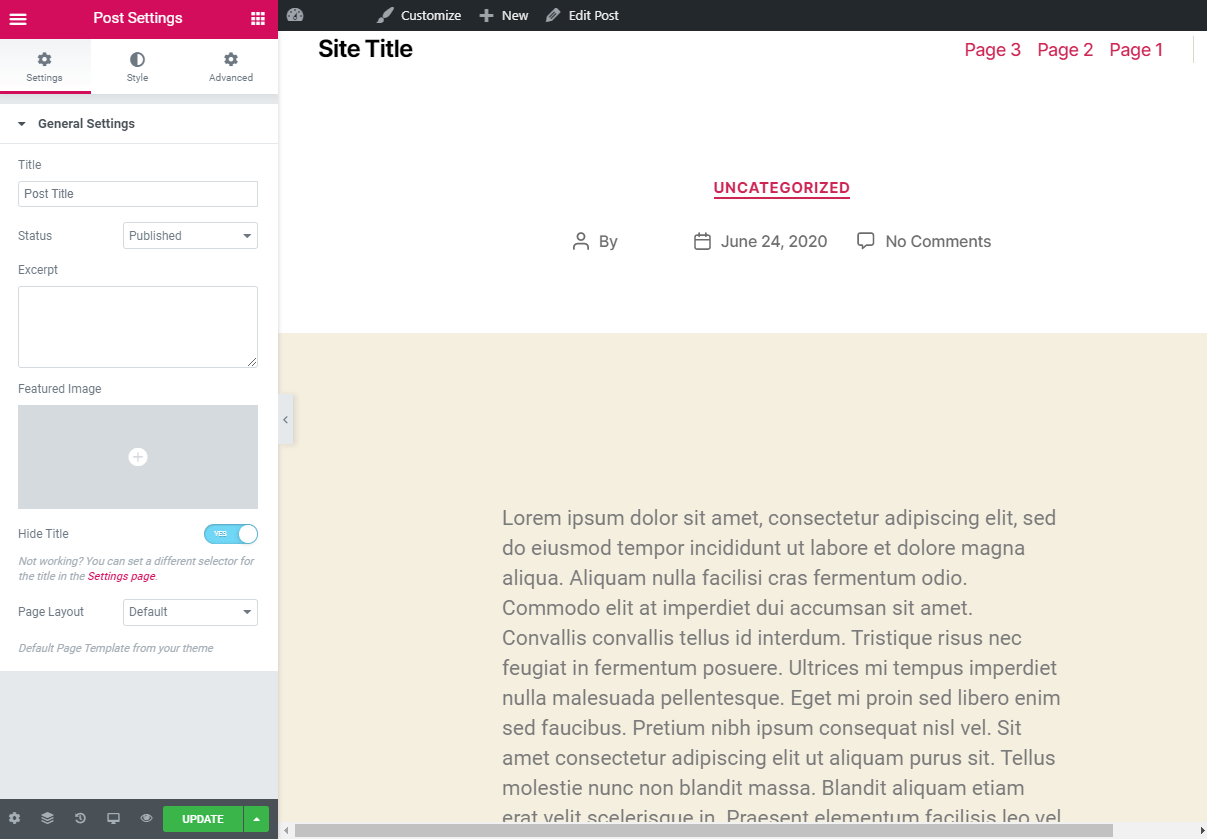
Review theme settings. Themes can override page visibility settings. Adjust them to ensure pages stay hidden.
Seek help if problems persist. Forums and support sites offer solutions. They guide you to fix visibility issues.
Credit: kinsta.com
Frequently Asked Questions
How Can I Hide A WordPress Page?
You can hide a WordPress page by adjusting its visibility settings. Navigate to the page editor, select “Visibility,” and choose “Private” or “Password Protected. ” This ensures only authorized users can view the page, keeping it hidden from public view.
Is It Possible To Hide Pages Without Plugins?
Yes, you can hide pages without plugins by using WordPress’s built-in features. Adjust the page’s visibility settings to “Private” or “Password Protected. ” Alternatively, use a custom menu to exclude specific pages, keeping them out of site navigation.
Can Hidden Pages Affect Seo?
Hidden pages can affect SEO if they’re linked or indexed. Ensure no internal links point to hidden pages and use the “noindex” tag. This prevents search engines from indexing them, preserving your site’s SEO integrity and preventing unwanted visibility.
Why Hide WordPress Pages Instead Of Deleting?
Hiding pages preserves content for future use or reference. It maintains site structure and avoids broken links. You can easily restore hidden pages without recreating content, saving time and ensuring continuity in your site’s development.
Conclusion
Hiding WordPress pages is simple and effective. No need to delete them. Use plugins or adjust visibility settings. This keeps your site organized and clean. Hidden pages stay safe for future use. Great for managing content efficiently. Visitors will only see what you want to show.
This enhances user experience. Keep experimenting with different methods. Practice makes perfect. Make sure your WordPress site meets your needs. With these tips, control your content better. Enjoy a tidy, well-managed website. This boosts site performance and visitor satisfaction. Stay organized and maintain flexibility in your content management.


