
Are you tired of nosy competitors snooping around your WordPress website to discover which theme you’re using? It’s time to take control and ensure your site’s secrets stay hidden.
You put a lot of effort into crafting a unique online presence, and it deserves to remain yours alone. Imagine the peace of mind knowing your hard work won’t be easily replicated by others. In this guide, you’ll learn practical steps to keep your WordPress theme under wraps from tools like “What Theme is That.
” By following these simple techniques, you’ll safeguard your website’s individuality and maintain your competitive edge. Let’s dive in and secure your WordPress site once and for all.

Credit: themegrill.com
Why Hide WordPress Theme
Many websites use WordPress themes. These themes help in making websites look good. But others can see what theme you use. They might copy your website design. This is not good for your unique look. Hiding your theme can keep your design safe. It makes your website special. No one will know your secret theme.
Website security is important. Some people try to hack websites. They look for weaknesses in themes. Hiding your theme makes it harder for them to find out. This makes your website safer. You can protect your content better. Keeping your theme hidden helps keep out bad people. Your website stays strong and secure.
Methods To Hide WordPress Theme
Customizing theme files helps hide your theme. Go to your WordPress directory. Look for the style.css file. Remove theme details from this file. This makes it harder for others to find your theme. But be careful. Always save a backup before making changes. This ensures you can recover if something goes wrong.
Child themes are a safe way to edit themes. Create a child theme to hide your main theme. This keeps the original theme safe. Changes are made in the child theme only. This way, the main theme remains hidden. It’s a good practice and helps in easy updates.
The functions.php file is powerful. You can add or remove functions here. To hide theme details, add specific code. This makes your theme less visible. Always test changes on a test site first. This keeps your main site safe from errors.
Plugins For Concealing Theme
WP Hide & Security Enhancer is a great plugin. It helps to hide your theme. It makes your site more secure. Hide My WP is another choice. It can hide theme names and files. Both plugins are popular. They keep your theme safe from prying eyes.
First, download the plugin. Next, go to your WordPress dashboard. Click on “Plugins” and then “Add New”. Upload the plugin file. Click “Install Now”. After installation, activate the plugin. Follow the setup guide. This will help you configure it. Now, your theme is hidden and secure.
Modify Css And Javascript
Changing file names can help hide your theme. Use unique names for CSS and JavaScript files. This makes it hard for others to guess. Avoid using common names like “style.css” or “script.js”. Give them custom names. This adds a layer of security. It also keeps your theme hidden.
Obfuscation means making code hard to read. You can use tools to do this. It scrambles the JavaScript code. This makes it look messy. But it still works. Obfuscation hides the logic of your theme. It’s like a puzzle for others. They can’t easily find out what theme you use. This keeps your theme safe and secure.
Server Configuration Changes
Alter server settings to make WordPress invisible to tools like “What Theme is That”. Adjust file paths and hide common identifiers. This keeps your site’s design details private and secure.
Using .htaccess
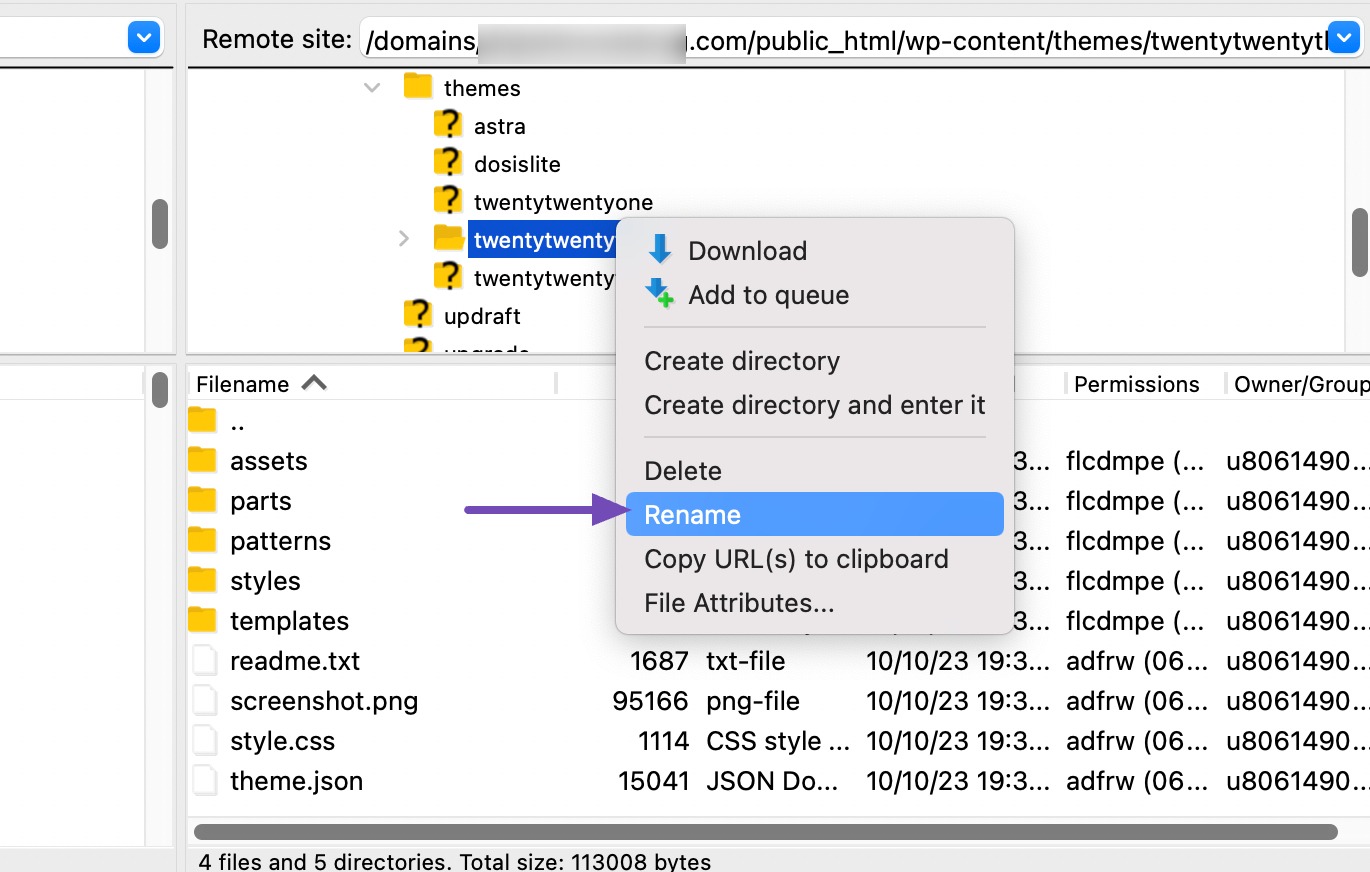
The .htaccess file is a powerful tool. It helps control server settings. To hide WordPress, add rules in this file. These rules stop theme detection. First, find the .htaccess file in your WordPress folder. Open it with a text editor. Be careful when editing. A small mistake can cause errors.
Add this code to hide themes:
    Order allow,deny

    Deny from all
This code blocks access to certain files. These files reveal theme info. Save the file after editing. Check your website. Make sure it works fine. If it breaks, remove the code. Double-check everything again. Always backup before editing.
Credit: rankmath.com
Testing The Effectiveness
Online tools can detect your theme. These tools are easy to use. Enter your website URL. The tool will show your theme. To hide your theme, make changes. Use custom CSS. Modify your theme’s files. This makes detection harder. Some tools might still detect it. Test with multiple tools. Ensure your theme is hidden. Be thorough. Check regularly. New tools pop up often. Stay ahead.
Manual checks are important. View your page source. Look for theme names. Check CSS files. Theme names can be here. Remove or rename these files. This makes it harder to find. Use browser tools. Inspect elements. Look for theme-related code. Change or hide it. This helps keep your theme hidden. Regular checks are best. Stay vigilant. Protect your theme details.
Common Challenges
Many struggle with hiding WordPress themes from tools like “What Theme is That. ” Plugins and code modifications can confuse these detectors. Balancing functionality and security without disrupting site performance is crucial for success.
Compatibility Issues
Plugins might not work well with all themes. This can cause layout problems or broken features. Some themes use custom code. This can conflict with plugins. Always check if a plugin is compatible with your theme. Look for user reviews or support forums. These can help you find solutions. It’s important to keep everything updated. Updates fix bugs and improve compatibility.
Performance Impact
Plugins can slow down your website. They might add extra scripts or styles. This can make your site load slowly. A slow site can lose visitors. Choose plugins that are lightweight. Look for those that offer performance settings. These settings help reduce loading time. Always test your site after adding new plugins. Use tools like PageSpeed Insights. This helps you see any performance issues. Keep your site fast and efficient.
Best Practices
Prevent detection of your WordPress theme by utilizing plugins designed to conceal theme details. These tools mask theme identification, ensuring website privacy. Implementing security measures effectively keeps unwanted discovery tools at bay.
Regular Updates
Keeping WordPress updated is important. New updates fix many problems. They improve security and features. Install updates as soon as they are available. This will help hide your site’s theme. Updates make it harder for tools to detect your theme. Regular updates also keep your site fast and safe.
Monitoring For Changes
Check your site often. Watch for unexpected changes. This can be new files or strange activities. Use tools to help monitor your site. They alert you about changes. This helps keep your theme hidden. Monitoring helps keep your site healthy. It stops problems before they grow.

Credit: themegrill.com
Frequently Asked Questions
How Can I Hide My WordPress Theme Details?
To hide your WordPress theme details, use plugins like “Hide My WP”. These plugins effectively conceal theme and plugin names. Additionally, customize the site’s source code to remove identifiable information, ensuring your theme remains hidden from tools like “What Theme is That”.
Why Should I Hide My WordPress Theme?
Hiding your WordPress theme enhances security by preventing hackers from exploiting known vulnerabilities. It also maintains privacy, ensuring competitors can’t easily replicate your site’s design. Concealing theme details also prevents unwanted curiosity from visitors using theme detection tools.
Are There Plugins To Hide WordPress Theme?
Yes, plugins like “Hide My WP” and “WP Hide & Security Enhancer” are available. These tools help conceal your theme and plugins, enhancing security and privacy. They modify URLs and remove identifiable information, making it difficult for theme detection tools to uncover details.
Is Hiding WordPress Theme Legal?
Yes, hiding your WordPress theme is legal. It’s a common practice to enhance security and privacy. By concealing theme details, you prevent unauthorized access and protect your design from competitors. Ensure compliance with WordPress guidelines while implementing these changes.
Conclusion
Hiding your WordPress theme can boost privacy. Simple steps make it possible. Tools and plugins offer easy solutions. These methods protect your site’s identity. Visitors won’t easily guess your theme. You control the look and feel. Keep your site unique and secure.
Explore options that work best for you. Online resources can guide you further. Remember, your site deserves protection. With these tips, enhance your website’s privacy. Stay informed and safeguard your site. Always prioritize security and functionality. Enjoy a seamless WordPress experience with peace of mind.


