
Are you struggling with a bulky header in your WordPress theme that just won’t go away? You’re not alone.
Many WordPress users find themselves wanting a cleaner, more streamlined look for their website, but are unsure how to achieve it. Imagine a website where your content takes center stage, not overshadowed by an intrusive header. Sounds appealing, right? In this guide, you’ll learn the simple steps to hide the header in your WordPress theme, giving your site a fresh, modern appearance.
Whether you’re a beginner or a seasoned WordPress enthusiast, this guide will empower you to take control of your website’s design. Keep reading to discover how easily you can transform your site and enhance your visitors’ experience.

Credit: ultimateblocks.com
Reasons To Hide The Header
A clean page can look better. Less clutter makes the design shine. Visitors see the main content first. This creates a sleek and modern look. It’s great for websites focusing on images or art. Simplicity can be very attractive.
Fast loading times are crucial. A heavy header can slow a site down. Visitors like quick and easy navigation. Simplified layouts help users find what they need. They stay on your site longer. Happy users come back.
Direct attention to the main content. Headers can distract visitors. A clear focus helps users understand your message. Highlighting content makes it more effective. Readers engage more with a straightforward presentation. This keeps them interested and informed.
Credit: www.lverbeeck.com
Customizing Header Visibility
The WordPress Theme Customizer is an easy tool. It helps to change how your site looks. To hide the header, open the Customizer. Next, find the Header Options. Some themes have a toggle to hide it. Always check your theme settings first. Save changes when done. Your header should be hidden now.
You can change the header.php file. This needs some coding skills. First, go to your WordPress Dashboard. Click on Appearance and then Theme Editor. Find the header.php file. Remove or comment out the code you don’t need. Be careful. Wrong changes might break your site. Always save a backup first.
CSS is another way to hide the header. Go to your WordPress Customizer. Find the Additional CSS section. Add this code: header { display: none; }. This code hides the header. Save your changes. Check your site to see if it worked. CSS changes are quick and safe.
Utilizing Plugins For Header Control
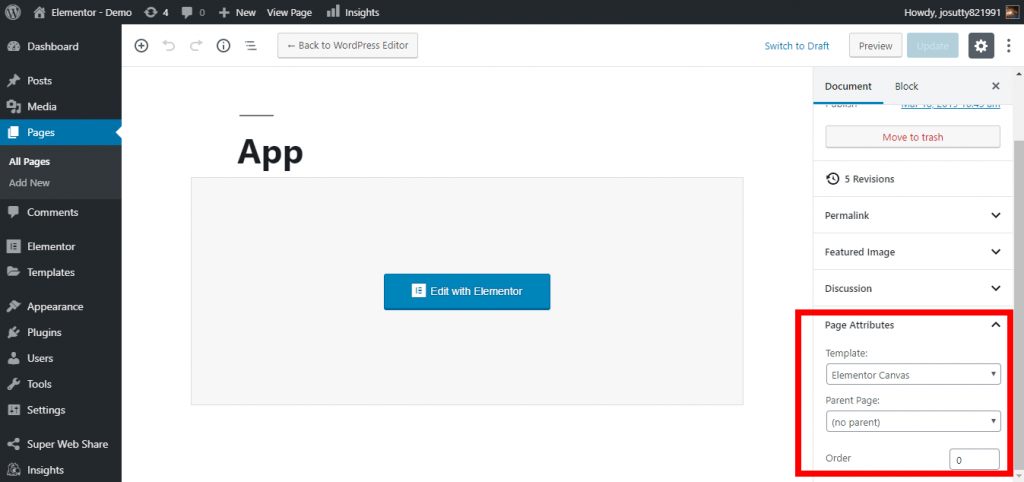
Plugins can help control your WordPress header. They make tasks easy. Elementor is a popular choice. It allows you to customize the header. Header Footer Elementor is another option. It works well with many themes. WP Header Images adds images to headers. These plugins are free and easy to use.
First, go to your WordPress dashboard. Click on Plugins. Then select Add New. Search for your plugin. Click Install Now. After installation, click Activate. Find the plugin in settings. Follow on-screen instructions to set it up.
Not all plugins work with every theme. Test plugins with your theme first. Check for any errors. Some themes have built-in header controls. Consult theme documentation for guidance. You can also ask support forums for help.
Mobile Optimization
Easily hide the header in your WordPress theme for better mobile optimization. Start by accessing the theme’s customizer settings. Use CSS code to make the header disappear on smaller screens, improving user experience and page speed.
Responsive Design Considerations
Responsive design helps your website look good on all devices. Phones, tablets, and computers. It’s important to make sure everything fits on the screen. The header might not need to show on small screens. It saves space for more important content. Hiding the header can improve the user experience. Visitors find what they need faster.
Testing Header Visibility On Devices
Testing is key. See how the header looks on different devices. Use tools that show your site on phones and tablets. Check if the header is hidden properly. Make sure it doesn’t pop up by mistake. This ensures a clean and easy-to-read website for everyone. Testing can help spot issues early. Fix them before they confuse users.
Troubleshooting Common Issues
Theme conflicts can cause header hiding problems. First, check the theme settings. Some themes have an option to hide headers. Make sure it’s enabled. Switch themes to see if the issue persists. Try a default WordPress theme like Twenty Twenty-One. This helps identify if the problem is theme-specific. In some cases, custom themes may conflict with plugins. Disable plugins one by one. Check if the header disappears. This helps find conflicting plugins causing the issue.
CSS errors often affect header visibility. Inspect the header using browser tools. Look for CSS rules hiding the header. You may find a rule like display: none;. Remove or modify it to make the header visible. Sometimes, CSS rules from plugins interfere with theme styles. Ensure the theme’s CSS file loads after plugin files. This ensures theme styles override plugin styles. Always backup your CSS file before editing. This helps in case of mistakes.
Plugins can sometimes hide headers. Check plugin settings for header options. Some plugins have settings to hide or show headers. Ensure these settings are correct. Update plugins regularly. Outdated plugins might cause issues. Deactivate plugins to test header visibility. Activate them one by one. Observe which plugin causes the header to hide. Consider replacing problematic plugins with alternatives. This helps maintain header visibility and functionality.
Best Practices For Header Management
Hiding the header should not break your site. Ensure all links and menus still work. Visitors need to find their way around easily. Use tools or plugins to check. They help in spotting any issues.
A nice look is important. But, usability comes first. Make sure your site is easy to use. A pretty site is good. But a usable site is better. Test your design with friends. Ask if they can find what they need.
WordPress themes update often. Keep your theme up to date. This helps keep your site safe. It also fixes bugs. Set reminders to check your site. Look for any problems that need fixing.
Credit: roconpaas.com
Frequently Asked Questions
How Can I Remove The Header In WordPress?
To hide the header in WordPress, go to the theme customizer. Navigate to “Additional CSS” and enter the CSS code to hide the header. Save the changes and refresh your site to see the header removed.
Can I Hide The Header Without Coding?
Yes, you can hide the header without coding. Use a plugin like “Header Footer Code Manager. ” Install and activate it. Then configure it to hide the header by selecting the appropriate options in the plugin settings.
Will Hiding The Header Affect Seo?
Hiding the header might affect SEO if it contains important navigation links. Ensure important links are accessible elsewhere. Use schema markup to maintain SEO structure. Consider consulting with an SEO expert if unsure.
Is There A Plugin To Hide The WordPress Header?
Yes, plugins like “CSS Hero” or “Elementor” can hide the header. They allow customization without coding. Install the plugin, access its settings, and follow the instructions to hide the header effectively.
Conclusion
Hiding the header in WordPress can be simple and effective. Follow the steps outlined to achieve a cleaner look for your site. A minimal header can enhance the user experience. It may also improve page load speed. Experiment with different settings to find what suits your design best.
Remember to always back up your site before making changes. This ensures you can revert if needed. With these tips, you can customize your WordPress theme easily. Enjoy a tailored website that meets your needs. Happy editing!


