
Ever wished you could tailor your WordPress site to fit your exact vision? Maybe you’ve chosen a theme that looks perfect, but that pesky header image doesn’t quite match your style.
You’re not alone—many WordPress users find themselves wanting to tweak their site’s appearance without diving into complex coding. The good news is, hiding that header image might be simpler than you think. Imagine the freedom of having full control over your site’s design, without unnecessary distractions.
By learning how to hide the header image in your WordPress theme, you’ll be one step closer to achieving a clean, professional look that perfectly suits your brand. You’ll discover straightforward tips and techniques that will empower you to customize your site effortlessly. So, if you’re ready to take charge and make your WordPress site truly yours, keep reading to unlock the secrets to a clutter-free header.
Choosing The Right Theme
A theme is like a dress for your website. Some themes have big header images. These images can be distracting. Not every theme allows you to hide them easily. Check the theme settings first. There might be an option to hide or remove the header image. Some themes need custom code. This can be tricky. You may need help from someone who knows coding. Themes with flexible settings are better. They allow more customization. Some themes have a simple toggle button. This makes hiding images easy. Always choose themes that suit your needs. Themes should be easy to use.

Credit: www.youtube.com
Accessing Theme Customizer
To hide the header image, first access the Theme Customizer. Log into your WordPress dashboard. Look for Appearance in the menu on the left. Click on it to find the Customize option. This opens the Theme Customizer.
The Theme Customizer lets you change many parts of your site. You can adjust colors, fonts, and images. Look for the Header Image section. You may see an option to hide the image. Use the toggle or checkbox to hide it.
If there’s no direct option, you might need custom CSS. In the Theme Customizer, find the Additional CSS section. Type in custom code to hide your header image. This helps control your site’s look without changing the theme files.
Using Css To Hide Header Image
Open your WordPress dashboard. Click on Appearance. Choose Customize. There, find the Custom CSS option. Some themes call it Additional CSS. This is where you can add your custom code. It’s a simple process. Anyone can do it.
Locate the header image’s class or ID. You might see something like .site-header or #header-image. Enter this code: { display: none; } in the CSS box. This will hide the image. Simple, right? Remember to save your changes. Check the front-end to ensure the image is gone.
Utilizing Theme Settings
Some themes let you change the header image. Look for settings under Appearance in your dashboard. Click on Customize. You might see a header section. Options here can include images. You might find a button to hide it. Some themes call this Display Options. Others name it Header Settings. Explore these options to hide the image.
If settings allow, disable the image. Simply uncheck the box. Some themes need you to upload a blank image. This tricks the theme. Make sure to save your changes. The image should not appear now. If confused, consult theme support. They guide you through settings. Always double-check your changes. Refresh your site to see results.
Employing A Child Theme
Use a child theme to keep changes safe. It protects your main theme. Start by creating a new folder. Name it after your theme. Place this folder in the themes directory. Add a style.css file inside. Write basic info like theme name and template.
Find the header.php file in the parent theme. Copy it to your child theme folder. Now, edit this file. Remove or comment out the image code. Save changes. This hides the header image from your site. Keep your changes simple and neat.
Using WordPress Plugins
WordPress plugins can help hide header images easily. They are tools that add extra features. Some plugins are free, while others cost money. Choose a plugin that has good reviews and ratings. This means many people like it. Also, make sure it is up-to-date. This helps keep your site safe. Try to select a plugin that is easy to use. This will save you time and effort.
After installing a plugin, you need to configure the settings. This means you tell the plugin how to work. Go to the settings page of the plugin. Look for options related to the header image. There might be a checkbox or a toggle switch. Click to hide the header image. Save your changes. Check your website to see if the header image is gone. If not, go back and check the settings again.
Testing Changes
Open your WordPress dashboard. Go to the Appearance section. Click on Customize. Look for the Header option. Hide the image by changing settings. Save the changes. Now, preview the site. Make sure the image is gone. Check if other elements are okay. Preview helps in seeing changes live. It’s important to check everything. Make sure the site looks good. Fix any issues you see.
Check the site on different devices. Use a phone and a tablet. Make sure the site looks right. The header image should be hidden everywhere. Responsiveness is important. It makes the site user-friendly. Adjust settings if needed. Ensure all elements fit well. Test on big and small screens. Make sure text is readable. Check buttons and links. They should work smoothly. A responsive site makes users happy.

Credit: thewebsitearchitect.com
Troubleshooting Common Issues
Easily hide the header image in your WordPress theme by adjusting the theme settings or using custom CSS. Often, these changes can be found in the Appearance section of your dashboard. If needed, plugins can offer additional customization options.
Dealing With Cache Problems
Cache can make changes hard to see. Clear cache often to check updates. Use plugins like WP Super Cache or W3 Total Cache. These plugins help manage cache. Some browsers also store cache. Try refreshing the browser or use private mode. Private mode does not store cache. If problems persist, deactivate caching plugins. This can help identify the problem.
Resolving Theme Compatibility
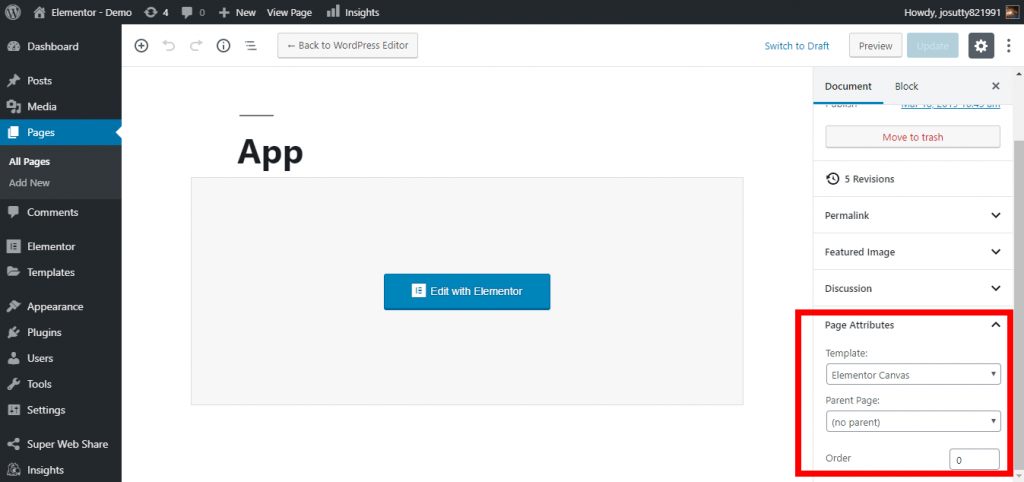
Not all themes work well together. Some themes have custom headers. These headers may not hide easily. Check theme settings first. Look for header options. Try different settings. Some themes need CSS changes. Use the Additional CSS feature in WordPress. Add CSS code to hide the header. If unsure, consult theme support. They offer specific solutions. Always back up before making changes.
Credit: www.lverbeeck.com
Frequently Asked Questions
How Can I Remove The Header Image In WordPress?
To remove the header image, go to your WordPress dashboard. Navigate to Appearance > Customize > Header Image. From there, you can remove the current header image or replace it. Save your changes to update the site. This process may vary slightly depending on your WordPress theme.
Can I Hide The Header Image Without Coding?
Yes, you can hide the header image without coding. Access your WordPress Customizer by going to Appearance > Customize. In the Header Image section, simply remove the image. Some themes offer an option to hide it directly. Always save changes to ensure your settings are applied.
Is It Possible To Replace The Header Image?
Yes, replacing the header image is simple. Navigate to Appearance > Customize > Header Image in your WordPress dashboard. Choose a new image from your media library or upload a new one. Ensure the image dimensions match your theme’s requirements for optimal display.
Save changes to update your site.
Does Hiding The Header Image Affect Seo?
Hiding the header image does not directly affect SEO. However, ensure your site’s navigation and user experience remain intact. Maintain proper alt text for images and focus on content quality. Well-structured sites with valuable content are more likely to perform better in search engine rankings.
Conclusion
Mastering how to hide the header image in WordPress is simple. Just follow the steps outlined, and you’ll achieve the desired look. Customize your website without altering the theme’s core design. This gives you more control over your site’s appearance.
Remember to always backup your site before changes. This ensures safety for your data. With practice, these adjustments become easier. Your website will soon reflect your personal style and preferences. Take a moment to explore other customization options too. Your site’s uniqueness is just a few clicks away!


