
Are you tired of the search bar cluttering your WordPress theme and want a cleaner, sleeker look for your website? You’re not alone.
Many WordPress users face the same challenge and wonder how to hide the search bar without disrupting the overall design and functionality of their site. Whether you’re looking to streamline your website’s appearance or simply want to focus your visitors’ attention on other elements, removing the search bar can be a game-changer.
In this guide, we’ll walk you through the simple steps to effectively hide the search bar in your WordPress theme, ensuring a seamless and professional appearance. Stay with us, and by the end of this article, you’ll have a clutter-free website that enhances user experience and keeps visitors coming back.
Reasons To Hide The Search Bar
Improving website design can be a reason to hide the search bar. Some themes may look better without it. A clean look can make a site more inviting. Simplifying navigation is another reason. Too many options can confuse visitors. Fewer choices can lead to better user experience. Increasing focus on other elements is important too. Removing distractions helps visitors see what’s important. Enhancing website speed can be achieved by hiding the search bar. Fewer features mean faster load times. Maintaining privacy is also a valid reason. Some sites want to protect their content from being easily searchable. Customizing user experience can be essential for unique brand identity. Tailoring features to fit the brand’s needs can make a difference.

Credit: support.competethemes.com
Using Theme Customizer
First, open your WordPress dashboard. Find Appearance on the left menu. Click on it. Next, select Customize. This opens the theme customizer. Here, you can change many settings. Look for the section about Widgets or Search.
In the customizer, look for the search bar option. It might be under Widgets. Click to edit. Find the search bar setting. Uncheck or disable it. Changes appear live on your site. Happy with the look? Save your changes. Click Publish to keep them. Your search bar is now hidden.
Editing Theme Files
Locating the Search Bar Code in your WordPress theme is important. Start by accessing your WordPress dashboard. Go to Appearance and then click on Theme Editor. You will see a list of theme files. Look for the file named header.php or index.php. These files often contain the search bar code. Use the search function in your browser to find searchform.php or similar code. This is usually the search bar code.
Commenting Out the Code is a simple way to hide the search bar. Find the search bar code in your theme file. Place <!– before the code and –> after the code. This will hide the search bar from your website. Save the changes you made. Visit your website to check if the search bar is hidden. If you want it back, remove the comment tags. Always remember to back up your theme files.
Using Css To Hide The Search Bar
CSS offers a simple way to hide the search bar in WordPress themes. By adding specific styles to your theme’s stylesheet, you can make the search bar invisible without altering the theme’s structure. This technique ensures a cleaner design and improved user experience.
Adding Custom Css
The search bar can be hidden using custom CSS. Access the theme settings. Find the Custom CSS box. Write the following code: .search-bar { display: none; }. This line hides the search bar. Save your changes. The search bar will disappear from your site.
Ensuring Responsive Design
Hiding the search bar must work on all devices. Use media queries for responsive design. Add this code: @media only screen and (max-width: 600px) { .search-bar { display: none; } }. This code ensures the bar stays hidden on phones. Check your site on different devices. Make sure the design looks good everywhere.
Utilizing Plugins
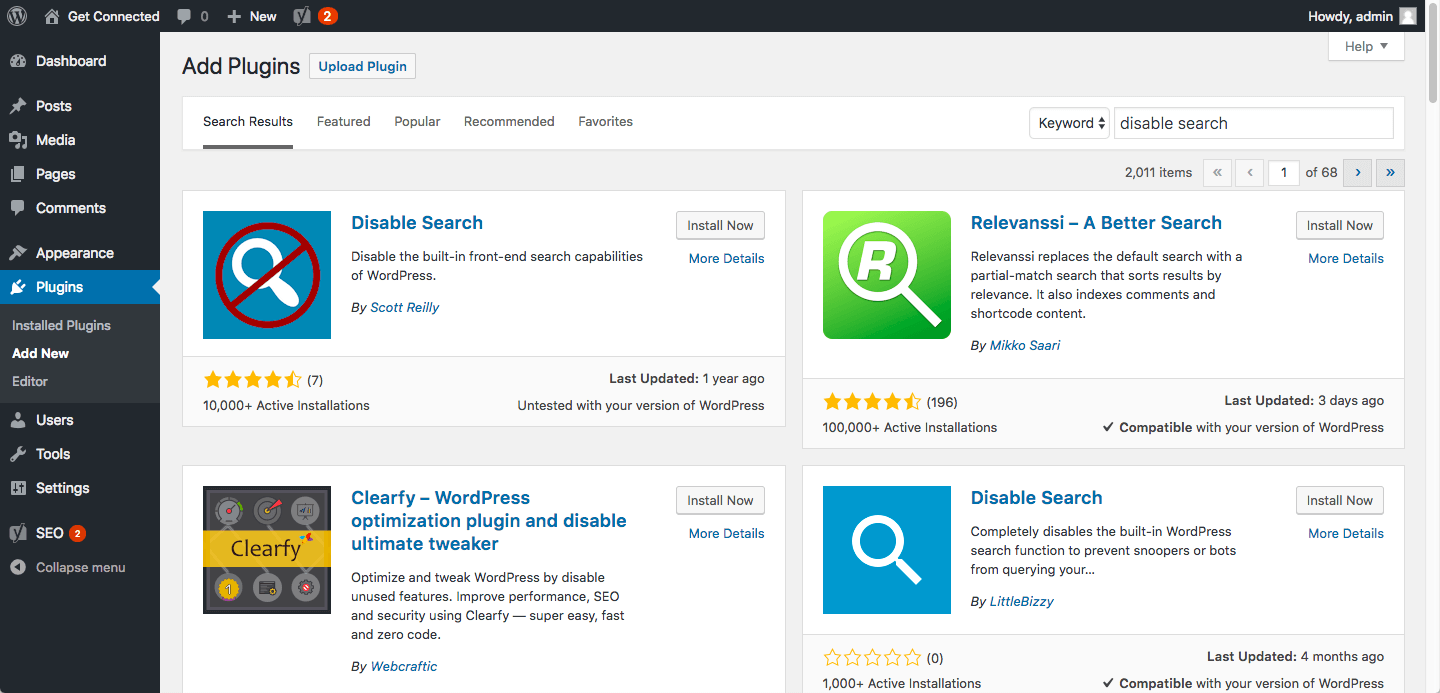
Several plugins can help manage your search bar. Hide Search Bar is a popular choice. Another is Remove Search Box. Both are easy to use. They work well with most themes. These plugins hide the search bar without coding.
First, go to your WordPress dashboard. Click on Plugins. Then, select Add New. Search for the plugin name. Click Install Now. After installation, click Activate. Go to the plugin settings. Configure as needed. Most plugins have simple settings. You can hide or show the search bar with a click.
Credit: www.hostpapa.com
Testing Changes Across Devices
Begin by opening your website on a desktop. Check if the search bar is gone. Explore different pages. Make sure everything looks good. Sometimes, fonts might change. Colors might look different too. Adjust them if needed. Use tools like a browser’s developer mode. It helps see problems. Look at your site from different angles. Don’t forget to refresh the page often.
Now, view your site on a mobile. Make sure the search bar is still hidden. The layout should be neat. Check buttons and links. They should work well. Next, try a tablet. The screen is bigger. Make sure it looks nice. Test scrolling and swiping. If things seem off, make adjustments. Use responsive design tools. They help your site look good on all devices.
Reversing The Process
Removing the search bar in WordPress themes involves tweaking settings or custom CSS code. This change can offer a cleaner look, enhancing user experience. It’s a simple way to tailor your site design.
Enabling The Search Bar Again
To bring back the search bar, go to your WordPress dashboard. Find the Appearance tab and click on Customize. This opens the theme settings. Look for the Widgets section. Here, you can add the search bar. Drag the search widget to the desired location. Save the changes by clicking the Publish button. You should now see the search bar on your site.
Troubleshooting Common Issues
Sometimes the search bar doesn’t show up. First, check if the theme supports widgets. Some themes may not support certain widgets. If the search bar is still missing, check if any plugin conflicts exist. Disable plugins one by one to find the problem. Always update your theme and plugins. This can fix many issues. For stubborn problems, consider switching themes or contacting support.

Credit: www.youtube.com
Frequently Asked Questions
How Do I Hide The Search Bar In WordPress?
To hide the search bar, go to your WordPress dashboard. Navigate to Appearance > Customize > Additional CSS. Enter the CSS code `#search-form { display: none; }` to hide it. This method is simple and doesn’t require plugin installation. Remember to save changes before exiting the customization panel.
Can I Remove The Search Bar Without A Plugin?
Yes, you can remove it without a plugin. Use CSS code in the Customizer to hide the search bar. Navigate to Appearance > Customize > Additional CSS and insert `#search-form { display: none; }`. This approach is lightweight and avoids plugin dependency.
Ensure you save your changes after adding the code.
Is It Possible To Disable Search In WordPress?
Disabling search in WordPress is possible by hiding or removing the search form. You can do this using custom CSS code. Add `#search-form { display: none; }` in Appearance > Customize > Additional CSS. This hides the search bar, effectively disabling search functionality on your site.
What If Css Doesn’t Work To Hide The Search Bar?
If CSS doesn’t work, check for caching issues or conflicting styles. Clear your site’s cache and reload the page. Ensure you’ve placed the correct CSS selector. Alternatively, try using a child theme or inspect the page source for accurate selector identification.
Conclusion
Hiding the search bar in your WordPress theme is simple. Follow these steps to customize your website easily. With the right settings, your site will look cleaner. Visitors will focus more on your content. It’s a straightforward process. Anyone can do it without much hassle.
Remember to test changes on different devices. This ensures a consistent experience for users. Customize wisely to meet your site’s needs. A well-organized website enhances user experience. Keep exploring more ways to improve your site. The right tweaks can make a big difference.
Enjoy the journey of website customization.


