
Are you tired of your WordPress theme’s search bar cluttering your website’s sleek design? Or perhaps you want to streamline the user experience by removing unnecessary elements?
Whatever your reason, hiding the search bar in your WordPress theme can be a simple yet effective way to enhance your site’s appearance and functionality. Imagine a cleaner, more focused layout that guides your visitors exactly where you want them to go.
In this guide, we’ll walk you through the straightforward steps to achieve this, ensuring your site looks exactly the way you envision. Stick with us, and by the end, you’ll have mastered a crucial tweak that can make a world of difference for your website.
Why Hide The Search Bar?
The search bar takes space on your website. Removing it gives a cleaner look. A cleaner look can make your site feel fresh. Some themes do not need a search bar. These themes focus more on visuals and images. The search bar can distract visitors. Visitors might not need to search if the site is clear.
Not all sites use a search bar. E-commerce sites might need it more. Blogs and portfolio sites might not need it. Removing the search bar can improve user experience. Improved user experience keeps visitors longer.
Some users might not use the search bar. They might rely on menus and links. This makes it less useful. Removing it can help simplify navigation. Simplified navigation keeps your site tidy.
Accessing WordPress Dashboard
First, find the WordPress login page. Use your username and password to log in. The dashboard is your main control panel. You can change many things here. Menus, widgets, and theme settings are all found in the dashboard. Make sure to explore the different sections. Each section has its own tools and features. It might seem hard at first. But you will get used to it.
Look for the Appearance option. It is usually on the left side. Click it to see more options. This is where you can change your theme. It’s easy once you know where to click. Take your time to learn. Soon, you will be able to make changes quickly.
Using Theme Customizer
Open your WordPress dashboard. Find the Appearance option. Click on Customize. This opens the Theme Customizer. Easy way to change your site.
Inside the Customizer, look for the Header section. Sometimes, it’s called Site Identity. Find the Search Bar option. You can toggle it off. Save changes. The search bar disappears from your site. If you don’t see the option, check your theme. Some themes don’t allow search bar removal. Try changing the theme or using a plugin. Plugins can hide the search bar too. Always save your settings.

Credit: www.youtube.com
Editing Theme Files
Editing theme files helps hide the search bar in WordPress themes. Locate the search form code in header. php or sidebar. php. Comment out or remove the code to hide the search bar effectively.
Locating Relevant Files
Find the right files to edit. Open your WordPress dashboard. Click on Appearance, then Theme Editor. See the list of theme files. Look for header.php or index.php. These files often contain the search bar code. Make sure to choose the correct theme if you have more than one.
Commenting Out Search Bar Code
Edit the file with the search bar code. Use the WordPress editor. Find the code that shows the search bar. It might look like php get_search_form(); ?. Put comment tags around it. Example: <!-- php get_search_form(); ? -->. This will hide the search bar without deleting it. Save changes after editing. Refresh your website to see changes. No search bar should appear now.
Using Custom Css
Adding Custom CSS Code is a simple way to hide the search bar. First, go to your WordPress dashboard. Find the Appearance tab and click on it. Under Appearance, select Customize. Look for the Additional CSS option. Click on it to open the CSS editor. Now, you can add your custom CSS code. Use the code .search-bar { display: none; } to hide the search bar. After adding the code, press the Publish button to save changes.
Verifying the Changes is crucial to ensure the search bar is hidden. Go to the front of your website. Check if the search bar is visible. If it’s gone, the code works perfectly. If not, double-check the code. Make sure you copied it correctly. Sometimes, themes have different class names. Use browser tools to inspect elements if needed. This helps in finding the right class name.

Credit: forums.envato.com
Utilizing Plugins
Easily hide the search bar in your WordPress theme by utilizing plugins. These tools offer simple, user-friendly settings. Customize your site’s appearance without coding.
Choosing The Right Plugin
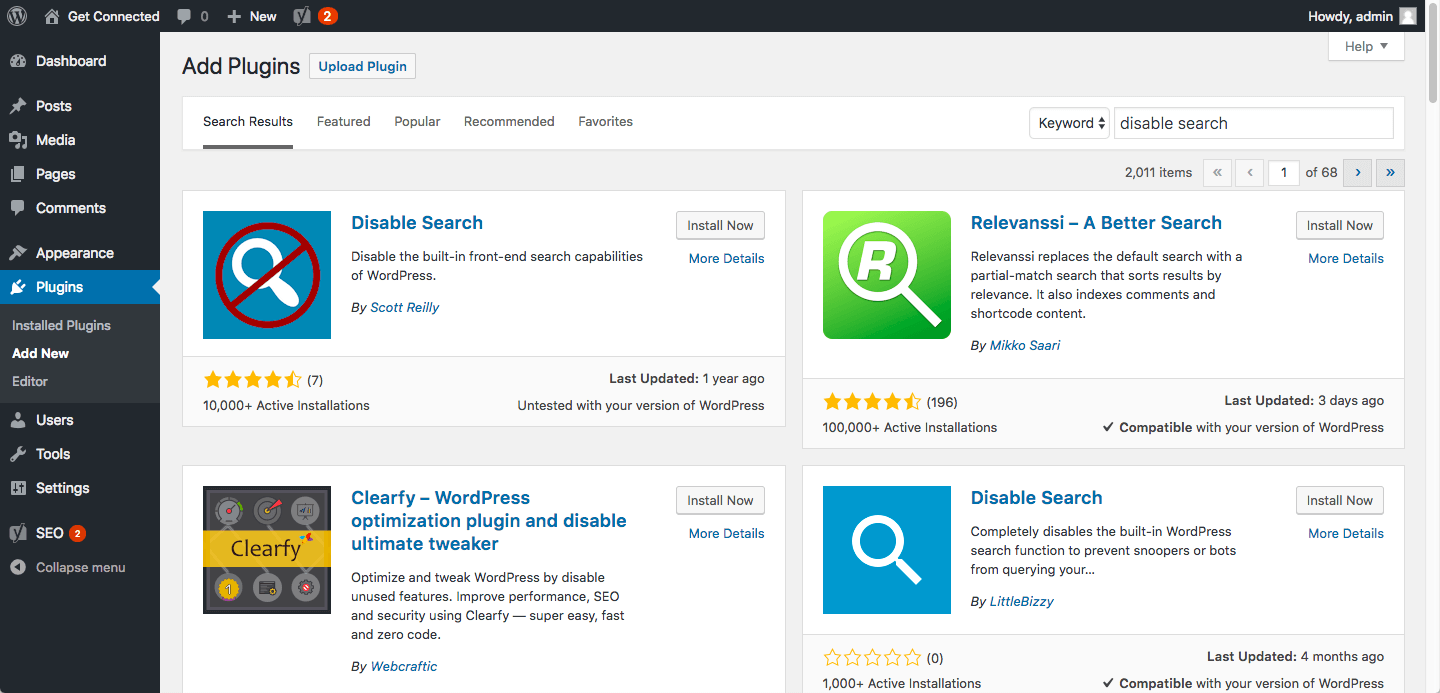
Find a plugin that hides the search bar. Many plugins can do this. Check the reviews and ratings first. Good plugins have high ratings. Make sure the plugin is compatible with your theme. Some plugins only work with certain themes. Always pick a trusted plugin. This keeps your site safe.
Installing And Configuring
Download the plugin from the WordPress repository. Go to the Plugins section in your dashboard. Click on Add New. Upload the plugin file. Click Install Now and then Activate. Once activated, go to the plugin settings. Follow the instructions to hide the search bar. Some plugins have a toggle option. Others may need a small code snippet. Check the documentation for guidance.
Testing The Changes
After hiding the search bar, check your website’s appearance. Look at different pages to see if the search bar is gone. Use another device to view the site. This helps confirm the changes are effective.
Ask a friend to check your site. Sometimes, different browsers show sites differently. Make sure the search bar is hidden on all browsers. If the bar is visible, go back and adjust your settings.
Remember to clear your browser cache. Old data can show outdated site changes. Refresh your site after clearing cache. This ensures you see the most recent version.
Visit your site regularly to ensure the bar stays hidden. Regular checks help maintain the desired appearance. Make note of any unusual display issues.
Credit: www.hostpapa.com
Troubleshooting Common Issues
Struggling to hide the search bar in your WordPress theme? Access theme settings, locate the search bar option, and disable it for a cleaner look. Alternatively, use custom CSS to manually remove it and enhance your site’s appearance.
Search Bar Still Visible
The search bar might still show. This can happen even after removing it from the theme settings. Sometimes, plugins or widgets keep it visible. Check the plugin settings first. They might have options related to the search bar. If the search bar is not hidden, look at the widget settings. Widgets can also be the cause. Go to the widget section in WordPress. Find anything related to the search bar. Remove or disable it.
Site Layout Issues
Layout problems can occur after hiding the search bar. This may affect the page appearance. Often, the sidebar or header changes. Check the theme’s layout settings. Adjust margins or padding if needed. Ensure the content is aligned. Sometimes, CSS changes are required. Use custom CSS to fix layout problems. Test the site on different devices. Make sure it looks good everywhere.
Frequently Asked Questions
How Can I Disable The WordPress Search Bar?
To disable the search bar in WordPress, navigate to your theme’s settings. Often, there’s an option to remove or hide the search bar. Alternatively, you can use custom CSS or a plugin to remove it without altering theme files.
Is It Possible To Hide Search Bar With Css?
Yes, you can hide the search bar using CSS. Add custom CSS code to your theme’s stylesheet or customizer. Locate the search bar’s class or ID and set `display: none;` to make it invisible on your site.
Can I Remove The Search Bar Using A Plugin?
Removing the search bar is possible with plugins. Search for plugins that offer widget control or customization features. Many plugins allow you to manage visibility of various elements, including the search bar, without modifying theme code.
Do All Themes Allow Search Bar Removal?
Not all themes offer direct options to remove the search bar. Some themes have built-in customization settings, while others require CSS adjustments. Always check your theme’s documentation or support to find the best method for removal.
Conclusion
Removing the search bar from your WordPress theme is straightforward. With these steps, your site looks cleaner and more professional. Visitors find content easily without distractions. Remember to backup your site before making changes. Customize carefully to suit your audience’s needs.
A clutter-free design enhances user experience. Explore WordPress options to improve your site further. Your website’s appearance matters. Keep testing to see what works best. Simple adjustments make a big difference in usability. Happy customizing!


