
Imagine opening your WordPress site and seeing each section tailored to its specific purpose, reflecting unique themes that speak directly to your audience. Sounds exciting, right?
If you’ve ever wanted to add a splash of diversity and personalization to different parts of your website, you’re in the right place. This guide is designed just for you. By learning how to have separate customized themes on a WordPress site, you can enhance user experience, boost engagement, and make every visit memorable.
You’ll discover simple steps and tools that make this creative customization possible. So, get ready to transform your site into a dynamic, multi-themed masterpiece that captivates and converts. Are you ready to explore the possibilities? Let’s dive in!

Credit: www.cloudways.com
Benefits Of Customized Themes
Customized themes make your site look unique. They help grab attention from visitors. You can set colors that match your brand. You can choose fonts that are easy to read. Images can be added to make your site lively.
Your site can have a better user experience. Visitors find what they need quickly. Customized themes make your site easy to navigate. This helps people stay longer on your site.
With these themes, your site can load faster. This makes people happy. They do not wait long. A fast site is good for search engines. It helps your site rank better.
WordPress Multisite Setup
First, find the wp-config.php file. Open it with a text editor. Add this line:
define('WP_ALLOW_MULTISITE', true); Save the file. Now, go to your WordPress dashboard.
Look for the “Tools” menu. Click on “Network Setup.” You will see new options. Choose your
network type: subdomains or subdirectories. Click “Install.”
Follow the instructions. Multisite is now enabled.
Navigate to the new “Network Admin” dashboard. Find the “Settings” tab. Here, you can set your site titles and admin email. Choose a default theme for your network. You can also enable plugins for all sites. Save all settings. Your network is now configured.
Installing Multiple Themes
Ensure the themes work well together. Compatibility is very important. Check reviews and ratings for each theme. See if users face any issues. Compare features and functionalities. Some themes may conflict with plugins. Testing is crucial before finalizing.
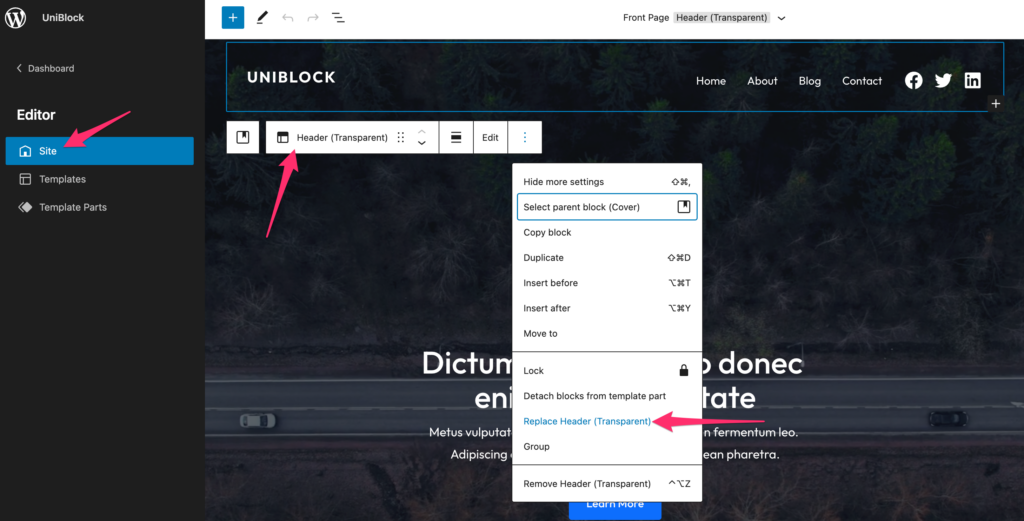
Go to the WordPress dashboard. Click on Appearance. Choose Themes. Press the Add New button. You can upload a theme from your computer. Click Upload Theme. Select the theme file and press Install Now. Once installed, activate the theme. Repeat these steps for multiple themes.
Credit: www.wpzoom.com
Activating Themes For Different Sites
Site-Specific Theme Activation is an exciting feature. It lets you use different themes on different sites. Each site can have its own look. This is perfect for businesses with multiple branches. It helps in creating a unique identity for each site. You can use plugins to manage themes easily. Choose themes that fit the purpose of each site. Always test themes before activating. Make sure they work well. This keeps your site running smoothly.
Switching Between Themes is simple. You can change themes in the dashboard. Just click on the theme you like. It’s quick and easy. You don’t need coding skills. Switching themes can refresh the site. It gives a new look. Be careful when switching. Check if the new theme supports your features. Backup your site before changing themes. This keeps your data safe.
Customizing Themes Individually
Theme Customizer helps to change your site’s look. Click on Appearance and then Customize. This tool lets you change colors, fonts, and more. Each theme has its own settings. So, choose what fits best. Make small changes first. This way, you can see how it looks. Always save changes after you like them.
CSS can make your site look unique. Go to the Customizer and find the Additional CSS section. Type your CSS code there. This can change a button’s color or font size. Always test on a small part first. This helps to see if it works well. Save your work after changes.
Managing Plugins Across Themes
Plugin Compatibility is key for a smooth website. Ensure each theme supports the plugins you need. Some plugins may not work with certain themes. Check compatibility before activating. Use updated plugins for best results. Always read plugin descriptions. This helps avoid errors on your site.
Installing Required Plugins is simple. Go to the WordPress dashboard. Click on ‘Plugins’. Select ‘Add New’. Search for the plugin by name. Click ‘Install Now’. Activate once installed. Each theme may need different plugins. Install only what’s necessary. Too many plugins can slow down your site.
Testing And Troubleshooting
Common Issues and Fixes: Themes sometimes cause trouble. Pages may look strange. These are common issues. Often, themes do not work well together. First, check the compatibility. Some plugins also cause errors. Disable them to see changes. Use the browser’s inspect tool. This helps find problem areas. If the site breaks, restore backups. Keep backups ready always. Updating themes fixes many issues. Check updates regularly. Users report issues sometimes. Listen to them for improvements.
Ensuring Mobile Responsiveness: Websites must work on phones. Many visitors use mobile devices. Themes should adjust well. Test on different screens. Use tools like Google Mobile-Friendly Test. Check buttons and fonts. They must be easy to touch and read. Images should resize properly. Check site speed. Slow sites lose users. Responsive themes often solve these issues. Choose themes wisely for mobile compatibility. Regular tests keep sites mobile-friendly.

Credit: webkul.com
Best Practices For Theme Management
Keep your themes updated regularly. Updates fix bugs and add new features. Always check for updates. Use the latest version of WordPress. Themes need regular care. Update plugins too. A broken theme can harm your site. Regular checks ensure everything works. Protect your site from bugs. The newest versions are always best. Updates make your site safe.
Backing up themes is very important. Save copies of your themes often. Use backup plugins. Backups protect against data loss. Theme changes can go wrong. Restore themes if needed. Use cloud storage for backups. Save backups on external drives. Regular backups keep your site safe. Never skip backups. Always have a backup plan.
Frequently Asked Questions
Can You Use Multiple Themes In WordPress?
Yes, you can use multiple themes in WordPress. This requires plugins like “Multiple Themes” or custom coding. These tools allow different themes for specific pages or posts. This offers flexibility in design and functionality. Ensure compatibility and test thoroughly before activating multiple themes on your site.
How To Customize WordPress Themes Individually?
Customize WordPress themes individually using theme settings or custom CSS. Use plugins like “Customizr” for advanced options. Access theme editor under Appearance in WordPress dashboard. Ensure each theme’s settings are configured separately. Test changes to see how they affect each theme’s appearance and functionality.
Are Plugins Needed For Multiple WordPress Themes?
Plugins are often needed for multiple WordPress themes. Plugins like “Multiple Themes” or “Theme Switcha” help manage this. They allow assigning different themes to specific pages or posts. Using plugins simplifies the process and ensures compatibility. Always check plugin reviews and compatibility before installation.
How Does Theme Customization Affect Site Speed?
Theme customization can affect site speed. Heavy customizations may slow down your site. Optimize images and use efficient coding practices. Use caching plugins to improve load times. Regularly test your site’s speed using tools like Google PageSpeed Insights. Balance design needs with performance to ensure a fast-loading site.
Conclusion
Creating customized themes on WordPress is straightforward. Different themes enhance user experience. Tailor each theme to your audience’s needs. This boosts your website’s appeal and functionality. With WordPress, the process is simple and effective. Start by choosing the right plugins and tools.
Experiment with design elements to see what works best. Consistent practice will lead to better results. Keep your site’s navigation easy and intuitive. A unique theme can set your site apart. Stay creative and adaptable. Your efforts can lead to a more engaging website.


