
Unlocking the full potential of your Sydney WordPress theme can feel like a game-changer for your website. You’re probably eager to showcase your images in the most captivating way possible, but maybe you’re unsure how to add a gallery option seamlessly.
Imagine the satisfaction of transforming your site into a visually stunning portfolio that not only captures attention but also keeps visitors coming back for more. In this guide, you’ll discover step-by-step instructions that are easy to follow, even if you’re not a tech whiz.
By the end of this article, you’ll be equipped with the tools to elevate your website’s aesthetic appeal and engage your audience like never before. Don’t let your images go unnoticed—let’s dive in and give your site the gallery it deserves.
Sydney Theme Features
The Sydney theme is a popular choice for WordPress sites. It offers a clean and modern look. Users love its easy customization options. Creating a site with this theme is simple. It fits well for business and personal blogs.
The theme has responsive design. This means it looks good on any device. Mobile or desktop, the view is great. It also has built-in widgets. These widgets help add more functions to your site. You can easily add a contact form or a social media feed.
Users can change colors and fonts with ease. The theme allows for header image changes too. This makes your site unique. You can also add a background image. This feature helps in branding your site.
Adding a gallery is possible with plugins. These plugins add a gallery option to your site. You can showcase photos beautifully. This makes your site more engaging.
Activating Gallery Feature
To make a gallery, use a plugin. Plugins are tools to add new features. Go to your WordPress dashboard. Click on “Plugins” and then “Add New.” Search for a gallery plugin. Popular ones are Envira Gallery and NextGEN Gallery. Click “Install” and then “Activate.” Now you have a gallery option!
After activating the plugin, adjust the theme settings. Go to “Appearance” and then “Customize.” Look for the gallery settings. You might find it under “Widgets” or “Homepage Settings.” Adjust the settings to match your website style. You can change the layout and image size. Try different settings to see what looks best. Your gallery is now ready!
Creating A Gallery Page
First, go to your WordPress dashboard. Click on Pages and then Add New. Choose a title for your gallery page. Look for the Page Attributes box. This is usually on the right side. Select the Gallery template from the dropdown. This template helps display images nicely.
Click on the Add Media button. It’s usually above the content editor. Choose images you want in the gallery. You can upload new images or use ones in the library. After selecting, click on Create Gallery. Arrange images in the order you like. Then, click Insert Gallery. This adds your images to the page.
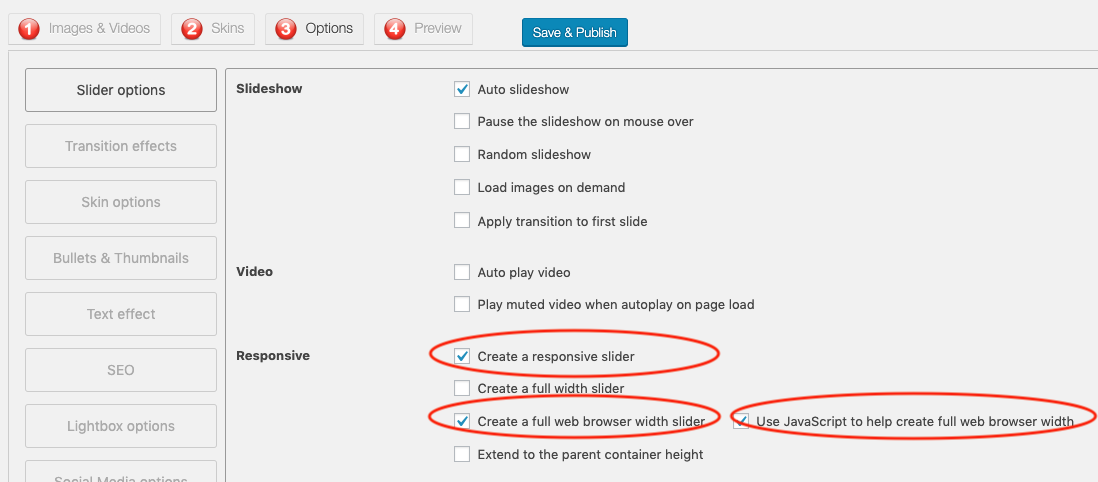
Credit: www.wonderplugin.com
Organizing Gallery Content
Grouping images makes your gallery neat. Categories help users find photos fast. Use simple tags like “nature” or “city”. Each tag should describe the image well. This way, users can find what they want quickly. A well-organized gallery looks professional. It keeps users happy and engaged.
Put images in a logical order. Start with the most important photo. Arrange them by date or event. Users like to see a story in pictures. A clear sequence makes it easy to follow. It also helps users remember your gallery. Good order makes a gallery enjoyable.
Customizing Gallery Appearance
Choose how your gallery looks. Grid layout shows images in rows and columns. Masonry layout arranges them in a fun way. Carousel layout lets images slide by. Each style gives a different feel. Try them out to see which one you like best. You can change the number of images per row. Make the gallery fit your website style.
CSS lets you style your gallery. Make it look unique. Change colors or borders easily. Adjust the size of images. Align them neatly. Add shadows for a cool effect. You can even make images round or square. CSS gives you lots of choices. Play with it to make your gallery stand out.

Credit: athemes.com
Mobile Optimization
Responsive design helps your site look good on all devices. Use flexible grids and layouts. This means the site adjusts to different screen sizes. Also, use media queries in your CSS. These tell the browser how to display the website. Images should be scalable too. This ensures they don’t take up too much space on small screens.
Always test your site on real phones. Check how it looks and works. Use tools like Google’s Mobile-Friendly Test. This tool shows how your site performs on mobiles. Make sure buttons are big enough to tap easily. Text should be readable without zooming in. Good testing helps ensure a smooth user experience.
Troubleshooting Common Issues
Having gallery options in the Sydney WordPress theme can be tricky. Use plugins like Envira Gallery or FooGallery to create stunning galleries easily. Customize settings to fit your site’s design, ensuring a seamless user experience.
Plugin Conflicts
Plugins can sometimes clash with each other. This might stop the gallery from working. Deactivate each plugin one by one. Check the gallery option after each deactivation. This helps find which plugin is causing trouble. Update all plugins regularly. Old plugins can cause issues too.
Image Loading Problems
Slow image loading can happen. Optimize image sizes before uploading. Large files slow down the site. Use image compression tools. They help reduce file sizes. Check your internet connection. Slow connections affect loading times. Clear your browser cache regularly. This ensures new images load properly.

Credit: www.digitalsilk.com
Frequently Asked Questions
How Do I Add A Gallery In Sydney Theme?
To add a gallery in the Sydney theme, use the WordPress dashboard. Navigate to “Pages” or “Posts” and click “Add Media. ” Select “Create Gallery,” choose your images, and insert them. Customize your gallery settings as needed. This feature helps display multiple images attractively.
Can I Customize Gallery Layout In Sydney Theme?
Yes, you can customize the gallery layout in the Sydney theme. After inserting the gallery, adjust settings such as columns and image size. Use plugins for more advanced customization options. This flexibility allows you to match the gallery’s appearance with your website’s design.
Is A Plugin Required For Gallery In Sydney?
A plugin is not required for basic galleries in Sydney. WordPress’s built-in gallery feature is sufficient for simple needs. However, for advanced features like lightboxes or additional customization, consider using a gallery plugin. Plugins offer more options and enhance the user experience.
How To Optimize Gallery Images For Seo?
Optimize gallery images by using descriptive filenames and alt tags. Compress images to improve loading speed. Ensure images are mobile-friendly and relevant to your content. These practices help improve search engine visibility and enhance user experience on your website.
Conclusion
Adding a gallery to your Sydney WordPress theme is simple. Just follow the steps mentioned above. This enhances your site’s appearance and engages visitors more effectively. Images speak louder than words, after all. A well-organized gallery can highlight your content beautifully.
Now, you can showcase your work or products more attractively. It’s a small change with a big impact. Remember, your website reflects your brand. Make it visually appealing to leave a lasting impression. Experiment with different layouts and styles. Enjoy the creative process and watch your site come alive.
Happy designing!


