
Imagine transforming a tiny computer into a powerful web server, all from the comfort of your home. Sounds intriguing, right?
With a Raspberry Pi, you can do just that. Whether you’re a tech enthusiast, a budding developer, or simply someone curious about the possibilities of modern technology, learning to host your own web server on a Raspberry Pi opens up a world of opportunities.
It’s not just about the technical challenge; it’s about the freedom and control it gives you over your digital space. You get to decide what content you host, how it’s presented, and even who gets to see it. Plus, it’s a cost-effective and energy-efficient way to explore web development. In this guide, you’ll discover how straightforward it is to set up your Raspberry Pi as a web server. You’ll gain insights into the simple steps needed to bring your ideas to life on the web. So, if you’re ready to dive in and take control of your online presence, keep reading. This journey is about empowering you with the knowledge to make your digital dreams a reality.
Choosing The Right Raspberry Pi Model
The Raspberry Pi 4 is the best choice for a web server. It is fast and has enough power. You need a good processor and enough RAM. The Raspberry Pi 4 has up to 8GB RAM. This helps handle many tasks at once.
Other models can work too. But they might be slower. The Raspberry Pi 3 can be a budget-friendly option. It has 1GB RAM which is less but can still work. Think about what you need before choosing. If the budget is tight, the Pi Zero is an option. It is smaller and cheaper.
Credit: fireship.io
Setting Up The Raspberry Pi
Start with a clean SD card. Download the Raspbian OS image. Use software like Etcher to write the image to the card. Insert the SD card into the Raspberry Pi. Connect the keyboard, mouse, and monitor. Power on the Raspberry Pi. Follow on-screen instructions to complete the setup.
Keep the system safe and fast. Open the terminal on Raspberry Pi. Type sudo apt-get update and press enter. This checks for new updates. Next, type sudo apt-get upgrade. Press enter again. This installs the updates. Restart the Raspberry Pi after updates finish. Now, the system is ready and up to date.
Connecting To The Network
First, make sure your Raspberry Pi has a Wi-Fi dongle. Open the terminal and type ifconfig. This checks network connections. Use sudo nano /etc/wpa_supplicant/wpa_supplicant.conf to edit Wi-Fi settings. Add your network name and password there. Save and exit. Type sudo reboot to restart. Your Pi should connect to Wi-Fi.
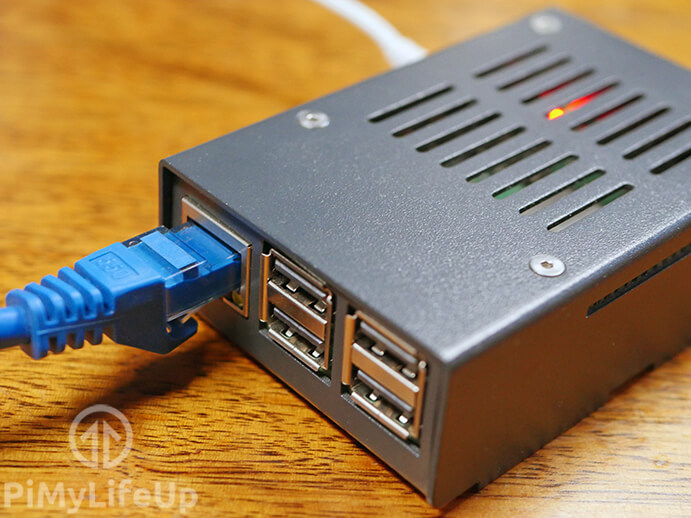
Connect your Raspberry Pi to the router using an Ethernet cable. This gives a stable connection. Check the connection with ifconfig. The Ethernet address starts with eth0. This means your Pi is connected. Ethernet is faster than Wi-Fi. It is good for hosting a web server. Both methods connect your Raspberry Pi to the network.
Installing A Web Server Software
Begin by opening the terminal on your Raspberry Pi. Type sudo apt update to refresh the package list. Next, install Apache by typing sudo apt install apache2. Wait as Apache installs itself on your device. After installation, check if Apache is running. Open a web browser and type localhost. You should see a message confirming that Apache is working. If not, restart Apache using sudo service apache2 restart. Now, your Raspberry Pi is ready to serve web pages.
Nginx is another popular choice. It is known for its speed and efficiency. To install Nginx, open the terminal. Type sudo apt update to refresh packages. Next, install Nginx by typing sudo apt install nginx. Once installed, start Nginx using sudo service nginx start. Test its operation by typing localhost in your browser. If you see a welcome message, Nginx is working well. Nginx can handle many requests at once, making it a great choice for busy sites.
Configuring The Web Server
First, locate the configuration files. They tell the server what to do. Important files may include httpd.conf or nginx.conf. Open these files with a text editor. Look for lines that set server settings. Changes here affect your server. Save changes before closing the editor. This ensures your settings are applied. Always back up files before editing. Mistakes can cause problems later.
Virtual hosts let one server host many sites. Each site needs its own configuration block. Begin with . Add the site’s domain name and directory path. This tells the server where to find the site’s files. Close with . Repeat for each site. Virtual hosts help manage multiple domains easily. Always test each site after setup. This checks if everything works well.
Testing The Web Server
Open a web browser on your computer. Type the Raspberry Pi’s IP address in the address bar. Press Enter. You should see your web page. This means the server is working. If you don’t see it, check your setup. Make sure the Pi is connected to the same network. Also, ensure the server software is running.
You can also check the server from outside your home. Use a mobile device with data. Enter the public IP address of your network. If you see your page, the server is accessible remotely. If not, check port forwarding settings on your router. Make sure the correct port is open. This allows others to see your website from anywhere.
Deploying A Website
Uploading HTML files is easy with Raspberry Pi. First, connect the Pi to your computer. Use a file transfer tool like FTP. Upload the website’s HTML files to the server. Make sure all files are in the right folder. Check if the links work properly. Double-check for any missing files. Properly uploading ensures the website works well.
Managing web content is crucial. Organize files in folders. Keep images, scripts, and styles in separate folders. Update the content regularly. Remove outdated files. Backup important data. Use a simple naming system. This makes it easy to find files. Regular maintenance keeps the website fresh and functional.

Credit: www.youtube.com
Securing The Web Server
HTTPS makes websites safe. It encrypts data between server and user. This stops bad people from stealing information. Get a SSL certificate for your Raspberry Pi. Many providers offer them free. Install the certificate on your web server. Follow easy steps in the guide. Make sure all web pages use HTTPS. Check links and resources. Redirect HTTP to HTTPS automatically. This keeps visitors safe and confident.
A firewall protects your server from attacks. It acts like a gatekeeper. Only lets trusted traffic through. Set up firewall on Raspberry Pi. Use simple tools like UFW. Open ports for web server, like port 80 and 443. Close other ports to keep server safe. Regularly check firewall rules. Update them if needed. This helps stop unauthorized access. Make sure your web server stays secure.
Maintaining The Server
Setting up a Raspberry Pi as a web server is simple and affordable. Begin by installing a lightweight server software like Apache. Regular maintenance includes updating software and monitoring performance to ensure reliability.
Regular Updates
Keeping your Raspberry Pi server up-to-date is crucial. Updates fix bugs and improve security. Make sure to install updates regularly. Use simple commands like apt-get update and apt-get upgrade. These commands fetch and install the latest packages. It’s easy and safe. Updating helps your server run smoothly.
Monitoring Performance
Keep an eye on your server’s performance. Use tools like htop to check system resources. This includes CPU, memory, and disk usage. Watching these helps you spot problems early. If usage is high, find out why. Fixing issues keeps your server fast and reliable. Always ensure your server runs efficiently. This helps users have a good experience.
Credit: pimylifeup.com
Frequently Asked Questions
How To Host A Website On A Raspberry Pi 5?
Install Raspbian OS on Raspberry Pi 5. Set up Apache or Nginx server. Upload website files via FTP. Configure domain settings. Ensure Raspberry Pi is connected to the internet.
Is The Raspberry Pi 3 Good For A Web Server?
Yes, Raspberry Pi 3 is suitable for a basic web server. It handles small websites effectively, thanks to its quad-core processor and 1GB RAM. It supports Apache, Nginx, and MySQL. Ideal for personal projects, testing, or learning. For high traffic, consider more powerful alternatives.
Can I Run A Web Browser On Raspberry Pi?
Yes, you can run a web browser on a Raspberry Pi. Popular options include Chromium and Firefox. These browsers work well with Raspberry Pi’s hardware, allowing you to browse the internet smoothly. Ensure your Raspberry Pi is updated for optimal performance.
Can You Use A Raspberry Pi As A Home Server?
Yes, a Raspberry Pi can serve as a home server. It efficiently hosts websites, handles file storage, and manages network tasks. Raspberry Pi’s compact design and low energy consumption make it ideal for small-scale server applications. Install software like Apache or Nextcloud to maximize functionality.
Conclusion
Setting up a Raspberry Pi as a web server is simple. It’s perfect for learning and small projects. Follow the steps closely and you’ll succeed. Keep your software updated for security. Experiment with different configurations. This enhances your skills. Remember, practice makes perfect.
Troubleshooting is part of the process. Don’t hesitate to seek help if needed. Online forums can be useful. Enjoy the journey. It’s rewarding to see your server run. Raspberry Pi offers a versatile platform. Dive in and explore the possibilities.
Good luck with your web server adventure!


