
Have you ever wanted each page of your WordPress site to have its own unique look and feel? Imagine the impact on your visitors when every click reveals a fresh, tailored experience.
This isn’t just a dream—it’s entirely possible with WordPress. You can break free from the monotonous uniformity and inject creativity into every corner of your website. In this guide, you’ll discover how to transform your WordPress site by assigning a different theme to each page.
Whether you’re aiming to enhance user engagement, reflect diverse content styles, or simply experiment with aesthetic variety, this approach can be a game-changer. Ready to captivate your audience and keep them exploring? Let’s dive into the steps that will make your website stand out from the rest.
Understanding WordPress Themes
WordPress themes are design templates. They give your site a unique look. Themes can change how your site feels. Some themes are simple. Others are complex. They help to organize content. Themes can be changed easily. This makes your site fresh and engaging.
Themes are very important in website design. They affect how visitors see your site. A good theme grabs attention. It makes navigation easy. Visitors stay longer with a nice theme. Choose themes that match your content. This keeps your site consistent and appealing. Themes can also improve your site’s performance. Faster sites make users happy.

Credit: wpmudev.com
Reasons For Different Themes Per Page
Each page can have its own unique look. This makes it feel special. Users enjoy pages that match the content. It helps them find what they need. A blog page can be simple. An online store page can be colorful. This makes it easy for the user to browse. Different themes make each page stand out. Users return to sites that are fun and easy to use.
Different themes can make a site more visually appealing. Each page can have colors that fit its purpose. A fun page can have bright colors. A serious page can have calm colors. This makes the site look great. Users like sites that look nice. They stay longer and visit more pages. Good visuals keep users interested.
Methods To Apply Different Themes
WordPress plugins make theme changes easy. These tools allow users to select themes for different pages. No coding skills needed. Install a plugin like Multiple Themes. It lets you apply themes to specific pages. Choose themes from your library. Apply them with a few clicks. Plugins are user-friendly. They save time and effort. Plugins offer flexibility. They adapt to changing needs. They are suitable for all skill levels. They are a popular choice among users.
Custom coding offers more control. It allows detailed theme adjustments. Code edits tailor pages to user needs. Developers use child themes for this. They make changes without affecting the main theme. CSS edits style pages differently. PHP changes adjust functionality. Custom coding requires skill. It is suitable for experienced users. It offers unique design options. Custom coding enhances user experience. It creates a personalized website feel. It is a powerful method for theme changes.
Popular Plugins For Multiple Themes
Many plugins offer different themes per page. Some plugins are easy to use. Others need more work. Theme Switcher is a good choice. It lets you choose themes for each page. Page Theme is another option. It is simple and quick. Each plugin has unique features.
Theme Switcher lets you pick themes for each page. It is flexible. But it can be hard for beginners. Page Theme is easy to use. It works well for small sites. But it has fewer features. Multiple themes can make your site look great. But switching themes can slow your site. Choose wisely. Each plugin has good and bad sides.
Step-by-step Guide To Using Plugins
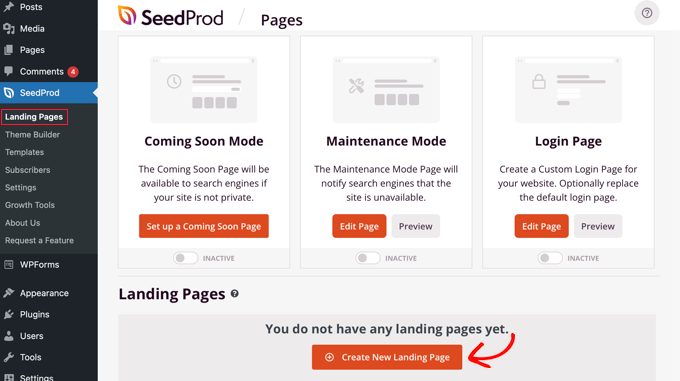
First, go to your WordPress dashboard. Click on “Plugins” from the menu. Choose “Add New” to find plugins. Use the search bar to type the plugin name. Click “Install Now” after you find it. Wait for the installation to complete. Click “Activate” to turn the plugin on. Now, your plugin is ready to use. Easy and quick.
Go to the “Settings” or “Tools” menu. Find your plugin’s name. Click on it to open the settings. Adjust settings to suit your needs. Save changes by clicking the “Save” button. Some plugins need extra steps. Follow instructions from the plugin maker. Check your page to see changes. Simple and fun.
Credit: www.wpbeginner.com
Custom Coding For Advanced Users
Explore custom coding for advanced users by creating a different WordPress theme per page. Enhance your website’s uniqueness with this technique. Enjoy a tailored design for each page.
Editing Theme Files
Editing theme files can change how your site looks. First, go to your WordPress dashboard. Find the Appearance section. Click on Theme Editor. Here, you see files like header.php or footer.php. These files control parts of your page.
Before changing anything, make a backup. This keeps your site safe. Use a child theme to avoid losing changes. This way, updates won’t erase your work. Use simple code. Test each change. This helps find mistakes quickly.
Utilizing WordPress Hooks
WordPress hooks help add new features. They are small bits of code. Two types exist: actions and filters. Actions let you add new code. Filters let you change existing code. Use hooks to change themes on different pages.
Find hooks in your theme’s files. Use the WordPress Codex to learn more. Try using hooks in a test site first. This keeps your main site safe.
Testing And Troubleshooting
Ensuring compatibility is very important. Start by checking if your themes work together. Use a staging site for testing. This helps avoid problems on the live site. Activate one theme per page and see if it loads fine. Test different devices to make sure it looks good everywhere. Use browser tools to check for errors. This will help find any coding issues. Keep themes updated to prevent bugs.
Common issues and solutions are easy to find. Some themes may not support certain plugins. Deactivate plugins one by one. This will show if a plugin causes problems. Sometimes, themes clash with each other. Switch themes to see if the error goes away. Contact theme support for help. They can fix many issues. Using child themes can prevent some troubles too.
Best Practices For Theme Management
Consistency keeps your site looking neat. Each page should match in style. This means using the same colors and fonts. Readers find it easier to navigate. Consistent themes help with brand recognition. People remember your site more easily. Choose a theme that fits your brand. Stick to it across all pages. It makes the site look professional.
Fast loading times are important. Themes should not slow down your site. Avoid heavy graphics. They can make pages load slowly. Optimize images for faster speed. Use plugins that improve performance. Check your site’s speed often. Make sure everything works well. A good theme should be light and quick.
Case Studies
Many websites use different themes on each page. This helps them stand out. A popular blog used this tactic. They applied a colorful theme for their homepage. Their product pages had a minimalist design. This made their content look special. Readers loved the change. It was fun and fresh.
A tech site tried this too. They used a dark theme for their tech reviews. Their news section had a bright theme. This kept readers interested. It also helped in increasing the site’s traffic. Readers spent more time exploring the site.
Changing themes can be tricky. Some sites faced loading problems. Others found it hard to keep the look consistent. It’s important to test themes before using them. Always check how they look on phones and tablets. Readers use different devices. Consistency is key for a good user experience.
Many sites learned to keep themes simple. Complex designs can confuse readers. Simple themes are easier to manage. They load faster too. Fast loading makes readers happy. They stay longer on your site. This is good for your site’s growth.
Credit: themeforest.net
Frequently Asked Questions
Can I Use Different Themes For Each Page?
Yes, you can use different themes for each page in WordPress by utilizing plugins like Multiple Themes or Page Theme. These plugins allow customization of individual pages by assigning specific themes to them. You can achieve a unique look for every page without altering the overall site theme.
How Do I Set Up Multiple Themes?
Setting up multiple themes involves installing a plugin like Multiple Themes. Once installed, you can assign different themes to specific pages via the plugin settings. This process allows you to have distinct designs for separate pages, enhancing your site’s visual appeal and functionality.
Are There Plugins For Page-specific Themes?
Yes, plugins like Multiple Themes or Page Theme are available for WordPress. These plugins enable you to assign unique themes to individual pages easily. They provide flexibility in design, allowing you to tailor the appearance of each page according to your preferences.
Will Different Themes Affect Site Performance?
Using different themes might affect site performance due to varying design elements and functionalities. However, optimizing each theme for speed and ensuring compatibility can minimize impact. Proper configuration and regular updates can help maintain your site’s overall performance and user experience.
Conclusion
Exploring different themes per page can boost your WordPress site’s appeal. It offers flexibility and a unique style for each section. Users find this approach engaging and refreshing. Implementing this strategy is easier than you think. Follow the steps carefully for the best results.
Remember to test your changes regularly. Consistency across your site ensures a smooth visitor experience. Happy creating, and enjoy the versatility of your multi-themed WordPress journey. Your site will stand out with creativity and flair. Keep experimenting and watch your site evolve beautifully.


