
Are you eager to transform your online store with a stunning WooCommerce theme on WordPress but don’t know where to start? You’re in the right place!
Choosing the perfect theme can make or break your e-commerce success. It’s not just about aesthetics; it’s about functionality, speed, and user experience. Imagine your customers browsing effortlessly, falling in love with your products, and clicking ‘buy’ without a second thought.
This guide will walk you through every step to make that happen. Get ready to unlock the potential of your WordPress site and elevate your online business to new heights. Stay with us and discover how you can make your store stand out in the crowded digital marketplace.

Credit: woocommerce.com
Choosing The Right Woocommerce Theme
Understanding business needs is important. Theme should match your product. Selling clothes needs a fashion theme. Tech products might need a modern theme. List your needs. Think about what your customers like. Simple? Colorful? Easy to use? These are questions to ask. Write them down. Choose a theme that fits these needs.
Look at the design. Is it clean? Is it user-friendly? Check the features. Responsive design is key. It should work on all devices. SEO-friendly themes help in search rankings. Check if the theme has customization options. Can you change colors? Can you add widgets? These are important. Make sure support is available. Good support helps fix issues fast.

Credit: www.commercegurus.com
Installing A Woocommerce Theme
Begin by logging into your WordPress Dashboard. This is your main control panel. Find the Appearance section on the left menu. Click on it to access the theme options. You will see a range of themes available. To add a new one, click the Add New button. This lets you search for specific themes. You can also upload your own theme files.
To upload theme files, click on Upload Theme. This option is at the top of the page. Choose the ZIP file of your theme from your computer. Click Install Now to begin the process. After installation, activate the theme. This makes it live on your site. Check your site to see the new look.
Activating The Theme
Open your WordPress dashboard. Find the Appearance tab on the left. Click on Themes. A new page shows all your installed themes. Choose the theme you want. Hover over it. Click on the Activate button. Your theme is now active.
Go to the Appearance tab again. Click on Customize. A new window opens. Here, you can change the site title and tagline. Adjust the colors and background image. Play with the layout. Always remember to click Publish to save changes. Now, your site looks just the way you want.
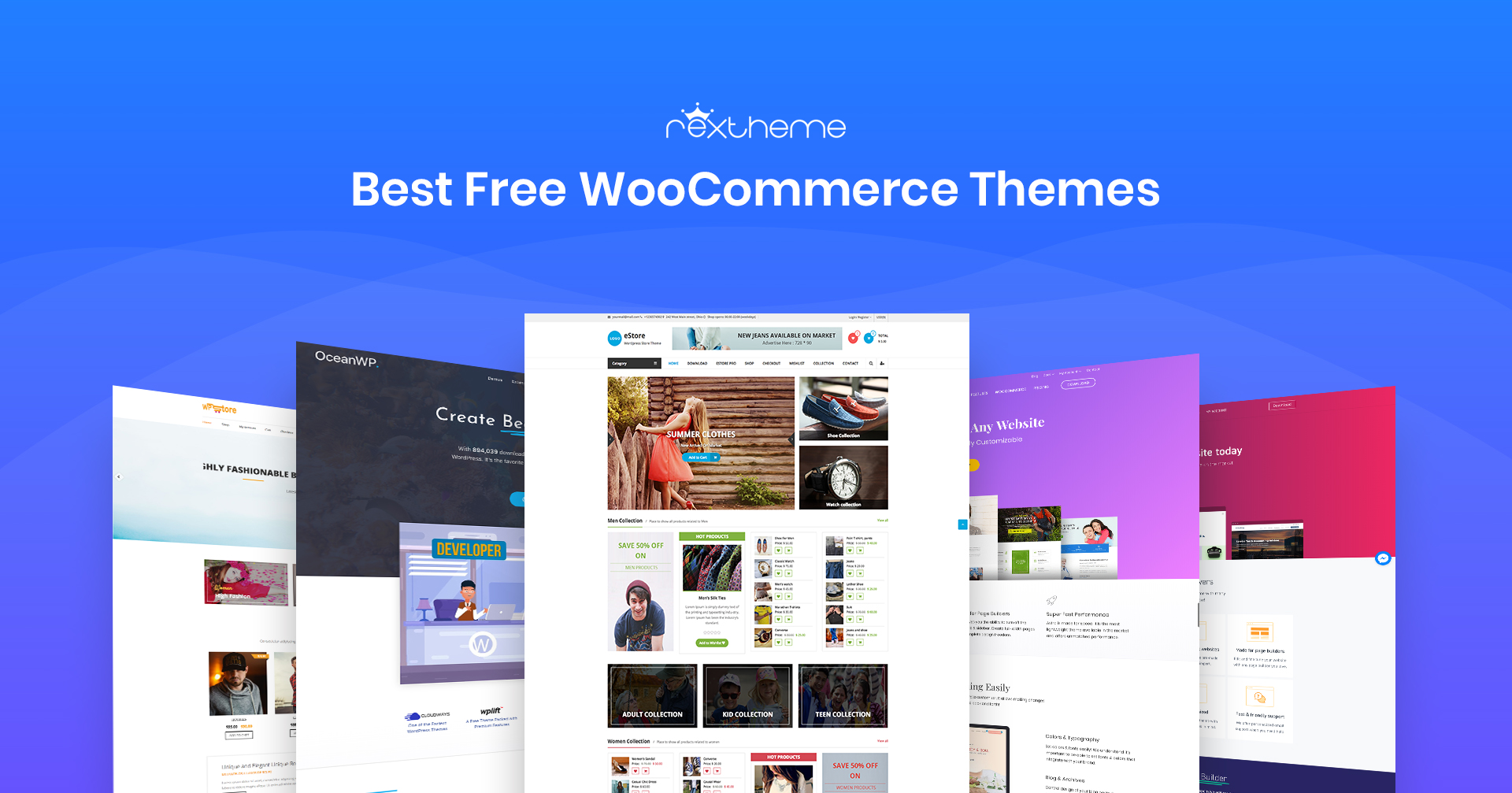
Credit: rextheme.com
Customizing Your Woocommerce Theme
Theme Customizer helps change your site’s look. Access it from the WordPress dashboard. Adjust settings like colors, fonts, and layouts. Preview changes before saving them. Make your site unique and appealing.
Layouts define the structure of your site. Choose a layout that fits your content. Modify colors to match your brand. Bright colors grab attention. Soft colors calm visitors. Keep colors consistent across pages.
Brand elements include logos and slogans. Add your logo to make your site recognizable. Use your brand’s font for text. Keep brand elements visible. This builds trust with your audience. Maintain a professional appearance.
Enhancing Functionality
Plugins add new features to your site. They make your store better. Install plugins from the WordPress dashboard. Search for Woocommerce plugins in the plugin section. Many options are available. Choose the plugins you need. Each plugin has a purpose. Some plugins improve payment options. Others help with shipping methods. Always check the reviews first. Good reviews mean users like them. It’s easy to add these plugins. Just click “Install” and then “Activate”.
Speed matters for online stores. Fast sites keep visitors happy. Optimize images for quick loading. Use caching plugins to store data. Caching helps with faster access. Choose a reliable hosting provider. Good hosting improves site speed. Monitor your site’s performance often. Check for any slowdowns. Fix issues immediately. Keep your theme updated. Updates usually improve speed. Follow these tips to maintain a fast site.
Testing Your Woocommerce Theme
User experience is very important. Invite friends to use your site. Watch how they interact. Ask for their thoughts. Listen to their feedback. Fix anything they don’t like. Make your site easy to use. Make it fun too. Check if buttons work. Ensure links lead to the right pages.
Many people use phones to browse. Your site must work on phones. Check how it looks on different screens. Adjust images and text. Make sure everything fits well. Test on tablets too. Make navigation simple. Users should easily find what they want. Ensure fast loading times.
Maintaining Your Woocommerce Theme
Explore the WordPress dashboard. Navigate to the theme section. Select your preferred Woocommerce theme and click install. Customize settings to match your store’s brand. Keep themes updated for smooth performance.
Regular Updates And Backups
Regular updates keep your theme working smoothly. Updates fix bugs and improve features. Always update your theme when a new version is out. Updating helps prevent problems.
Backups are important. They save your data. Use plugins for backups. Store backups on cloud or external drives.
Regular backups protect your site from data loss. Restore your site easily with backups. Schedule backups weekly for safety.
Monitoring Security
Security is key for your theme. Install security plugins. They protect from hackers. Check security settings often.
Monitoring tools help track threats. Use them to find issues. Regular checks keep your site safe.
Update passwords regularly. Use strong passwords. Avoid using common words. Strong passwords protect your site better.
Frequently Asked Questions
What Is A Woocommerce Theme?
A WooCommerce theme is a WordPress theme designed for online stores. It supports WooCommerce plugins, offering features like product display, cart management, and checkout pages. These themes enhance user experience and boost sales by providing customizable, responsive layouts that are crucial for eCommerce success on WordPress.
How To Install Woocommerce Theme In WordPress?
To install a WooCommerce theme, go to WordPress Dashboard. Click on ‘Appearance’ then ‘Themes’. Choose ‘Add New’, search for your desired theme, and click ‘Install’. Once installed, activate the theme. This process ensures your online store has the required features and appearance.
Are Woocommerce Themes Customizable?
Yes, WooCommerce themes are highly customizable. They allow you to modify layouts, colors, fonts, and more. Using the WordPress Customizer or theme options, you can tailor the design to match your brand. Customization enhances user experience and improves your store’s aesthetics, driving more engagement.
Do Woocommerce Themes Affect Site Speed?
Yes, WooCommerce themes can affect site speed. Lightweight, well-coded themes ensure faster loading times. A fast site improves user experience and SEO rankings. Choose themes optimized for performance, and avoid heavy, bloated designs. Regularly update your theme for optimal speed and functionality.
Conclusion
Choosing the right WooCommerce theme enhances your online store’s success. It’s essential to find a theme that aligns with your brand. Consider its features, compatibility, and ease of use. Many themes offer customization options, which help tailor your store. Always check for responsiveness and speed.
This ensures a smooth shopping experience. Regular updates and support are also crucial. They keep your store running smoothly. Evaluate your needs, and select a theme wisely. This decision impacts your store’s performance. Happy theme hunting, and enjoy building your online shop!


