
Are you tired of your WordPress site looking just like everyone else’s? Do you crave a unique and eye-catching design that captures your audience’s attention from the moment they land on your page?
You’re in the right place. Learning how to get into theme images on WordPress is your golden ticket to transforming your site’s visual appeal. Imagine the impact of having a site that not only tells your story but also captivates your visitors with stunning imagery.
You’ll discover the secrets to selecting, customizing, and implementing theme images that truly reflect your brand’s personality. Ready to elevate your WordPress game and leave a lasting impression on your audience? Let’s dive in!
Choosing The Right Theme
Think about what you want. Do you need a blog or shop? Know your goal. This helps you choose better. Identify if you need many pictures. Or less. Do you need a big header? Maybe a sidebar? These needs guide you in theme choice.
Budget is important. Some themes cost money. Others are free. Decide on your budget before you start. This saves time. And avoids confusion.
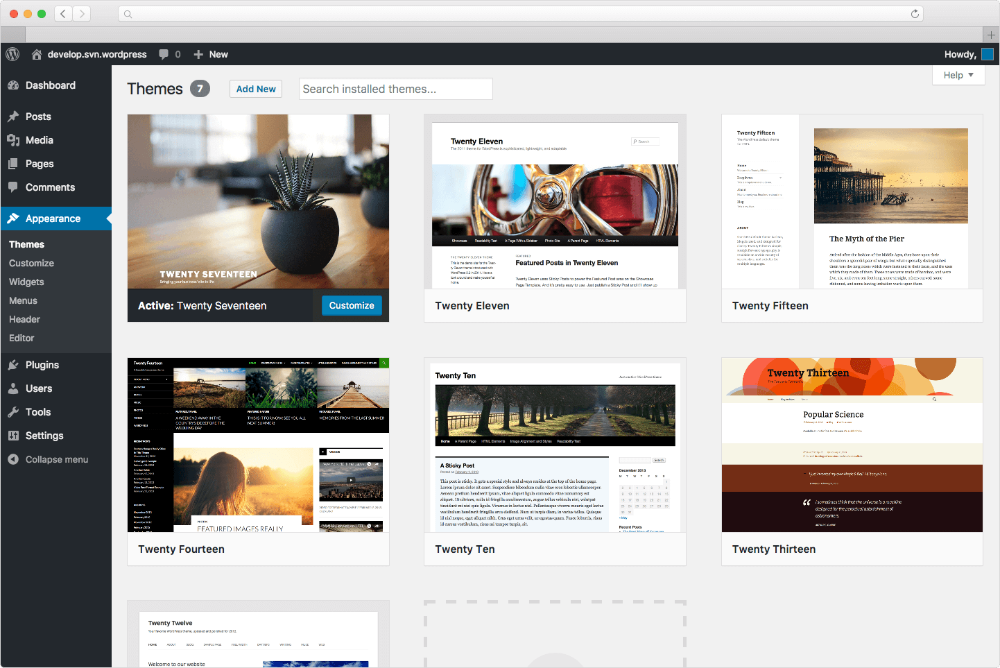
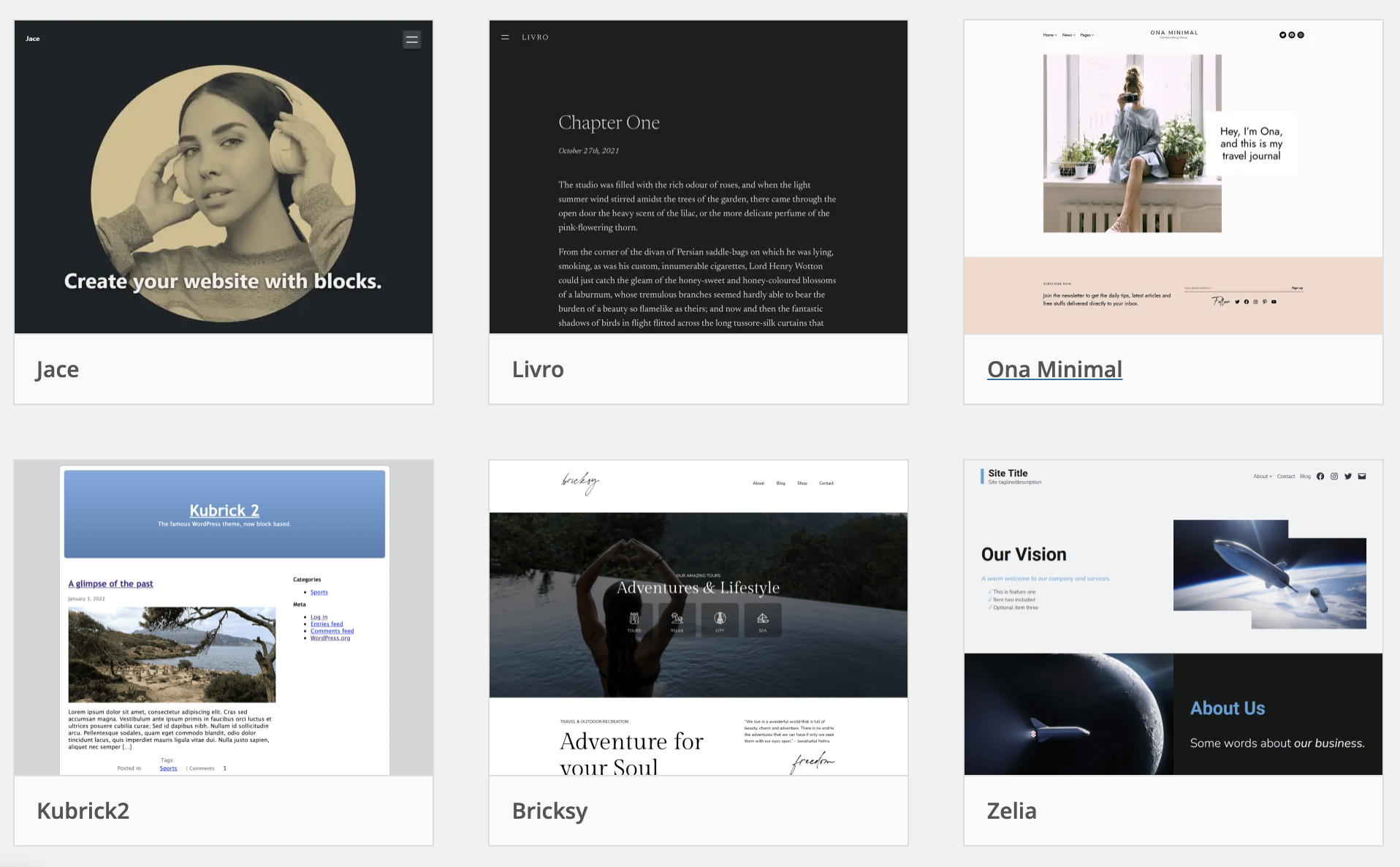
Look at different themes. Browse the WordPress library. It has many choices. Read reviews. See what others say. This helps you understand theme quality. Try demo versions. See how they look. Check the layout. Make sure it fits your needs.
Consider the theme’s flexibility. Can you change colors? Add widgets? Flexibility is key. It allows you to customize. Make the site yours. This helps keep your website unique.
Credit: docs.presscustomizr.com
Understanding Image Requirements
Choosing the right image format is important. JPEG is common for photos. It keeps file size small. PNG is good for images with transparency. For simple graphics, use GIF. Each format has its own use. Pick the one that fits your need.
Images should not be too big or too small. Large images slow down websites. Small images might look blurry. Aim for the right balance. A width of 1200 pixels is usually good. This size works well for most themes. Always check your theme’s requirements. Make sure images are clear and load fast.
Accessing Theme Settings
First, go to your WordPress dashboard. Find the Appearance menu on the left. Click on it. Here, you’ll see the Customizer option. This is where you can change theme images. The Customizer lets you see changes live. You can experiment without worry. Adjust images and see them instantly. Easy and fun!
Theme options give more control. Go to the Appearance menu again. Click on Theme Options. This area lets you change more settings. You can adjust image sizes. Change colors and layouts too. Explore different options. Make your website look unique. Remember to save changes.
Uploading Images
Exploring theme images on WordPress involves uploading visuals that match your site’s style. Start by accessing the dashboard, navigate to the media section, and upload your chosen images. Ensuring optimal image size and format enhances the aesthetic appeal and functionality of your theme.
Using Media Library
The Media Library is a simple way to upload images. Start by clicking on ‘Add New’ in the library. Choose the image from your computer. Wait for the upload to finish. After uploading, you can see the image in the library. You can edit the image here. Make it smaller or change the name. Adding captions is easy too. Use these features to make your images better.
Direct Upload Methods
Uploading images directly can be quick. Go to the post editor. Click on ‘Add Media’. Choose ‘Upload Files’. Pick your image from your computer. Wait for it to upload. Once uploaded, insert it into your post. You can resize it before posting. Direct upload saves time. It keeps things simple.
Editing Theme Images
WordPress has simple tools for cropping images. These tools help in making pictures fit well. To crop, select the image first. Click on the crop icon. Drag the edges to choose the part you want. Click save to keep the changes. This helps in making images look neat and tidy.
Images can be moved to fit better. Click on the image to select it. Use the alignment options to move it. Choose left, center, or right. This helps make the webpage look good. Proper alignment keeps things organized. It is easy and quick to do.
Troubleshooting Image Issues
Images might not upload due to size limits. Check your file size before uploading. Try using a smaller image if needed. Another problem could be the file type. WordPress accepts JPEG, PNG, and GIF. If an image doesn’t upload, change its format. Sometimes, the upload limit set by your host causes issues. Ask them to increase it if needed.
If images don’t show, check the file path. The image might be in the wrong folder. Ensure all images are in the uploads directory. Another cause could be a broken link. If an image link is broken, it won’t display. Fix this by checking the link’s correctness. Also, check if your theme supports the image size.
Enhancing Theme Images
Themes look better with cool effects. You can add filters like black and white or sepia. Shadows make images pop out. Use a blur for a soft look. Borders add style. Try different effects to see what fits best. Always preview your changes. Make sure the page looks nice.
Plugins help make images better. Envira Gallery is great for photo galleries. Smush helps make images load faster. NextGEN Gallery offers many display options. WP Paint is like a mini photo editor. It’s easy to install plugins. Find them in your WordPress dashboard. Choose the ones you need.

Credit: www.elegantthemes.com
Credit: wptavern.com
Frequently Asked Questions
How Do I Access Theme Images In WordPress?
To access theme images in WordPress, navigate to your WordPress dashboard. Go to Appearance > Theme Editor. Select the theme you’re using, then locate the “images” folder within the theme files. This folder contains the images associated with your theme, allowing you to view or edit them as needed.
Can I Change Images In My WordPress Theme?
Yes, you can change images in your WordPress theme. Access the theme’s image folder through the Theme Editor or use an FTP client. Replace the existing images with your new ones, ensuring they have the same file name and format.
Always back up files before making changes.
What Tools Help Edit WordPress Theme Images?
Several tools can help edit WordPress theme images. Popular tools include Adobe Photoshop, GIMP, and Canva. These tools allow you to resize, crop, and enhance images. After editing, upload the images to your WordPress theme via the Theme Editor or an FTP client.
How Do I Optimize Images For WordPress Themes?
Optimizing images for WordPress themes involves reducing file size without losing quality. Use tools like TinyPNG or JPEGmini to compress images. Ensure the dimensions fit your theme’s requirements. Optimized images improve site loading speed, enhancing user experience and SEO performance.
Conclusion
Mastering theme images on WordPress can enhance your site’s appeal. Start by exploring the theme’s settings to find image options. Use high-quality images to engage visitors. Ensure your images are optimized for faster loading times. This improves user experience and boosts SEO.
Remember, consistency in image style creates a cohesive look. Practice regularly to become more comfortable with WordPress features. Soon, you will effortlessly manage theme images. Keep learning and experimenting to refine your skills. Your site’s visual impact will improve significantly with these steps.
Happy designing!


