
Are you tired of your WordPress theme looking the same as countless others on the web? Do you want to make your website truly unique with just a few tweaks?
You’ve landed in the right place. Changing CSS in your WordPress theme can feel like unlocking a treasure chest of customization possibilities. Whether you want to adjust colors, fonts, or layouts, mastering CSS gives you the power to tailor your site exactly how you envision it.
Don’t worry if coding sounds intimidating; this guide will break down the process into simple, manageable steps. By the end, you’ll not only feel more confident in making these changes but also excited to see your personalized design come to life. Keep reading to discover how you can transform your WordPress site with just a few lines of CSS.
Credit: kinsta.com
Customizing Css In WordPress
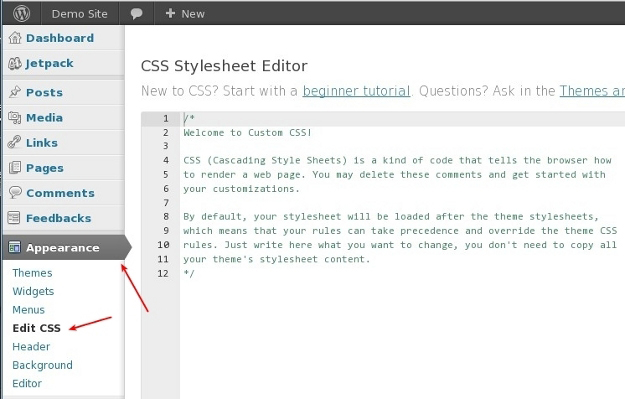
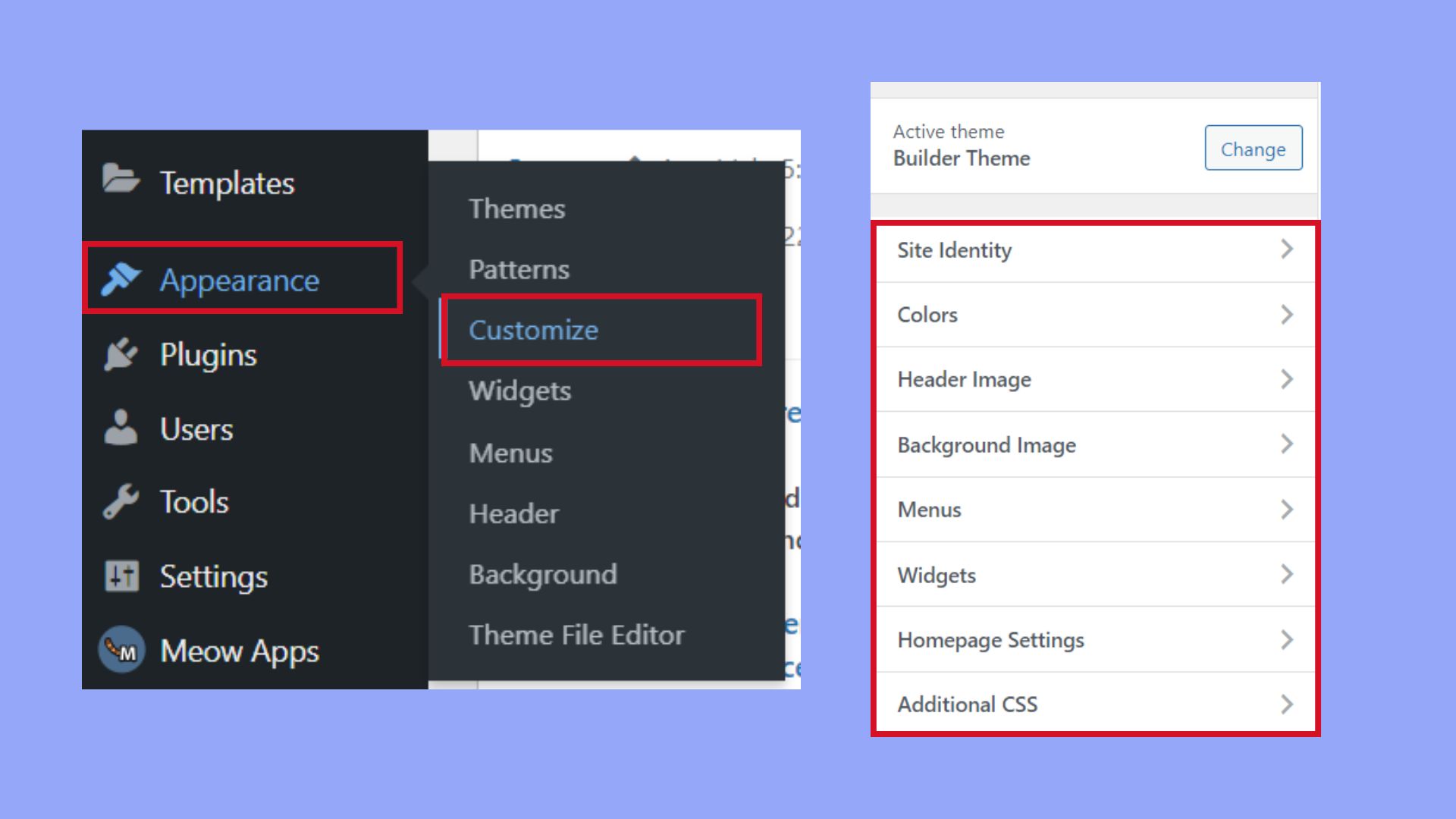
The Customizer is a handy tool. It lets you change CSS quickly. Open the WordPress dashboard. Find “Appearance,” then click “Customize.” Look for “Additional CSS” at the bottom. Enter your CSS code there. You can see the changes right away. This method is easy and safe. It doesn’t mess with original files.
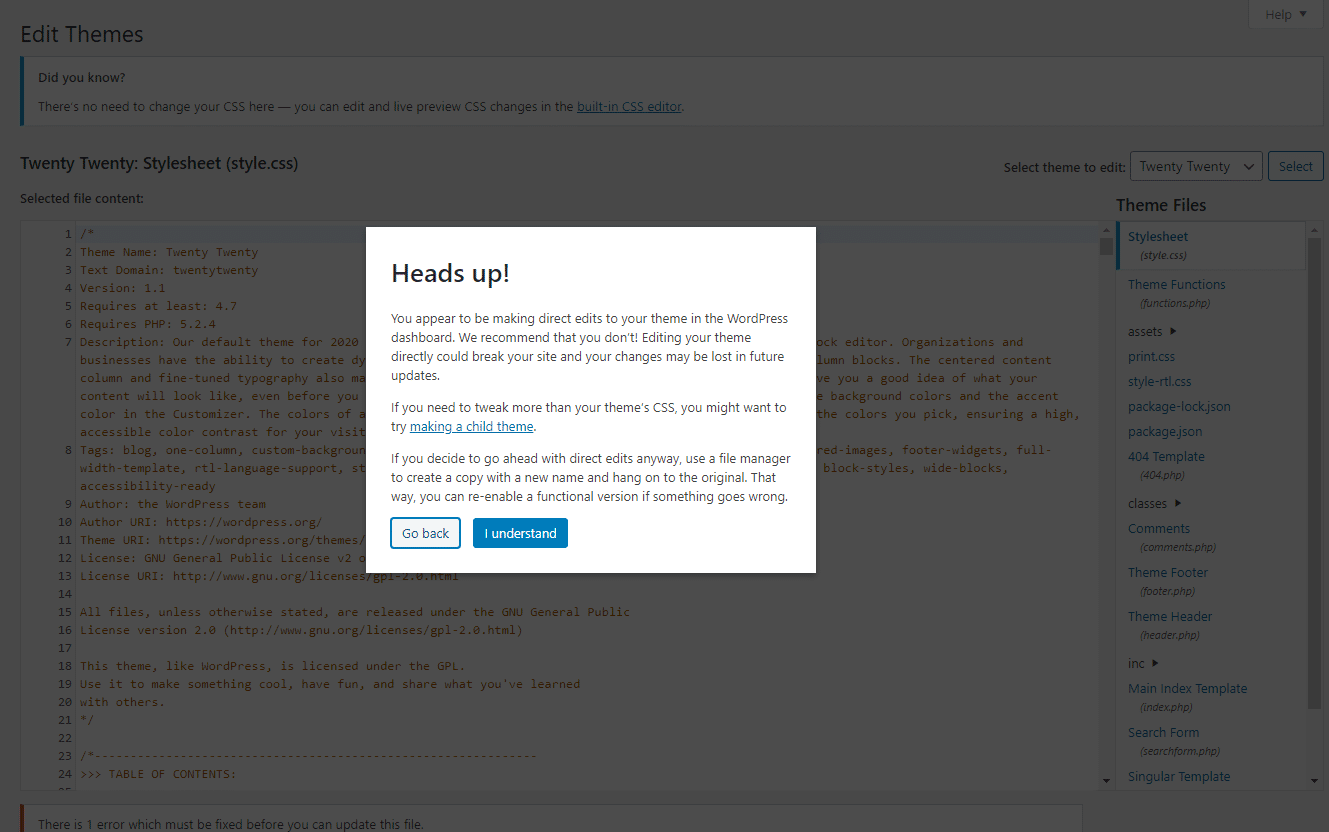
Theme files hold all the code. To edit them, go to “Appearance,” then “Theme Editor.” Be careful here. Changes affect the whole site. Always back up before editing. Look for “style.css” for CSS code. Make your changes, then save them. Remember, a mistake can break your site.
Plugins can help with custom CSS. Install a plugin like “Simple Custom CSS.” Go to “Plugins,” then “Add New.” Search for the plugin and install it. Activate it to start using. Find the plugin settings in the dashboard. Enter your CSS code there. Plugins keep changes separate. It makes updates safer.
Accessing Theme Files
First, log in to your WordPress dashboard. Look for the Appearance tab on the left. Click on it. Now, find the Theme Editor option. This opens the theme files. Be careful. Changes here affect your site. Always make a backup first. It’s important to stay safe.
Once in the editor, look at the right-hand side. There are many files. Find one named style.css. This is your theme’s stylesheet. It controls your site’s look. Click on it. You can now see and edit the CSS. Make changes to update your theme’s style. Remember to save changes. Click the Update File button. This ensures your changes take effect.
Best Practices For Css Changes
Updating CSS in a WordPress theme involves using the built-in customizer or a child theme. Ensure changes are saved and cleared caches for immediate results. This method maintains the site’s design during theme updates.
Creating A Child Theme
Child themes help keep changes safe. They protect the original theme files. First, create a new folder in the themes directory. Name it something like “yourtheme-child”. Inside, make a new style.css file. This file should start with a special header. Include the theme name and template name. Add any custom CSS to this file. Your changes will not affect the parent theme. This helps when updates happen. The parent theme updates won’t erase your work.
Backing Up Original Files
Always back up original files. It’s a safety net. Use FTP or a file manager. Save copies to your computer. These copies can fix mistakes. It’s like having a spare key. If something breaks, you can restore the original. This process keeps your work safe. Mistakes happen. But backups save time and stress.
Troubleshooting Css Changes
Cache can be tricky. It keeps old data for faster loading. Clear your browser cache first. This helps see the new changes. Sometimes plugins have their own cache. Check plugin settings to clear it. Also, server cache can block new CSS. Try clearing it from your hosting panel. Refresh the page after clearing cache. This ensures new CSS appears.
CSS needs correct syntax. Wrong syntax stops it from working. Check for missing semicolons. They are important to separate commands. Look for braces. They should open and close correctly. Spelling mistakes break the code too. Verify selectors are correct. They link CSS to HTML elements. Check for extra spaces. They can cause errors. Use simple tools to find syntax mistakes. They help fix errors fast.
Advanced Css Techniques
Inspect Element helps find the CSS code on a webpage. Right-click on a webpage element. Select “Inspect” to see HTML and CSS. The CSS code shows on the right side. You can edit it there. Changes appear instantly. Use this tool to test new styles. Save changes in your theme’s CSS file. This practice helps understand how CSS works.
CSS Preprocessors make coding easier. They offer features like variables and nested rules. Sass and LESS are popular preprocessors. Install them using a package manager. Write your CSS code using their syntax. It compiles into regular CSS. Preprocessors save time and reduce errors. They help organize complex styles. Use them to enhance your theme’s appearance. Always check compatibility before use.
Credit: www.8theme.com
Maintaining Css Changes
Themes get updates. These updates can reset your CSS changes. Check updates often to keep your changes safe. Use a child theme. It protects your work.
Always have a backup. A backup saves you from losing your work. Regular checks are key. They help you spot problems early.
Keep notes of changes. Write down what you change. This helps you remember. Use simple language. Documentation is your friend.
A list or table works well. Note the date and change. This makes it easy to track. Clear notes save time later. They help you fix any issues quickly.
Credit: 10web.io
Frequently Asked Questions
How Do I Edit Css In WordPress?
To edit CSS in WordPress, navigate to the WordPress dashboard. Go to “Appearance” and then “Customize. ” Select the “Additional CSS” option to add or modify CSS code. This section allows you to make changes that override the default theme styles without altering the original theme files.
Can I Change Css Without A Plugin?
Yes, you can change CSS without a plugin. Use the built-in WordPress Customizer by navigating to “Appearance” > “Customize” > “Additional CSS. ” Here, you can add custom CSS code. This method is straightforward and doesn’t require additional plugins, keeping your site lightweight.
Why Isn’t My Css Change Visible?
If your CSS change isn’t visible, try clearing your browser cache. Sometimes, cached pages prevent new styles from displaying. Also, ensure there’s no syntax error in your CSS code. Lastly, check if your changes were added to the correct section and that they target the right elements.
How Can I Override Theme Css?
To override theme CSS, use the “Additional CSS” section in the WordPress Customizer. Add your custom CSS code here. Ensure your CSS rules are more specific than the theme’s. This approach helps you apply your styles without modifying the theme’s core files.
Conclusion
Making changes to CSS in WordPress themes is straightforward. Start with a child theme to keep your updates safe. Use WordPress’s built-in Customizer for simple tweaks. For advanced changes, use the theme’s stylesheet in your dashboard. Always test your updates to prevent errors.
Backup your site to protect your work. Stay curious and explore different possibilities. With practice, CSS changes become easier. Your site will look better and function smoothly. Enjoy creating a unique look that reflects your style. Embrace the learning process and keep improving your skills.


