
Are you ready to give your WordPress website a fresh new look with a custom theme? Uploading a theme via FTP might sound complicated, but it’s easier than you think.
By learning how to FTP a theme to WordPress, you gain more control and flexibility over your website’s design. Imagine having the power to transform your site’s appearance with just a few clicks. In this guide, we’ll walk you through the process step by step, so you can enhance your site’s aesthetics without any hassle.
Get ready to unlock a new level of customization for your website. Stick with us, and by the end of this article, you’ll be equipped with the know-how to make your WordPress site stand out.
Credit: wpmanageninja.com
Preparing For Theme Upload
Picking a theme is fun. Think about your site’s purpose. Choose a theme that matches it. Some themes are for blogs. Others are for shops. Themes can change the look of your site. Make sure the theme is easy to use. Check if it’s responsive. This means it looks good on all devices. Read reviews. See what other people think. This helps you know if the theme is good.
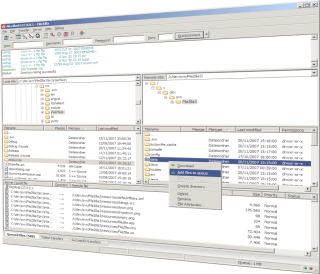
FTP stands for File Transfer Protocol. It helps move files from your computer to the website. You need an FTP client like FileZilla to do this. First, get your FTP details. These are username, password, and host address. You get them from your hosting provider. Make sure the theme folder is ready. It should be a .zip file. This is what you will upload to WordPress.
Credit: docs.presscustomizr.com
Setting Up Ftp Client
Choosing the right FTP client is important. Many options are free and easy to use. FileZilla is a popular choice. It is simple and works well with WordPress. Other options include Cyberduck and WinSCP. These tools help you transfer files safely. Install the client on your computer. Make sure it’s compatible with your operating system. Look for user-friendly interfaces. Read reviews to pick the best one.
Start by opening your FTP client. Enter the host name. This is usually your website’s URL. Add your username and password. These are your login details. Check with your hosting provider if needed. Set the port number. Port 21 is common for FTP. Save these settings for future use. Test the connection to ensure it works. Adjust settings if there are issues. Always keep your details safe and secure.
Connecting To WordPress Server
First, find your FTP credentials. These are usually found in your hosting account. They include a host name, username, and password. Port number is often needed too. Write these details down. They are important for the next steps. Keep them safe.
Open an FTP client on your computer. FileZilla is a good option. Enter your host name, username, and password. Add the port number. Click “Connect”. Wait for the connection to establish. You will see your server files. Now, you can upload your theme. Drag and drop the theme folder. Place it in the “themes” directory. Wait for the upload to finish.
Uploading Theme Files
Begin by opening your FTP client. Connect to your WordPress site server. After connecting, locate your WordPress root directory. This is often named public_html or www.
Navigating To Themes Directory
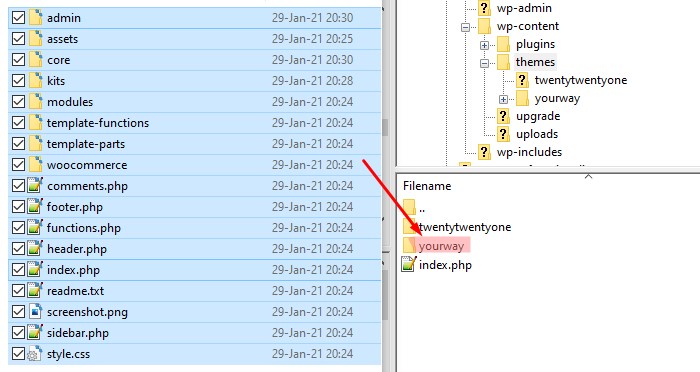
Find the wp-content folder in the root directory. Click on it. Inside, you will see the themes folder. This is where themes live. You will upload your theme here.
Transferring Files Via Ftp
Open your theme files on your computer. Select all the files. Drag them into the themes folder on your server. Wait for the transfer to finish. It might take a few minutes.
After uploading, check your WordPress dashboard. Go to Appearance, then Themes. Your new theme should appear. Activate it to use on your site.
Activating The Theme
Start by logging into your WordPress dashboard. Use your username and password. Once inside, you can see your site’s control panel. Look for the Appearance tab on the left menu. Click on it. You’ll find the Themes section. This is where you manage your site’s look. Make sure your theme appears here after uploading via FTP.
In the Themes section, locate the theme you uploaded. Click the Activate button. This makes your site use the new theme. Check your site to see changes. The new theme should be live now. If not, refresh the page. Contact support if you face issues. Enjoy your new site design!
Credit: docs.cmsmasters.net
Troubleshooting Common Issues
Uploading a theme via FTP to WordPress can be tricky. Check your FTP settings and ensure correct theme folder placement. Verify permissions and double-check your server connection for successful theme transfer.
Resolving Connection Problems
Sometimes the FTP won’t connect. Check login details first. Ensure the username and password are correct. Verify the host address too. Often, a wrong address causes connection issues. If the problem persists, look at the firewall settings. Firewalls can block connections. Disable it briefly to test. Contact your hosting support if nothing works. They can help fix connection problems.
Dealing With Upload Errors
Upload errors can be frustrating. Ensure the file permissions are correct. Files should have write access. Check the file size too. Large files may exceed limits. Consider compressing them. Sometimes, upload limits need adjusting. This can be done in your hosting panel. If errors continue, check server space. Low space can cause upload problems. Always keep an eye on server capacity.
Frequently Asked Questions
How Do I Connect To Ftp In WordPress?
To connect to FTP in WordPress, use an FTP client like FileZilla. Enter your host, username, and password. These details are provided by your hosting provider. Once connected, navigate to the WordPress directory to upload or manage files.
What Is The Purpose Of Ftp In WordPress?
FTP allows you to upload, download, and manage WordPress files directly on your server. It is useful for tasks like theme uploads, backups, and troubleshooting. FTP provides a way to access your site’s file system if you can’t access the WordPress dashboard.
Can I Upload A Theme Via Ftp?
Yes, you can upload a theme via FTP by connecting to your WordPress server. Navigate to the ‘wp-content/themes’ folder. Upload the theme folder from your computer. After uploading, activate the theme from the WordPress dashboard under ‘Appearance > Themes’.
Is Using Ftp Safe For WordPress?
Using FTP is generally safe if you follow security best practices. Use secure FTP (SFTP) for encrypted connections. Always keep your FTP credentials private and complex. Regularly update your FTP client and WordPress to prevent vulnerabilities and unauthorized access.
Conclusion
Uploading a theme via FTP to WordPress is straightforward. Follow each step. Connect, transfer, activate. Your site gets a fresh look. Troubleshooting is part of learning. Stay patient. Practice makes you better at handling themes. Manage your site efficiently. Keep exploring WordPress options for improvement.
Experiment with different themes. Customize for a unique design. Remember, WordPress is versatile. Make it work for your needs. Now, you can easily refresh your site’s appearance. Enjoy the creative process. Keep your WordPress site updated. It ensures better performance.
Always back up your files before changes. Happy theme uploading!


