
Are you ready to take control of your online presence and streamline your website management? Forwarding your domain with Namecheap is a simple yet powerful step you can take to enhance your digital footprint.
Imagine directing your visitors seamlessly to the right web page, boosting your brand’s accessibility with just a few clicks. This guide will walk you through the process, making it easy and stress-free, even if you’re not a tech wizard. By the end, you’ll have the know-how to manage your domain like a pro, unlocking potential that can lead to increased traffic and a more professional online presence.
Dive in, and discover how this small change can make a big difference for you and your website.
Getting Started With Domain Forwarding
Domain forwarding is an essential tool for anyone managing multiple domains or wanting to redirect traffic efficiently. Whether you’re a small business owner or a budding blogger, understanding how to forward a domain through Namecheap can optimize your online presence and streamline your digital strategy. Let’s dive into the process and get you started with domain forwarding.
Understanding Domain Forwarding
Domain forwarding is like setting up a virtual signpost. It directs visitors from one domain to another, allowing you to consolidate traffic and manage multiple web addresses effortlessly.
Imagine you own several domain names that represent your brand or business. Instead of managing separate websites, you can forward these domains to a single destination. This helps in maintaining consistency and reducing confusion among your audience.
Why would you want to forward a domain? Perhaps you’ve acquired a catchy new domain name, but you want to keep your current site. Or maybe you’re transitioning to a new domain and need to redirect traffic smoothly. Forwarding offers a seamless solution.
Have you ever struggled with managing multiple domains? It can feel overwhelming, but domain forwarding simplifies this by centralizing your web traffic.
Namecheap makes the process straightforward. With just a few clicks, you can ensure your visitors land on the right page without any hassle. Their user-friendly interface is designed to help even the least tech-savvy individuals master domain forwarding.
Ready to get started? Begin by logging into your Namecheap account. Navigate to the domain list and select the domain you want to forward. From there, you’ll access a menu that guides you through the forwarding setup.
Think about your audience’s experience. What happens when someone types in your domain name? Domain forwarding ensures they find what they’re looking for, without unnecessary detours.
Are you excited about making the most of your domain portfolio? Forwarding is not just a technical task; it’s a strategy to enhance your brand’s reach and improve user engagement.
Remember, the key to successful domain forwarding is clarity. Ensure the destination URL is active and relevant. This keeps your visitors engaged and satisfied.
Now that you have a basic understanding, take the first step towards effective domain management. Namecheap provides the tools, and with a bit of guidance, you can optimize your digital presence.
Accessing Your Namecheap Account
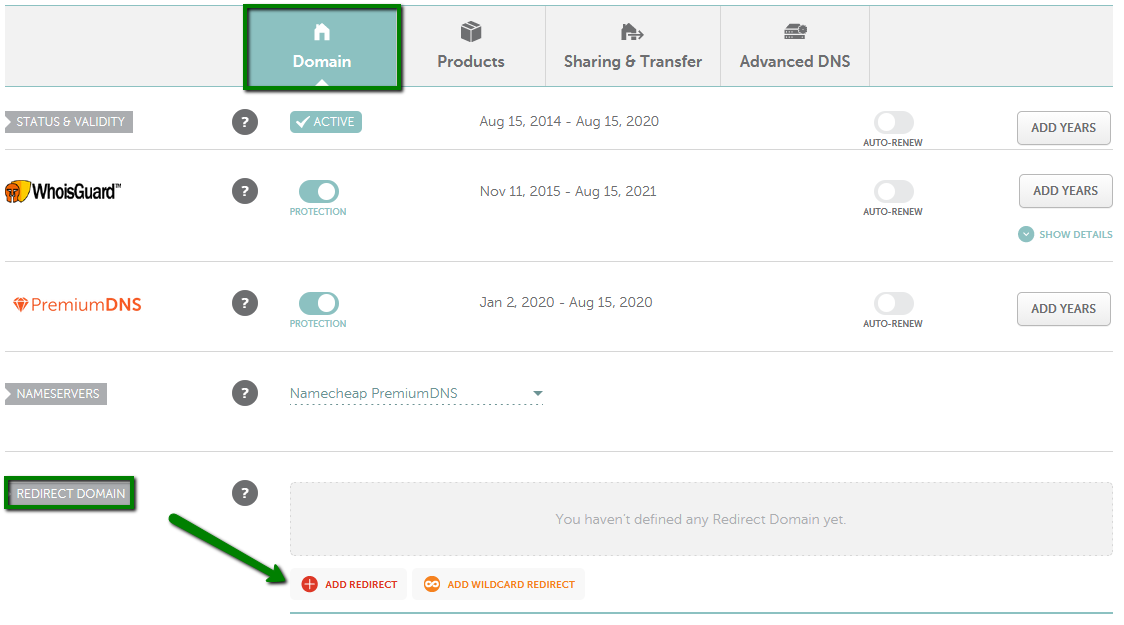
Forwarding a domain on Namecheap is simple. Log into your account, select Domain List, and click Manage. Find the Redirect Domain option, enter your destination URL, and save changes. Within moments, your domain will direct users to the new address.
Accessing your Namecheap account is the first step to forward a domain. This process is straightforward and user-friendly. By following simple steps, you can manage your domain settings effortlessly. Let’s explore how to log in and navigate the Namecheap dashboard.Logging Into Namecheap
Visit the Namecheap website. Click on the “Sign In” button at the top. Enter your username and password. If you forgot your password, reset it using the “Forgot Password” link. Ensure your login details are correct for a successful login. Once logged in, you can access all your domains.Navigating The Dashboard
After logging in, you will see the dashboard. The dashboard is your control panel. Here, you can manage domains and settings. Click on “Domain List” to view your domains. Use the search bar for quick navigation. The dashboard layout is simple and intuitive. Explore the menu options to find various settings.Locating Your Domain Settings
Access your Namecheap account to find domain settings. Navigate to the “Domain List” and select “Manage. ” Locate the “Redirect Domain” option to start forwarding your domain.
Locating your domain settings on Namecheap is a crucial step in forwarding your domain effectively. Whether you’re setting up a new website or redirecting traffic, knowing exactly where to find these settings can save you time and frustration. Let’s walk through the process, so you’re never left guessing again. ###Finding Domain List
Start by logging into your Namecheap account. Once you’re in, look for the Dashboard on the left-hand side. This is your command center, where all your domains are listed. Click on Domain List from the sidebar. Here, you’ll see all the domains you’ve registered with Namecheap. It’s like having a digital library of your online real estate. If you have multiple domains, use the search bar at the top to quickly find the one you need. It’s a simple trick that can save you from endless scrolling. ###Selecting Your Domain
Once you’ve located your domain in the list, click on the Manage button next to it. This takes you to the domain settings page where the magic happens. Here, you can adjust everything from DNS settings to domain forwarding. The layout is user-friendly, making it easy even for beginners to navigate. Ever felt overwhelmed by technical jargon? This page keeps it straightforward. Look for the Domain Forwarding section, ready for your instructions. Do you remember the first time you tried to set up a domain and felt lost? With Namecheap’s intuitive layout, those days are behind you. Embrace the simplicity and take control of your domain’s destiny.Configuring Domain Forwarding
Configuring domain forwarding can streamline your online presence. It helps direct visitors from one domain to another efficiently. This feature is essential for managing multiple domains. Using Namecheap, you can easily set up domain forwarding. Follow simple steps to ensure smooth redirection. Let’s explore the process.
Choosing Forwarding Options
First, decide how you want to forward your domain. You can choose between permanent or temporary forwarding. Permanent forwarding means the URL change is permanent. Temporary forwarding is for short-term redirection. Choose based on your needs. Each option has its benefits.
Setting Up Url Forwarding
Log in to your Namecheap account. Go to the ‘Domain List’ section. Find the domain you wish to forward. Click ‘Manage’ next to it. Look for the ‘Advanced DNS’ tab. Here, you can set up URL forwarding. Enter the destination URL. Save changes to activate the forwarding. Your domain will now redirect visitors seamlessly.
Testing Your Domain Forwarding
Easily forward your domain on Namecheap using their intuitive dashboard. Access your account, find the domain list, and select the desired domain. Enable domain forwarding to direct traffic seamlessly to your preferred web address.
Testing your domain forwarding is a crucial step to ensure everything is set up correctly and that your visitors land exactly where you want them to. Imagine setting up a beautiful new website, only for your audience to face a dead-end. That’s why verifying and troubleshooting your domain forwarding is vital. A little patience here can save you a lot of headaches later.Verifying Forwarding Setup
Begin by typing your domain into the browser’s address bar. Does it redirect to the intended site? If yes, great job! You’ve successfully set up the forwarding. Check on different devices and browsers. Sometimes what works on a laptop might not on a mobile. Ensure consistency across platforms for a seamless user experience. Don’t forget about checking the SSL certificate. A secure connection is crucial. If your forwarded domain doesn’t show as secure, it might put off visitors.Troubleshooting Common Issues
What if your domain isn’t forwarding as expected? Don’t panic. Start by clearing your browser cache or trying a different browser. Sometimes, cached data can be misleading. Double-check your DNS settings in Namecheap. Any typos or incorrect entries can halt forwarding. Verify that all settings match the instructions provided by Namecheap. Have you given it enough time? DNS changes can take some time to propagate. If it’s been over 48 hours and still no luck, consider reaching out to Namecheap support. They have experts ready to assist you. Have you ever faced an issue where everything seemed perfect, yet it didn’t work? Sometimes, the solution is in the smallest detail. Reflecting on past experiences can offer unexpected insights. What are your thoughts on this?
Credit: www.youtube.com
Managing Forwarding Preferences
Easily forward your domain on Namecheap by accessing the dashboard. Navigate to the domain list and select manage. Choose the forwarding option and input the desired web address. Save changes to complete the process. This simple setup ensures seamless redirection of your domain.
Managing domain forwarding preferences is crucial for any website owner. It ensures your visitors reach the right destination. Namecheap makes this process straightforward. This guide will help you manage your forwarding preferences effectively. Learn how to update settings and monitor traffic easily.Updating Forwarding Settings
Access your Namecheap account dashboard. Find the domain you want to forward. Click on ‘Manage’. Look for the ‘Advanced DNS’ tab. Here, you can set up forwarding. Enter the URL you want to forward to. Save your changes. Ensure the forwarding type is correct. Use 301 for permanent forwarding. Use 302 for temporary forwarding. Double-check your entries. Mistakes can lead to errors.Monitoring Forwarded Traffic
Tracking forwarded traffic is essential. It helps you understand visitor behavior. Use analytics tools for this. Google Analytics is a popular choice. Set up a tracking code on your destination page. Check traffic reports regularly. Look for patterns in visitor numbers. Identify peak traffic times. This helps optimize your site. Adjust your content or offers accordingly. Stay informed about where visitors come from. This can guide your marketing strategies.Tips For Effective Domain Forwarding
Domain forwarding on Namecheap involves directing web traffic from one domain to another. Start by logging into your Namecheap account and selecting the domain you wish to forward. Configure the forwarding settings by entering the destination URL, ensuring seamless redirection for users.
Forwarding a domain with Namecheap can open up new opportunities for your website and online presence. Whether you’re redirecting to a new brand, managing multiple domains, or simply trying to improve user experience, effective domain forwarding is key. Here are some tips to make sure your domain forwarding is not only functional but also boosts your online strategy.Enhancing Seo With Forwarding
When you forward a domain, it’s essential to consider how it impacts your search engine rankings. Use 301 redirects for permanent forwarding. This tells search engines to update their indexes with the new URL, preserving your SEO value. Choose a main domain and forward other domains to it. This avoids duplicate content issues, ensuring all your SEO efforts are focused on one primary URL. Have you thought about analytics? Track your redirected traffic to understand user behavior and optimize your strategies further.Avoiding Common Pitfalls
Domain forwarding can seem straightforward, but there are traps you should avoid. Don’t use 302 redirects for permanent changes. 302 tells search engines the change is temporary, which can hurt your SEO. Make sure the forwarding doesn’t create redirect loops. These occur when a URL redirects back to itself or goes through a series of redirects without reaching a final destination, frustrating users and search engines alike. Check your forwarding setup regularly. Errors might go unnoticed but can significantly impact your site’s performance. Engaging in these practices ensures your domain forwarding is smooth and beneficial. Have you had any forwarding mishaps? Learning from others’ experiences can help avoid similar mistakes.
Credit: domain-forward.com
Credit: www.namecheap.com
Frequently Asked Questions
How Do I Forward A Domain In Namecheap?
Log in to your Namecheap account. Go to “Domain List” and click “Manage” next to your domain. Select “Advanced DNS” tab, then find the “Redirect Domain” section. Enter the URL you want to forward to and save changes.
How Do I Forward A Domain To Another Domain?
To forward a domain, access your domain registrar’s settings. Select the domain, choose forwarding options, and enter the destination URL. Save changes to activate forwarding. Ensure DNS settings are correctly configured to avoid issues. Contact support if assistance is needed.
How Do I Transfer A Domain From Namecheap To Another Person?
Log in to your Namecheap account. Go to “Domain List” and select the domain. Click “Manage” and then “Transfer. ” Follow instructions to transfer ownership. Ensure the recipient has a Namecheap account. Confirm the transfer via email. Check domain status after completion.
How Do I Redirect A Url To Another Url?
To redirect a URL, use a 301 redirect in your. htaccess file. Add the line: “Redirect 301 /old-url/ http://www. yourwebsite. com/new-url/”. Alternatively, use website plugins or hosting panel tools for simple redirection. Ensure the new URL is correct to avoid errors.
Conclusion
Mastering domain forwarding with Namecheap is simple and efficient. Follow the steps carefully for a smooth setup. A properly forwarded domain improves your online presence. It helps direct traffic to the right site. Remember to double-check settings to avoid errors.
Regularly update and monitor your domain settings. This ensures everything runs smoothly. Success in forwarding a domain boosts your website’s performance. Keep exploring and learning more about domains. The more you know, the better your online strategy. Your digital footprint matters.
Make it count with effective domain management.


