
Are you struggling to connect your WordPress theme to Instagram? You’re not alone.
Many WordPress users face this challenge, and it can be frustrating when your site doesn’t showcase your beautiful Instagram feed the way you want it to. But don’t worry—you’re in the right place. In this guide, we’ll walk you through simple, effective steps to seamlessly link your WordPress theme to Instagram, transforming your website into a dynamic showcase of your social media presence.
Imagine your visitors scrolling through your site and being captivated by your latest Instagram posts, all effortlessly integrated. Ready to get started and make your website shine? Let’s dive in and fix this together!
Credit: forum.tagdiv.com
Identifying Connection Issues
Users may notice their Instagram feed is not showing. Posts appear blank or missing. Sometimes, images fail to load. Error messages pop up often. The connection seems broken. These issues frustrate users. They disrupt site appearance. They affect user experience.
The problem might be due to outdated plugins. Incorrect settings cause issues too. Sometimes themes need updates. Network problems affect connections. API changes create conflicts. User permissions might be wrong. Each cause needs checking. Solutions vary for each issue.
Checking Theme Compatibility
First, check if your theme supports Instagram. Some themes have built-in features for this. Look for an Instagram widget or a social media section. If your theme doesn’t support these, you might need a plugin.
Not all themes work with every plugin. Ensure the plugin you choose is compatible with your theme. This avoids errors and keeps your site running smoothly. Always read reviews before downloading a plugin.
Your WordPress must be up-to-date. Themes often require the latest version. Check the theme’s description for version needs. Older versions might not work well. Update your WordPress if needed. This can solve many issues.
Also, check your PHP version. Some themes need a specific PHP version. You can find this info in your hosting dashboard. Always keep your website’s software current for the best performance.
Updating WordPress And Themes
Always use the latest WordPress version. It keeps your site safe. New updates fix many bugs and issues. They also bring new features. Check for updates in the dashboard.
Click on Updates in the left menu. If there’s a new version, you’ll see it here. Click to update. Your site will be ready with new improvements.
Themes need updates too. This process is simple. Go to Appearance in the dashboard. Click on Themes. Here, you’ll see all your themes.
If an update is available, it will show. Click on Update Now. This makes sure your theme works well with WordPress. It also helps with Instagram connections.
Configuring Instagram Api
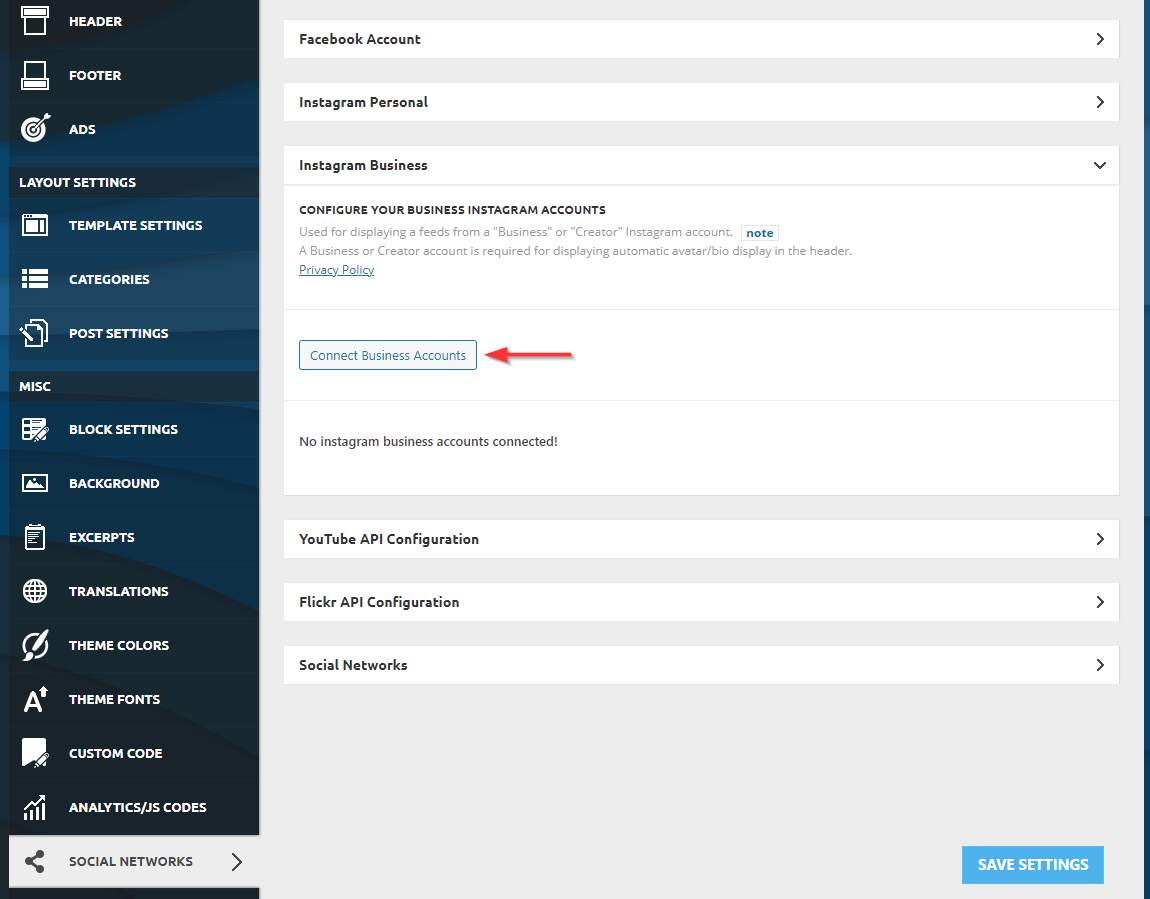
Start by visiting the Instagram Developer website. Click on “My Apps” and select “Register a New Application.” Enter your app name and description. Ensure you provide a valid website URL. This is important for the API settings. Accept the terms and conditions. Then, your app will be ready to use. Save your App ID and App Secret.
Access tokens are needed for app communication. Go to the “User Token Generator” section. Click on “Generate Token.” Follow the instructions to get your token. It’s crucial to save this token safely. It allows your theme to connect with Instagram. Never share your token publicly. This keeps your account secure.
Using Instagram Plugins
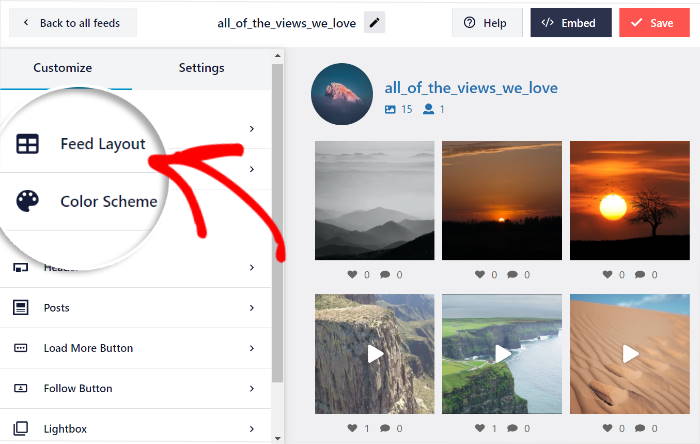
Many plugins help connect WordPress to Instagram. Instagram Feed is a top choice. It displays your Instagram photos on your site. WP Instagram Widget is another option. It is simple and easy to use. Smash Balloon offers both free and paid versions. It allows customization of your Instagram feed. Each plugin has unique features. Choose one that fits your needs.
First, download the plugin from the WordPress plugin store. Next, install and activate it. Each plugin will have instructions. Follow these steps carefully. Some need Instagram account login details. Others may ask for your Instagram token. Check settings for extra options. You can customize the look of your Instagram feed. Settings might include colors, sizes, and layout choices. Save changes once setup is complete.
Credit: smashballoon.com
Customizing Theme Code
Open the functions.php file in your theme folder. This file controls many parts of your theme. You can add code to this file to include Instagram features. Always create a backup before making changes. If something goes wrong, you can restore the original file. Use a simple text editor for these edits. It helps avoid errors. Adding a few lines of code can make big changes. Ensure the code is correct and complete. Check your site for any issues after saving changes.
Instagram feeds make your site lively. You can use plugins to display them. Plugins are simple and easy to install. Choose a plugin that suits your needs. Some plugins have extra features. These features might help display photos better. Follow the plugin instructions carefully. Connect your Instagram account to the plugin. This allows your photos to show on your site. Remember to update plugins for new features and security.
Testing Instagram Connection
To check your Instagram connection, open your WordPress dashboard. Find the Instagram Feed plugin. Click on it to see settings. Ensure your Instagram account is linked. Sometimes, the connection may break. Reconnect it if needed. Look for a button labeled “Test Connection.” Click to verify. If it says “Success,” you are good to go. If it fails, check your Internet connection.
Ensure your feed displays correctly. Go to your WordPress site. Check the Instagram feed page. Look for recent posts. If posts don’t show, there might be a problem. Ensure your shortcode is correct. It should match what you set in the plugin. Sometimes, themes conflict with plugins. Try switching themes temporarily. See if the feed appears.
Errors can occur. Look for error messages in your dashboard. Common issues include invalid tokens. Tokens expire over time. Refresh them regularly. If a token is invalid, it won’t connect. Check your Instagram account settings. Ensure permissions are correct. Some errors need plugin updates. Always keep your plugin updated. Updates fix bugs and enhance security.
Ensuring Security And Privacy
Permissions are important. They control who sees your posts. Always check them. It’s smart to review settings often. Use strong passwords. They keep accounts safe. Never share your password with anyone. Protect your Instagram.
API keys are like secret codes. They connect apps. Keep these keys safe. Use a secure place to store them. Change keys regularly. This helps keep hackers away. Always update keys when needed. Safety first!

Credit: colorlib.com
Frequently Asked Questions
How To Integrate Instagram With WordPress Theme?
To integrate Instagram, use plugins like Instagram Feed or Smash Balloon. These plugins allow seamless display of Instagram feeds on your WordPress site. Configure the plugin settings and authenticate your Instagram account. Ensure your theme supports widget areas or shortcodes for smooth integration.
Why Is Instagram Not Showing On WordPress?
If Instagram isn’t showing, check plugin settings and authentication. Ensure your Instagram account is correctly linked. Verify if the plugin is updated and compatible with your theme. Clear your website cache and try reloading the page to fix any display issues.
Which Plugin Is Best For Instagram Integration?
Popular plugins for Instagram integration include Instagram Feed, Smash Balloon, and WP Instagram Widget. These plugins offer customization options and easy setup. Choose based on features, user reviews, and compatibility with your WordPress theme. Ensure regular updates for optimal performance.
Can WordPress Theme Affect Instagram Connection?
Yes, a WordPress theme can affect Instagram connection. If the theme lacks widget areas or shortcode support, integration might fail. Ensure your theme is updated and compatible with Instagram plugins. Check theme settings for any conflicts with the plugin functionality.
Conclusion
Connecting your WordPress theme to Instagram can be straightforward. Follow the steps carefully. Ensure you have the right plugins installed. Check all settings twice to avoid errors. Always update your plugins regularly for smooth integration. Troubleshoot any issues promptly to maintain functionality.
A seamless Instagram connection enhances your site’s appeal. Engage your audience with dynamic, fresh content. Keep learning and adapting to new tools. Your website will benefit greatly. Enjoy the increased interaction and visual appeal. Happy blogging!


