
When you set up your website, you might feel a bit lost when it comes to managing files. One crucial piece of information you’ll need is your web hosting instance FTP address.
This address is your gateway to upload, download, and manage your site’s files efficiently. Knowing how to find it can streamline your workflow and save you a lot of time and hassle. In this guide, you’ll discover simple steps to locate your FTP address, ensuring your website runs smoothly and effectively.
Don’t let technical details hold you back; empower yourself with this knowledge and take control of your site’s management with confidence. Keep reading, and you’ll be equipped with everything you need to handle your web files like a pro!
Credit: www.cloudaccess.net
Understanding Ftp And Its Role
FTP stands for File Transfer Protocol. It helps move files between computers. Think of it as a digital postman. You send files from your computer to a server. The server stores these files for your website. FTP is very important for websites. It keeps your site running smoothly. You need a special address to use FTP. This is called the FTP address. It tells the server where to find your files. Without it, you can’t upload or change files on your site. Knowing your FTP address is key.
Accessing Your Web Hosting Account
First, gather your login credentials. These include your username and password. Check your email for these details. Hosting companies often send this after registration. Keep these credentials safe. They are important for accessing your account.
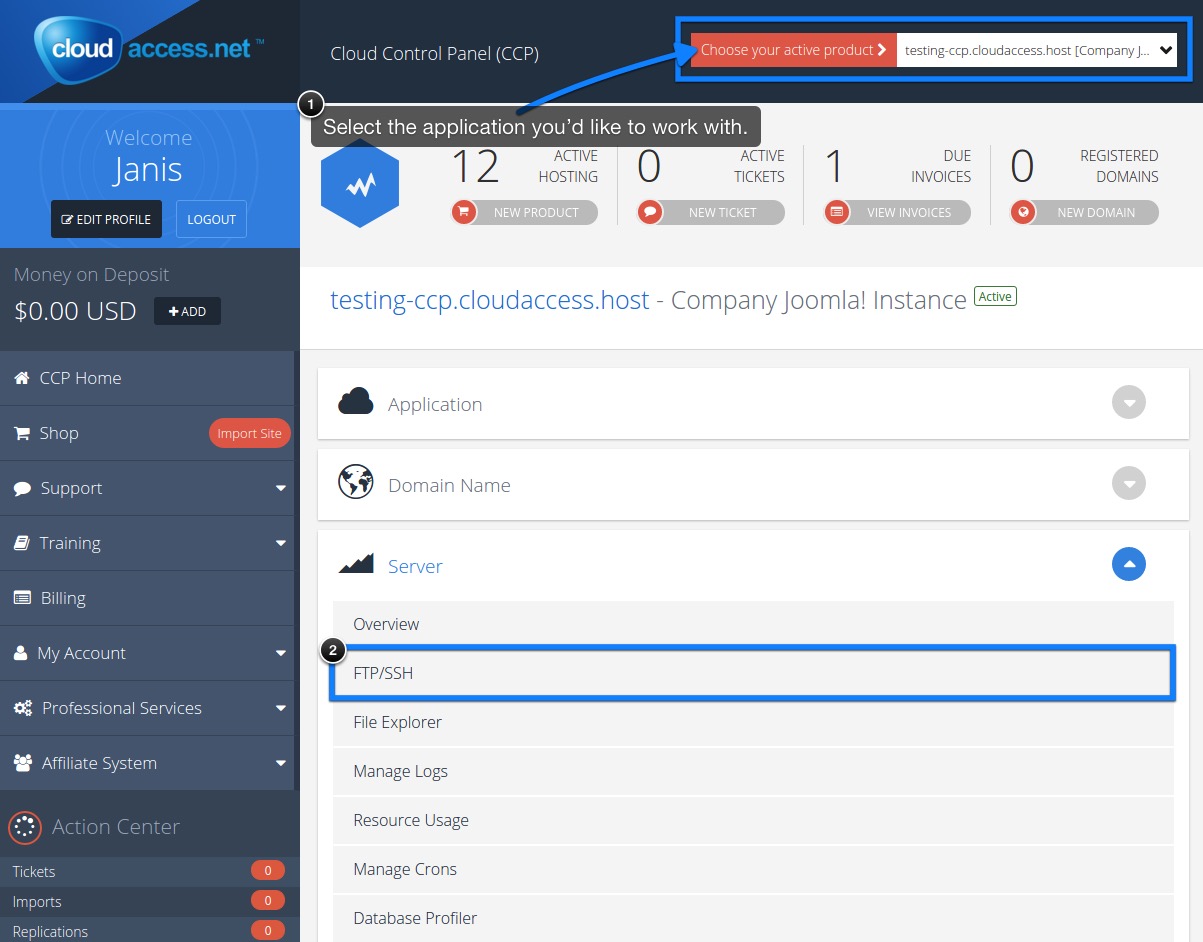
After logging in, find the dashboard. This is the main control panel. Look for a menu on the side. It has all the options you need. Click on the “FTP” section. This is where you’ll find your FTP address. Follow the instructions on the screen. It’s usually straightforward.
Locating The Ftp Section
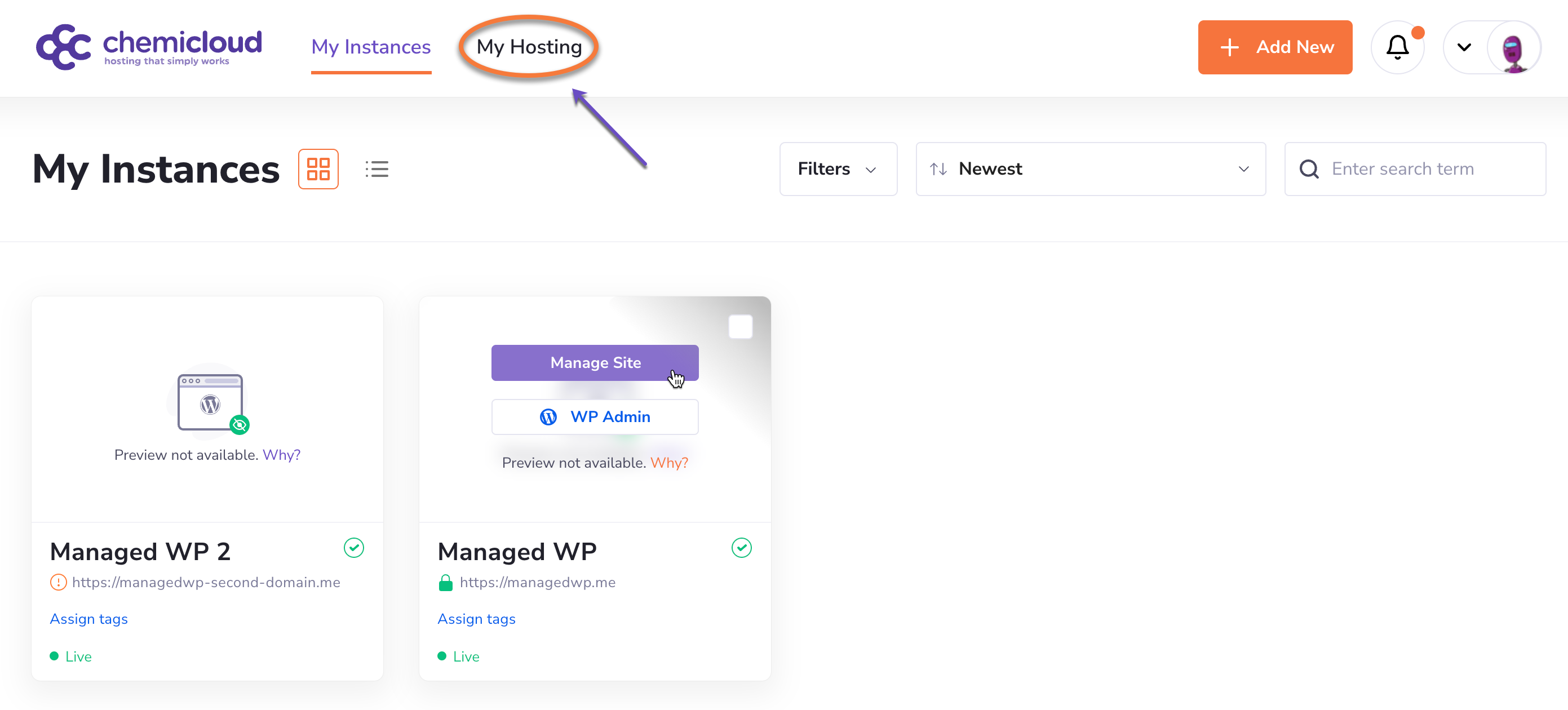
Most hosting services have an FTP section in their control panel. It’s often found under the “Files” or “FTP Accounts” tab. Start by logging into your hosting account. Look around for these tabs. They might be on the left or top menu. Click on them to access FTP settings.
Control panels like cPanel and Plesk make finding FTP easy. In cPanel, check under the “Files” section. In Plesk, find the “Websites & Domains” section. Click to view FTP settings. You’ll see your FTP address here. Remember, the FTP address is essential. It helps you upload files to your website. Always keep it safe.
Credit: chemicloud.com
Identifying Your Ftp Address
Shared hosting is like living in an apartment. Many websites use the same server. You can find your FTP address in your hosting account dashboard. Look for the FTP settings or FTP section. Your FTP address is often your website’s domain name. Sometimes, it might be an IP address. Check the email from your host provider. It usually includes your FTP address. Remember to use the correct username and password. Without them, you cannot access your files.
Dedicated hosting is like owning a house. You have the whole server to yourself. Finding your FTP address is similar to shared hosting. Check your hosting account dashboard for server details. Your FTP address is often your server’s IP address. Contact your host if you’re unsure. They can guide you to find it. Always keep your login details safe. They are important for accessing your server.
Verifying Ftp Address Accuracy
Testing FTP Connection is important. Open your FTP client. Enter the FTP address. Enter your username and password. Click connect. Check if the connection works. If it connects, your address is correct.
Resolving Common Issues is needed if it doesn’t work. Double-check your login details. Ensure your internet is stable. Sometimes, try turning off your firewall. This helps with connection issues.
| Common Issue | Solution |
|---|---|
| Wrong FTP Address | Verify with your hosting provider |
| Incorrect Login Details | Re-enter username and password |
| Firewall Blocking | Disable firewall temporarily |

Credit: shape.host
Using Ftp Software To Connect
FTP software helps you connect to your web hosting. Popular FTP clients include FileZilla, WinSCP, and Cyberduck. These programs are free and easy to use. They work well on most computers. To start, download and install one of these clients. Each client has a simple interface. This makes it easy for beginners.
FileZilla is widely used. It supports many languages and platforms. WinSCP is great for Windows users. It also supports secure connections. Cyberduck works well on both Mac and Windows. It integrates with cloud storage too. Choose the client that suits your needs best.
Open your FTP client. Enter your FTP address in the host field. Add your username and password. Click connect to access your server. If successful, you’ll see your files. You can now upload or download files easily. Always keep your login details safe. This protects your website from unauthorized access.
Troubleshooting Ftp Access Problems
Discovering your web hosting instance FTP address often involves logging into your hosting account. Navigate to the control panel and look for the FTP settings section. Here, you’ll find your FTP address, which is essential for file transfers.
Common Errors
Sometimes, errors pop up during FTP access. Connection refused is a frequent one. It happens when the server is down. Incorrect login details also cause problems. Always double-check your username and password. Firewall settings might block the connection too. Ensure the FTP port is open. Too many connections error can occur. It limits the number of users at a time. Stay patient and try again later.
Solutions And Workarounds
Restart your router to fix network issues. This can help refresh the connection. Try using a different FTP client if problems persist. Some clients have better compatibility. Update your FTP software regularly. New versions fix bugs and improve performance. Contact your hosting provider for persistent issues. They can offer specific guidance. Always keep your FTP credentials secure. This prevents unauthorized access.
Frequently Asked Questions
How To Find Ftp Address Of A Website?
Contact your web hosting provider for the FTP address. It’s often in the format ftp. yourdomain. com. Alternatively, check your hosting account’s control panel for FTP details.
What Is My Ftp Host Address?
Find your FTP host address in the hosting account settings or the welcome email from your provider. It’s usually a domain name or IP address. Check documentation or contact support for details. Ensure your FTP client is set up correctly to connect using this address.
How Do I Access My Website Ftp?
Access your website FTP by using an FTP client like FileZilla. Enter your domain, username, and password. Connect to your web hosting server. Check server settings in your hosting account for exact details. Ensure you have correct permissions for file management.
Contact your web host for assistance if needed.
How To Check Ftp Url?
Open a web browser and enter the FTP URL in the address bar. Verify connection by checking the displayed directory or login prompt. Use an FTP client for detailed inspection and file management.
Conclusion
Finding your FTP address is easier with these steps. Start by checking your hosting provider’s dashboard. Look for server details or FTP settings. Use the information given to access your files. Remember, each hosting service may differ slightly. Always keep your login credentials secure.
This ensures your website’s safety. Try these tips today to manage your site better. Understanding FTP helps in smooth website maintenance. Keep learning and exploring for more efficient website management. Your web hosting journey just got simpler.


