
Are you struggling to locate specific pages within your WordPress theme? You’re not alone.
Many website owners find themselves puzzled when trying to customize or modify their site. But don’t worry—you’re about to discover how to navigate your WordPress theme like a pro. Imagine confidently making changes that perfectly align with your vision, without wasting time on frustrating searches.
By the end of this guide, you’ll not only know how to find those elusive pages, but you’ll also gain a deeper understanding of your theme’s structure. Stick with us, and unlock the full potential of your WordPress site.
Locating Theme Files
First, log in to your WordPress dashboard. This is where you manage your site. Look for the Appearance option in the menu. Click it. A new menu will open. There, you will find the Theme Editor. This tool helps you view theme files. Use it to locate the files you need.
WordPress themes have many files. Each file has a job. The main files include style.css and functions.php. These files control design and features. Template files like header.php and footer.php define page layout. Understanding these helps you make changes.
Credit: www.greengeeks.com
Using Theme Editor
First, log into your WordPress dashboard. Find the Appearance tab on the left. Click on it. Then, select Theme Editor. This opens your theme files. Be careful here. Editing can change your site look. Always make a backup first. Check the right side. You will see template files. These are the parts of your theme.
Each file has a purpose. Header.php is for the top part. Footer.php is for the bottom. Index.php is the main page. Style.css changes how things look. Want to change a page? Find its file first. Always be careful. Small changes matter. Test changes on a preview site. This keeps your main site safe.
Employing Ftp Clients
To find WordPress theme pages, use FTP clients. First, set up FTP access. Download an FTP client like FileZilla. Enter the hostname, username, and password. Connect to the server easily.
Setting Up Ftp Access
Setting up FTP is simple. Open your FTP client. Enter server details. Use your hosting account info. Connect to your WordPress site.
Exploring Theme Directories
Explore theme directories through FTP. Navigate to wp-content. Find themes folder. Click to see installed themes. Access theme files here. Check the style.css file. It has theme details.
Search for specific pages. Look for page.php or index.php. These are core theme files. You can edit these files. Make changes to your site.
Leveraging Developer Tools
Discovering theme pages in WordPress becomes easier with developer tools. Inspect elements to identify specific page templates. Access the console for valuable insights on theme structures.
Utilizing Browser Inspector
Browser Inspector helps find details of web pages. Open Developer Tools by right-clicking on the page. Select “Inspect” from the menu. A panel will appear at the bottom or side of the screen. This panel shows the HTML code of the page.
Look for specific elements like header, footer, or content areas. Click on them to see their HTML structure. This helps understand how the theme organizes different parts.
Tracing Html Elements
Find the main elements by looking at their classes or IDs. These are usually written after the tag name. For example, or
Track how these elements are styled in CSS. Check the “Styles” tab in Developer Tools. Here, you can see which CSS rules apply to each element. This helps identify how the theme achieves its look.
Theme Documentation
Theme guides help you understand how to use your theme. They show you how to find pages. Read these guides to get the best help. Guides often have pictures. These pictures show where to find things. You can see what your theme can do. Guides explain each part of the theme. They tell you what each button does. This makes it easy to find the right page.
Template hierarchy is like a map for themes. It shows how pages connect. Each page has a job. Some pages show posts. Some show pictures. Knowing this map helps you find theme pages. Templates have names. Names tell you their job. Learn these names to find the right page fast. Hierarchy helps you see the big picture. It keeps things in order.
Using Plugins For Theme Analysis
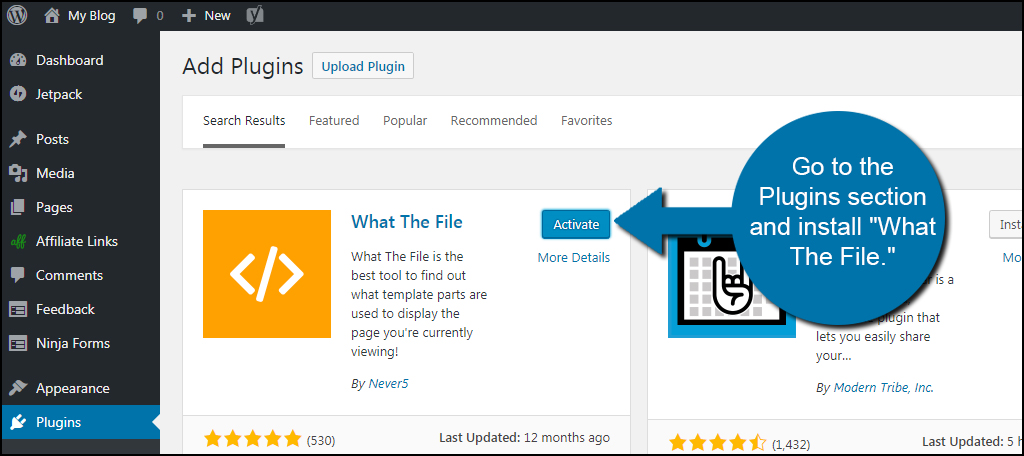
Many plugins help you see hidden theme pages. These plugins are easy to use. First, find a plugin that suits your needs. Next, install it from the plugin store. Finally, activate the plugin on your WordPress site. It’s like adding a new tool to your toolbox. You get more power over your site.
Plugins give reports about theme pages. These reports show which pages are part of the theme. Reports also show how each page works. They help you understand your site’s layout. Look for important details in these reports. They guide you in making changes. Changes that improve site performance. Look for sections like page speed and structure. These help you see what’s working well.
Common Challenges
Custom themes in WordPress can be tricky. These themes have unique designs. Sometimes, they hide pages. Finding these pages takes time. They might have special names. Or they could be in different folders. It’s like a treasure hunt. But with patience, you can do it.
Dealing With Custom Themes
Custom themes often change the usual structure. This makes finding files hard. Explore the theme folder. Check the functions.php file. Look for custom functions. These functions might tell where pages are. Use the WordPress admin panel. The theme editor can help. Always keep a backup. Safety first!
Resolving File Access Issues
Access issues can stop progress. Sometimes, files are locked. This means you can’t open them. Check file permissions. Make sure you have the right access. Use an FTP client. It helps in changing permissions. Contact your host if needed. They can offer support. Keep your files safe and secure.

Credit: themeforest.net
Credit: torquemag.io
Frequently Asked Questions
How Do I Locate A Theme’s Page Template In WordPress?
To find a theme’s page template, access your WordPress dashboard. Navigate to “Appearance” and select “Editor. ” Here, you’ll find the theme’s files. Look for files with names like `page. php` or `template-page. php` to identify page templates.
What Tools Can Help Find WordPress Theme Pages?
Tools like Theme Detector or BuiltWith can help identify theme pages. These tools analyze websites to provide details about the themes and plugins used. They offer insights into page structures and template files, making it easier to locate theme pages.
Can I Find Theme Pages Without Coding Knowledge?
Yes, you can find theme pages without coding knowledge. Use WordPress’s built-in editor to browse theme files. Plugins like “What The File” help identify which theme files are active on a page, simplifying the process for non-developers.
Why Is Finding Theme Pages Important In WordPress?
Finding theme pages is crucial for customization and troubleshooting. It helps modify layouts, fix errors, or add new features. Understanding theme pages allows for better control over design and functionality, ensuring your website meets your needs.
Conclusion
Finding WordPress theme pages is simple with the right steps. Start by exploring the theme’s documentation. This often reveals page structures. Use page builder plugins for deeper insights. They help visualize layouts. Don’t overlook online forums. Community advice can be valuable.
Always preview changes in a staging site. This ensures no disruption to live sites. Practice makes perfect. The more you experiment, the more you learn. Keep your WordPress site fresh and engaging. Happy designing!


