
Ever stumbled upon a beautifully designed WordPress site and wondered what theme it’s using? You’re not alone.
The allure of a well-crafted website can be irresistible, and it’s natural to want to replicate that magic for your own online presence. But how do you uncover the secrets behind that perfect design? The good news is, it’s easier than you think.
By the end of this guide, you’ll have the tools to quickly identify the WordPress theme of any site you admire. Imagine the possibilities—transforming your website with the look and feel you’ve always wanted. Keep reading to unlock the design potential waiting at your fingertips.
Credit: winningwp.com
Identifying WordPress Themes
Online tools can help find the theme on a site. Enter the website’s URL in a tool. The tool will show the theme name. Some tools also show the plugins used. These tools are easy to use and free. They are perfect for beginners.
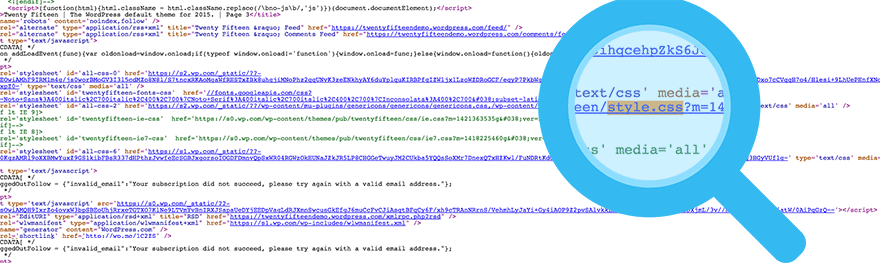
Check the website’s source code. Right-click on the webpage. Choose “View Page Source” or “Inspect”. Look for a file named style.css. This file often has the theme name. You can also find the theme folder name. It is usually in the wp-content/themes directory.
Using Online Theme Detectors
Online theme detectors help you find a WordPress theme. These tools scan websites. They tell you which theme is in use. Some popular tools are WPThemeDetector and WhatTheme. These tools are easy to use. They give quick results. You can also try IsItWP. It shows the theme and plugins.
First, open a theme detector site. Next, enter the website URL. Click the “Detect” button. Wait for the results. The tool will show the theme name. Sometimes, it shows theme details. You might see the author name too. It’s that simple!
Inspecting Source Code
Curious about the WordPress theme a site uses? Inspecting the source code can reveal theme details. Right-click on the page, select “View Page Source,” and search for “wp-content/themes” to find the theme name.
Accessing Developer Tools
Open the webpage you want to check. Right-click on the page and select “Inspect”. This opens the Developer Tools. Look for a tab labeled “Sources” or “Elements”. You will see lines of code. Don’t worry, it’s not hard.
Finding Theme Information
Find the style.css file in the code. It holds theme info. Look for the folder named “wp-content/themes”. The name after this folder is the theme name. Sometimes, you will see theme credits or links in the code. They can help too.

Credit: www.wpbeginner.com
Checking WordPress Admin Dashboard
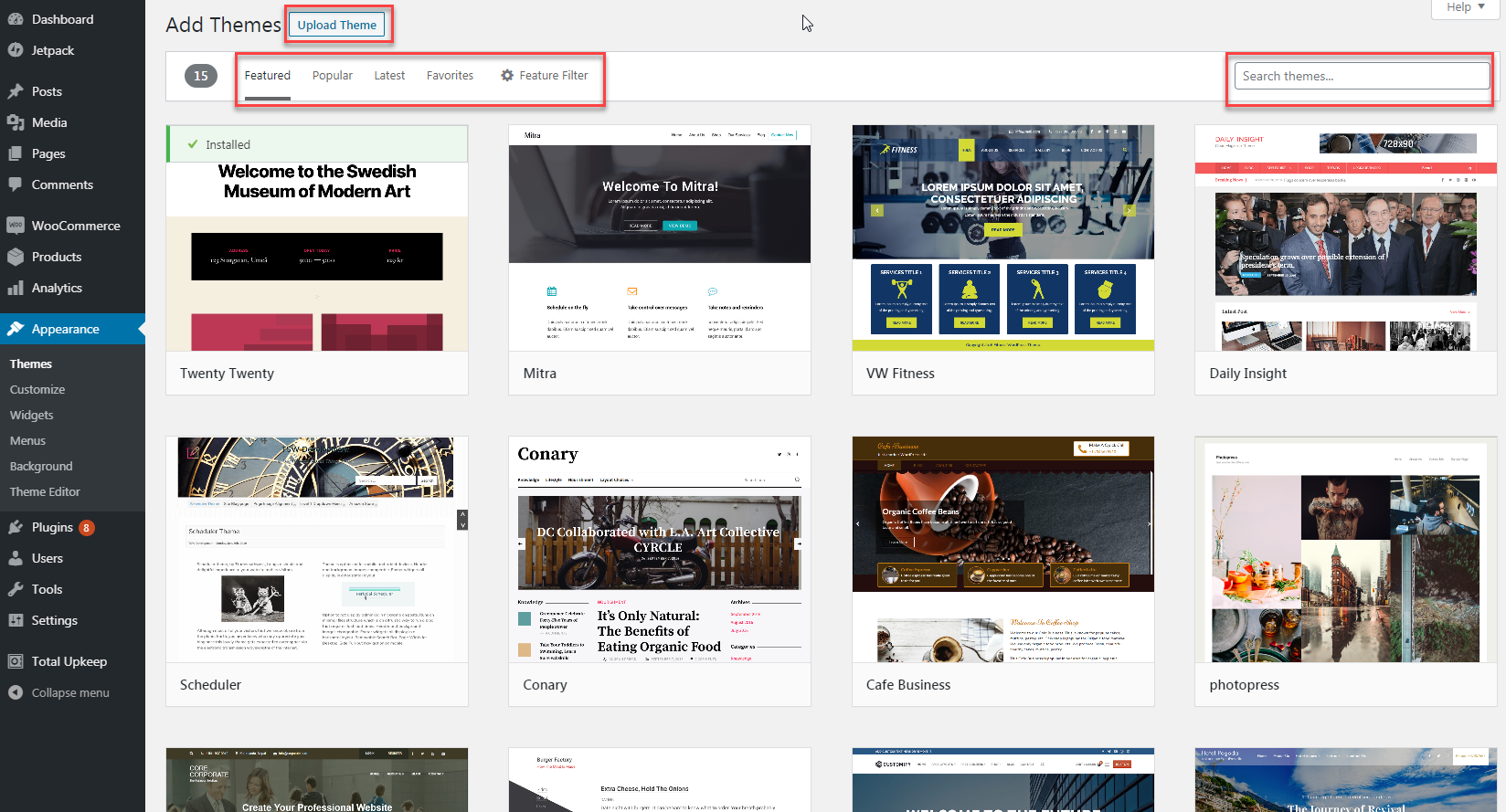
Discover the theme of a WordPress site easily through the admin dashboard. Navigate to “Appearance” and select “Themes” to view the active theme. This simple step helps identify the theme in use quickly.
Access Requirements
Access to the WordPress admin dashboard is needed. This means you must have login credentials. Without these, you cannot proceed further. Ask the site owner if you lack access. Make sure you have permission to check the theme.
Locating Theme Details
Once logged in, look for the Appearance menu. It’s often on the left sidebar. Click on it. You will see the current theme listed. Theme details are usually shown there. Name and version are displayed. This section gives more information. It helps you understand the site’s design.
Utilizing Plugins For Theme Identification
Discovering the WordPress theme in use becomes easier with specialized plugins. These tools quickly identify themes, offering insights into design and functionality. Save time and effort by using plugins for accurate theme detection.
Recommended Plugins
Several plugins help identify what WordPress theme is in use. WPThemeDetector is a popular choice. It provides detailed theme information. Another useful plugin is What WordPress Theme Is That. It offers a simple interface for users.
Installation And Usage
Installing plugins is easy. Go to your WordPress dashboard. Click on “Plugins” and then “Add New.” Search for the plugin name. Click “Install Now” and then “Activate.” After activation, access the plugin from the dashboard. Follow on-screen instructions. The process is user-friendly. Results are quick and accurate.
Using these plugins saves time. They offer insights into theme details. This helps in choosing or replicating themes. A great tool for WordPress users.
Common Challenges And Solutions
Discovering the WordPress theme in use can be tricky. Check page source or use online tools for quick insights. These methods help identify themes efficiently without technical hassle.
Hidden Themes
Some websites hide their themes. This makes it hard to find. Hidden themes are tricky. They often use custom names. This confuses many people.
Obfuscated Code
Some websites hide their code. They use obfuscated code to confuse others. This code looks messy. It hides the real theme name.
Tools can help find the theme. Use a theme detector tool. It scans the website. Then, it shows the theme name. Check the website’s CSS files. Sometimes, theme names are there.
Alternative Methods For Theme Discovery
Social media can be a great place to ask questions. Reach out to a website’s social media account. Ask them directly about their WordPress theme. Be polite when sending your inquiry. Many site owners are happy to share information. You may get a quick response. Consider joining groups related to WordPress themes. Post your question there. Someone might know the answer.
Contacting the website owner is another option. Look for a contact page or email address. Write a short, polite message. Ask them about their WordPress theme. Many owners like to help if you ask nicely. Be patient while waiting for a reply. Sometimes they take time to respond. Keep your message clear and simple. A friendly approach often works best.
Credit: www.inmotionhosting.com
Frequently Asked Questions
How To Identify A WordPress Theme In Use?
To identify a WordPress theme, use online tools like ‘What WordPress Theme Is That? ‘ Or ‘WPThemeDetector’. These tools can scan websites and provide information about the theme and plugins used. Alternatively, inspect the website’s source code to find theme-related details.
Can I Find A WordPress Theme Manually?
Yes, you can find a WordPress theme manually. Inspect the website’s source code using browser developer tools. Look for the ‘wp-content/themes/’ directory in the code. It often reveals the theme’s name and associated files. This method provides insights without using any online tools.
Are Online Theme Detectors Reliable?
Online theme detectors are generally reliable for identifying WordPress themes. They quickly scan websites and provide theme information. However, some themes might be customized, making it harder to detect accurately. Using multiple tools increases the chances of correctly identifying the theme in use.
What Tools Detect WordPress Themes?
Tools like ‘What WordPress Theme Is That? ‘ And ‘WPThemeDetector’ effectively detect WordPress themes. These tools analyze the website and provide details about the theme and plugins. They are user-friendly and save time compared to manual inspection. Use them to easily identify themes.
Conclusion
Discovering the WordPress theme used on a site is simpler than you think. With the right tools, you can quickly identify the theme. This knowledge helps in customizing your own site effectively. It also aids in replicating designs that you admire.
Knowing the theme is key to enhancing your site’s look and feel. Start exploring various themes to find the perfect fit. Remember, a good theme enhances user experience. Keep learning and experimenting with different themes. It’s a fun journey with endless possibilities.
Happy theme hunting!


