
Have you ever stumbled upon a beautifully designed WordPress site and wondered what theme they’re using? You’re not alone.
Discovering the WordPress theme behind a site can unlock design possibilities for your own website, enhancing its appeal and functionality. You’ll learn simple yet effective methods to uncover the mystery of any WordPress theme. Whether you’re a curious blogger, a digital marketer, or someone eager to boost your site’s aesthetics, this guide is tailored for you.
Dive in to reveal the secrets behind those stunning web designs, and transform your own site with newfound inspiration. Keep reading, and you’ll soon have the tools to elevate your online presence effortlessly.
Credit: wpbeaches.com
Online Theme Detectors
Discovering the WordPress theme used by a website can be effortless with online theme detectors. These tools quickly identify the theme, providing details like name and version. Perfect for those curious about website designs.
Free Tools
Many websites offer free tools to find out the WordPress theme used. These tools are easy to use. Enter the website URL to get results. They are quick and simple. Some popular ones include WP Theme Detector and What WordPress Theme Is That.
Limitations Of Detectors
Detectors sometimes face limitations. Not all themes are detected. Custom themes can be tricky. Some tools may miss plugins. Results might not be accurate every time. Free tools often have limited features. For deeper insights, paid tools might be better. Always cross-check information. Accuracy is key when detecting themes.
Credit: www.hostitsmart.com
Manual Inspection
Open the website in your browser. Right-click on the page. Choose “View Page Source” or “Inspect”. A new window with code appears. Search for “wp-content/themes”. This path shows the theme folder. The folder name is the theme name.
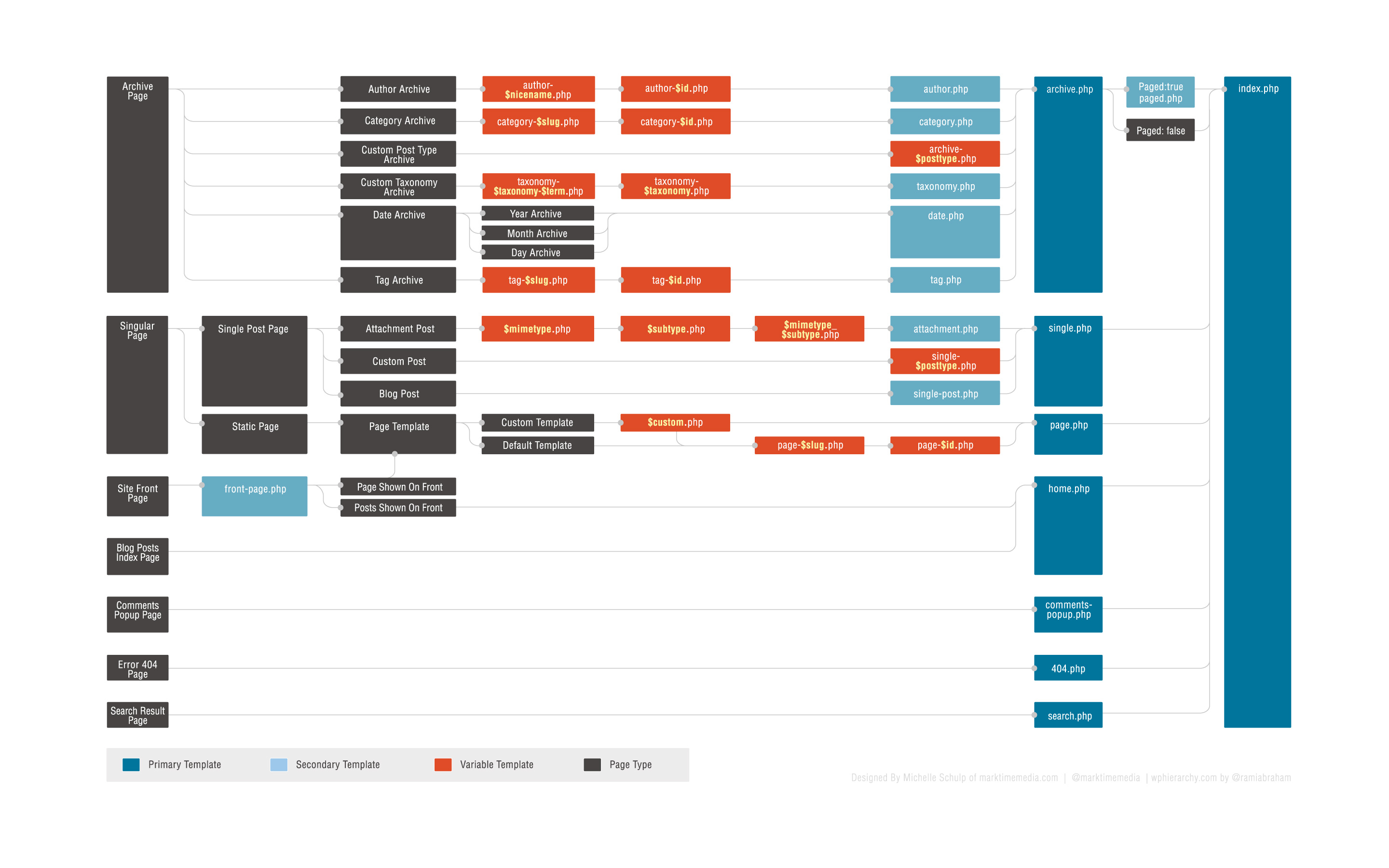
After finding the theme folder, look for “style.css”. This file contains theme details. Open it to see the Theme Name at the top. Sometimes, it also shows the theme’s author and version. These clues help confirm the theme identity.
Browser Extensions
Many people use browser extensions to find WordPress themes. These tools are easy to use. Wappalyzer and BuiltWith are popular choices. They show theme details with one click. WPThemeDetector is another good option. It can detect more than just themes. It also shows plugins and other site details.
First, open your browser. Go to the extension store. Search for your chosen tool. Click to install it. After installation, find the extension icon. Usually at the top of your browser. Click it when visiting a WordPress site. It will show the theme name. Simple, right? Remember, not all themes can be detected. Some sites hide this info. Always check multiple sources for accuracy.

Credit: www.hostitsmart.com
Contacting The Website Owner
Crafting a Polite Request can help you learn about the theme. Start your message with a friendly greeting. Use kind words to ask about the theme. It’s important to be respectful. Website owners are more likely to respond if you’re polite. Explain why you are interested in their theme. A simple reason is enough. Thank them in advance for their help.
Other Information to Ask For includes plugins. These can enhance your site. Ask about any design elements that are unique. This can give you ideas. Mention how you admire their site. This might make them more willing to share. Keep your request short and clear. Remember, a little kindness goes a long way.
Using Developer Tools
Open your browser. Right-click on the webpage. Choose “Inspect” from the menu. A box with code will appear. This is the Developer Tool. Look at the top-left of this box. You will see an arrow icon. Click it, then hover over parts of the page. The code for each part will be shown. This helps to find theme details.
Within the Developer Tool, find the “Sources” tab. Click on it. This tab shows all files used on the page. Look for files ending with “.css”. These are stylesheets. They contain the theme’s style rules. Sometimes, the theme name is in the file names. This can give clues about the theme used.
Theme Identification Challenges
Custom themes can be tricky. Many developers design them from scratch. These themes don’t always look unique. They may copy styles from other themes. This makes them hard to spot. Child themes add another layer of challenge. They use code from a parent theme. But, they can change almost everything. Small changes can make them look new. This confuses theme detectors. Also, people can make modifications. They tweak the original theme. A small change can hide the theme’s identity. It’s like a puzzle. Many pieces look the same. But each is different.
Frequently Asked Questions
How Do I Find Out What WordPress Theme Is Being Used?
Use online tools like What WordPress Theme Is That or WPThemeDetector. Inspect the page’s source code. Search for “/wp-content/themes/” in the code. This reveals the theme folder name. Alternatively, ask the website owner directly.
How To Check Which Theme Is Used In A Website?
Use the “WhatRuns” browser extension to identify a website’s theme. Alternatively, inspect the website’s source code for theme-related files or directories. Look for common theme names or clues in the HTML, CSS, or JavaScript files to determine the theme used.
How Do I Know Which Template Is Used In A Website?
Identify a website’s template by inspecting its HTML/CSS code using browser developer tools. Look for template details in the code comments or theme directory. Alternatively, use online tools like BuiltWith or Wappalyzer to analyze the site’s technology stack. Check the website footer for template or theme credits.
How To Check Active Theme On WordPress?
Go to your WordPress dashboard. Click on “Appearance” and then “Themes. ” The active theme will be labeled “Active. “
Conclusion
Finding the right WordPress theme is crucial. It shapes your site’s look and feel. Tools and techniques help uncover the theme used. Online theme detectors simplify the process. Browser inspections reveal hidden details. Checking the page source offers insights. Explore theme directories for more information.
Understanding themes boosts your web skills. You can create or improve your site’s design. Knowing the theme helps with customization. Dive into the world of WordPress themes now. Discover, learn, apply. Your website deserves the best design possible. Keep experimenting and learning.
Your WordPress journey starts here.


