
Have you ever wondered which version of WordPress you’re running? Knowing this detail is crucial for keeping your website secure and up-to-date.
Imagine finding out that your site isn’t as safe as you thought, just because you missed an important update. By the end of this article, you’ll know exactly how to check your WordPress version effortlessly. Whether you’re a seasoned webmaster or a blogging newbie, this guide will simplify the process for you.
So, if you’re curious about safeguarding your site and ensuring optimal performance, you’re in the right place. Let’s dive in and uncover this critical piece of information together!
Credit: www.hostinger.com
Checking The Admin Dashboard
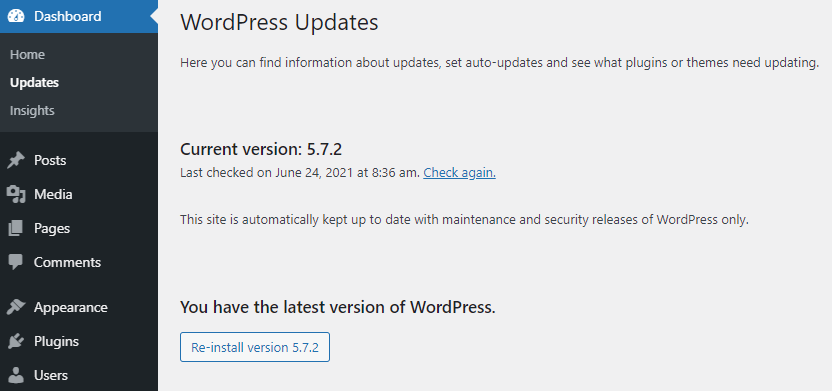
First, log into your WordPress Admin Dashboard. Look at the top-left corner. The WordPress logo is there. Click it. A menu will pop up. Choose “About WordPress” from the list. A new page will open. Here, the version number is displayed. It is usually bold or highlighted. This is your current WordPress version.
You can also check the bottom-right corner. The version number might be there too. Sometimes it is small and easy to miss. Always keep your WordPress updated. New versions have better features. They also fix bugs and security issues.

Credit: www.greengeeks.com
Using The Site Health Tool
Finding your WordPress version is easy with the Site Health tool. First, go to your WordPress dashboard. Look for Tools in the menu. Click on it. Then, select Site Health. You will see a screen with information about your site. Look for the Info tab at the top. Click on it. Scroll down to find WordPress version. It shows the current version number. This method is quick and simple.
Knowing your WordPress version helps keep your site safe. It ensures you have the latest updates. Updates fix bugs and improve security. The Site Health tool provides other useful details too. You can learn about your plugins and themes. Keep your site running smoothly by checking it often. Make it a habit. This tool is important for WordPress users.
Viewing Source Code
Open your website on a web browser. Right-click on the page and select “View Page Source”. A new tab will open, showing the website’s code. Use Ctrl + F to find words. Type “generator” in the search box. Look for the meta tag that contains generator. This tag shows the WordPress version. You might see something like content=”WordPress 5.7.2″. This number tells you the version.
Sometimes, the version is hidden for security reasons. If you can’t find it, use other methods. Always keep your WordPress updated. It helps in keeping your site safe.
Checking The Version.php File
Open the files in your WordPress folder. Look for the wp-includes folder. Inside, you will find a file named version.php. This file tells you the WordPress version. Use a text editor to open the file.
The version number is near the top. It looks like this: $wp_version = ‘5.8.1’;. The numbers show the version. Always check this file after updates. It’s a quick way to know your WordPress version.
Using Online Tools
Online tools help find your WordPress version easily. Tools like WP Version Check are popular. Enter your site URL. Click check. The tool scans your site. Then, it shows the WordPress version. Quick and simple. No need for technical skills. These tools are free. They save time and effort. Many website owners use them. They trust these tools. Some tools give extra info. They tell if your site is up-to-date. This helps keep your site secure. Always use trusted tools. Protect your site from risks. Online tools are useful.
Why Knowing Your Version Matters
Understanding your WordPress version is important. It helps keep your site safe. Older versions might have bugs. These bugs can make your site slow or risky. Updates fix these problems. They also add new features. New features make your site better. Knowing your version helps with troubleshooting. If something goes wrong, you can fix it faster. Many plugins need the latest version. Without it, they might not work. This can break parts of your site. Checking your version is easy. It only takes a few clicks. Keep your WordPress updated. This protects your site and keeps it running smoothly.
Keeping WordPress Updated
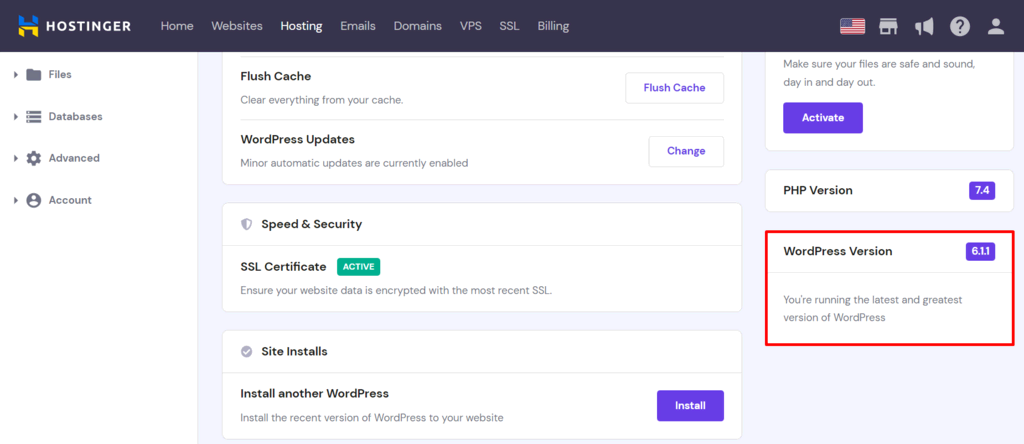
Keeping WordPress updated is very important. It helps keep your site safe. Updates bring new features. They also fix old problems. You need to know your WordPress version. This helps in checking for updates.
There are easy ways to find your version. First, log into your WordPress dashboard. Look at the bottom of the screen. You will see the version number there. If you don’t see it, check under “Updates”. Another way is to look at your site’s source code. This shows the version too. Regular updates keep your site running well.
Credit: www.hostinger.com
Frequently Asked Questions
How Can I Check My WordPress Version?
You can find your WordPress version in the admin dashboard. Look at the bottom right corner of the screen. Alternatively, access your website’s files and check the version. php file located in the wp-includes directory. Both methods provide accurate version information quickly and easily.
Why Is Knowing My WordPress Version Important?
Knowing your WordPress version is crucial for maintaining website security and compatibility. It helps ensure that your themes, plugins, and security patches are up-to-date. This reduces vulnerability to cyberattacks and improves site performance. Regularly checking your WordPress version helps keep your website safe and efficient.
Can I Update WordPress Manually?
Yes, you can manually update WordPress by downloading the latest version from WordPress. org. Upload the new files to your server via FTP, replacing old files. Be sure to back up your website before proceeding. This ensures you can restore it if anything goes wrong during the update process.
What Happens If My WordPress Version Is Outdated?
An outdated WordPress version can pose security risks and compatibility issues. Hackers often target outdated installations. You might also encounter plugin or theme conflicts. Regular updates provide security patches and improved features. Keeping your WordPress version current helps maintain a secure and smoothly functioning website.
Conclusion
Finding your WordPress version is simple and important. It helps keep your site secure and updated. Follow these easy steps to locate your version. Check your admin dashboard or view the site’s source code. Regular updates ensure better performance and security.
Keep track of your WordPress version regularly. This will help avoid potential issues and vulnerabilities. Stay informed and protect your website effectively. Understanding your version contributes to overall site health. Always prioritize security and functionality for optimal results. Take control of your WordPress experience today.
Keep learning and exploring to enhance your site further.


