
Are you feeling a bit lost trying to figure out which version of WordPress you’re using? You’re not alone.
Whether you’re troubleshooting an issue, considering an update, or just curious, knowing your WordPress version is essential. The good news is, discovering this information is easier than you might think. You’ll learn simple steps to quickly identify your WordPress version, ensuring you’re always in the know.
You’ll feel more confident managing your site and won’t miss out on crucial updates. Ready to unlock this valuable knowledge? Keep reading, and you’ll master this in no time.
Credit: wpmet.com
WordPress Version Basics
WordPress is a tool for building websites. It updates often. Knowing the version helps keep your site safe. Each update has new features. Updates also fix problems. Finding your version is easy.
The dashboard shows your WordPress version. Look at the bottom of the page. You will see the number. It is usually in the corner. This is the simple way to check.
There is a file named version.php. It is inside your WordPress folder. Open this file. It has the version number. A good way to be sure.
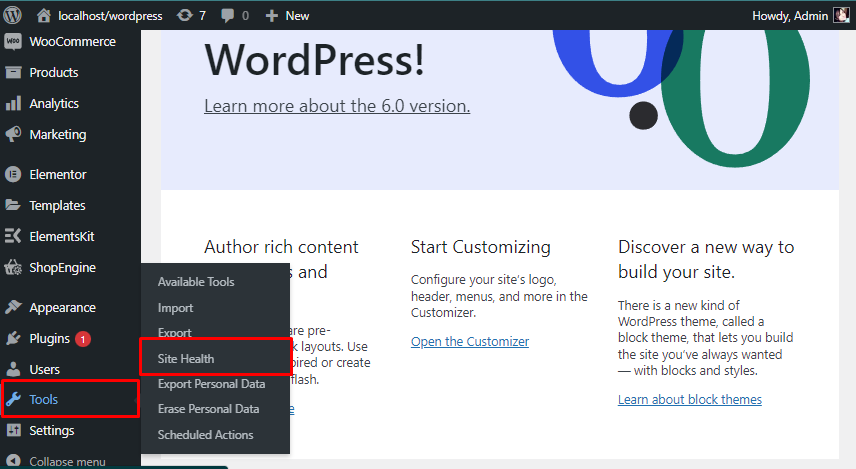
Site Health is a built-in tool. Go to Tools in the dashboard. Click Site Health. It shows the version. Helpful for checking other info too.
Checking The Admin Dashboard
Visit your WordPress admin dashboard. Look for the Updates section. This is often on the left menu. Click on it. You will see the current WordPress version. It is usually at the top. Checking it is quick. It helps ensure your site is safe.
The ‘At a Glance’ widget is on the dashboard. It shows important site details. You will see the WordPress version here. This is an easy way to know your version. Keeping track of this helps in managing your site well.
Viewing Source Code
To find your WordPress version, check the page source. Right-click on the webpage. Choose “View Page Source” from the menu. A new tab will open. Look for the term “generator”. This term tells you the WordPress version. The version number is often near the word “generator”. It helps to find it quickly.
Meta tags can show WordPress version details. These tags hide in the page source. Press “Ctrl + F” to search. Type “meta name”. Look for a tag with “generator” inside. This tag usually shows the version. It’s a simple way to know the WordPress version.
Accessing The ‘readme’ File
First, open your website’s file manager. Look for the public_html folder. It’s usually the main folder. Inside, find the wp-includes directory. The readme.html file is there. This file holds key details. It’s important for finding your WordPress version. Make sure you have access rights.
Open the readme.html file. The version number is at the top. It usually says something like “WordPress X.X.X”. The numbers tell the exact version. Knowing this helps keep your site safe. Always keep WordPress updated. Updates fix bugs and add features.
Using Command Line Tools
WP-CLI is a command-line tool for WordPress. It helps find the WordPress version. First, open your terminal. Type wp core version. Press Enter. The terminal will show your WordPress version. This method is fast and easy.
The command output gives the WordPress version number. It may look like 5.8.1. Each number has a meaning. The first number is a major update. The second is a minor update. The third is a security fix. Knowing these numbers helps keep your site safe. Always update to the latest version.
Credit: fluentforms.com
Utilizing Plugins
Use plugins to check your WordPress version easily. Plugins like WP-Health and Version Info are great choices. They show the WordPress version quickly. No coding skills needed.
First, go to your WordPress dashboard. Click on Plugins. Then, select Add New. Type the plugin name in the search box. Click Install and then Activate. Your plugin is ready. Check the dashboard for your WordPress version.
Security Considerations
To check your WordPress version, view the source code of your website. Locate the meta tag labeled “generator” to find the version number. This simple method aids in identifying potential security vulnerabilities in your WordPress site. Always ensure your version is up-to-date for optimal security.
Risks Of Displaying Version
WordPress versions can show hackers your site’s weaknesses. Older versions have known bugs. This helps hackers attack your site. Your site might become unsafe. It can be hacked easily. Protect your site by hiding the version. Keep hackers away.
Best Practices For Security
Always use the latest version of WordPress. Update your site often. This keeps it safe. Use strong passwords. They stop hackers. Install security plugins. They protect your site. Backup your data. In case of attack, you won’t lose it.

Credit: make.wordpress.org
Frequently Asked Questions
How Can I Check My WordPress Version?
You can check your WordPress version by logging into your dashboard. Navigate to the “Updates” section under “Dashboard” on the left sidebar. The version number is displayed at the top of the page. Alternatively, you can find the version number in the site’s source code.
Where To Find WordPress Version In Source Code?
To find the WordPress version in the source code, view your site’s HTML. Locate the “meta generator” tag in the header section. This tag usually shows the WordPress version number. Ensure your browser’s developer tools are open to inspect the HTML code effectively.
Is My WordPress Version Up To Date?
To determine if your WordPress version is up to date, visit the “Updates” section in your dashboard. It will inform you of available updates for WordPress, plugins, and themes. Regular updates are crucial for security and improved functionality.
Can Plugins Show WordPress Version?
Yes, certain plugins can display your WordPress version. Install a plugin like “Version Info” to view it easily. These plugins can provide detailed insights into your site’s version along with other useful information. Always ensure plugins are from trusted sources.
Conclusion
Finding your WordPress version is simple and crucial. It ensures compatibility with themes and plugins. First, log in to your dashboard. Check the bottom right corner for version details. Alternatively, access your website files via FTP. Look for the “readme.
html” file. Open it to view your WordPress version. Keeping your version updated boosts security and performance. Regular updates protect your site from vulnerabilities. Stay informed and proactive for a smooth WordPress experience. By knowing your version, you ensure your site runs efficiently.
Stay safe, stay updated. Your website’s health depends on it.


