
Have you ever found yourself staring at your WordPress theme, wondering where on earth a specific element is hiding in the files? You’re not alone.
Navigating through the layers of a WordPress theme can be like exploring a dense forest without a map. But worry not; this guide is here to illuminate the path for you. Whether you’re a seasoned developer or a curious beginner, understanding how to locate theme elements can transform your WordPress experience.
Imagine being able to customize your site with precision, knowing exactly which file holds the key to your desired changes. By the end of this article, you’ll gain the confidence and skills to navigate your theme files like a pro. So, are you ready to unlock the secrets of your WordPress theme and take control of your website’s design? Let’s dive in!
Locating Theme Files
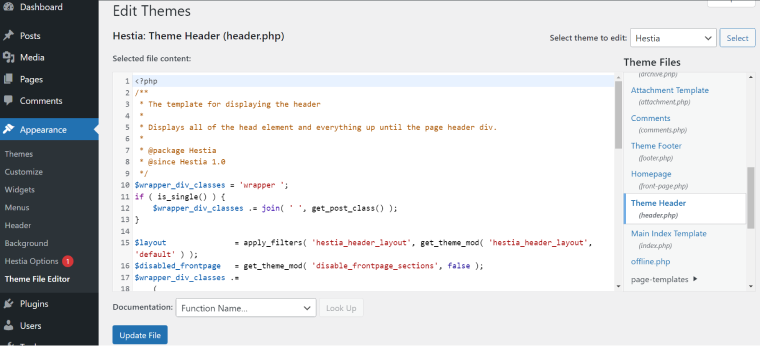
Begin by logging into your WordPress dashboard. Look for the Appearance section. Click on Theme Editor. This will show your theme files. Another way is through an FTP client. Connect to your site using FTP. Find the wp-content/themes folder. Inside, locate your theme’s folder.
Each theme has many files. The style.css file is important. It holds the design rules. The functions.php file adds features. Look for index.php. This file shows the front page. Header.php and footer.php have top and bottom parts of the theme. Knowing these files helps you change your theme.
Identifying Key Php Files
The functions.php file is like a toolbox. It adds extra features to your WordPress site. This file can include custom functions. These functions help make the website unique. It is like giving your site special powers. Always check this file if you want to add or change features.
The header.php file is at the top of the page. It usually contains the site title and logo. The footer.php file is at the bottom. It often holds copyright info and links. Both files help in setting the basic structure. They give the website a consistent look.
The index.php file is the main template. It displays posts on the homepage. Page templates are special files. They create unique layouts for pages. They can be used for custom designs. Always look at these files to understand your theme’s layout.
Exploring Css Stylesheets
The style.css file is key in WordPress themes. It controls how your site looks. This file holds all the default styles for your site. It affects colors, fonts, and layouts. You find it in the theme folder. It’s usually the first file you see. Changes in style.css reflect immediately. This file helps make your site unique. Editing it is often simple. Use a text editor to make changes.
Themes may have custom CSS files. These files add extra styles. They are usually optional. You might find them in a folder named css. Custom files help with specific design needs. They can override style.css settings. They are useful for advanced styling. Many themes have them to enhance looks. Make sure to check these files. They can be edited like style.css. You might need them for unique designs.
Credit: help.market.envato.com
Javascript Elements
Theme files often contain a Main.js. This file holds core JavaScript. It controls many theme functions. Custom scripts are also present. They add unique features. These scripts might be in separate files. Or included directly inside Main.js. Developers use these scripts to enhance the site. They add sliders, popups, and animations.
WordPress uses enqueueing to manage scripts. This method loads scripts efficiently. Developers enqueue scripts in the theme’s functions file. This ensures proper loading order. It avoids conflicts. The wp_enqueue_script function is essential. It registers scripts and enqueues them. This makes sure scripts load right. Themes often enqueue Main.js and custom scripts. This method keeps the site smooth and fast.
Image And Media Files
Images live in the wp-content folder. Inside, find the uploads folder. Look there for all your images. They are sorted by year and month. Open each folder to see the pictures. You might see many image files. Some images are thumbnails. Some are full size.
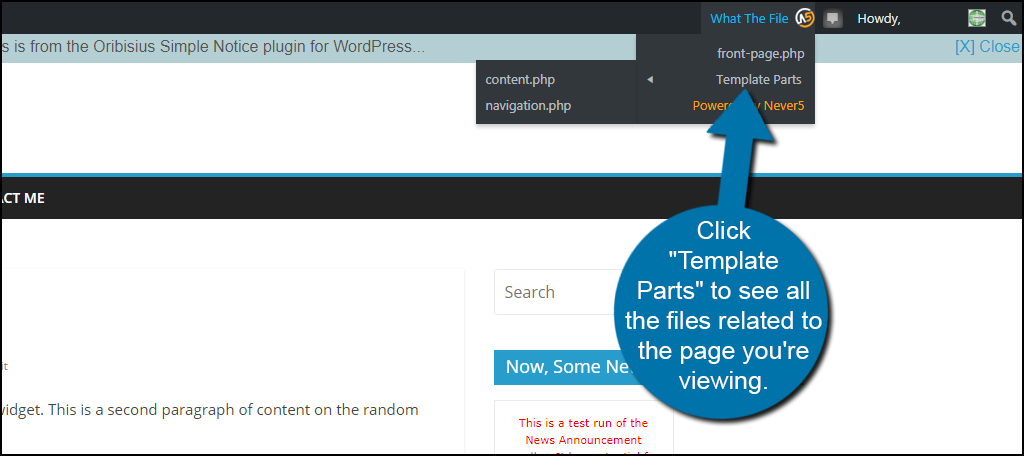
Media files are in the Media Library. Access it from the dashboard. You can see all files there. You can add new files here. You can also delete files. Be careful when deleting. Some files are used on the site. Deleting them can break the page. Always check before removing files.
Credit: www.greengeeks.com
Theme Configuration And Settings
Theme options help change the look of your website. Access these options through the WordPress dashboard. Click on Appearance and then Theme Options. You will see different settings here. Each theme has different options. You can change colors, fonts, and layouts. Always save changes after editing.
The Customizer helps make quick changes. Find it under Appearance in the dashboard. It shows a live preview of your changes. You can change background colors, logos, and menus. Changes appear instantly. Click Publish to save your settings. This tool is simple to use. It helps make your site unique.
Using Developer Tools
Discovering elements in a WordPress theme requires navigating through developer tools. Inspect elements on your site to locate specific HTML and CSS code. Find corresponding files by searching theme directories, ensuring precise customization.
Inspecting Elements
Developer tools help you see webpage details. Right-click on the page and choose “Inspect” to view the code. This shows HTML, CSS, and JavaScript. You can find the theme elements here. Look for specific classes and IDs. These help identify parts of the theme. This method is fast and simple. It’s great for beginners.
Debugging Techniques
Debugging helps fix code issues. Use the console tab in developer tools. It shows errors and warnings. Check the “Sources” tab for more details. You can set breakpoints to pause code execution. This lets you examine variables and functions. Debugging requires practice. It makes finding and solving problems easier.
Credit: crocoblock.com
Frequently Asked Questions
How Do I Locate Theme Files In WordPress?
To locate theme files, navigate to your WordPress dashboard. Click on “Appearance” and select “Theme Editor. ” Here, you’ll find PHP, CSS, and JavaScript files. Alternatively, access your WordPress files via an FTP client or web host’s file manager, typically found under “public_html/wp-content/themes.
“
What Are Common WordPress Theme File Types?
WordPress theme files include PHP, CSS, JavaScript, and image files. PHP files control the structure and functionality. CSS files handle styling, while JavaScript files add interactivity. Image files are used for visual elements. Understanding these files helps in customizing and troubleshooting themes effectively.
How Can I Identify Custom Theme Elements?
Identify custom theme elements by inspecting the theme’s functions. php file. This file often contains custom code. Additionally, check for any template files prefixed with “template-” or “custom-“. These files usually contain unique functionalities or layouts specific to the theme.
Where Is The Functions.php File Located?
The functions. php file is located in your theme’s main directory. Access it through your WordPress dashboard under “Appearance” > “Theme Editor. ” Alternatively, find it via an FTP client or your hosting provider’s file manager by navigating to “public_html/wp-content/themes/[your-theme]/functions.
php. “
Conclusion
Finding WordPress theme elements in files is now simpler. Use clear steps to navigate theme directories. Explore style. css for design rules. Check functions. php for added features. Templates control layouts, so review them carefully. Learn by experimenting with file changes.
Backup files before editing to avoid mistakes. Understanding theme structure boosts customization. Practice enhances skills over time. Keep learning, stay curious, and enjoy the process. WordPress themes offer flexibility, so use it to your advantage. With patience, you can create unique websites.
Happy editing and designing!


