
Are you struggling to customize your WordPress site without losing your original settings? You might have heard about child themes but aren’t sure where to start.
You’re not alone. Many WordPress users find themselves in the same boat. A child theme is your secret weapon for making changes safely and efficiently. But how do you find the right child theme for your site? We’ll unravel the mystery and guide you step-by-step.
Imagine having the freedom to tweak your website to your heart’s content, knowing you can always revert if things go awry. Stick around to discover how easily you can transform your WordPress experience, keeping your site both unique and secure.
Credit: themenectar.com
What Is A Child Theme?
A child theme is a copy of a main theme. It lets you change design without losing updates. This is important. Updates keep your site safe. The child theme uses parent theme features. But you can add your own style. This keeps your changes safe when updates happen.
Making a child theme is simple. You need two files. Style.css and functions.php. These files tell WordPress to use the parent theme. You can add more files. Custom templates or scripts. This helps make your site unique. Remember, always use a child theme. It is the best way to customize your site.
Benefits Of Using Child Themes
Child themes help keep your website safe. They make updates easy. No risk of losing changes. Preserve customizations with ease. A child theme sits on top of the parent theme. Safe zone for modifications. Parent theme remains untouched. This ensures stability and security.
Using child themes simplifies the design process. Experiment without fear. Make edits and try new looks. Easy to switch styles. No need to start from scratch. Offers a flexible design option. Child themes provide a backup plan. Protects your original work. Avoid unnecessary headaches.
Child themes boost creativity. Explore new designs. Change fonts and colors. Add custom code. Endless possibilities for design. Personalize your website to match your vision. No worries about breaking the site. Safe playground for creativity.
Identifying Your Parent Theme
Start by logging into your WordPress dashboard. Go to the Appearance section. Click on Themes. Here, you will see all installed themes. The active theme is your current Parent Theme. Its name will be bold or highlighted. Remember this name.
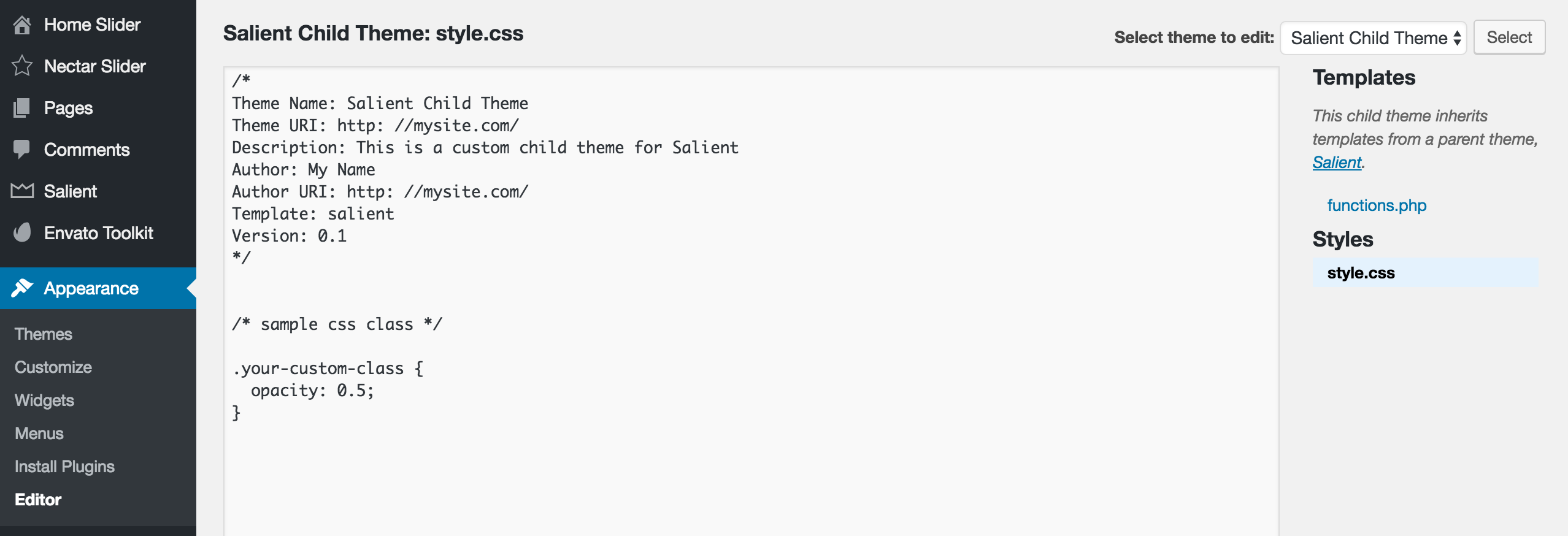
To confirm, check the style.css file. Navigate to the Theme Editor. Find this file under the Appearance section. Open it and locate the Theme Name at the top. This tells you the name of your parent theme. Ensure it matches the active theme name you noted before.
Locating Child Themes In The WordPress Directory
Child themes help customize your site safely. These themes keep your changes separate. To find them, go to your WordPress dashboard. Click on “Appearance” and then “Themes.” This section shows all installed themes. Look for themes with a small note saying “Child Theme.” This note is usually under the theme name. Can’t find a child theme? You may need to check online resources. Many developers offer free child themes. You can download these and install them on your site. Installing is simple. Use the “Upload Theme” option in the themes section.
Using Theme Check Plugins
Theme Check plugins help to find child themes. These plugins are easy to use. Install the plugin from the WordPress store. Activate it to start checking your themes. It checks the code and structure of themes. You can see if a theme is a child or parent. Errors and warnings appear for themes that need fixing. This makes theme checking simple. Child themes often need updates. Ensure you have the latest version. This helps keep your site safe. These plugins are great for beginners. They make finding child themes easy. Use them to improve your site’s performance.

Credit: developer.wordpress.org
Manual Inspection Of Theme Files
Finding a child theme in WordPress involves checking specific files. Start by accessing the theme directory via FTP or your hosting panel. Look for a folder named with your theme’s name followed by “-child”. Inside this folder, you should find a style.css file. This file often contains a line indicating it’s a child theme. If you see “Template: parent-theme-name,” you have found the child theme.
Another way to identify a child theme is through the functions.php file. This file might have code linking it to the parent theme. Child themes usually import styles from the parent theme using @import or wp_enqueue_style. Spotting these codes can confirm a child theme setup. Manual inspection ensures you know the theme structure and files. This way, you understand how themes connect and function.
Common Indicators Of Child Themes
Child themes often have a style.css file with special notes. These notes can show the parent theme name. You might see lines like “Template: parent-theme-name”. This helps to link the child theme to its parent.
Another clue is the functions.php file. Child themes use this file to add or change functions. It often has fewer lines than the parent theme’s file. Child themes might use “get_stylesheet_directory” functions. This helps load files from the child theme.
Look for a folder named “child-theme-name”. This folder usually sits inside the themes directory. It contains files that belong to the child theme.
Customizing Your Child Theme
Child themes in WordPress are easy to change. You can edit styles without touching the main theme. This keeps the main theme safe. To start, access your child theme folder. Look for the style.css file. Open it and add new styles. You can change colors, fonts, and layout.
Another file to check is functions.php. This file lets you add custom functions. You can include new features here. Just write your code carefully. Test changes before you go live. Mistakes can break your site.
Some themes use templates. These are custom page designs. You can make your own templates. Copy a template file from the main theme. Paste it into the child theme folder. Edit the copied file to fit your needs.
Remember to save your work. Refresh your site to see changes. Enjoy your new look!
Troubleshooting Child Theme Issues
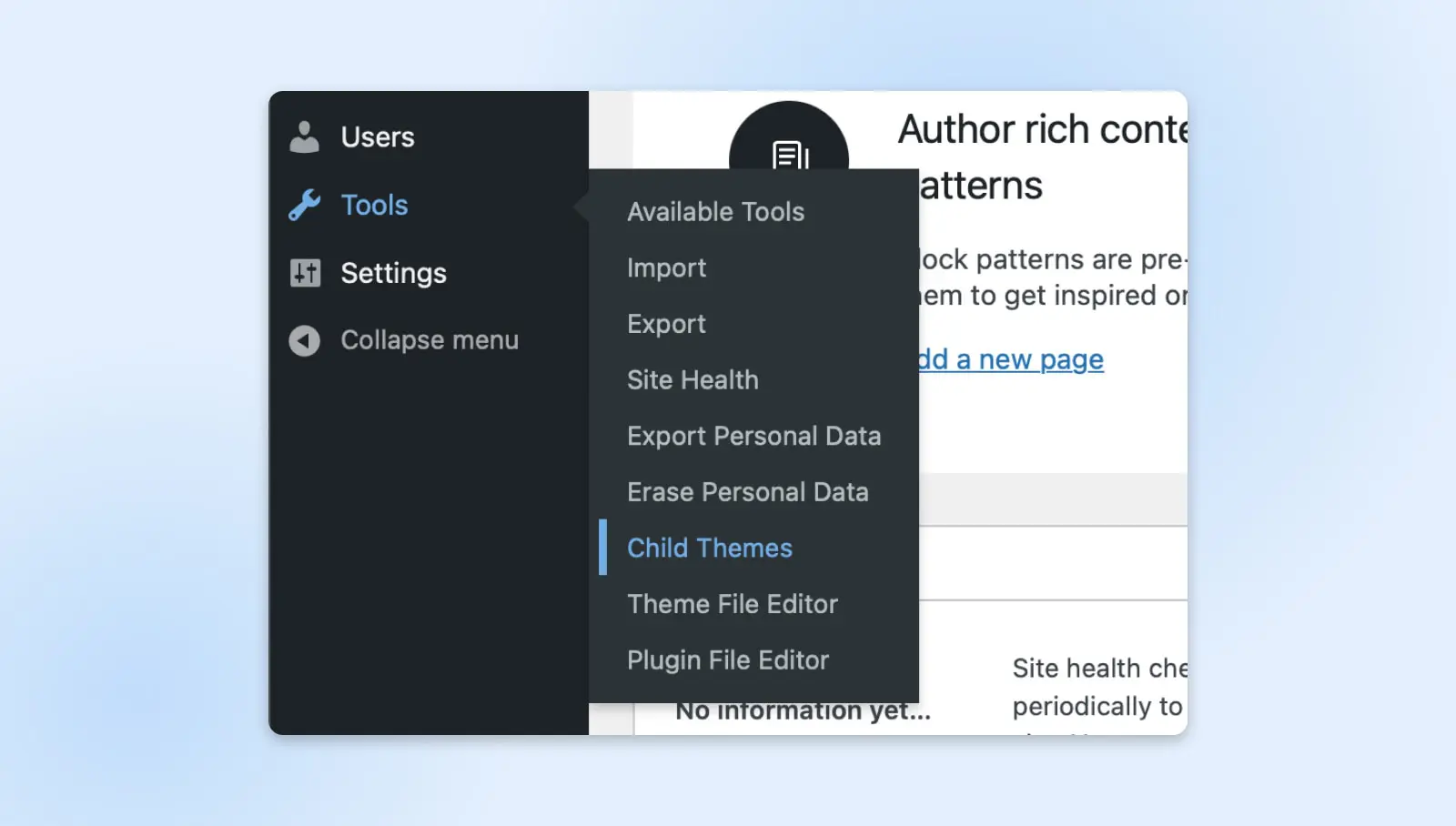
Child themes help to customize WordPress sites without losing changes. Problems might arise if themes are not installed correctly. Ensure that the parent theme is active. Without it, the child theme might not work. Double-check the style.css file. It should have correct codes to link to the parent theme. Missing or wrong codes can cause issues. Look at the functions.php file too. Errors there might cause problems. Ensure all files are in their right folders. Misplaced files can prevent themes from working. Use WordPress support forums for help. Many experts are there to assist.
Credit: www.dreamhost.com
Frequently Asked Questions
What Is A Child Theme In WordPress?
A child theme in WordPress is a sub-theme that inherits functionalities from a parent theme. It allows you to customize designs without altering the original code. This ensures your modifications are preserved even after parent theme updates. Child themes are ideal for making extensive changes to an existing theme.
How Do You Identify A Child Theme?
To identify a child theme, check the theme’s directory in WordPress files. Look for a `style. css` file containing a `Template` tag. This tag references the parent theme’s directory. Alternatively, use the WordPress admin dashboard under Appearance > Themes to see if a theme is marked as a child.
Why Use A Child Theme In WordPress?
Using a child theme in WordPress offers protection against updates overwriting customizations. It ensures your custom styles and functions are safe. Child themes also make it easier to test changes without affecting the main theme. They’re essential for developers aiming for sustainable, long-term website management.
How To Create A Child Theme In WordPress?
Creating a child theme involves creating a new directory in the themes folder. Add a `style. css` file with `Template` referencing the parent theme. Optionally, include a `functions. php` file for additional functions. Finally, activate the child theme via WordPress dashboard under Appearance > Themes.
Conclusion
Finding a child theme in WordPress is straightforward with the right steps. Start by accessing your WordPress dashboard. Navigate to the “Appearance” section. Look for themes installed on your site. Check for any theme labeled as “child theme. ” This usually appears below the parent theme.
Using child themes helps customize without altering the main theme. They are essential for updates and modifications. Explore options and ensure your website reflects your style. Now you can confidently identify and utilize child themes. Enhance your site while preserving its core functionalities.
Enjoy a seamless WordPress experience!


