
Have you ever stumbled upon a WordPress site and thought, “Wow, I love this design!”? You’re not alone.
Many of us find ourselves captivated by the aesthetics of a website and curious about the theme that brings it all together. Whether you’re a budding blogger, a seasoned developer, or someone exploring WordPress for personal use, discovering the secret sauce behind stunning site designs can be both exciting and beneficial for your own projects.
In this guide, we’ll unveil simple yet effective strategies to help you pinpoint any WordPress site’s theme. Get ready to unlock the design potential for your website and elevate your online presence. Dive in, and let’s turn that curiosity into a powerful tool for your web journey!
Tools For Theme Detection
Online theme checkers help you find a site’s theme. They are easy to use. Type the website’s URL. Click the search button. The tool shows the theme name. You can use these tools for free. They are fast and simple. They work with most sites. Some popular tools are WPThemeDetector and What WordPress Theme Is That.
Browser extensions make theme detection easy. Add them to your browser. Click the icon when you visit a site. It shows the theme name. Extensions work with Chrome and Firefox. They are free and quick. Many users like WordPress Theme Detector and Plugins Detector. They give extra info about plugins too. These tools save time and effort.

Credit: themeforest.net
Inspecting Source Code
Developers use Developer Tools to explore websites. Open your browser. Press F12 or right-click. Select “Inspect” to open Developer Tools. Find the “Elements” tab. This shows the website’s HTML. Look for theme-related files. These files often have names like style.css. Check for the theme name inside these files. You may find the theme’s details here. This includes the theme author and version. Searching for meta tags can also help. They sometimes reveal theme information.
Identifying Theme Files
The theme files are usually in the wp-content/themes folder. This folder holds all theme files. Look for a folder name that matches the theme name. Inside, find style.css. This file often lists theme details. It might include the theme’s name and author. Other theme files may also be present. These files manage the site’s appearance. They control how the site looks. Understanding these files helps in identifying the theme.
Analyzing Css And Scripts
Finding the stylesheet is important. Open the website on your browser. Right-click on the page. Choose “Inspect” or “View Page Source”. Look for CSS files in the code. These files often end with .css. The theme name might be in the file path. This helps identify the WordPress theme.
JavaScript files can also give clues. Right-click and inspect the page. Search for .js files in the code. Sometimes, theme details are hidden there. Look for file paths with the theme name. This can help you find the theme used. Remember to check different files. Each file might hold new clues.
Checking Theme Details In Admin
Accessing the admin panel reveals theme details of a WordPress site. Navigate to “Appearance” and click “Themes” to view active theme information. This section provides insights into theme name, version, and author details, helping users identify and manage WordPress themes efficiently.
Accessing WordPress Dashboard
Begin by logging into your WordPress Dashboard. Use your username and password. This is where you control your site. Look for the Appearance tab on the left side. Click on it. This will show you your current theme.
Reviewing Theme Information
Once you see your theme, click on it. A new page appears. This page contains theme details. It shows the name and version. You will also find the author’s name. Sometimes, there is a link to the theme’s website. This information helps you know your theme better. If you want more details, check the theme description. It often explains features and style. Remember, knowing your theme is important. It helps you manage your site well.
Contacting Site Owners
Sometimes, reaching out by email helps. Find the site’s contact page. Look for an email address. Be polite and clear in your message. Ask about the theme they use. Mention why you like their site. This shows genuine interest. Thank them for their time. Keep your message short and friendly.
Many site owners are active on social media. Send them a message. Platforms like Twitter or Facebook are good. Keep your question simple. Ask about their WordPress theme. Many people like to share information. They might reply with details. Always be polite and say thanks. This can build a good connection.
Credit: torquemag.io
Exploring Theme Marketplaces
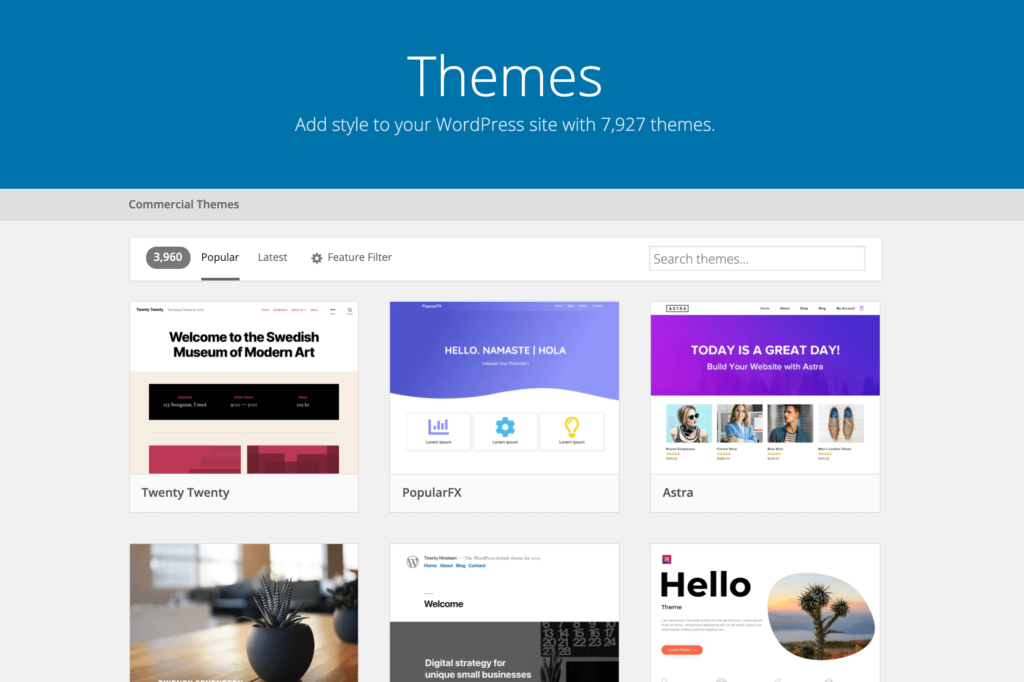
ThemeForest and Elegant Themes are well-known for WordPress themes. They offer a variety of options. Users can find themes for blogs, shops, and more. Each theme has unique designs and features. People can read reviews before buying. This helps in making the right choice.
Forums can help find WordPress themes. Many users share their experiences. They talk about the best themes they use. People can ask questions and get advice. It is a good place to learn and share. Everyone can help each other there. It’s friendly and supportive.
Understanding Theme Customizations
Many themes allow changes. Users can tweak colors, fonts, and layout. These changes make a site look unique. A new image can change the header. Adjusting the sidebar can enhance user experience. Adding widgets can improve functionality. Some themes have built-in options. Others need plugins for extra features. Knowing these tools is key.
Default themes look plain. Custom themes stand out. Simple tweaks can show a difference. Changing the background gives a fresh look. Custom logos make a brand recognizable. Default settings are basic. Custom setups offer more creativity. Users love sites that feel personal. Custom designs create this feeling. Default themes are just starting points.
Credit: www.hostinger.com
Frequently Asked Questions
How Do I Identify A WordPress Theme?
To identify a WordPress theme, use online tools like WhatTheme or WPThemeDetector. Simply enter the website URL, and these tools will analyze and display the theme name. Additionally, you can inspect the site’s source code for theme details by searching for “wp-content/themes” in the HTML.
Can I Find A Site’s Theme Manually?
Yes, you can find a site’s theme manually. View the website’s source code and search for “wp-content/themes. ” This will reveal the theme folder name. You can also check the CSS files for theme-related comments or information about the theme’s developer.
Are There Tools To Detect WordPress Themes?
Yes, there are tools to detect WordPress themes. Popular options include WhatTheme, WPThemeDetector, and IsItWP. These tools analyze the website and provide theme information. Simply enter the site URL, and they’ll display the theme name, version, and sometimes plugin details.
Why Is Knowing A Site’s Theme Useful?
Knowing a site’s theme is useful for inspiration and development. It helps web designers understand the design framework and features. Developers can analyze theme functionality and compatibility. Additionally, marketers can assess competitors’ design strategies to enhance their own WordPress site.
Conclusion
Finding a WordPress site’s theme can be straightforward. Use online tools for quick theme identification. Inspect page source code for detailed theme info. Check footer credits for theme details. Contact website owners for theme inquiries. Use WordPress theme detectors for fast results.
Explore WordPress directories for similar themes. Be patient and thorough in your search. Understanding these methods helps you find themes easily. Always respect privacy and copyrights when researching. Keep your WordPress projects organized and efficient. Happy theme hunting!


