
Have you ever been stuck trying to extract a theme zip file directly in WordPress and found yourself going in circles? You’re not alone.
Many WordPress users face this challenge, but the solution is easier than you might think. By the end of this article, you’ll know exactly how to navigate the WordPress File Manager to extract your theme zip files effortlessly. Imagine being able to quickly implement the perfect theme for your website without any hassle.
This guide will provide you with step-by-step instructions that are easy to follow, ensuring you can focus more on creating amazing content and less on technical hiccups. Stay with us, and unlock the secret to a smoother WordPress experience.
Credit: www.codeable.io
Accessing WordPress File Manager
First, log into your WordPress dashboard. You will see the main screen. On the left, there is a menu with many options. Look for the one that says “File Manager”. Click on it to open the file manager. This is where you can see all your files.
The File Manager is like a big folder. It keeps all your WordPress files safe. Find the folder named “wp-content”. Inside, there are more folders. Look for the one called “themes”. This folder holds all your theme files. You can do many things here. You can add, remove, or change files.
Credit: www.name.com
Uploading Theme Zip File
Ensure the theme file is in ZIP format. Keep the file name simple. Avoid using spaces or special symbols. This helps in easy identification. Move the ZIP file to a known folder. This way, it’s easy to locate later.
Open WordPress File Manager. Navigate to the themes folder. Click on the upload button. Choose your prepared ZIP file. Wait for the upload to finish. A progress bar will show the status. After uploading, check the themes list. Your theme should be visible. Activate it if needed.
Extracting Zip File
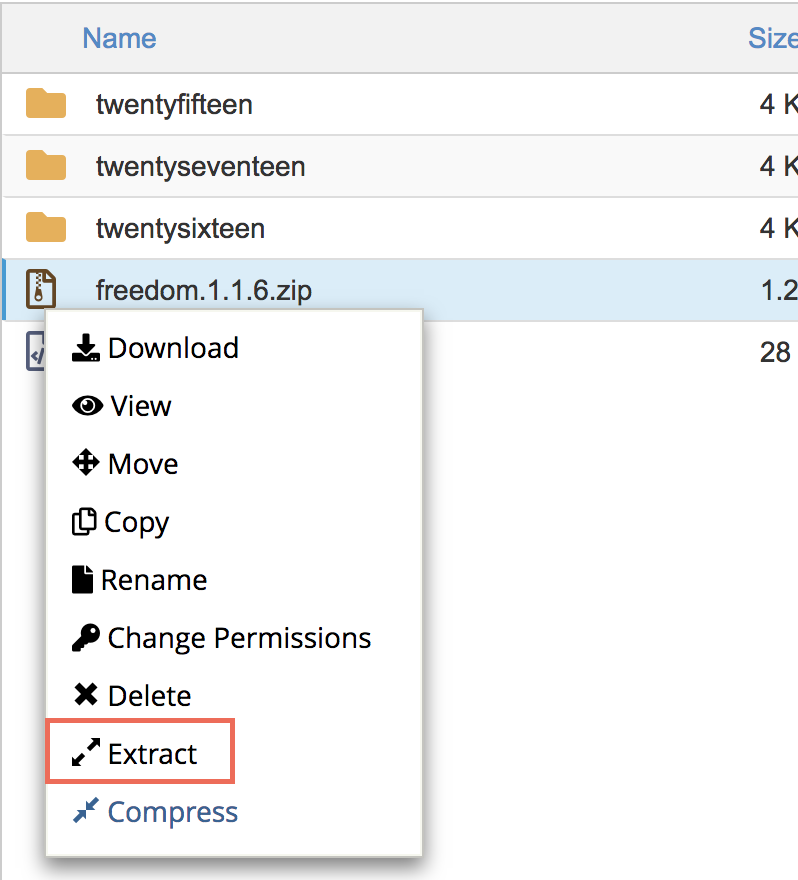
Open the WordPress File Manager from your dashboard. Find the folder containing the theme zip file. Click once on the zip file to select it. Ensure you select the correct file. This step is important to avoid mistakes.
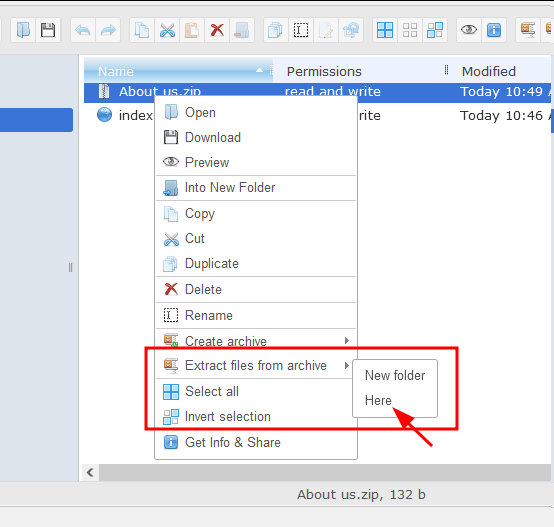
Right-click the selected zip file. A menu will appear with options. Choose the “Extract” option from this menu. Another window will open, asking for confirmation. Click “Extract” again to begin the process. The file manager will extract the contents. Wait for the process to complete. Now, you can access the extracted files. Check the files to ensure everything is correct.
Troubleshooting Common Issues
Sometimes, a theme zip does not extract in the WordPress file manager. This might happen due to file permissions. Check if the folder allows writing. You may need to change permissions using an FTP client.
Another reason could be lack of disk space. Ensure your server has enough space. If space is low, delete unwanted files or contact your hosting provider.
Error messages help identify issues. A common message might say, “Failed to extract.” This usually points to permission problems. Review permissions and adjust as needed.
Another error might be “File corrupt.” This means the zip file is broken. Try downloading the theme again. Always ensure files are complete and uncorrupted.
Verifying Theme Installation
After installing a theme, it’s important to check a few things. First, go to the Appearance Menu in your WordPress dashboard. This menu helps you see if the theme is active. If the theme’s name appears, it means the installation is successful.
Make sure all the options under the menu are visible. Sometimes, missing options indicate a problem. If everything looks good, the theme is correctly installed.
Checking Appearance Menu
The Appearance Menu is like a control center. You can manage themes, widgets, and menus here. Find the themes tab to see all installed themes. Click the theme you want to use. It should show a preview.
If the preview matches your theme, it’s working. If not, you might need to reinstall the theme.
Ensuring Functionality
Testing the theme’s functionality is crucial. Navigate to different sections of your website. Check if all elements appear as expected. If something looks off, the theme might have issues. Test buttons, links, and images. They should work smoothly.
Remember, a properly functioning theme enhances user experience. It ensures your site looks great and works well.
Tips For Efficient File Management
Keep your files in order. Use folders to group similar files. Name folders with clear labels. Easy to find later. Avoid clutter. Delete files you don’t need. Save space and time. Keep your workspace clean.
Back up your files often. Use a secure storage place. This keeps your files safe. If something goes wrong, you can restore them. Simple steps keep your work safe. Backups are important. Do them regularly.
Credit: wordpress.org
Frequently Asked Questions
How Do I Locate The Theme Zip File?
To locate your theme zip file, download it from your theme provider. It’s usually in your account’s downloads section. Ensure it’s saved on your computer, then access it through the WordPress File Manager for extraction.
Can I Extract Theme Zip Directly In WordPress?
Yes, you can extract theme zip files directly in WordPress. Use the File Manager plugin to do this. Upload the zip file and select the “Extract” option. This will unpack the files into the specified directory.
Why Use WordPress File Manager For Extraction?
Using WordPress File Manager simplifies the extraction process. It provides an easy-to-use interface and eliminates the need for FTP access. You can quickly manage files and folders within your WordPress dashboard, making it efficient and user-friendly.
What If The Extraction Fails?
If the extraction fails, check the file permissions and available disk space. Ensure the zip file isn’t corrupted. You might need to use a different extraction tool or verify your server settings for potential issues.
Conclusion
Extracting theme zip files in WordPress is straightforward. Open your WordPress file manager. Locate the theme zip file. Click to extract it. Wait for the process to finish. Check the extracted folder for files. Ensure all files are present. Activate the theme from your WordPress dashboard.
Explore the features and settings. Make sure everything works smoothly. Troubleshoot if any issues arise. You can now customize your theme. Add content and design elements. Enjoy a fresh look on your website. Remember, regular updates keep your site secure.
Happy blogging!


