
Are you looking to add some flair and dynamism to your WordPress site? Embedding a YouTube video might just be the spark you need.
Imagine engaging your visitors with captivating visuals, boosting their time on your site, and ultimately enhancing your content’s value. You don’t need to be a tech guru to achieve this. With a few simple steps, you can effortlessly integrate videos into your WordPress theme, making your site more interactive and appealing.
In this guide, we’ll walk you through the process, ensuring you have the tools and know-how to seamlessly embed videos that resonate with your audience. Ready to transform your website experience? Let’s dive in.
Choosing The Right Video
Picking the right video is important. Make sure the content is relevant to your audience. Videos should match the blog topic. This keeps readers engaged. Choose videos that add value. Avoid unrelated topics. They confuse viewers.
High-quality videos are best. They give a good impression. Ensure videos play smoothly. Check for compatibility with different devices. No one likes buffering or errors. Test videos before adding them. This ensures a smooth user experience. Good quality keeps visitors happy.
Credit: smashballoon.com
Locating The Embed Code
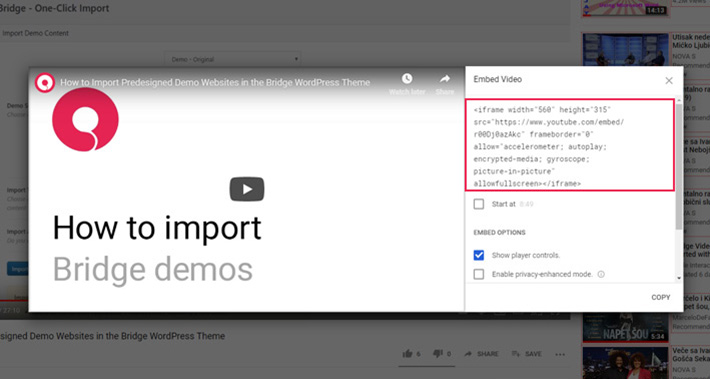
Open the YouTube video you want to share. Under the video, find the Share button. Click on it. A box will pop up. This box shows different sharing options. Look for the Embed option. It has a code you need.
Click on the Embed option. A code appears in a box. This code is what you need to copy. Click on it to highlight the code. Press Ctrl+C or Command+C to copy. The code is ready to use on your site. Now, paste it into your WordPress theme.
Preparing Your WordPress Theme
First, open your WordPress dashboard. Look for the Appearance tab. Click on it. Now, select the Theme Editor. A new page will open. Here, you can see all your theme files. Be careful while editing.
Find the file where you want to place the video. It could be header.php or single.php. The file name depends on your theme. Look for the correct spot to add your video. Make sure it’s where you want it to show. Double-check before making changes.
Credit: qodeinteractive.com
Embedding The Video
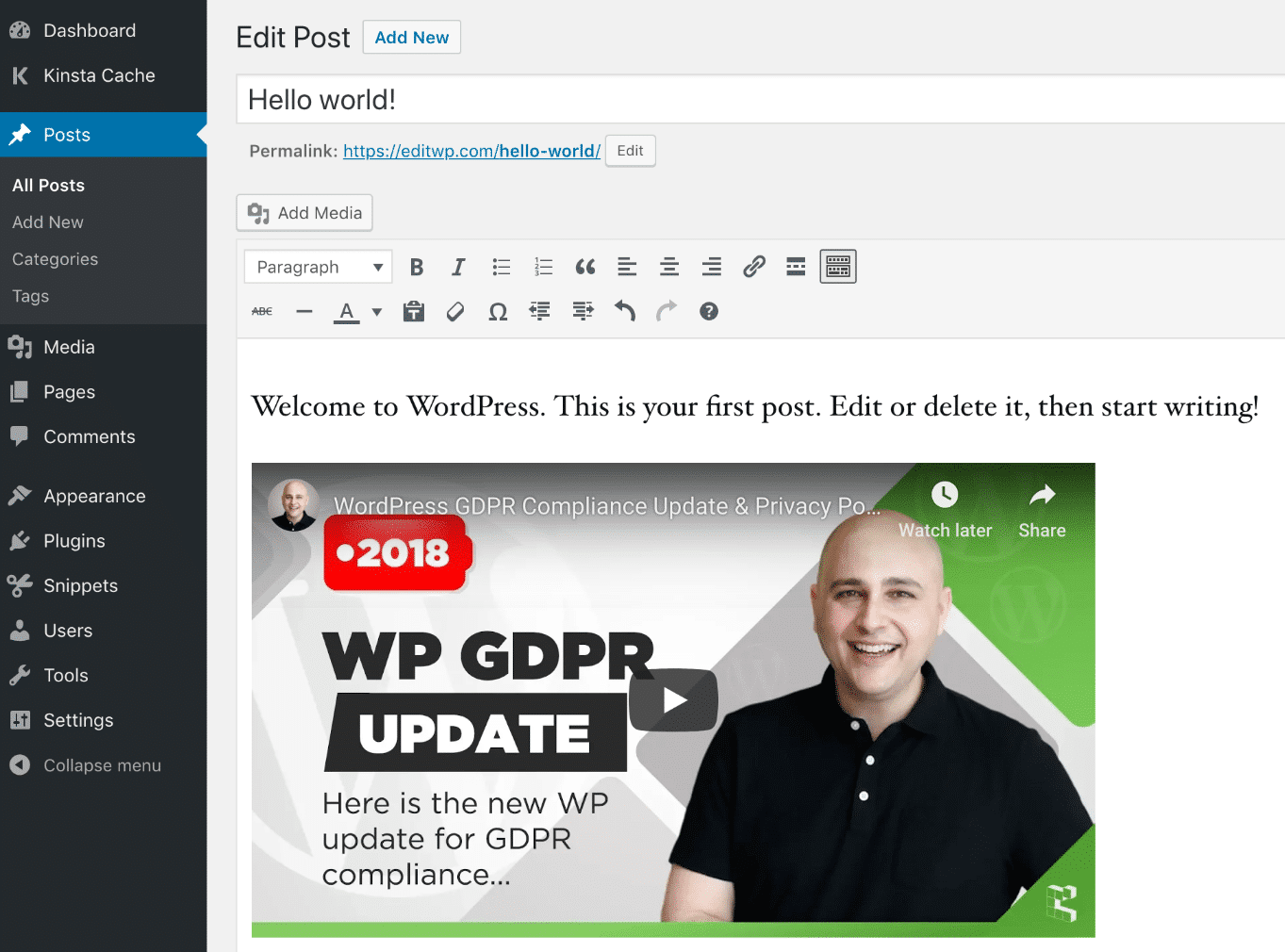
Find the video you want on YouTube. Click share below the video. Choose embed from the options. This gives you an HTML code. Copy the code. Open your WordPress dashboard. Click on posts or pages. Select the one you want to edit. Click on the text editor tab. Paste the code where you want the video. Save your changes.
After pasting the code, you can change some settings. Look for width and height in the code. Make them smaller or bigger. This helps the video fit well. You can also change autoplay. Set it to true or false. This makes the video start by itself or wait for a click. Play with these settings to make it perfect.
Customizing Video Appearance
Adjusting the video size is easy. Select the video you want to embed. Look for the width and height settings. Change these numbers to fit your design. Smaller numbers make the video smaller. Larger numbers make it bigger. You can find these settings in the embed code. Use the right size for your page. It helps the video look good.
You can make videos play automatically. Find the autoplay setting in the embed code. It is often set to “0”. Change it to “1” for autoplay. Be careful with autoplay. Some people may not like it. It can surprise them. Use it only if needed. Autoplay is good for some sites. But not for all. Think about your visitors.
Credit: kinsta.com
Testing The Video
Embedding a YouTube video into a WordPress theme is straightforward and enhances user engagement. Simply copy the video link from YouTube and paste it into your WordPress editor. This allows visitors to view the video directly on your site without leaving the page.
Checking Functionality
First, play the video to ensure it loads. Check the play button. Does it work? Listen to the sound. Make sure it is clear. Pause the video. Now, try to move forward and backward. Ensure the video controls are smooth. Videos should not lag or freeze. It should play without stops. Also, check if the video ends properly. Ensure it shows the replay button.
Ensuring Responsiveness
Try resizing the browser window. Watch the video size. It should fit the screen well. Open the video on a phone. Check if it adjusts. The video should be clear on all devices. Look at how the video looks on a tablet. It should not cut off any part. The video needs to be easy to watch everywhere. Test on different browsers. Each should show the video nicely.
Troubleshooting Common Issues
Easily embed YouTube videos in WordPress themes by copying the video URL and pasting it directly into the post editor. Ensure the video appears correctly by checking the preview before publishing. Adjust settings for alignment and size to fit your theme’s layout.
Resolving Playback Problems
Videos might not play due to internet issues. Check your connection first. Update your browser if it is outdated. Clear the cache to fix loading problems. Sometimes, plugins cause conflicts. Disable all plugins one by one. Refresh the page to see changes. Use a different browser to test if the issue persists.
Fixing Display Errors
Videos might not show correctly if the theme is incompatible. Ensure your theme supports videos. Check the video URL for errors. An incorrect URL can cause display issues. Adjust the video size to fit the theme layout. Use shortcodes if available. This can help with correct display.
Frequently Asked Questions
How Do I Add A Youtube Video To My WordPress Site?
To add a YouTube video, copy the video URL from YouTube. Then, paste it directly into your WordPress post or page editor. WordPress will automatically embed the video. Ensure your editor is set to “Visual” mode for this to work seamlessly.
Can I Customize The Youtube Video Embed In WordPress?
Yes, you can customize YouTube embeds in WordPress. Use plugins like “Embed Plus” to adjust video size, autoplay, and more. Alternatively, manually adjust the embed code’s parameters for customization. Always preview changes to ensure they appear correctly on your site.
Why Isn’t My Youtube Video Embedding In WordPress?
If your YouTube video isn’t embedding, check the URL format. Ensure it’s a full URL, not a shortened one. Also, verify you’re in “Visual” mode in the editor. Plugins or themes might also interfere, so temporarily disable them to troubleshoot.
Is There A Plugin For Embedding Youtube Videos In WordPress?
Yes, there are several plugins. “YouTube Embed Plus” and “YouTube by EmbedPress” are popular choices. They offer advanced features, like playlists and customization options. Plugins make embedding easier and provide more control over video appearance and functionality.
Conclusion
Embedding YouTube videos in WordPress is straightforward. First, copy the video link. Next, paste it directly into your post editor. WordPress automatically embeds it. You can also use blocks for more control. This adds style and functionality. Plugins offer additional customization.
They enhance video appearance and playback options. With these methods, your content becomes more engaging. Videos attract more viewers. They keep your audience interested. Try embedding today to enrich your WordPress site. It’s simple and effective. Your visitors will appreciate the visual content.
Enjoy the boost in interaction and engagement.


