
Are you looking to enhance your WordPress site with engaging content? Embedding videos can be a game-changer, capturing attention and keeping visitors on your page longer.
Whether you’re a seasoned blogger or just starting out, knowing how to seamlessly integrate videos into your WordPress theme can significantly boost your site’s appeal. Imagine transforming your static pages into dynamic, interactive experiences with just a few clicks. In this guide, we’ll walk you through the simple steps to embed video in your WordPress theme, ensuring your content is not only informative but also visually captivating.
Ready to make your site stand out? Let’s dive in and explore how you can effortlessly add that wow factor to your WordPress site.
Choosing The Right Video Format
Selecting the best video format simplifies embedding videos in WordPress themes. MP4 is a popular choice due to compatibility and quality. Optimize video size for quicker loading and better user experience.
Supported Formats
Videos can be in many formats. The most common is MP4. It works on almost every browser. WebM is another choice. It is good for modern browsers.
Some people use OGG format. But, it has limited support. Always check if the format works on all devices.
Quality And Performance
High-quality videos look great. Yet, they need more space. This can slow down your site.
Lower quality can load faster. But, it may not look as good. Balance is key. Try to find the right setting for your site.
Preparing Video For Embedding
Many platforms offer video hosting. YouTube is popular and free. Vimeo has a clean look and offers privacy options. Wistia is good for businesses but might cost money. Choose the platform that fits your needs best. Make sure your video is public if you want everyone to see it. Private videos need special settings.
Smaller video files load faster. Use tools like Handbrake to reduce file size. Compressing videos helps them play smoothly. Choose a lower resolution if the quality is still good. MP4 format is often best for web videos. Check the audio quality too. Poor sound can spoil a good video. Always test before uploading.
Using WordPress Built-in Features
Gutenberg makes adding videos easy. First, open your page or post. Find the Gutenberg Block option. Click the “+” sign to add a block. Choose the Video block. Paste your video URL in the box. Click “Embed” to add the video. Your video is now part of your content. It fits well and looks good. Simple and quick to do!
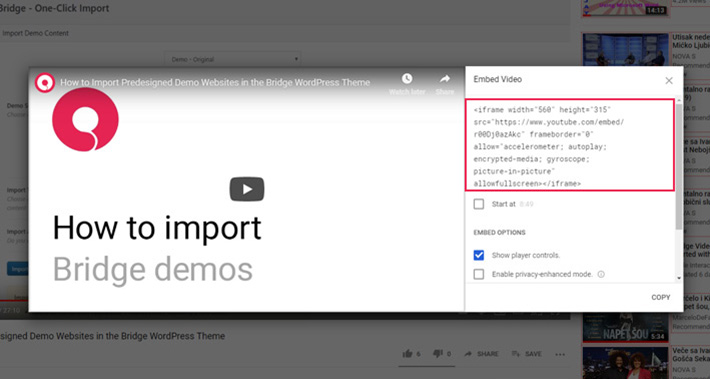
Classic Editor needs a different method. Open your post or page. Go to the Text tab, not Visual. Paste the video embed code here. This code comes from YouTube or Vimeo. After pasting, switch back to the Visual tab. Your video is now embedded. It displays nicely in your content. Easy to manage and edit.
Credit: qodeinteractive.com
Embedding Video Via Shortcodes
Shortcodes make embedding videos easy. To create a custom shortcode, start by defining the shortcode function in your theme’s functions.php file. Use the add_shortcode function. This links your shortcode to the function you write. Your function should output the necessary HTML for embedding the video. This can include iframe code or a video tag. Ensure the shortcode is simple for users. Keep customization options clear. Users can input video URLs or IDs. Allow styling options like width and height.
Customizing video styles is fun. Use CSS to change video appearance. Adjust video size, border, and padding. Add styles in your theme’s style.css file. Users can also customize using shortcode attributes. Attributes can modify video size and alignment. Make sure your shortcode supports these options. This lets users style videos easily. Styling enhances user experience. Videos look better and fit the design.
Using Plugins For Video Embedding
Plugins make video embedding easy. Many plugins are available for this. Some top plugins include EmbedPress, Smash Balloon, and Video Gallery. These plugins help you add videos quickly. They support platforms like YouTube and Vimeo.
Installing plugins is simple. Go to your WordPress dashboard. Click on “Plugins” and select “Add New.” Search for the plugin by name. Click “Install” and then “Activate.” Follow the plugin’s setup guide. Each plugin has its own steps. Usually, they are easy to follow.

Credit: themeforest.net
Customizing Video Player Appearance
You can change how your video player looks. Use CSS to make changes. Adjust the colors and sizes. Make buttons look different.
Use JavaScript for more changes. Add animations. Make the player do fun things. These changes can make your website look nice.
It’s important for your video to fit all screens. Use responsive design. This means the video looks good on phones. And on tablets too.
Use CSS media queries. They help make the video responsive. Your visitors will enjoy watching it. No matter what device they use.
Enhancing Seo For Embedded Videos
Add metadata to your videos. Metadata includes video title and description. Use clear, simple words. Tags help search engines find your video. Tags should match video content. Keep tags relevant.
Use keywords in tags. Keywords should be popular search terms. Avoid too many tags. Too many tags confuse search engines. Write tags that describe video well.
Video sitemaps improve video visibility. They help search engines find videos. Include video location in sitemap. Add title, description, and thumbnail. Thumbnails attract viewers. Ensure thumbnails are clear and engaging.
Use sitemaps for better SEO. Video sitemaps help rank videos higher. Higher ranking means more views. More views equal more success. Use sitemaps to boost video presence.
Troubleshooting Common Issues
Embedding video in a WordPress theme can sometimes present challenges. Issues may arise with video alignment or incorrect display sizes. Ensuring you use the right video embed code and theme settings can solve these common problems efficiently.
Playback Problems
Videos may not play well on some WordPress themes. Slow loading is a common issue. Check your internet speed first. Poor internet can cause videos to buffer. Ensure the video file is not too large. Compressing files can help. Another problem is video format. Use popular formats like MP4. Some browsers may not support other formats. Video plugins can cause conflicts. Disable unused plugins. Update active ones regularly. Browser settings may also affect playback. Clear cache often. Check for browser updates. Keep your site optimized for best results.
Compatibility Challenges
Some themes may not support all video types. Check your theme settings. Ensure compatibility with video formats. Responsive design is crucial. Videos should play on all devices. Use themes with built-in support for video embeds. Test videos on mobile and desktop. Theme updates can fix compatibility issues. Always use the latest theme version. Custom themes might need extra tweaks. Consult theme documentation for help. Use WordPress support forums for solutions. Seek advice from other users. Sharing experiences can resolve challenges.

Credit: www.inkthemes.com
Frequently Asked Questions
How Do I Embed A Video In WordPress?
To embed a video in WordPress, copy the video’s URL from platforms like YouTube. Paste it directly into the WordPress editor. The video will automatically embed. For more customization, use the “Embed” block in the Gutenberg editor. This method ensures compatibility and ease of use.
What File Formats Can WordPress Embed?
WordPress supports embedding MP4, WebM, and Ogg formats. These formats are widely compatible and ensure smooth playback. It’s advisable to use MP4 for maximum compatibility across devices. Always ensure your video file sizes are optimized for fast loading. Embedding from platforms like YouTube or Vimeo is recommended for better performance.
Can I Embed A Video In A WordPress Widget?
Yes, you can embed a video in a WordPress widget. Navigate to Appearance > Widgets in your dashboard. Add a “Text” or “Custom HTML” widget to your desired sidebar. Paste the video’s embed code or URL. Save the widget settings to display the video in your chosen area.
Does Video Embedding Affect Website Speed?
Video embedding can affect website speed if not optimized. Hosting videos externally, like on YouTube, helps reduce load times. Ensure your videos are compressed and use lazy loading techniques. This ensures videos only load when visible on the screen, improving website performance and user experience.
Conclusion
Embedding video in a WordPress theme is straightforward. Follow the steps, and you can enhance your website easily. Videos engage your audience and improve your site’s appeal. Remember to choose the right video format for faster loading. Keep the video placement strategic to maximize views.
Test the video on different devices for compatibility. With these tips, your WordPress site will look more professional. Visitors will appreciate the added content. Start embedding videos today and elevate your site’s experience. It’s a small effort with big benefits.
Happy embedding!


