
Are you looking to give your WordPress site a fresh look without starting from scratch? Editing your theme is a perfect way to do just that.
Whether you want to tweak a few details or completely overhaul your design, understanding how to edit your theme can set you on the path to creating a website that truly represents your brand. You don’t need to be a tech wizard or a design expert.
With a few easy steps, you can transform your site into something that not only catches the eye but also keeps your visitors engaged. Ready to learn how to make your website stand out? Let’s dive in and explore how you can easily edit your WordPress theme to make your site truly yours.

Credit: wordpress.com
Choosing The Right Theme
Selecting a theme is a big decision. It changes your site’s look. A good theme makes your site look nice. Some themes are better for blogs. Others are better for stores. Think about what you need.
Check if the theme is responsive. This means it works on phones and computers. You want your site to look good everywhere. Look at the reviews. See what others say about the theme.
Free themes are great for starters. Paid themes have more features. They often look nicer. Choose a theme that fits your budget. Try a few themes before deciding.
Accessing The Theme Editor
First, go to your WordPress dashboard. Find the Appearance menu on the left side. Click on it. Then, choose Theme Editor. This lets you see your theme files. You can change them here. Be careful when editing. Changes affect your website. Always backup your files first.
Many themes have different files. Common ones are style.css and functions.php. These files control the look and features. Make small changes. Check your website after each change. This helps you see what each change does.
Some themes may block direct edits. You might need a child theme to make changes. This is a safe way to edit without breaking the main theme.
Customizing The Header
Open your WordPress dashboard. Find the Appearance tab. Click it. Select Customize. This opens the theme editor. Look for the Header section. Click it. Locate the Logo option. Upload your new logo. Check the preview. Make sure it fits. Save your changes. Your header now has a new logo.
Go to the Appearance tab again. Click on Menus. Choose the menu you want. Add items by clicking + Add Items. Rearrange items by dragging them. Remove items by clicking Remove. Save your changes. Refresh your site. Check the new menu. Make sure it looks good. Adjust again if needed. A well-organized menu helps users.
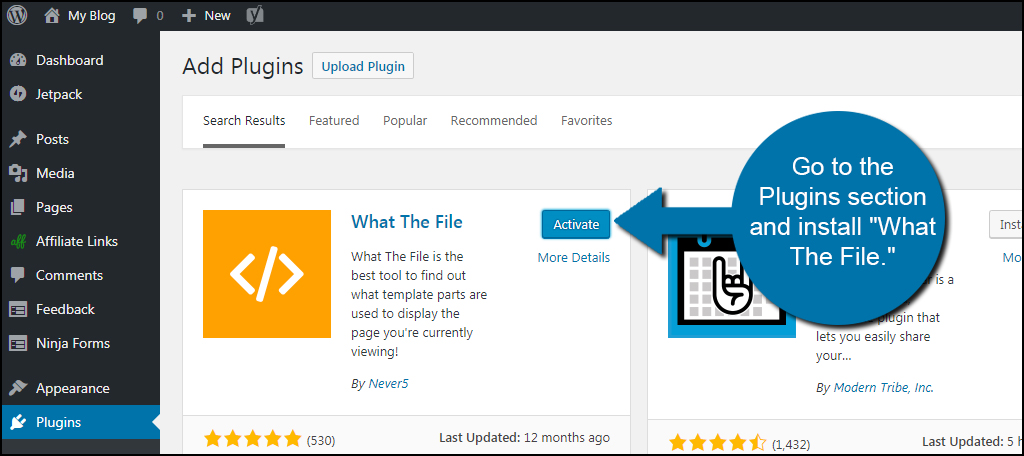
Credit: www.greengeeks.com
Adjusting The Footer
Editing your theme in WordPress involves adjusting the footer for a personalized look. Navigate to the theme editor and locate the footer. php file. Make changes like adding links, changing text, or updating styles to enhance your site’s appearance.
Adding Social Media Links
Add social media links to your footer. Enhance your site’s visibility. Go to the WordPress Dashboard. Click on Appearance. Choose Customize. Find the Footer section. Click to edit. Add links to Facebook, Twitter, or Instagram. Use the Social Links Menu. Save your changes. Check your website to ensure links appear.
Updating Copyright Information
Keep your copyright information up to date. Open the Customizing panel. Navigate to the Footer section. Find the copyright text box. Update the year and name. Type your website name. Save changes. Refresh your website. Confirm your updates are visible. Protect your site’s legal rights.
Tweaking Colors And Fonts
Editing your WordPress theme is simple. Change colors and fonts to match your style. Personalize your site’s look easily and create a unique impression.
Selecting Color Schemes
Change the colors of your site with ease. Pick colors that match your brand. Use bright colors for a cheerful look. Dark colors can create a serious mood. Mix colors for balance. Use a color wheel for help. It shows how colors work together. Test different shades. Make sure text is easy to read. Contrast is key for readability.
Choosing Typography
Fonts change the look of your site. Choose fonts that are easy to read. Simple fonts work best. Avoid using too many fonts. This can make your site look messy. Bold fonts can highlight important text. Use italic fonts for emphasis. Test your site on different devices. Ensure fonts are clear everywhere. Adjust font size for easy reading.
Editing Layout And Structure
Page width can change your website’s look. Go to the theme settings. Look for options like page width or content width. You can make your page wider or narrower. Try different sizes. Find what looks best. A wider page shows more content. A narrower page focuses on text. Choose what fits your style.
Sidebars hold extra content. You can move them. Go to the customize menu. Find the sidebar settings. Try placing the sidebar on the left. Or on the right. Some themes let you hide it. Check how it looks. Make sure it fits your needs. The right sidebar is common. The left can be unique. Experiment with positions.
Incorporating Widgets
Widgets are small tools for your website. They help show extra info. To add them, go to your WordPress dashboard. Click on Appearance, then Widgets. You will see different widget options. Drag the widget you like to the sidebar area. This will add it to your site. Some widgets need extra settings. Check if it fits your theme.
Footer widgets are below your site. They can show contact info or links. Go to the same Widgets page. Find the footer widget area. Drag and drop the widget you want. Arrange them in the order you like. Make sure they are easy to read. Footer widgets make your site look complete.
Utilizing Custom Css
Editing your WordPress theme becomes easy by utilizing custom CSS. Enhance design and functionality by adding personalized styles. Tailor your website’s appearance to meet your unique preferences.
Adding Custom Styles
Creating a unique look is easy with Custom CSS. You can change colors, fonts, and sizes. This helps your site stand out. First, go to your WordPress dashboard. Click on “Appearance” and then “Customize”. Find the “Additional CSS” section. Here, you can add your custom styles. Write your CSS code in the box. For example, use font-size: 16px to change text size. Save your changes when done.
Managing Css Changes
Keeping track of changes is important. Write down what changes you make. This helps if you need to fix something later. Always preview your changes before saving. This ensures everything looks right. Sometimes, you might see no change. This can happen because of cached pages. Clear your browser cache if needed. Regularly check your site on different devices. Make sure everything looks good everywhere.
Testing Theme Changes
It’s important to see how your theme looks on all devices. Check on phones, tablets, and computers. Each device shows your site differently. Make sure everything looks good everywhere. Some themes offer a preview feature. Use it to switch views easily. Adjust sizes and fonts for better readability. A good theme should be clear on all screens. No matter the size.
Different browsers can show your theme in unique ways. Test your theme on popular browsers like Chrome, Firefox, and Safari. Ensure all features work well. Some themes may not look the same on all browsers. Adjust settings for consistent display. It’s crucial for user experience. Everyone should see your site the same way. Check for broken elements. Fix them for a smoother browsing experience.
Backing Up Theme Edits
It’s smart to keep a backup of your theme. Backups save your work. Use a plugin for this. Plugins make it easy. They save your files in one click. Store backups safely. Use a cloud service or external drive. This keeps your data secure. Always check your backup files. Ensure they are complete and working. Regular checks prevent data loss.
Version control helps manage your theme edits. Git is a good tool for this. It tracks changes over time. You can see what was changed and when. This helps if something goes wrong. You can go back to an older version. Keep your files tidy. Add clear labels to changes. This keeps track of your edits.

Credit: www.wpdownloadmanager.com
Frequently Asked Questions
How Can I Customize My WordPress Theme?
To customize your WordPress theme, access the WordPress dashboard. Navigate to ‘Appearance’ and click ‘Customize’. Here, you can modify layout, colors, fonts, and other design elements. Utilize the live preview to see changes instantly. Always remember to save your modifications to ensure your theme reflects your desired look.
What Tools Help In Theme Editing?
WordPress provides built-in tools like the Customizer for easy theme editing. For advanced changes, use code editors like Sublime Text or Notepad++. Plugins like Elementor offer drag-and-drop editing features. These tools simplify the process, allowing you to tailor your site’s appearance and functionality effectively.
Is It Safe To Edit A WordPress Theme?
Yes, but proceed with caution. Always back up your site before making changes. Use child themes to avoid losing customizations during theme updates. Ensure compatibility with plugins to prevent conflicts. Following these steps will help maintain your site’s integrity while editing your theme.
Can I Edit A Theme Without Coding?
Absolutely! Many WordPress themes offer a user-friendly Customizer. With this tool, you can adjust settings like colors, fonts, and layouts without coding. Additionally, page builder plugins like Elementor provide drag-and-drop interfaces for easy design changes. This approach is ideal for users without coding experience.
Conclusion
Editing your WordPress theme is simple and rewarding. It enhances your site’s look and functionality. Follow the steps carefully. Use the WordPress dashboard for easy changes. Customizer tools make adjustments straightforward. Remember to save your work often. Backup your site to avoid data loss.
Practice makes perfect. Experiment with different styles. A well-edited theme improves user experience. Keep your design clean and professional. A good theme reflects your brand. Stay creative and flexible. Your website will stand out. Enjoy the process and watch your site grow!


