

Want to take full control of your WordPress website but not sure where to start? Editing your WordPress site is easier than you think, and with the right steps, you can customize your pages to perfectly match your vision.
Whether you want to update text, add images, or change the layout, this guide will walk you through the simplest and most effective ways to edit your site. By the end, you’ll feel confident making changes that keep your website fresh, engaging, and tailored to your audience.
Ready to transform your WordPress website into something truly yours? Let’s dive in.
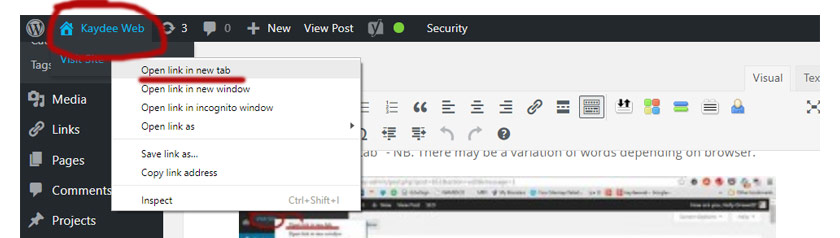
Credit: kaydee.net
Accessing WordPress Editor
Accessing the WordPress editor is the first step to change your website’s content. It allows you to update text, images, and layout without coding. Knowing how to reach the editor helps you keep your site fresh and relevant.
WordPress offers different ways to edit content. The main methods include navigating to your pages, opening the visual editor, and using the block editor. Each method suits different editing needs and skill levels.
Navigating To Pages
Start by logging into your WordPress dashboard. On the left menu, click on “Pages.” This section shows all the pages on your website. Find the page you want to edit from the list. Click the page title to open it in the editor.
Opening The Visual Editor
The visual editor lets you change content in a simple, user-friendly way. It shows your page as it looks live. You can click on text to edit it directly. Add images or links with easy buttons. This editor works well for basic changes.
Using The Block Editor
The block editor uses content blocks to build pages. Each block can be a paragraph, image, video, or other media. You can move blocks around to change layout. This editor is flexible and powerful. It helps create custom designs without coding.
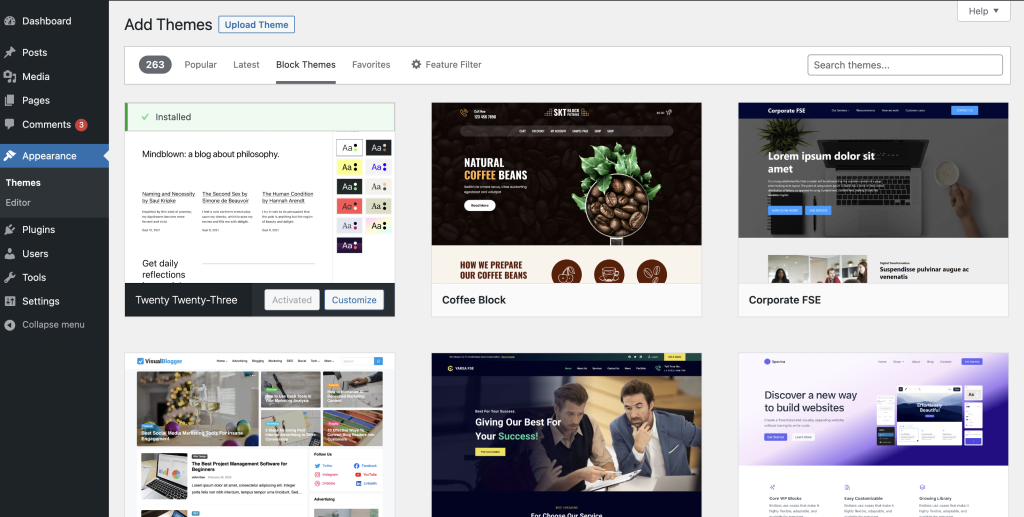
Credit: wordpress.org
Editing Content Blocks
Editing content blocks is key to customizing your WordPress website. These blocks hold text, images, buttons, and more. You can change them easily to fit your style and message. Understanding how to manage each block helps you keep your site fresh and engaging.
WordPress uses a block editor that makes content editing straightforward. You do not need coding skills to update your pages. Just click on the block you want to change, and options appear. Let’s explore how to add text and images, rearrange elements, and use buttons and links.
Adding Text And Images
Click a content block to edit text directly. Type your new words or change existing ones. You can format text with bold, italics, or headings. This makes your content clearer and easier to read.
To add an image, select the image block or insert a new one. Upload a picture from your computer or choose one from your media library. Resize and align images for the best look on your page.
Rearranging Elements
Drag blocks up or down to change their order. This helps highlight important content first. You can also use arrow buttons to move blocks precisely. Rearranging makes your page flow better for visitors.
Group similar blocks together for a cleaner layout. This organization improves user experience and keeps your design neat.
Using Buttons And Links
Add buttons to encourage actions like “Buy Now” or “Contact Us.” Select the button block and type your call to action. Customize the color and size to match your site’s theme.
Insert links in text to direct visitors to other pages. Highlight the text and click the link icon. Paste the URL and save. Links connect your content and improve site navigation.
Customizing Site Appearance
Editing the homepage layout of your WordPress website lets you control what visitors see first. It helps improve user experience and makes your site look professional. The homepage layout can include images, text blocks, and other elements arranged in a way that fits your brand.
Understanding how to edit this layout is key to maintaining an attractive and functional website. WordPress offers easy tools to manage and customize your homepage without needing coding skills.
Selecting The Homepage
Start by choosing which page is your homepage. Go to the WordPress dashboard. Click on Settings and then Reading. Here, select A static page option. From the dropdown, pick the page you want as your homepage. Save your changes to confirm the selection.
This step ensures you are editing the correct page for your homepage layout.
Using The Site Editor
Access the Site Editor by clicking Appearance and then Editor in the dashboard menu. The Site Editor lets you modify your homepage visually. You can move blocks, add new content, or delete parts you do not need.
Use the drag-and-drop feature to arrange elements. Preview changes before publishing to ensure everything looks right. This tool is user-friendly and helps you update your homepage quickly.
Changing Page Templates
Page templates control the structure of your homepage. In the editor, look for the Page Attributes box on the right side. Here, choose different templates like full-width or with sidebar. Each template changes the layout style of the homepage.
Try different templates to see which fits your design best. Changing templates can give your homepage a fresh look without rebuilding it from scratch.
Editing Homepage Layout
Editing WordPress code lets you customize your website beyond basic settings. You can change how your site looks and works by modifying HTML, CSS, and PHP files. This process gives you control but requires care to avoid errors.
Understanding how to access and edit these files helps you improve your website’s design and functionality. Below are key steps to edit WordPress code safely and effectively.
Accessing Html, Css, And Php
HTML controls the structure of your site’s pages. CSS styles the appearance, such as colors and fonts. PHP runs the server-side logic that makes your site dynamic.
You can access these files through your hosting control panel or an FTP client. Another way is using WordPress’s built-in Theme Editor. Always back up files before editing.
Using The Theme Editor Safely
The Theme Editor allows direct code editing inside WordPress. Find it under Appearance > Theme Editor in your dashboard. Only edit files for your active theme.
Make small changes and save often. Mistakes can break your site. Use a child theme to keep your changes safe during theme updates. Avoid editing core WordPress files here.
Adding Custom Code Snippets
Custom snippets let you add features without changing many files. Use a plugin for snippets or add code in your child theme’s functions.php file.
Test snippets on a staging site before live use. Keep your snippets organized and commented for easy management. This method keeps your site clean and functional.
Working With Themes And Plugins
Editing a WordPress website can sometimes bring unexpected issues. These problems often block your ability to make changes. Troubleshooting these editing issues helps you fix them quickly. It saves time and keeps your website running smoothly.
Common editing problems include restrictions on the blog page, permission errors, and plugin conflicts. Each requires a different approach to solve. Below are simple solutions to these frequent problems.
Fixing Blog Page Editing Restrictions
The blog page often cannot be edited directly. WordPress sets it as the default post page. To change this, go to Settings > Reading in your dashboard. Check which page is assigned as the posts page. To edit the blog page content, create a new page instead. Use this page for custom content, then assign it as the posts page.
Remember, the default blog page displays posts automatically. You cannot add static content there. Use page builders or theme settings to customize its look.
Resolving Permission Errors
Permission errors stop you from editing pages or posts. These usually happen if your user role lacks enough rights. Go to Users > All Users and check your role. Administrators have full access, while Authors or Contributors have limits.
Ask the site owner to give you proper permissions. If you manage the site, adjust roles under Users > Add New or use a role editor plugin. Fixing permissions lets you edit without errors.
Handling Plugin Conflicts
Plugins can clash and cause editing problems. A plugin may block the editor or cause crashes. To find the conflict, deactivate all plugins first. Then, activate one plugin at a time. Check if the editor works after each activation.
When you find the conflicting plugin, look for updates or alternatives. Contact the plugin developer for support. Keeping plugins updated reduces conflicts and editing issues.
Editing WordPress Code
Saving and publishing changes is a key step when editing your WordPress website. It ensures your updates appear live for visitors. WordPress offers simple options to preview, save, and schedule your content. Understanding these steps helps keep your website fresh and accurate.
Previewing Edits
Before saving, preview your edits to see how they look. Click the “Preview” button at the top right of the editor. This opens a new tab showing your page as visitors will see it. Use this step to catch errors or layout issues. Previewing saves time by avoiding unwanted live mistakes.
Updating Pages
After reviewing, update your page to save changes permanently. Click the “Update” button in the editor’s top right corner. This publishes your edits immediately on your website. Make sure you are ready, as updates replace the old content. Frequent updates keep your site relevant and engaging.
Scheduling Content Updates
WordPress lets you schedule updates for future dates. Click the “Publish immediately” link near the Update button. Set the date and time to publish your changes automatically. Scheduling is useful for timed promotions or regular posts. It helps manage content without manual intervention later.
Troubleshooting Editing Issues
Editing a WordPress website requires care and good habits. Following best practices helps keep your site safe, fast, and easy to manage. This section covers key steps to protect your work and improve your editing experience.
Backing Up Your Site
Always create a backup before making changes. Backups save your site’s data and files. Use plugins or your hosting provider’s tools for easy backups. Store backups in a secure place. This step prevents data loss if something goes wrong.
Using Child Themes
Edit your site with child themes instead of the main theme. Child themes let you customize safely. They keep your changes separate from the original theme. Updates to the main theme won’t erase your work. This method keeps your site stable and easy to update.
Keeping WordPress Updated
Keep WordPress, themes, and plugins updated regularly. Updates fix bugs and improve security. They also add new features and improve performance. Use the dashboard to check for updates often. Running the latest versions protects your site from threats.

Credit: wordpress.org
Frequently Asked Questions
How Do I Edit My Website In WordPress?
To edit your WordPress website, go to your dashboard, select Pages, choose a page, and click Edit. Use the visual or block editor to modify content, then save changes. For homepage edits, use Appearance > Customize or Appearance > Editor for design adjustments.
Why Can’t I Edit My Website On WordPress?
You can’t edit your WordPress site if the page is set as the default Posts page or lacks proper user permissions. Check page settings and user roles in the dashboard. Also, conflicts with plugins or themes may block editing. Clear cache and disable plugins to troubleshoot.
How Easy Is It To Edit A WordPress Website?
Editing a WordPress website is user-friendly and quick. Use the visual editor to add, change, or remove content easily. Beginners can manage pages, posts, images, and layouts without coding. Complex sites may require more time, but WordPress remains intuitive for most users.
How Do I Edit My WordPress Website Homepage?
To edit your WordPress homepage, go to Pages > All Pages in the dashboard. Select your homepage and use the Block Editor to add or modify text, images, and other content blocks. Save changes by clicking Update. For design tweaks, use Appearance > Customize or Appearance > Editor for block themes.
Conclusion
Editing your WordPress website becomes easier with practice. Start by exploring the dashboard and editing simple pages first. Use the block editor to add or change text, images, and layout. Customize your site’s look through the Appearance menu. Regular updates keep your site fresh and engaging.
Don’t hesitate to try new tools and plugins carefully. With time, editing will feel natural and less confusing. Stay patient and enjoy building your website step by step.


