
Have you ever looked at your WordPress site and wished it could better reflect your brand’s unique personality? You’re not alone.
Many website owners want to make tweaks that go beyond basic theme settings. Fortunately, diving into your theme’s source code can be the key to unlocking endless customization possibilities. Whether you’re looking to tweak the layout, adjust colors, or add new features, learning how to edit WordPress theme source code can transform your website from generic to extraordinary.
But before you start, it’s crucial to know the right steps to take and the common pitfalls to avoid. This guide will lead you through the process, ensuring that you can make changes with confidence and precision. Ready to unleash your website’s full potential? Let’s get started!
Choosing The Right Tools
Text editors help you change your theme’s code. They show the code in easy ways. Popular editors are Atom, Sublime Text, and Visual Studio Code. Each has cool features. Some of these editors are free. Others ask for money. Choose one that you like. Your choice should fit your needs. Make sure it works well with WordPress. Try different ones if you can. Find what suits you best. Remember, a good text editor makes coding easier.
FTP Clients connect your computer to your website. They help move files. You can upload or download them. FileZilla is a top choice. It is free and easy to use. Cyberduck and WinSCP are good too. These tools are important. They let you access your theme files. You can edit them safely. Always check your changes. Make sure they look good online. Use FTP clients with care. They are powerful tools.
Credit: 10web.io
Accessing Theme Files
Access theme files using the File Manager in your hosting panel. Find the public_html folder. Open the wp-content directory. Next, go to the themes folder. Here, you will see all installed themes. Click on your theme folder. You can now edit any file. Always make a backup before changes. This keeps your data safe. Use a text editor for editing. It helps in reading code better.
Use an FTP client like FileZilla. Enter your FTP details to connect. Look for the public_html directory. Find the wp-content folder here. Inside, locate the themes directory. Open your desired theme folder. Download files you want to edit. Use a text editor to make changes. Save and upload back to the server. This updates your theme with new edits.
Understanding Theme Structure
Template files are the backbone of a WordPress theme. Each file controls a part of your website. For example, the header.php file controls the top section. The footer.php file manages the bottom part. Every file has a specific role. Learning these files helps you edit your site better.
Stylesheets define how your site looks. They use Cascading Style Sheets (CSS). You can change colors, fonts, and layouts. The main file is usually style.css. It is key to your theme’s appearance. Small changes here can make a big difference.
JavaScript files add interactive features. They make buttons clickable and images slide. JavaScript is very powerful. Files often end with .js. Learn to edit these to enhance your site’s functions. This brings life to your web pages.
Making Safe Changes
Creating child themes helps keep your edits safe. They protect your custom changes. A child theme uses the parent theme’s files. You only change the child theme files. This way, updates to the parent theme do not erase your work. First, make a folder for your child theme. Next, create a style.css file. Link it to the parent theme. Add any changes in the child theme. Your main theme stays untouched. This method keeps your site stable. It is a smart way to edit safely.
Backing Up Original Files
Always backup original files before editing. It prevents loss of important data. Use FTP to download theme files. Save them on your computer. This acts as your safety net. If something goes wrong, you can restore them. Backing up is simple but crucial. It is like making a copy of your homework. This way, you avoid losing changes. Remember, backups give peace of mind. They keep your site secure.
Editing Php Files
Functions make your theme work. You can change them to add new features. Open the functions.php file in your theme folder. Look for the function you want to change. Use simple code to make changes. Save your work when done. Always back up files before editing. This helps if something goes wrong. Small changes can make big effects. Make sure to test your site after changes. Check everything works fine.
Templates control how your site looks. You can change them to fit your style. Find the template file in your theme folder. Common files are header.php or footer.php. Open the file and look at the code. Add or remove parts to change the look. Be careful not to delete important code. Save your changes and check your site. Changes should show up right away. If not, check your code for errors.
Adjusting Css Styles
Themes have stylesheets that control the look. You can find them in the theme folder. Open the style.css file to change styles. Use a text editor to make changes. Save your edits and see the changes live. Be careful! Mistakes can break your site. Always backup your files first. This way, you can fix errors easily.
Some themes have a Custom CSS option. It’s found in the WordPress Customizer. This tool is easy to use. Write your CSS code in the box. Changes show live as you type. No need to edit the main files. It keeps your site safe from errors. This method is great for beginners.
Enhancing With Javascript
JavaScript adds life to web pages. It makes things move and react. Users like pages that feel alive. Adding interactivity is simple. Use JavaScript to change how things look. Make buttons do things when clicked. Create animations that catch the eye. JavaScript can hide or show content. It can change text without loading a new page. Users will enjoy a site that feels smart.
Adding Interactivity
Start with small changes. Use JavaScript to make things happen on click. Add effects like fading or sliding. Create forms that check input as users type. Make lists that sort themselves. Use JavaScript to update parts of the page. Users will love the new features.
Optimizing Performance
Fast pages are happy pages. Slow sites make users sad. Optimize your JavaScript for speed. Avoid big files that take long to load. Use small scripts that do big things. Minify your code to make it smaller. Cache JavaScript files for quicker loading. Test your site’s speed often. Users will stay longer on fast sites.
Testing Changes
Always preview changes before making them live. This helps to see how your edits look. Use the WordPress Customizer to view changes. It’s a safe way to test without affecting the live site. You can switch between different pages. This helps ensure all parts look good. If something looks wrong, you can fix it before publishing. This saves time and avoids problems.
Errors can happen when editing code. They can break your site. Use the WordPress Debug Tool to find errors. It shows where the problem is. Fix errors one by one. Check your site after each fix. This ensures everything works well. If you’re stuck, search online for solutions. Many others have faced similar issues. There are many resources to help you.
Implementing Version Control
Git is a tool for tracking changes in files. It helps you keep a history of your edits. You can see what you changed and when. This helps if you want to go back to an older version. With Git, you can also work with others easily. Everyone can have their own copy of the files. Changes are merged together later. This avoids mistakes. Using Git is safe and smart.
Tracking changes means saving each edit you make. You can use Git to do this. Every change is called a commit. A commit is like a save point in a video game. If something goes wrong, you can return to a commit. This way, your work is safe. You can try new things without fear. Git helps make editing easy and stress-free.

Credit: wpbuffs.com

Credit: kinsta.com
Frequently Asked Questions
How Do I Edit The Source Code In WordPress?
To edit WordPress source code, use a child theme. Access files via FTP or WordPress Editor. Ensure backups before editing. Use a code editor for accuracy. Always test changes on a staging site.
How Do I Edit The Code Of A Theme In WordPress?
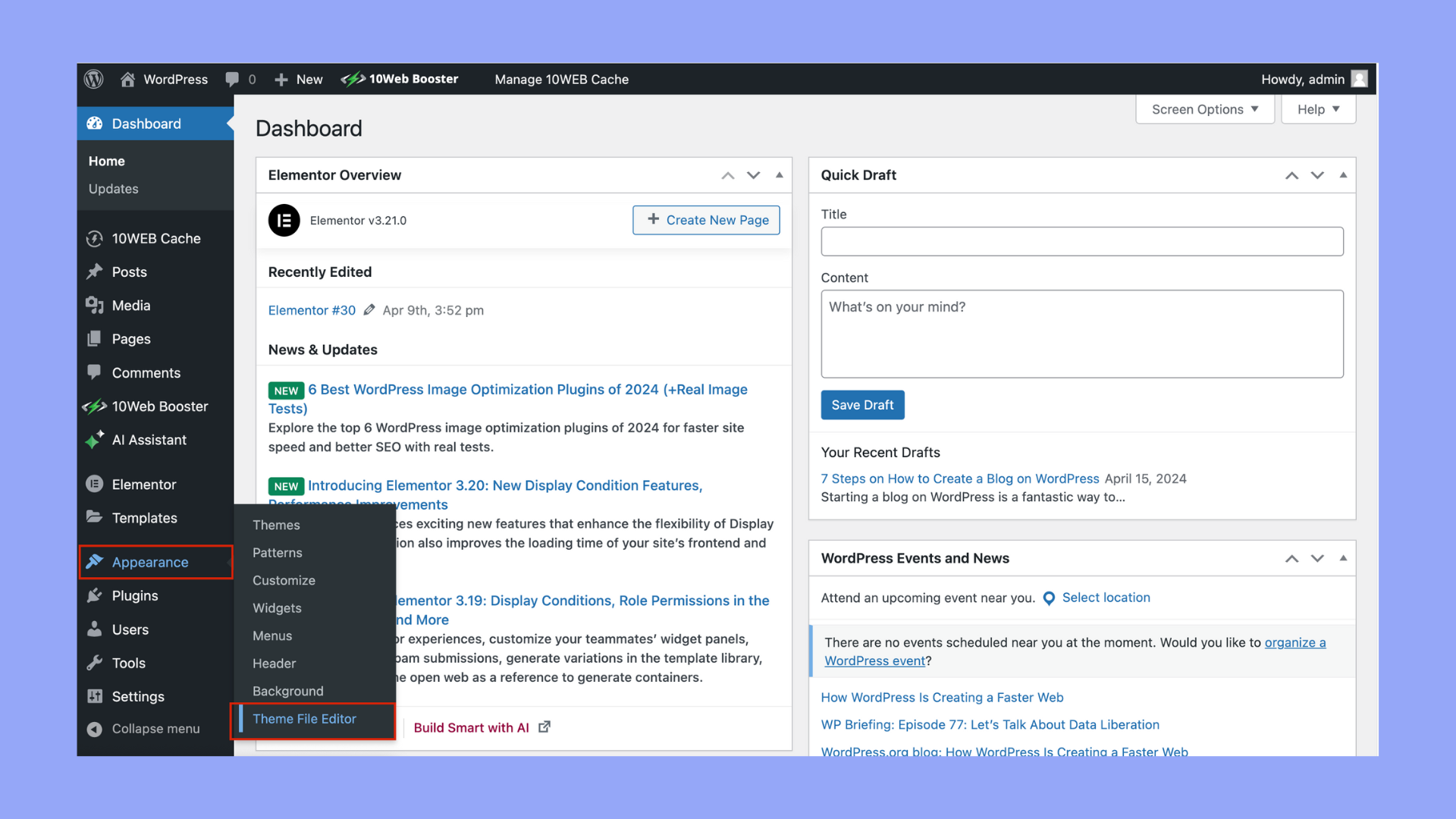
Edit WordPress theme code by accessing Appearance > Theme Editor. Choose your theme and modify files using the editor. Always create a child theme or backup your site before making changes. Use FTP for advanced modifications. Ensure your edits don’t disrupt theme functionality or future updates.
How To Edit Html Code In WordPress Theme?
Access WordPress dashboard and select Appearance, then Theme Editor. Choose theme file to edit HTML code. Save changes carefully. Ensure backups are in place before editing. Use a child theme to prevent losing modifications after updates. Consider using FTP for direct file access, maintaining website security.
How Do I Edit A WordPress Plugin Code?
To edit a WordPress plugin code, access your WordPress dashboard. Go to Plugins, select the plugin, and click “Edit. ” Make necessary changes, ensuring you back up the original file. Save the updated code. Always test changes on a staging site to avoid disrupting your live site.
Conclusion
Editing WordPress theme code boosts your site’s look and function. It’s simpler than it seems. Start by backing up files. Use a child theme to avoid issues. This keeps the original code safe. Make small changes and test them. Patience is key.
Practice leads to improvement. Remember, coding can be challenging at first. But with time, it becomes easier. Online resources and communities can help. Don’t hesitate to seek guidance. The more you edit, the more confident you’ll become. Your website will reflect your personal style.
Happy coding!


