

Are you looking to update your WordPress site but don’t know where to start? Editing your WordPress website might seem tricky at first, but it’s actually easier than you think.
Whether you want to change text, swap images, or tweak the layout, you can do it all with just a few clicks. In this guide, you’ll discover simple, step-by-step ways to edit your WordPress site quickly and confidently. By the end, you’ll have the skills to make your site look exactly how you want—no coding experience needed.
Ready to take control of your website and make it truly yours? Let’s dive in!
Access WordPress Editor
Accessing the WordPress Editor is the first step to change your website. It allows you to manage content, design, and structure. The editor is built into your WordPress dashboard. You do not need extra software. Just a few clicks and you can start editing your site.
The process is simple and user-friendly. Even beginners can follow it easily. Below are the steps to reach the WordPress Editor quickly and safely.
Login To Dashboard
Open your web browser and go to your WordPress login page. Usually, it is yoursite.com/wp-admin. Enter your username and password. Click the “Log In” button. This action takes you to the WordPress dashboard. The dashboard is the control center for your website. Here you manage posts, pages, and settings.
Navigate To Site Editor
On the dashboard menu, find the “Appearance” section. Click on it to open a submenu. Select “Editor” from the submenu options. This opens the WordPress Site Editor. The editor shows your website’s layout and content blocks. You can customize your theme, header, footer, and other parts here.
Locate Pages And Menus
Inside the Site Editor, look for the “Pages” option. Click it to see a list of your website pages. Choose the page you want to edit. For menus, find the “Menus” tab in the editor. Click it to view and modify your site navigation. Adjust menu items by adding, removing, or rearranging links easily.
Credit: wordpress.org
Edit Pages And Posts
Editing pages and posts in WordPress is simple and flexible. It lets you update content to keep your site fresh and relevant. The WordPress editor uses blocks, making it easy to change text, images, and layout. You can edit any page or post from your dashboard quickly.
This section explains how to modify text and images, add or remove blocks, and update page settings. These tasks help you maintain a professional and user-friendly website.
Modify Text And Images
Start by opening the page or post you want to edit. Click on the text you want to change and type directly. You can change fonts, colors, and sizes using the toolbar above the text block. For images, click on the picture to replace, resize, or align it. Upload new images or choose from your media library. Editing text and images keeps your content clear and attractive.
Add And Remove Blocks
WordPress uses blocks to build pages and posts. To add a block, click the plus (+) button where you want new content. Choose from text, images, videos, buttons, and more. Removing blocks is easy; select the block and click the three dots menu, then choose “Remove Block.” Adding or removing blocks customizes your layout for better user experience.
Update Page Settings
Page settings control how your content appears and works. On the right sidebar, find options to change the page title, URL, and visibility. You can set a page as public, private, or password-protected. Adjust SEO settings and choose a featured image to improve search rankings. Updating settings makes your pages fit your site’s goals and audience needs.
Customize Site Appearance
Customizing your WordPress site’s appearance helps make it unique and inviting. You can change many parts easily without coding. Adjusting the look fits your brand and style. This section shows simple ways to do this.
Change Themes
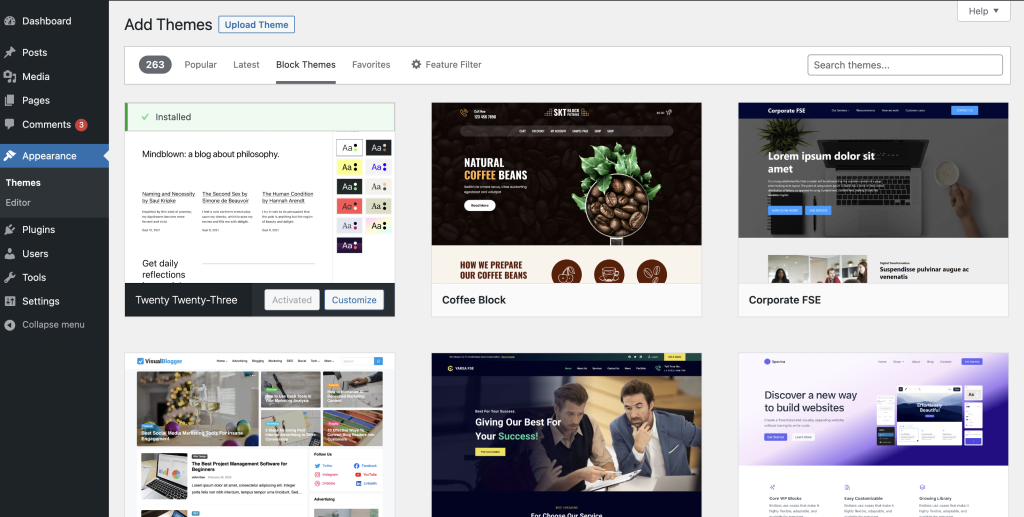
The theme controls your site’s overall design and layout. To change it, go to your WordPress dashboard. Click on Appearance and then Themes. Browse free and premium themes. Preview a theme to see how it looks. Activate the one you like. Your site updates instantly with the new style.
Edit Header And Footer
The header and footer show on every page. They hold your logo, menu, and contact info. Go to Appearance then Editor or Customize. Find the header and footer sections. Change text, images, or links. Save your changes to update the site.
Adjust Colors And Fonts
Colors and fonts affect how visitors feel about your site. Open the Customize panel from the dashboard. Look for Colors and Typography options. Pick colors that match your brand. Choose fonts that are easy to read. Adjust sizes for headings and body text. Preview changes live before saving.
Credit: www.hostinger.com
Use Plugins For Advanced Features
Plugins add powerful features to your WordPress site. They help you customize and improve your site easily. Many plugins extend editing options beyond the default tools. This makes your site more unique and functional. Using plugins is the best way to add advanced features without coding. They save time and effort while enhancing your site’s look and performance.
Install And Activate Plugins
Start by going to your WordPress dashboard. Click on “Plugins” then “Add New”. Use the search bar to find the plugin you want. Click “Install Now” to add it to your site. After installation, click “Activate” to enable the plugin. Active plugins appear in your dashboard menu or settings. You can install many plugins but avoid too many to keep your site fast.
Configure Plugin Settings
Each plugin has its own settings page. Access this from the dashboard or the plugin list. Adjust options to fit your site’s needs. Some plugins offer simple toggles, others have detailed controls. Save changes after editing settings. Test your site to see how the plugin works. Update plugin settings anytime to improve site function or style.
Popular Plugins For Editing
Elementor is a popular drag-and-drop page builder. It allows easy layout and design changes without code. WPForms helps create contact forms quickly. Yoast SEO improves your site’s search engine ranking. Advanced Custom Fields lets you add custom content sections. These plugins add powerful editing tools and enhance your site’s features.
Fix Common Editing Issues
Fixing common editing issues in WordPress helps keep your site running smoothly. Simple problems can block your updates and slow you down. Understanding common errors saves time and frustration. Below are easy steps to solve frequent editing challenges.
Troubleshoot Blog Page Editing
Sometimes the blog page won’t show the editor. This happens if WordPress sets the blog as the default posts page. To fix, go to your dashboard. Click on “Settings,” then “Reading.” Check which page is assigned as the posts page. Change it to another page temporarily. Now, try editing the blog page again. This clears the block and lets you update your posts.
Resolve Permission Problems
Permission errors stop you from saving changes. These happen if your user role lacks editing rights. Visit the “Users” section in the dashboard. Confirm your role is “Administrator” or “Editor.” If not, ask the site owner to update your permissions. Also, server file permissions might block edits. Use an FTP client or hosting panel to set folder permissions to 755 and files to 644. This ensures WordPress can access and save files properly.
Clear Cache And Refresh
Old cache can show outdated content after edits. Clear your browser cache first. Next, clear any caching plugins on your WordPress site, like W3 Total Cache or WP Super Cache. Also, clear the server cache if your host offers it. After clearing, reload the page. This shows your latest changes and prevents confusion from old versions. Refreshing helps confirm edits took effect.

Credit: stackoverflow.com
Edit Using Browser Developer Tools
Editing your WordPress site using browser developer tools is a smart way to see changes instantly. These tools let you inspect and tweak your site’s code right from your browser. You can test new styles or fix layout issues without touching your live site.
Browser developer tools work with HTML, CSS, and JavaScript. They show your site’s structure and styles. This helps you understand how your site works behind the scenes.
Inspect Elements
Open developer tools by right-clicking any part of your page and selecting “Inspect.” This opens a panel showing the HTML code. You can see which elements make up your page. The tool highlights the part you clicked.
Use the element inspector to find classes, IDs, and styles. This helps you know what to change. It also shows how elements nest inside each other.
Test Temporary Changes
Use the developer tools to change text, colors, or layout on the fly. Click on a style rule to edit it. You can add new CSS properties or remove old ones. These changes show immediately in your browser.
Remember, these edits are temporary. Reloading the page erases them. Testing like this helps you plan your real changes before applying them.
Make Permanent Edits
After testing, copy your changes to your WordPress dashboard. Edit your theme files or use the Customizer to add new CSS. You can also use a child theme to keep changes safe during updates.
Save your edits and refresh the site to see them live. This method reduces errors and speeds up the editing process.
Manage Site Files Locally
Managing your WordPress site files locally gives you full control over your website’s code. It allows editing files directly on your computer instead of online. This method helps avoid errors and makes backups easier. You can work faster and see changes clearly before uploading them back to the server.
Download Files Via Ftp
FTP stands for File Transfer Protocol. It helps transfer files between your site and computer. Use an FTP client like FileZilla. Connect to your web host with your FTP username and password. Navigate to your WordPress folder, usually called public_html. Download all files to a folder on your computer. This keeps a safe local copy for editing.
Edit Html And Css
Open your downloaded files in a code editor such as Visual Studio Code or Notepad++. Find the HTML files to change the site structure or content. Edit CSS files to update styles and layout. Make small changes, save often, and test locally. This keeps your website design neat and organized. Avoid breaking your site by editing carefully.
Upload Updated Files
After editing, upload your changed files using the FTP client. Replace old files with the new ones in the server folder. This updates your live site with the latest changes. Clear your browser cache to see updates immediately. Keep backup copies before uploading to avoid losing data. Managing files this way ensures safe and easy site updates.
Save And Publish Changes
Saving and publishing changes in WordPress is a key step after editing your site. It ensures your work is not lost and your visitors see the latest content. WordPress gives options to preview, save drafts, and publish updates. Each option helps you control when and how your changes appear live.
Preview Edits
Previewing edits lets you see changes before they go live. Click the “Preview” button in the editor. This opens a new tab showing how the page will look. It helps catch mistakes and check layout on different devices. Previewing keeps your live site safe from unfinished changes.
Save Drafts
Saving drafts stores your work without publishing it. Use the “Save Draft” button to keep your edits private. Drafts are perfect for ongoing work or when you need feedback. You can return anytime to continue editing. This avoids accidental publishing of incomplete pages.
Publish Updates Live
Publishing updates makes your changes visible to all visitors. When ready, click the “Publish” or “Update” button. WordPress instantly applies the changes to your live site. This step is final but you can always edit and republish later. Publishing keeps your site fresh and up-to-date.
Frequently Asked Questions
How Do I Edit My Existing WordPress Site?
Log in to your WordPress dashboard, go to Pages or Appearance → Editor, then edit text, images, or layout. Save changes to update your site.
How Easy Is It To Edit A WordPress Website?
Editing a WordPress website is straightforward with its user-friendly visual editor. Users can easily modify text, images, and layout. Complex sites may require more time, but most find WordPress intuitive and quick to learn for regular updates and design changes.
Why Can’t I Edit My Website On WordPress?
You can’t edit your WordPress site if the page is set as the default blog (Posts) page. Check Settings → Reading and edit pages under Pages to fix this. Also, ensure you have proper user permissions and the editor plugin is active.
How Do I Edit An Already Made Website?
To edit an existing website, log into its CMS or builder tool. Use the visual editor to change text, images, and layouts. Save or publish changes to update the live site. For code edits, use browser developer tools or edit files locally before re-uploading.
Conclusion
Editing your WordPress site is simpler than it seems. Small changes can improve your site’s look and function. Explore the editor tools to customize pages and menus easily. Regular updates keep your site fresh and user-friendly. Practice often to become comfortable with the process.
Remember, patience helps you learn step by step. Your site will grow with every edit you make. Keep improving to create a site that fits your needs perfectly.


