
Are you struggling to update your website on HostGator? You’re not alone.
Many people find the process daunting at first, but the good news is that it’s easier than you might think. Imagine having the power to customize your site to perfectly fit your needs without the hassle. Picture the satisfaction of seeing your website reflect your vision.
You’ll discover simple, step-by-step instructions on how to edit your website using HostGator’s user-friendly tools. You’ll gain the confidence to make changes quickly, keeping your site fresh and engaging for visitors. Don’t let the fear of technical details hold you back. Dive in and unlock the potential of your website with HostGator. Keep reading to transform your site into something truly remarkable!
Credit: sendlayer.com
Accessing Hostgator Control Panel
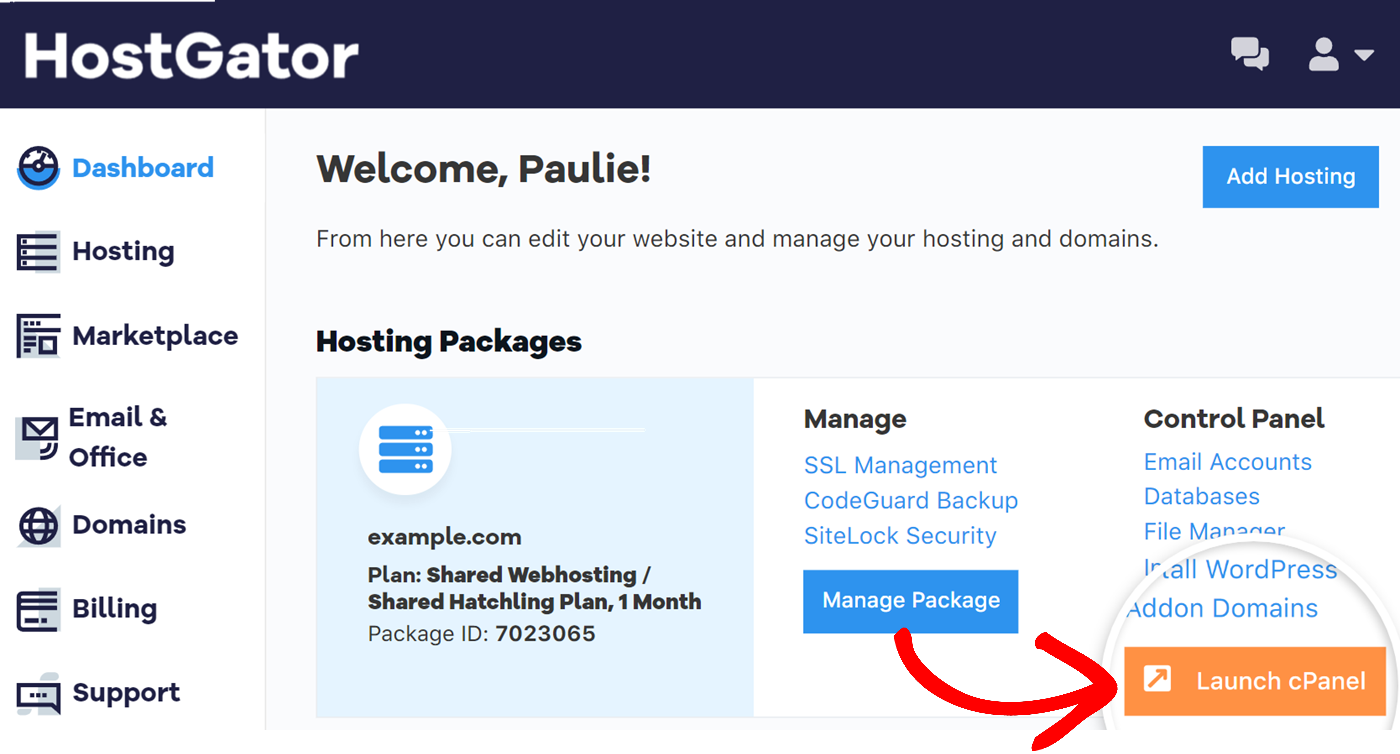
Start by visiting the HostGator website. Look for the login button. Click on it to enter your details. You need your username and password. Once logged in, find the control panel link. This is often called cPanel. Click to access various options. You can manage your files here. Editing is easy with the File Manager. Find it in the control panel. Click to open it. Now, you can see your website files. Choose the file you want to edit. Click on it to start editing. Make changes and save them. It’s simple and quick.
Navigating The File Manager
Editing a website in HostGator becomes easy with the File Manager tool. It allows quick access to website files, facilitating changes directly from the control panel. Efficient navigation helps in updating content, ensuring websites remain fresh and relevant.
Locating Your Website Files
To edit your site, first access HostGator’s File Manager. Log into your hosting account. Look for the File Manager icon. Click it to enter. You will see a list of folders. Find the public_html folder. This folder holds your website files. Double-click to open it. Now, you can view all your site’s files. Look for the file you wish to change.
Understanding File Structure
Websites have many files. Each file has a job. HTML files are the pages. CSS files style the pages. JavaScript adds fun features. Keep this in mind. Always know which file to change. It helps avoid mistakes. Use the File Manager to see these files. It shows file types and sizes. This helps in understanding your site’s structure.
Editing Website Files
The Host Gator control panel has a built-in editor. It helps you change files easily. First, log into your Host Gator account. Next, click on “File Manager.” This opens the list of your files. Find the file you want to edit. Click on it and choose “Edit.” The editor will open in a new window. You can now change the text or code. Be careful with any changes. Save your work often. Press the “Save” button when done. This keeps your changes safe. Remember, this tool is for simple edits. For bigger changes, use other tools.
After editing, you may need to upload files. Go back to the “File Manager” in your Host Gator account. Click the “Upload” button at the top. A new window will appear. Here, you can choose files from your computer. Make sure the file names match exactly. This prevents errors. Once files are selected, click “Upload.” Wait for it to finish. This makes sure your changes are live. Always check your website after this. This helps you find any mistakes quickly.
Managing Website Content
Log into your Host Gator account. Find the website editor. Click to open it. Now look for the text you want to change. Click on it. A box will appear. Type your new words. Hit save. Done! For images, find the picture. Click it. Choose replace image. Upload your new picture. Save again. So easy!
Find your style.css file. Open it in the editor. You see many lines. Each line controls a look. To change color, type a new color code. For size, change the number. Save your changes. Check your site. It looks new! CSS makes everything stylish and cool.
Using Ftp For File Management
First, log into your Host Gator account. You need to find the FTP settings. These settings are usually under the control panel. Write down the server address and username. You will use these later. Open your FTP client on your computer. Enter the details you wrote down. Make sure to type them correctly. Click on connect. Now, you have set up the FTP access. This lets you manage files on your website.
You can now transfer files easily. Find the files on your computer. Select the ones you want to upload. Drag them into the FTP client window. You will see them start to transfer. Wait for the transfer to finish. Check the website to see your changes. You can also download files from your website. Just drag them to your computer. FTP is useful for uploading and downloading files quickly.

Credit: www.youtube.com
Implementing Changes
Always test changes on a live site. This helps to see if it works. Check all links and buttons. Make sure they work. Fix errors quickly. Users might see them. Use a backup before testing. It is safe. Keep a copy of the old version. This can help if things go wrong.
Sometimes, changes are not good. In such cases, revert them. Use the backup to go back. This saves time and effort. Always keep a backup handy. It is wise to do so. Be careful while reverting. Check everything again. Ensure the site works fine. Sometimes, small errors can cause problems.
Troubleshooting Common Issues
Editing your website in HostGator is straightforward. Access the HostGator control panel, locate your file manager, and make changes. Follow these steps to troubleshoot common issues easily.
Resolving Permission Errors
Permission errors can stop you from editing your website. Check file permissions in the Host Gator panel. Files need specific settings to be edited. Use the File Manager to adjust permissions. Click on the file, then select ‘Change Permissions’. Set permissions to read and write. This allows changes to the file. If errors continue, contact Host Gator support for help. They can guide you in solving the issue.
Fixing Broken Links
Broken links make websites hard to navigate. First, find the broken link. Use online tools for link checking. After finding them, update or remove the links. Go to the Host Gator panel and edit the web pages. Replace the broken URL with a working link. Always test links after changes. This ensures they lead to the right page.
Credit: www.hostgator.com
Frequently Asked Questions
How Do I Edit My Website On Hostgator?
Log into your HostGator account. Access the control panel (cPanel). Use the File Manager or website builder tool to edit your site. Save changes before exiting.
How Do I Edit A Hosted Website?
To edit a hosted website, log into your hosting account. Access the website’s files via a file manager or FTP. Use an HTML editor to make changes. Save and upload the edited files. Refresh your website to see the updates.
Always back up files before making changes.
How Do I Change My Primary Website In Hostgator?
Log into your HostGator account, navigate to the ‘Hosting’ tab, and select ‘Manage Domains. ‘ Change your primary website by designating a different domain as primary. Ensure you save your changes. Contact HostGator support for assistance if needed.
How Do I Edit An Existing Website On Godaddy?
Log in to GoDaddy, select “My Products”, and choose your website. Click “Manage” next to Website Builder. Edit your site using the available tools. Save changes and publish once finished. Ensure you have the latest version for optimal functionality.
Conclusion
Editing your website on HostGator can be simple. Follow each step carefully. Use the tools provided. Make changes to suit your needs. Always preview before saving changes. This ensures your site looks good. Check for errors regularly. Keep your content updated.
Fresh content attracts more visitors. HostGator offers useful features. Explore them to enhance your site. Remember, patience and practice help. You’ll get better with time. Enjoy the process. Your website reflects your creativity. Happy editing!


