
Have you ever wished you could easily tweak or update your website hosted on GoDaddy without the hassle? You’re not alone!
Whether you’re looking to refresh your content, add new images, or improve the design, knowing how to edit your web page is crucial. Imagine the freedom and control you’d have once you master this skill. No more waiting for a developer or feeling stuck with outdated information.
You can make your website reflect your evolving ideas and business needs. Dive into the world of easy web page editing on GoDaddy, and unlock the potential to keep your site fresh and engaging. Curious about how simple it can be? Let’s explore the steps together!

Credit: www.youtube.com
Accessing Your Godaddy Account
First, open your web browser. Go to the Godaddy website. Find the login button. It is usually at the top. Click on it. Enter your username. Then, enter your password. Make sure both are correct. Click the login button. This will take you to your account. If you see the dashboard, you are logged in.
The dashboard shows many options. You will see your domains. Look for the “My Products” section. This is where your domains are listed. Find the domain you want to edit. Click on it to manage. A new page will open. This page has all the settings. You can now edit your web page.
Locating Your Web Page
First, you need to know your domain name. Your domain is like your website’s address. It tells people where to find your site. You can find your domain in your GoDaddy account. Log in and look for the “My Products” section. Click on “Domains.” A list of your domains will show up. Choose the one you want to edit. This step is very important. Without knowing your domain, you can’t make changes.
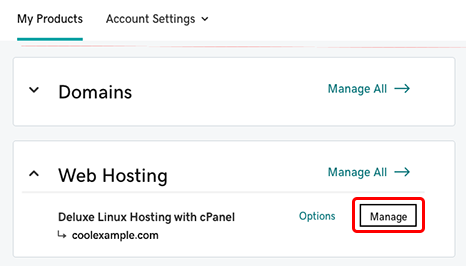
After you find your domain, check your hosting plan. Hosting is where your website’s files live. Go to the “My Products” section again. Look for “Web Hosting” or “Hosting Plans.” Find the plan linked to your domain. Click on “Manage” to open your hosting account. This is where you can make changes to your website. Knowing your hosting plan helps you find the right tools to edit.
Using The File Manager
First, log into your GoDaddy account. Find the Web Hosting section. Click on Manage next to your hosting plan. Search for the File Manager option. Click it to open. You will see all your website files here.
The root directory is like a main folder. It holds important files. Look for the public_html folder. This is where your web pages live. Inside, you will see folders and files. Each file has a job. Some files are for design. Others are for content.
Choose a file you want to edit. Click on it. The file will open. Make your changes. Use the editor tool in File Manager. Save your changes when you finish. Check your website to see updates. Be careful. Wrong changes can break your site.
Credit: www.godaddy.com
Editing With Cpanel
First, log into your GoDaddy account. Find the cPanel button. Click it to access your hosting tools. You’ll see many options here. These tools help manage your website files.
In cPanel, locate the File Manager. Open it to find your web page files. Choose the file you want to edit. Click on the HTML Editor or Code Editor button. This tool allows you to edit your web page code easily.
After editing, always save your changes. Look for the Save button in the editor. Click it to store your edits. Then, check your web page. Make sure it looks good. If happy, your new web page is now live online.
Using Ftp For Web Page Editing
Download an FTP client like FileZilla or Cyberduck. Install the client on your computer. Open the client and find the settings option. Enter your FTP server details. Use the Godaddy FTP server address. Fill in your username and password. Save these settings.
Open your FTP client. Click on the connect button. Ensure your internet connection is stable. Wait for the connection to establish. Check the connection status. Successful connection shows your server files. Troubleshoot if there is an error.
Select the file you want to upload. Drag it into the server folder. Watch the upload progress. For downloading, choose the server file. Drag it to your computer folder. Monitor the download status. Ensure files are correctly transferred.
Credit: www.godaddy.com
Troubleshooting Common Issues
Permission errors stop you from editing a web page. Always check the file permissions. Ensure they are set to allow editing. Use an FTP client to change permissions. Right-click the file and select “Properties” or “Permissions”. Set it to 755 or 644 for safe access. Make sure your username has the right permissions too. These steps often fix the problem.
File conflicts happen when two people edit at the same time. Save your work often. Use a version control system to track changes. This helps avoid losing any work. If a conflict arises, check which version to keep. Communicate with your team to prevent future issues. Keep backups to restore files if needed.
Sometimes, issues need expert help. Godaddy Support can assist with technical problems. Visit their help center or call them. They provide guidance and solutions. Have your account details ready. It helps them assist you faster. They can resolve complex issues that you can’t fix alone.
Frequently Asked Questions
How Do I Edit A Website Hosted On Godaddy?
Log in to your GoDaddy account and access your website’s dashboard. Use the GoDaddy Website Builder or FTP client to make changes. Save and publish your updates to see them live.
Can I Edit My Website After Hosting?
Yes, you can edit your website after hosting. Use a content management system or FTP access. Changes reflect immediately. Regular updates improve SEO and user experience. Ensure backups before major edits for safety.
How Do I Edit An Existing Web Page?
Access your website’s CMS or HTML editor. Locate the page you want to edit. Make your changes, and save. Refresh the page to see updates.
How Do I Redo My Website On Godaddy?
Log into GoDaddy and select “Website Builder. ” Choose a template, customize content, and publish your revamped site.
Conclusion
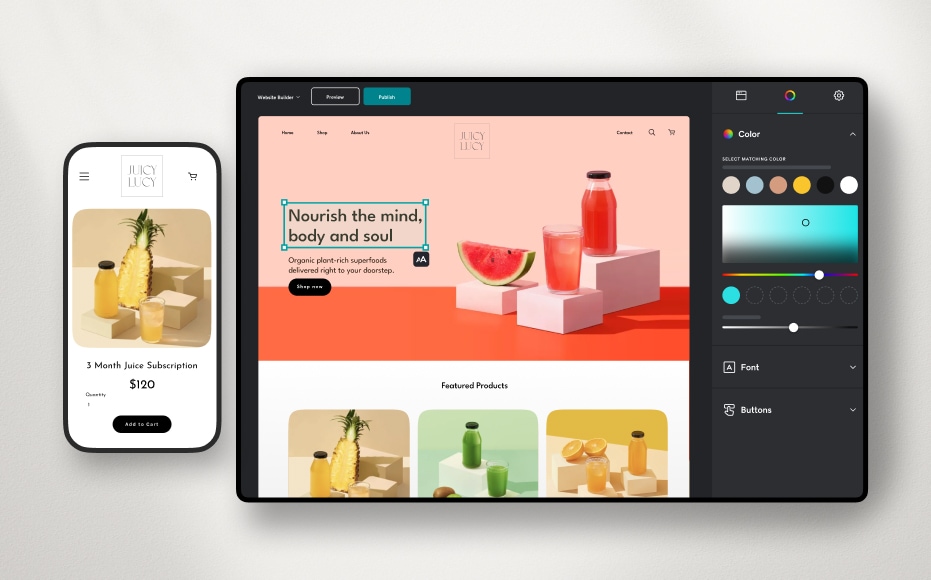
Editing a web page on GoDaddy is straightforward. Start by logging into your account. Use the website builder for easy changes. Modify text, images, and layout to suit your needs. Remember to save your work frequently. Preview your changes before publishing.
This ensures your site looks great to visitors. Regular updates keep your content fresh. A well-maintained site attracts more visitors. Practice makes perfect, so keep refining your skills. With these steps, your GoDaddy-hosted site will shine. Happy editing!


