
Are you feeling overwhelmed by the default colors of your WordPress theme? Do you wish your website looked more like your brand or personal style?
Editing theme colors with CSS in WordPress might be the game-changer you’re looking for. With just a few simple tweaks, you can transform your site’s appearance to match your vision perfectly. Imagine visitors landing on your page and immediately feeling captivated by a design that feels both professional and uniquely yours.
This guide will walk you through the process step-by-step, empowering you to take control and customize your website’s look effortlessly. Whether you’re a beginner or have dabbled in CSS before, by the end of this article, you’ll be equipped with the knowledge to make your site stand out from the crowd. Ready to dive in and unleash your creativity? Let’s get started!
Understanding Css In WordPress
CSS is very important for theme design in WordPress. It changes the look of your site. With CSS, you can make text bold or change colors. It helps to make the site look nice. This is why theme developers love using CSS.
With WordPress, you can easily adjust the CSS. This helps you make your site unique. You can change the layout, fonts, and even add animations. CSS is powerful and makes your site better. Everyone can learn to use CSS.
Theme design relies heavily on CSS. It helps define the style and appearance of the site. CSS controls how each element looks. This includes buttons, headings, and menus. CSS can make the site colorful and lively.
Designers use CSS to create a consistent style. This ensures that every page looks the same. It helps create a brand identity. With CSS, you can change the layout and colors. You can even make the site responsive for mobile users.
CSS syntax is simple. It consists of selectors, properties, and values. The selector tells what you want to style. Properties are the characteristics you change. Values are the specific details.
For example, to change text color, you use: color: blue;. This makes text blue. CSS is easy to learn and use. Even beginners can start styling their site. It’s fun to see your changes come to life.
Credit: wpengine.com
Accessing Theme Files
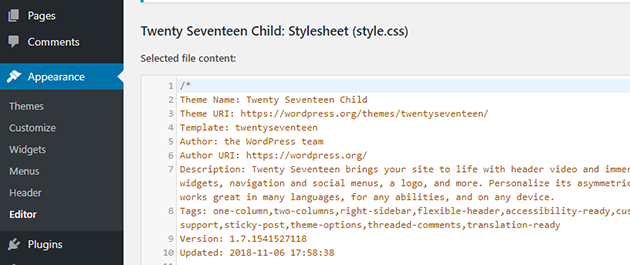
WordPress offers a simple way to access theme files. First, open your WordPress dashboard. Navigate to Appearance and select Theme Editor. This section shows your theme files. Look for a file named style.css. This file contains the CSS code for your theme.
You can change colors here. To find specific color codes, use the search function. Type the color code or keyword. The editor will highlight matching results. Before editing, make sure to backup your theme. Changes can affect your website look.
Editing Theme Colors
First, find the color codes used in your theme. Use a browser tool like the Inspect Element feature. Right-click on the page and select “Inspect”. The tool will show you the HTML and CSS used. Look for hex codes like #FF5733. These codes represent colors. Make a list of these codes. This helps in changing them later.
Access the WordPress admin panel. Go to Appearance and click on Theme Editor. Find the style.css file. This file controls the look of your theme. Look for the color codes you found earlier. Replace them with your new codes. Save the changes. Refresh your website to see the new colors. Always backup your files before making changes. This prevents loss of data.

Credit: qodeinteractive.com
Using Custom Css Plugin
Custom CSS plugins make changing theme colors easy. You don’t need coding skills. These plugins let users modify styles quickly. Your site gets a new look without much effort.
Plugins save time and provide flexibility. You can test different colors. This helps in choosing the best design for your site. It’s simple and efficient.
Benefits Of Custom Css Plugins
These plugins offer many benefits. Users can change colors instantly. They allow better control over design. You get a unique website look. Plugins also help in maintaining consistent styles.
No need to touch theme files. This makes updates safer. Your site stays stable. Custom CSS plugins enhance design creativity.
Popular Css Plugins For WordPress
| Plugin Name | Features |
|---|---|
| Simple Custom CSS | Adds custom styles easily |
| SiteOrigin CSS | Visual editor for beginners |
| Custom CSS and JS | Supports both CSS and JavaScript |
Testing And Saving Changes
Editing theme colors in WordPress using CSS involves testing and saving changes effectively. Adjust the CSS code to update colors, then preview the changes to ensure they match your design vision. Save your work to make the new color scheme visible to site visitors.
Previewing Edits
Preview the changes to see how they look. Click the preview button on your theme editor. This helps you check if the colors fit well with your site. Make sure everything looks good before saving. It’s like trying on new clothes before buying them. Look at the text, buttons, and links. They should be easy to read. The colors should not clash.
Troubleshooting Common Issues
Sometimes, changes might not show up. Check if you saved your work. Refresh the page to see updates. Clear your browser cache if needed. This helps in showing the most recent changes. If colors are still wrong, check the CSS code. Look for any typos or errors. Use a CSS validator to find mistakes. Fixing errors will make sure your theme looks right.

Credit: www.youtube.com
Advanced Css Techniques
Editing theme colors in WordPress with CSS is straightforward. Access the theme editor, locate the style. css file, and identify the color codes. Change these codes to your preferred colors to customize the appearance of your site effortlessly.
Using Css Variables
CSS variables help make your code cleaner. They act like shortcuts for colors and styles. Change one variable, and many elements update. Use –main-color for your theme color. This will save time and effort. Make your code easy to read and manage. Use var(–main-color) in many places. It keeps your website looking neat and consistent.
Responsive Design Adjustments
Responsive design makes websites fit all screens. Phones, tablets, and desktops look good with it. Use media queries to adjust styles. These change how your site looks on different devices. Set rules for screen width and height. Make sure text and images resize well. Test on various devices to ensure everything works.
Frequently Asked Questions
How To Change Theme Colors In WordPress?
To change theme colors in WordPress, use custom CSS. Access the WordPress dashboard, go to Appearance > Customize, and click Additional CSS. Here, you can add custom CSS rules to modify colors. For specific elements, use CSS selectors to target and apply new color values.
Can I Edit Colors Without Plugins?
Yes, you can edit colors without plugins by using custom CSS. Navigate to Appearance > Customize in your WordPress dashboard. Click on Additional CSS and paste your CSS code to change colors. This method is lightweight and avoids additional plugins, keeping your site optimized.
Is Css Difficult For Beginners?
CSS can be challenging for beginners, but it’s manageable with practice. Start by learning basic CSS syntax and properties. Use online resources and tutorials to understand how CSS works. Experiment with simple changes to build confidence and gradually tackle more complex styling tasks.
What Tools Help With Css Editing?
Several tools assist with CSS editing, like browser developer tools. They allow you to inspect elements and test CSS changes in real-time. Online CSS editors and generators can also simplify the process. These tools provide a visual interface, making it easier to modify and preview styles.
Conclusion
Editing theme colors with CSS in WordPress is straightforward. You gain control over your site’s look. Customizing colors enhances your brand’s identity. It creates a unique user experience. With practice, CSS becomes easier. Start with small changes. Experiment with different color schemes.
Always preview before finalizing changes. Use child themes to protect your work. This ensures your customizations stay safe. Keep learning and exploring CSS possibilities. Your website will reflect your personal style. Happy customizing!


