
Are you looking to customize your WordPress theme but feel limited by the default editor? Imagine having the power to make precise changes, enhance your site’s design, and stand out online—all without needing to be a coding expert.
By editing your WordPress theme in Dreamweaver, you can unlock a new level of creativity and control. This guide will show you how to seamlessly integrate these two powerful tools, making the process not only simple but enjoyable. Dive into the article and discover how you can transform your website into a masterpiece that truly reflects your vision.
Don’t just settle for ordinary; elevate your site with ease.
Credit: www.elegantthemes.com
Setting Up Dreamweaver
Dreamweaver is a tool for editing websites. You need to install it first. Visit the Adobe website to download Dreamweaver. Follow the steps on the screen. Click next to continue. Accept the terms and conditions. Once installed, open Dreamweaver. It is ready to use now.
After installing, set up your preferences. Open Dreamweaver and go to the Edit menu. Click on Preferences. Choose your favorite settings. Set the code color and font size. Save your changes to keep them. Now you can start editing themes. Enjoy creating and changing your WordPress site!
Credit: blog.adobe.com
Connecting To WordPress
Dreamweaver helps edit WordPress themes easily. First, open Dreamweaver on your computer. You need to connect it to your WordPress site. This requires an FTP connection. FTP stands for File Transfer Protocol. It lets you move files between your computer and the web server.
Establishing Ftp Connection
Find your FTP credentials. These include your username, password, and server address. You can get these from your hosting provider. Open Dreamweaver and go to the Site menu. Choose Manage Sites. Click on New. Enter your site’s name. Then, fill in the FTP details. Click Save to connect.
Syncing Files
Once connected, you can sync files. This means your local files match the server files. Go to the Files panel in Dreamweaver. Look for the two arrows icon. Click it to start syncing. Dreamweaver checks the files. It shows which files need updating. You can now edit your theme directly. Any changes will update on your site.
Editing Theme Files
First, open Dreamweaver on your computer. Navigate to the WordPress theme folder. This folder holds all the theme files. Commonly, it is in wp-content/themes. Look for the theme you want to edit. Click on it to open the files.
PHP files control how your site works. Choose a PHP file to edit. Use Dreamweaver to make changes. Be careful when changing code. Small errors can break your site. Save the changes after editing. Test the site to see your changes.
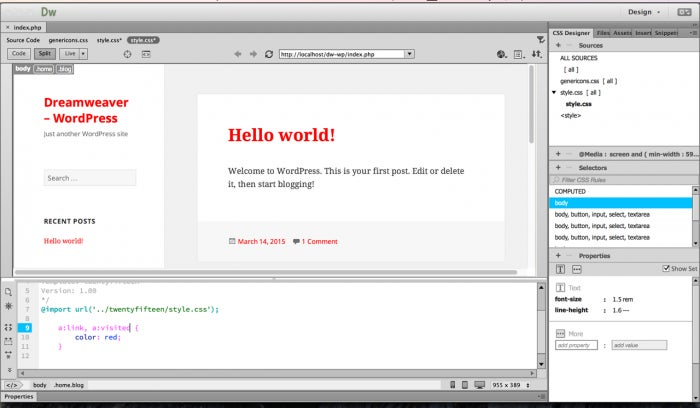
CSS files change how your site looks. Find the CSS file in your theme folder. Open it in Dreamweaver. Change colors, fonts, and sizes here. Use the live preview to see changes in real-time. Save your changes once satisfied.

Credit: damnwoo.com
Previewing Changes
Editing a WordPress theme in Dreamweaver allows for real-time changes. Modify your theme’s code and instantly see updates. This workflow enhances design precision, ensuring a seamless appearance.
Using Live Preview
Dreamweaver helps to see changes instantly. Live Preview lets you view edits right away. This feature saves time and improves workflow. It’s like having a window into your website. You can see how changes look without waiting. Adjust colors, fonts, and layouts easily. Dreamweaver updates the preview as you edit. This is helpful for checking design tweaks. Ensure everything looks good before publishing. Seeing changes live boosts confidence in your design choices.
Testing On Local Server
Local server testing is crucial for editing WordPress themes. It allows safe testing without affecting the live site. Dreamweaver connects to your local server for smooth updates. Make sure your server is running before you start. This process mimics real-world conditions. Helps catch errors before going live. You can test features, plugins, and layouts easily. Local testing ensures a smooth experience for visitors. Keep your site error-free by testing first.
Publishing Updates
Editing a WordPress theme in Dreamweaver can enhance your website’s look. Begin by connecting Dreamweaver to your WordPress site. Then, modify theme files, preview changes, and save your updates.
Uploading Files Via Ftp
Uploading files needs an FTP tool. Tools like FileZilla work well. Connect to your server with FTP login details. Drag and drop files into the right directory. Always upload to the wp-content/themes folder. This keeps your theme in the right place. Make sure files are complete before disconnecting.
Checking For Errors
Errors can stop your theme from working. Always check files after uploading. Open your website and look for problems. Broken links or missing images are common errors. Use tools like Validator to find coding mistakes. Fix any errors you find quickly. Regular checking keeps your site safe and smooth.
Troubleshooting Common Issues
Editing a WordPress theme in Dreamweaver can solve many common issues. Start by opening the theme files directly in Dreamweaver. This allows easy access to HTML, CSS, and PHP code for modifications.
Debugging Php Errors
PHP errors can break your website. Check the error log in Dreamweaver. Read the error message carefully. Look for line numbers. Fix the code on those lines. Use online forums for help. Many people share solutions. Test your site after fixing errors. Make sure it works fine. Save your changes.
Resolving Css Conflicts
CSS conflicts change how your site looks. Identify the conflicting styles. Use Dreamweaver’s CSS tools. Check which styles override others. Adjust the CSS code. Use !important sparingly. Preview the changes in Dreamweaver. Ensure the site looks good. Use browser developer tools for more insights. Keep CSS clean and organized. It helps in future edits.
Best Practices For Theme Editing
Always keep a backup of your theme files. This helps if something goes wrong. Use plugins or manual methods to save your work. Backups protect your data. You can restore it later if needed.
Create a child theme before making changes. This keeps the original theme safe. Child themes allow updates without losing your edits. You can customize freely. Your main theme stays clean and untouched.
Frequently Asked Questions
How Do I Open A WordPress Theme In Dreamweaver?
To open a WordPress theme in Dreamweaver, first, connect to your website via FTP. Download the theme folder to your computer. Open Dreamweaver, and then open the theme’s folder. You can now edit the theme files directly in Dreamweaver.
Can Dreamweaver Edit WordPress Theme Files?
Yes, Dreamweaver can edit WordPress theme files. It provides a visual interface for HTML, CSS, and PHP files. You can make design and layout changes. Ensure to back up your theme before editing. Dreamweaver’s live view helps you see changes in real-time.
Is Dreamweaver Compatible With WordPress?
Dreamweaver is compatible with WordPress. It supports HTML, CSS, and PHP, which WordPress uses. You can edit themes and create custom designs. Dreamweaver’s live view and code editor enhance your workflow. Ensure to have a local setup or FTP access for best results.
How To Connect Dreamweaver To WordPress?
To connect Dreamweaver to WordPress, set up an FTP site in Dreamweaver. Enter your website’s FTP credentials. Once connected, you can access your WordPress files. This allows you to edit and upload files directly through Dreamweaver.
Conclusion
Editing WordPress themes in Dreamweaver is straightforward. This tool offers many features. You can easily customize and preview your theme. It helps to maintain your website’s style. Remember to save your changes regularly. This ensures your work is not lost.
Dreamweaver supports various coding languages. This makes it flexible for theme editing. Always check your website after changes. This ensures it looks good and functions properly. By using Dreamweaver, you can enhance your WordPress site. It’s a great choice for beginners and experts alike.
Enjoy editing your themes with ease!


