
Are you struggling to figure out how to edit pages in your WordPress theme? Whether you’re a WordPress newbie or have some experience, navigating through the theme settings can be overwhelming.
But don’t worry—you’re not alone, and it’s easier than you might think! Imagine the satisfaction of having complete control over your website’s look and feel. Picture yourself effortlessly customizing each page to fit your vision perfectly. In this guide, we’ll break down the steps in a way that’s simple and straightforward.
By the end, you’ll be editing pages like a pro, giving your site the unique touch it deserves. Ready to dive in and transform your website with confidence? Let’s get started!
Getting Started
Accessing the WordPress Dashboard is the first step. Log into your account. Find the dashboard on the left. It shows many options. Choose “Pages”. Click it to see your pages list. Select the page you want to edit. Click “Edit”. You can now change text, images, or layout. Save your changes by clicking “Update”. This makes your page live. The dashboard is your control center. It helps you manage your site easily.
Understanding Themes and Pages is crucial. Themes decide how your site looks. Pages hold your content. Each theme offers different styles. They include colors, fonts, and layouts. Pages are part of your theme. They show your text and images. You can change themes anytime. This alters how pages appear. Choose a theme that suits your site. Themes affect user experience. Good themes make sites attractive.
Choosing The Right Theme
Choosing a WordPress theme is exciting. Look at the design and layout. Is it clean and easy to use? Check if it is responsive. Does it look good on phones and tablets? Consider the speed. A fast theme improves user experience.
Customization is important. Can you change colors and fonts? Check the page builder. Is it simple to use? Some themes have pre-built layouts. These save time. Look for a theme with a live customizer. It shows changes right away.
Page Editing Basics
The Block Editor is easy to use. It lets you add different blocks to your page. You can add text, images, and more. Each block has its own settings. You can change the color, size, and style. Drag and drop blocks to move them. This editor is new and modern. It helps you create nice-looking pages.
The Classic Editor is simple and familiar. It looks like a word processor. You can type text and add images. The toolbar has many buttons. These help you format your text. You can make it bold or italic. It’s easy to add links. This editor is good for basic edits. It is old but still useful.
Credit: www.greengeeks.com
Customizing Page Layouts
Modify headers and footers using the theme customizer. Access it from the WordPress dashboard. Choose “Appearance” and then “Customize”. Here, you can change the title or logo. Add or remove menu items too. Adjust colors and fonts easily. Make your site look unique.
Sidebars show extra content on your page. Adjust sidebar settings in the customizer. Add widgets to show social links or recent posts. Drag and drop them to reorder. Remove widgets you don’t need. Save changes to see them live. Widgets help your site look organized. You decide what to show and where. It’s fun to try different layouts.
Incorporating Media
Images make a page more interesting. Use the WordPress media library to add them. Click on the “Add Media” button. You can upload images from your computer. Create galleries by selecting multiple images. Arrange them as you like. Galleries show many pictures together. They are fun to look at. Remember, images should be clear and nice.
Videos and audio make pages lively. They keep visitors interested. Paste the video link in the WordPress editor. The video will appear. Audio files can be added in the same way. Use the “Add Media” button. Choose your audio file and insert it. Listening to audio is a good experience. It helps explain things better.
Enhancing Functionality
Editing pages in a WordPress theme enhances site functionality. Access the dashboard, choose the page, and click edit. Customize text, images, and layout using built-in tools. Save changes to see updates instantly.
Integrating Plugins
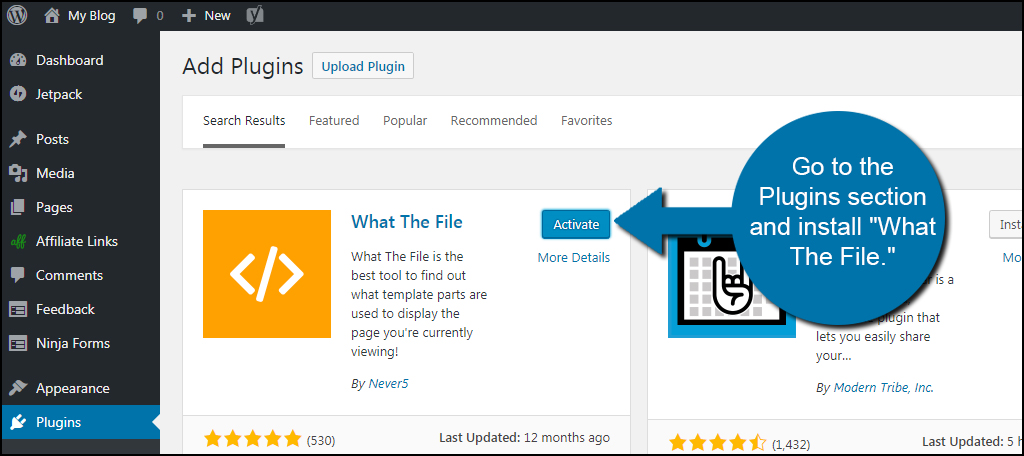
Plugins can make your WordPress site more powerful. They add new features and tools. Always pick plugins from trusted sources. Some popular ones are for SEO, security, and speed. Install and activate them through your dashboard. Then, configure settings as needed. Each plugin has its own setup steps. Follow them carefully.
Utilizing Custom Code
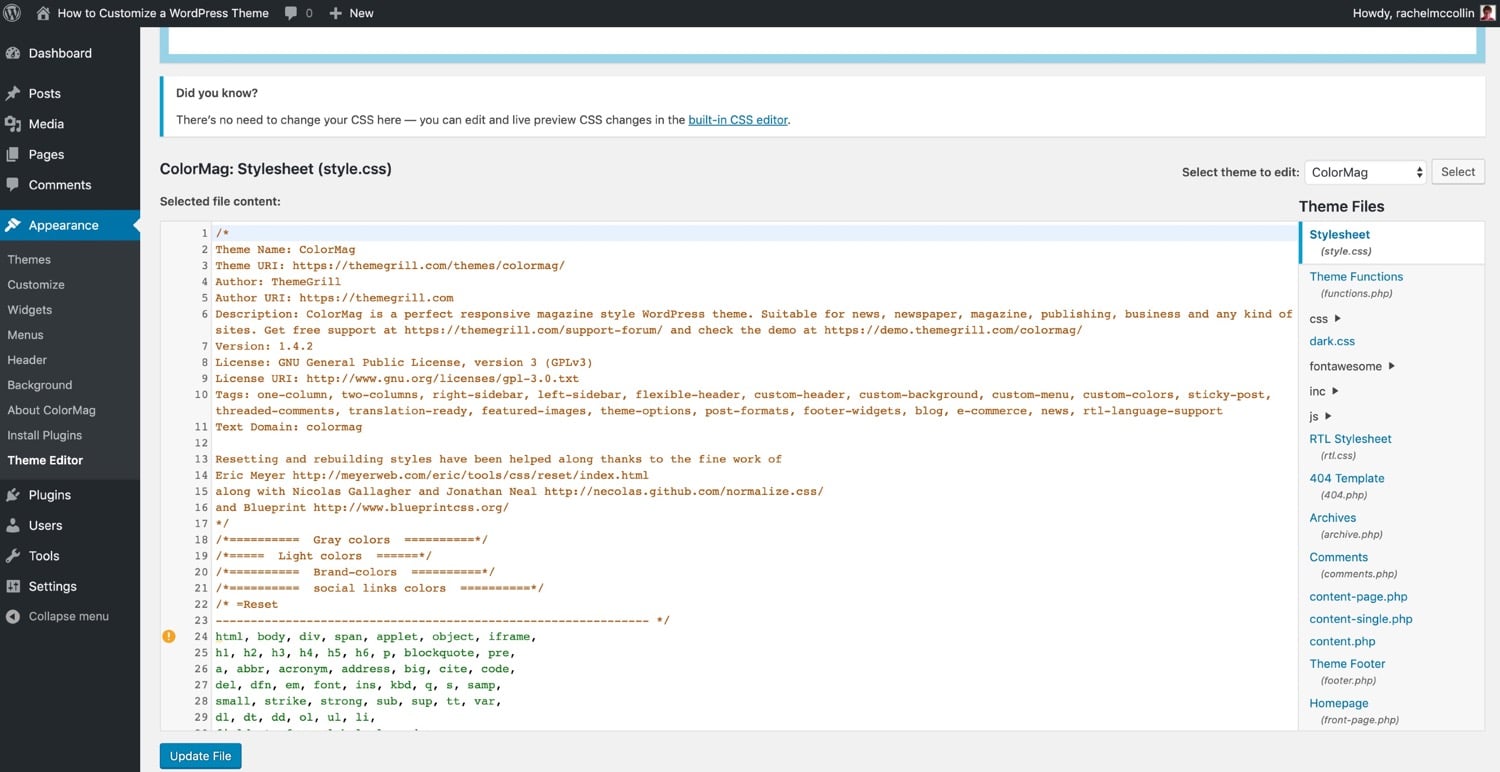
Custom code helps tweak your site’s look and feel. Use it for unique styles or functions. Always back up your site first. Place your code in the child theme. This keeps changes safe during updates. Start with small changes. Test them to ensure they work well. If unsure, seek help from forums or experts.
Testing And Previewing
Checking Responsiveness is key in editing WordPress pages. Every page must look good on all devices. Use WordPress tools to check how your page looks on phones and tablets. Make sure buttons are easy to click. Text should be readable without zooming. Images must fit the screen. This makes users happy and keeps them on your site longer.
Previewing Changes is important before publishing. WordPress lets you see changes without making them live. Click the preview button to see your edits. Check each section for errors. Ensure links work and images load correctly. If something looks wrong, fix it before others see it. This step helps avoid mistakes and ensures a polished final product.
Credit: kinsta.com
Publishing And Updating
To publish a page, first navigate to the Pages section. Click Add New to start a fresh page. Write your content in the big box. Use the toolbar to format text. Click Publish when done. Your page goes live. Make sure all content is correct before publishing.
Updating pages keeps your site fresh. Go to the Pages section. Click on the page you want to edit. Make changes using the editor. Remember to click Update to save changes. Regular updates help your site stay current. Check for broken links and outdated content often.
Credit: kaydee.net
Frequently Asked Questions
How Do I Edit Existing Pages In WordPress?
Log into WordPress. Go to the dashboard. Click on ‘Pages’ and select the page to edit. Make changes using the editor. Click ‘Update’ to save.
How Do You Edit A WordPress Theme Page?
To edit a WordPress theme page, navigate to the WordPress dashboard. Select Appearance, then click Theme Editor. Choose the file you want to edit. Make changes and save them. Always back up files before editing to prevent data loss. Use child themes for safe modifications.
How Do I Edit Menu Pages In WordPress?
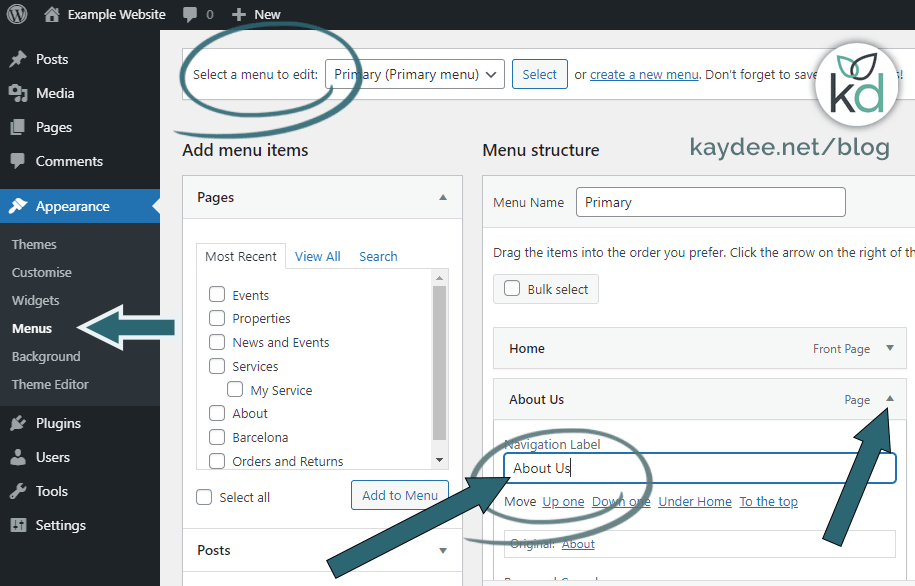
To edit menu pages in WordPress, go to the dashboard. Click “Appearance,” then “Menus. ” Select the menu to edit. Add, remove, or rearrange items using drag-and-drop. Save changes when done. Use custom links for external URLs. Adjust menu settings for location and display options if necessary.
How Do I Change The Page Structure In WordPress?
To change the page structure in WordPress, use the Gutenberg editor. Drag and drop blocks to rearrange elements. Customize layouts using themes and page builders like Elementor. Access the page settings for specific options. Save changes to update your page structure effectively.
Conclusion
Editing pages in your WordPress theme is simpler than it seems. The steps are clear and easy to follow. Customize your site to suit your needs. Remember, practice makes perfect. Experiment with different styles and layouts. Use plugins for added functionality and design options.
Keep your content fresh and engaging. Always preview changes before publishing. This ensures your site looks great on all devices. With patience, you’ll manage your WordPress pages confidently. Enjoy creating a unique online presence. Happy editing!


