
Your homepage is the first thing visitors see when they land on your WordPress site. It needs to look just right to grab attention and keep people interested.
But if you’re not sure how to edit your homepage, it can feel confusing and overwhelming. Don’t worry—you’re about to learn simple, clear steps that will help you take control and make your homepage exactly how you want it. Keep reading, and you’ll discover easy ways to customize your site so it stands out and works perfectly for you.
Choosing The Right Theme
Choosing the right theme is key to a great homepage in WordPress. It shapes how your site looks and works. The theme sets the tone for your brand and user experience. Pick one that fits your style and goals. The right theme helps visitors find what they need quickly. It also makes editing easier and faster. Here are some points to think about when selecting a theme.
Free Vs Premium Themes
Free themes cost nothing and work well for simple sites. They often have fewer features and limited support. Premium themes come with more options and tools. These themes usually get regular updates and help from developers. Choose based on your budget and needs. Free themes suit beginners or small projects. Premium themes fit larger sites or those needing advanced features.
Responsive Design Importance
Responsive design means your site looks good on all devices. Phones, tablets, and desktops show your site perfectly. This improves user experience and keeps visitors longer. Google also prefers sites with responsive design. Themes with this feature rank better in search results. Make sure the theme you choose adapts well to different screen sizes.
Theme Compatibility
Not all themes work well with every plugin or WordPress update. Check if the theme supports popular plugins you plan to use. Also, ensure it is compatible with the latest WordPress version. This avoids errors and site crashes. A compatible theme saves time and keeps your site running smoothly. Read reviews and test demos before choosing.
Credit: www.seedprod.com
Setting Up Your Homepage
Setting up your homepage is the first step to create a strong website presence. It allows visitors to see what your site is about immediately. You can choose between a static page or a blog feed as your homepage. This section explains how to set up each option and configure homepage settings in WordPress.
Creating A Static Front Page
A static front page shows the same content to every visitor. It is useful for business sites, portfolios, or personal pages. To create one, first create a new page in WordPress. Give it a title like “Home” or “Welcome.” Add your desired content using the editor.
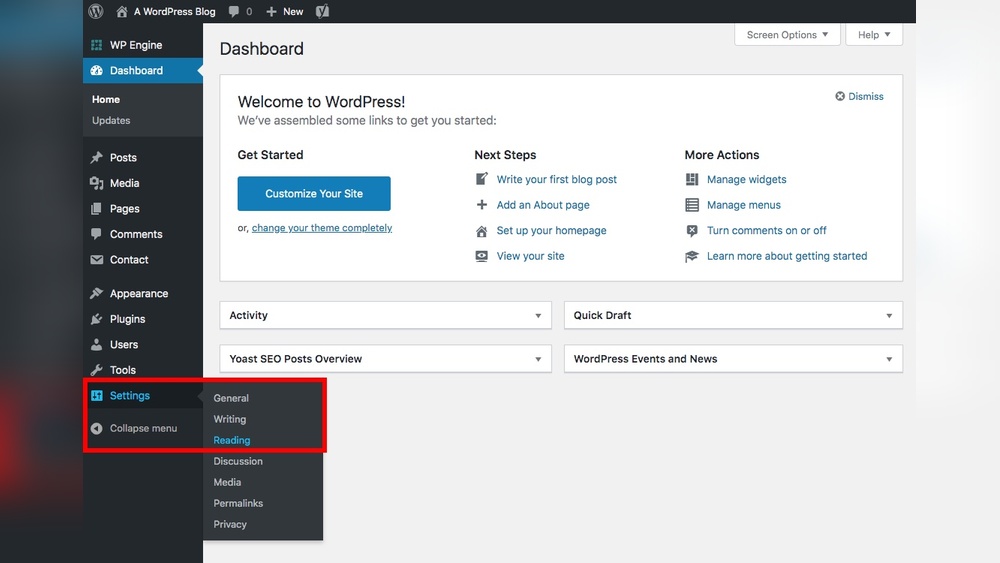
Next, go to the WordPress dashboard and open the Reading settings. Select “A static page” under “Your homepage displays.” Choose the page you created as the homepage. Save changes. Now, your visitors will see this page first.
Using A Blog Page
A blog page shows your latest posts in order. This is ideal for news sites, personal blogs, or magazines. First, create a new page and name it “Blog” or “News.” Leave the page content empty.
In the Reading settings, choose “A static page.” Set your homepage to the static front page or any other page you want. Then, select the new page you created as the Posts page. Save changes. Visitors will now see your latest posts on that page.
Homepage Settings Configuration
Configuring homepage settings helps control what visitors see first. Go to Settings > Reading in your WordPress dashboard. Choose between “Your latest posts” or “A static page.” If you pick static, select both Homepage and Posts pages.
Check your site after saving. Make sure the homepage displays correctly. Adjust page content or layout if needed. Use widgets or page builders to enhance the homepage design. Keep the layout clean and easy to navigate for the best user experience.
Editing Homepage Content
Editing the homepage content is important for a website’s success. It helps you share your message clearly. You can change text, images, and videos to fit your style. WordPress offers tools that make this easy. You do not need to know coding.
Focus on making your homepage clear and attractive. Visitors should understand your site quickly. Use simple words and good visuals. Keep your design neat and user-friendly. This guide shows how to edit your homepage content step by step.
Using WordPress Block Editor
The WordPress Block Editor is a simple tool to edit pages. It uses blocks for each content type like text, images, or videos. You can add, move, or delete blocks easily. This helps create a clean and organized homepage. No coding skills required.
To start, open your homepage in WordPress. Click the block where you want to make changes. Add new blocks by clicking the plus (+) icon. Customize each block with options on the right side. This editor lets you see changes in real time.
Adding Text And Images
Adding text is easy with the paragraph block. Click on a block and type your words. You can change font size, color, and style. Keep sentences short and clear to engage readers.
To add images, use the image block. Upload pictures from your computer or choose from the media library. Images help make your homepage lively and interesting. Use high-quality images that match your content.
Inserting Videos And Media
Videos and media make your homepage more dynamic. Use the video block to insert videos from your files or YouTube. This block lets you control video size and alignment.
Other media blocks include audio and gallery blocks. You can add music or multiple images in a gallery. These blocks keep your homepage engaging and interactive. Visitors enjoy diverse content formats.
Credit: siteefy.com
Customizing Layout And Design
Customizing the layout and design of your WordPress homepage makes your site unique. It helps create a strong first impression. Simple changes in colors, fonts, and structure can improve user experience.
WordPress offers many easy tools to change your homepage look. You can adjust visual elements without coding. This section explains how to customize your homepage step-by-step.
Adjusting Colors And Fonts
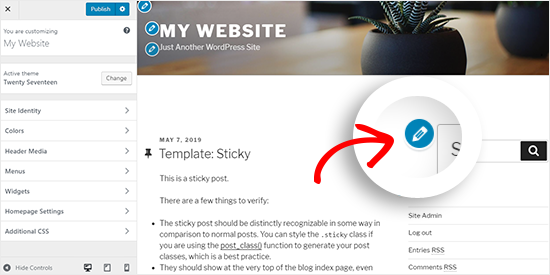
Colors and fonts set your site’s mood and style. Choose colors that match your brand or theme. Use the WordPress Customizer to pick colors for backgrounds, text, and links.
Fonts affect readability and tone. Select clear, simple fonts for easy reading. Change font size and style in the Customizer or theme settings. Small tweaks make your homepage look polished and professional.
Using Page Builders
Page builders let you design your homepage with drag-and-drop tools. No coding needed. Popular builders like Elementor or Beaver Builder offer many layout options.
Use blocks to add images, text, buttons, and more. Rearrange sections quickly to create a unique page. Page builders also work well with mobile devices for responsive design.
Adding Widgets And Sidebars
Widgets add extra features to your homepage. Common widgets include search bars, recent posts, and social media links. WordPress lets you place widgets in sidebars or footer areas.
Sidebars give space for navigation or promotions. Customize widgets easily from the Appearance menu. Adding relevant widgets improves visitor engagement and site usability.
Enhancing Functionality
Enhancing the functionality of your WordPress homepage makes your site more useful and user-friendly. It helps visitors find what they need quickly. Small improvements can create a big impact on how visitors interact with your site.
Adding new features can keep your homepage fresh and engaging. Plugins, forms, and social media links bring extra value. These tools help you connect better with your audience and improve site performance.
Installing Essential Plugins
Plugins add new features to your WordPress homepage without coding. Choose plugins that improve speed, security, and design. Popular options include SEO tools, caching plugins, and image optimizers. Always check plugin reviews and updates before installing.
Keep plugins minimal to avoid slowing down your site. Activate only those necessary for your homepage. Regularly update plugins to maintain security and compatibility.
Adding Contact Forms
Contact forms let visitors reach you easily. They improve communication and increase leads. Use simple form plugins like WPForms or Contact Form 7. Customize forms with fields for name, email, and message.
Place contact forms on your homepage or a dedicated page. Make sure forms work on mobile devices. Test forms regularly to ensure messages arrive correctly.
Integrating Social Media Links
Social media links connect your homepage to your profiles. They help visitors follow and share your content. Use icon plugins or widgets to add social buttons. Place them in visible areas like the header or footer.
Choose icons for platforms you use most. Keep designs consistent with your site style. Update links if your social profiles change.
Optimizing For Speed And Seo
Speed and SEO are key to a strong homepage. A fast site keeps visitors happy. Search engines favor quick-loading pages. Optimizing both helps your site rank better and attract more users.
Image Optimization
Large images slow down your site. Resize images before uploading. Use formats like JPEG or WebP for faster loading. Compress images to reduce file size without losing quality. Add descriptive alt text to improve SEO and accessibility.
Caching Techniques
Caching stores parts of your site for quicker access. Use caching plugins to speed up page load. Browser caching saves files on visitors’ devices. Server-side caching reduces the time to build pages. Together, these reduce wait times and improve user experience.
Seo Best Practices
Use clear, simple titles and headings. Add relevant keywords naturally in your text. Write meta descriptions that describe your page well. Create clean URLs with important words only. Ensure your homepage is mobile-friendly and easy to navigate.
Previewing And Publishing Changes
Editing your WordPress homepage is exciting but needs care. Previewing and publishing changes helps avoid mistakes. This step ensures your site looks perfect before visitors see it. Checking your work saves time and keeps your page professional.
Using Preview Mode
Preview mode lets you see changes without making them live. Click the preview button to open a new tab. Here, you view your homepage as visitors will. This helps spot errors or design issues early. Preview mode works on all devices for better checks. It is safe and does not affect your live site.
Publishing Updates Safely
Publishing makes your changes visible to everyone. Click the publish button only when sure about edits. WordPress may ask for confirmation before going live. Publishing in small steps reduces risks of big errors. Always double-check content and images before publishing. A clean homepage builds trust with visitors.
Reverting To Previous Versions
WordPress saves past versions of your pages automatically. This feature helps fix mistakes quickly. Find the revisions option in the editor sidebar. Select an earlier version to restore your homepage. Restoring does not delete newer versions permanently. It is a safe way to undo unwanted changes.
Credit: syndicatesolutions.co.uk
Frequently Asked Questions
How Do I Edit The Homepage In WordPress?
To edit your WordPress homepage, go to the dashboard, then Pages, and select your homepage. Use the block editor or page builder to modify content, images, and layout easily. Save changes and preview before publishing.
Can I Customize The Homepage Without Coding?
Yes, WordPress allows homepage customization without coding. Use built-in themes and page builders like Elementor or Beaver Builder. These tools offer drag-and-drop features to design your homepage visually and quickly.
How To Set A Static Homepage In WordPress?
Go to WordPress dashboard > Settings > Reading. Choose “A static page” under “Your homepage displays. ” Select the desired page for the homepage and save changes to apply.
What Plugins Help Edit The WordPress Homepage?
Popular plugins like Elementor, Beaver Builder, and WPBakery make homepage editing simple. They provide drag-and-drop interfaces and customizable templates for designing your homepage without technical skills.
Conclusion
Editing your WordPress homepage is simple and effective. Small changes can improve your site’s look and feel. Focus on clear text, attractive images, and easy navigation. Keep your design clean and user-friendly. Regular updates help your site stay fresh and relevant.
Try different layouts to see what works best. Enjoy building a homepage that visitors will like. Keep practicing, and editing will become easier. Your website can truly reflect your style and goals.


