
Your website’s header is the first thing visitors see. It sets the tone for your entire site and helps people recognize your brand instantly.
If your header looks outdated or doesn’t reflect your style, you risk losing visitors before they even explore your content. But don’t worry—editing your WordPress header is easier than you think. Whether you want to change your logo, update colors, or rearrange elements, this guide will walk you through simple, step-by-step methods to customize your header exactly how you want it.
By the end, you’ll have a header that grabs attention and keeps visitors engaged. Ready to make your site stand out? Let’s dive in!
Customizer Basics
The WordPress Customizer offers a simple way to change your site’s header. It lets you see changes live before saving. Basic settings include logos, site identity, and colors. This makes it easy for beginners to update their header quickly.
Accessing The Customizer
Start by logging into your WordPress dashboard. Next, go to Appearance > Customize. This opens the Customizer panel on the left side. You will see options related to your theme and site settings. The live preview shows how your site looks with changes.
Changing Logo And Site Identity
In the Customizer, find the Site Identity section. Here, you can upload or change your logo easily. You can also edit your site title and tagline. These elements appear in your header and help visitors recognize your brand.
Adjusting Header Colors
Look for a Colors or Header section in the Customizer. This allows you to change the background and text colors of your header. Choose colors that match your brand and improve readability. The live preview updates instantly to show your choices.
Saving Changes
Once happy with your edits, click the Publish button at the top. This saves your changes and updates the live site. You can always return to the Customizer to make more adjustments anytime. Saving often avoids losing your work.
Site Editor Features
The Site Editor in WordPress gives full control over your header design. It uses blocks to build and arrange header parts. This lets you create a unique look without coding. You can change layout, text, images, and colors easily. The editor shows a live preview as you work.
Editing the header with the Site Editor is simple and flexible. Each part of the header is a block you can move or customize. This method helps keep your site consistent and professional. The changes apply site-wide, so your header stays uniform on every page.
Opening The Site Editor
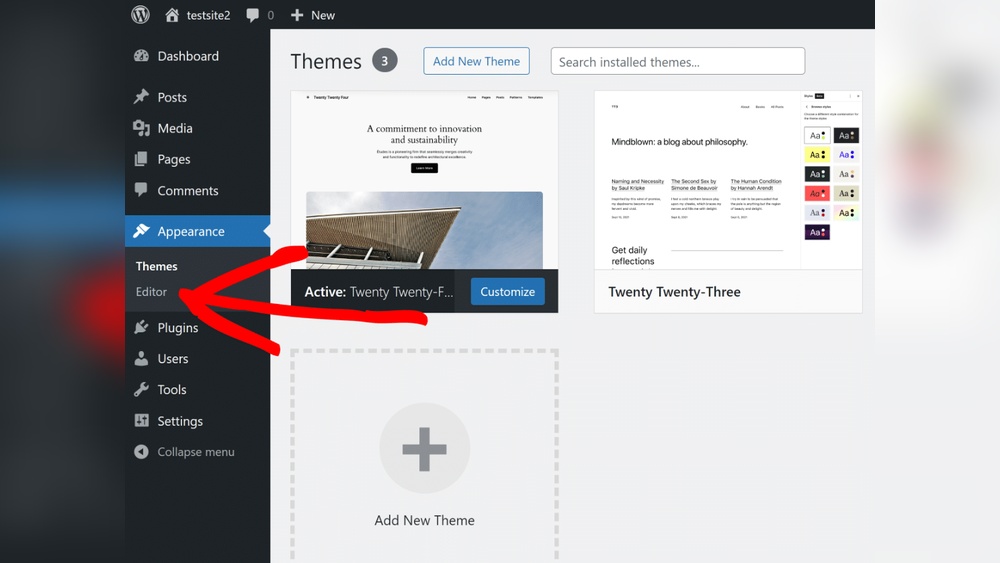
Start by logging into your WordPress dashboard. Go to Appearance > Editor. This opens the Site Editor interface. You will see your whole site layout in blocks. Click on the header area to select it. The editor highlights editable blocks inside the header.
Editing Header Layout With Blocks
Use blocks to change the header layout. Drag blocks to rearrange them. Add new blocks like logos, menus, or search bars. Remove any block you do not need. Adjust block size and alignment from the settings panel. This lets you design a header that fits your style.
Modifying Header Content
Click on text blocks to edit the header text. Change titles, slogans, or contact info easily. Replace images by clicking the image block and uploading a new one. Update navigation menus from the block settings. All changes appear immediately in the preview.
Customizing Colors And Styles
Open the style settings to change colors and fonts. Select background color for the header block. Pick text colors that match your brand. Adjust font size and style for readability. These options help make your header visually appealing and clear.
Using Theme Builder Plugins
Using theme builder plugins is a popular way to edit WordPress headers. These plugins offer flexible design options without coding. They let you create custom headers that fit your site’s style. You can change layouts, add elements, and control the header’s look easily.
Many theme builders use drag-and-drop interfaces. This makes editing simple, even for beginners. These tools often include pre-made header templates. These templates give a quick start to your design. You can pick one and then personalize it to match your brand.
Navigating To Theme Builder
Start by logging into your WordPress dashboard. Find the plugin menu for your theme builder. For example, in Elementor, go to Templates > Theme Builder. This section holds all theme parts, including headers. Click on it to open the theme builder panel.
Selecting Header Templates
In the theme builder, look for header templates. You may see default or saved headers. Choose a header template that fits your site’s style. Many plugins let you insert templates with one click. Select the template to load it in the editor for changes.
Editing Content And Layout
Use the drag-and-drop editor to change header content. Add or remove logos, menus, and buttons as needed. Change text, colors, and fonts directly in the editor. Move elements to adjust the layout and spacing. Save your work often to avoid losing changes.
Previewing And Publishing
After editing, preview your header to check its look. Most theme builders have a preview button for desktop and mobile views. Confirm all elements display correctly and the design matches your brand. Click the publish button to make your header live on the site.

Credit: hostarmada.com
Editing Header Background
Editing the header background in WordPress helps you create a unique look for your site. You can easily change colors, images, and patterns to match your style. This section explains simple ways to update your header background with clear steps.
Use WordPress tools like the Customizer or Site Editor to make changes quickly. No coding skills are needed. Let’s explore how to change the header background in three ways.
Changing Background Color
To change the header background color, open the WordPress dashboard. Go to Appearance > Customize, then find the Header or Colors section. Pick a new color using the color picker tool. Preview the change in real time. Click Publish to save your new header color. Choose colors that match your brand or theme for a fresh look.
Replacing Header Images
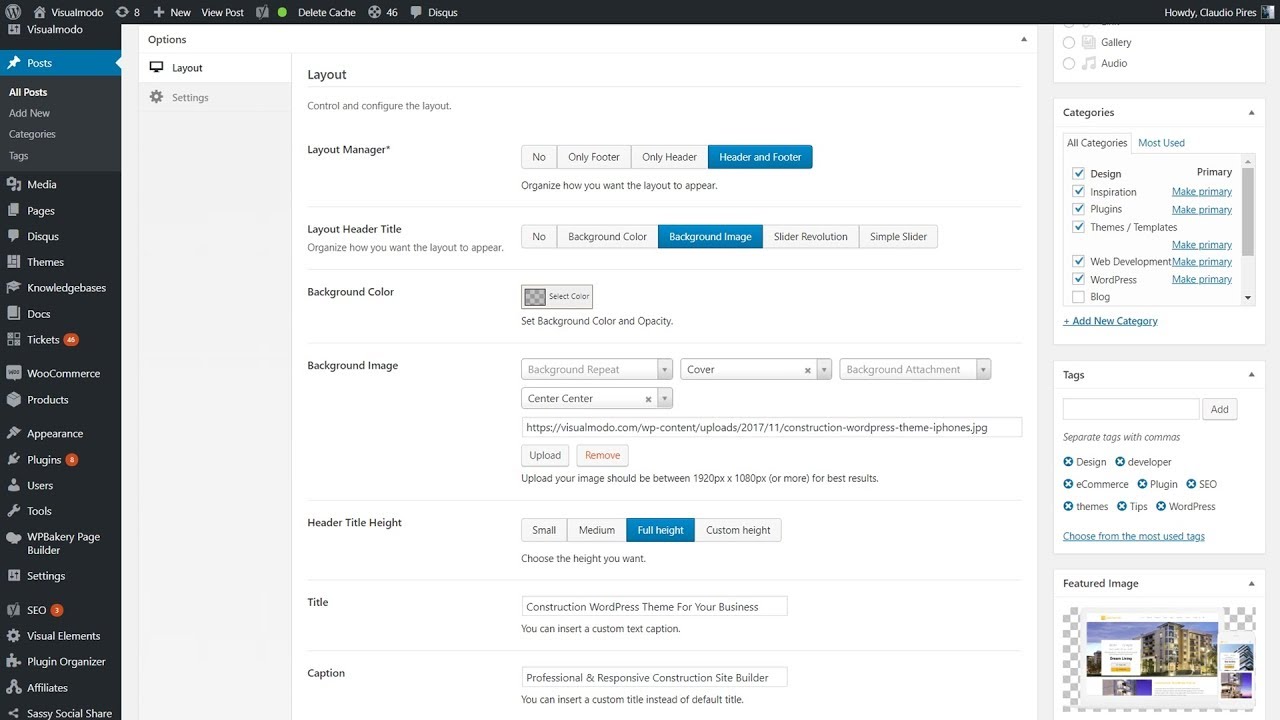
Header images can make your site stand out. In the Customizer, go to the Header Media or Background Image option. Upload a new image from your computer or select one from the media library. Adjust the image size and position to fit the header area well. Save your changes by clicking Publish. Use high-quality images for better appearance on all devices.
Using Patterns And Textures
Patterns and textures add depth to your header background. You can upload a subtle pattern image just like a header image. Alternatively, install a plugin that offers built-in patterns and textures. Apply these through the Customizer or Site Editor. Keep the pattern light to avoid distracting visitors from your content. Patterns help create a professional and stylish header design.
Troubleshooting Header Edits
Troubleshooting header edits in WordPress can be tricky. Sometimes, changes do not show up as expected. Other times, themes limit what you can change. Knowing how to fix these issues saves time and stress. This section covers common problems and simple solutions.
Why Header Changes Don’t Appear
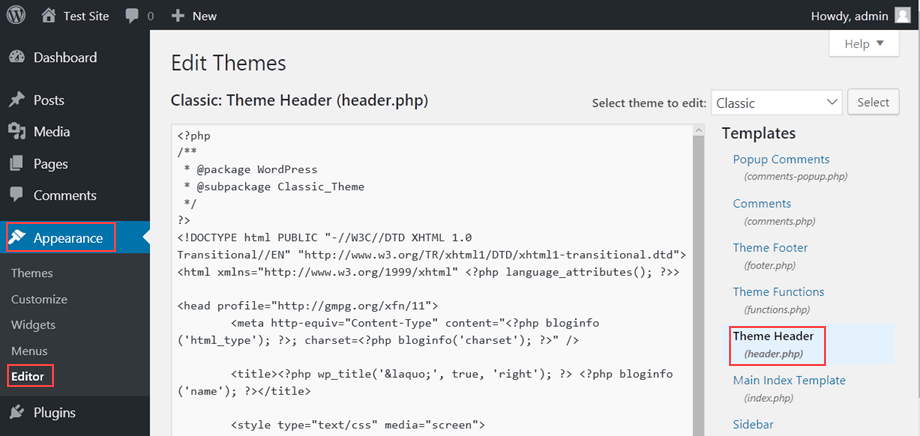
Header edits may not appear due to caching issues. Your browser or site may load old files. Sometimes, updates are saved but not displayed immediately. Another cause is editing the wrong header file or section. Confirm you are editing the active header on your site.
Dealing With Theme Restrictions
Many themes restrict header customization. Some only allow changes through the Customizer or Site Editor. Others require custom code or a child theme for advanced edits. Check your theme’s documentation for limits. Switching to a more flexible theme might help if changes are blocked.
Clearing Cache For Updates
Clear your browser cache to see new header changes. If you use a caching plugin, clear its cache too. Server-side caching can also block updates. Ask your host to clear server cache if needed. After clearing caches, reload your site to view the latest header version.
Credit: www.hostpapa.com
Tips For Header Customization
Customizing your WordPress header can enhance your website’s look and user experience. Focus on key aspects to make your header both attractive and functional. The right adjustments keep your site professional and easy to navigate.
Maintaining Mobile Responsiveness
Ensure your header looks good on all devices. Use flexible layouts that adjust to different screen sizes. Test your header on phones and tablets. Avoid large images or complex designs that slow down loading on mobile. Simple and clear headers improve user engagement and reduce bounce rates.
Optimizing For Speed
Speed matters for visitors and search engines. Compress images used in the header to reduce file size. Limit the use of heavy scripts or animations. Choose lightweight fonts and icons. Fast-loading headers help keep visitors on your site longer and improve rankings.
Using Consistent Branding
Your header should reflect your brand clearly. Use the same logo, colors, and fonts as the rest of your site. Consistent branding builds trust and recognition. Keep your header design simple to highlight your brand message. A clear header strengthens your website’s identity.
Credit: m.youtube.com
Frequently Asked Questions
How Do I Edit An Existing Header In WordPress?
To edit an existing header in WordPress, go to Dashboard > Appearance > Customize for basic changes. For full control, use Appearance > Editor to modify layout and content. Save your changes to update the header instantly.
Why Can’t I Edit The Header In WordPress?
You can’t edit the header in WordPress if your theme restricts changes or you’re not using the Site Editor or Customizer. Use Appearance > Customize or Appearance > Editor to modify header elements. Some headers require page builder plugins for editing.
How Do I Edit The Top Banner In WordPress?
Log in to your WordPress dashboard. Go to Appearance > Customize or Appearance > Editor. Edit the top banner’s logo, text, or layout. Save changes by clicking Publish. Use page builders like Elementor for advanced header edits.
How To Edit Wp_head In WordPress?
Edit wp_head by adding code to your theme’s functions. php file using the wp_head action hook. Use add_action(‘wp_head’, ‘your_function’).
Conclusion
Editing your WordPress header is simple with the right tools. Use the Customizer for quick changes like logos and colors. Choose the Site Editor to adjust layout and blocks in detail. Page builder plugins offer even more design control without coding.
Regular updates keep your site fresh and user-friendly. Take your time and explore these options to fit your needs. Your header sets the first impression—make it count.


