Are you tired of the default look of your WordPress theme? Do you want to make a memorable first impression with a custom header background image?
You’re in the right place. Changing the header background image in a WordPress theme might seem daunting, especially if you’re not tech-savvy. But guess what? It’s easier than you think. With just a few clicks, you can transform your website’s appearance and make it truly yours.
Imagine your visitors landing on your page and instantly connecting with your brand through a stunning header image. This guide will show you how to edit your header background image effortlessly, giving your website a fresh and unique look. Stay with us, and you’ll be mastering this simple yet impactful change in no time.
Accessing Theme Customizer
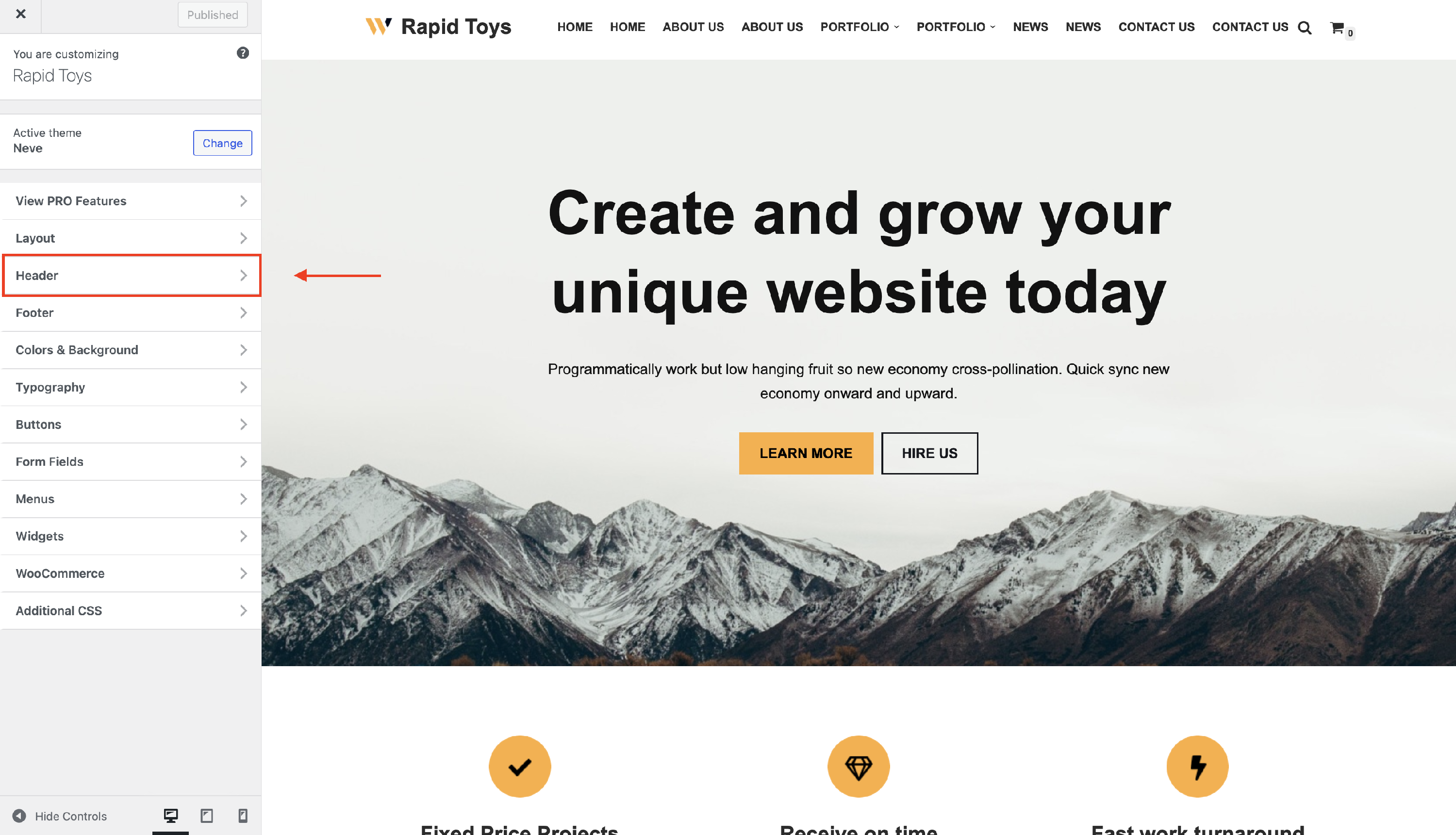
First, go to your WordPress dashboard. Find the Appearance option. Click on it to see more options. Look for the Customize button. This will open the Theme Customizer. Here, you can change settings easily. You can edit many parts of your theme. The header background is one of them. Make sure to save changes after editing. It’s simple and quick.
Credit: docs.themeisle.com
Locating Header Image Settings
Find the header section in your WordPress dashboard. Look for “Appearance” in the menu. Click on it. A list will open. Find “Customize” and click. You are now in the theme settings.
Find Header Section
Search for the “Header” option. It is usually near the top. Click on “Header” to explore the settings. You will see many choices there.
Identify Background Image Option
Identify the background image setting. Look for an option labeled “Header Image” or “Background Image.” Click on it. A new window will open. You can add or change the image here. Upload a new image or select from your media library. Save your changes to see the new header.
Uploading New Image
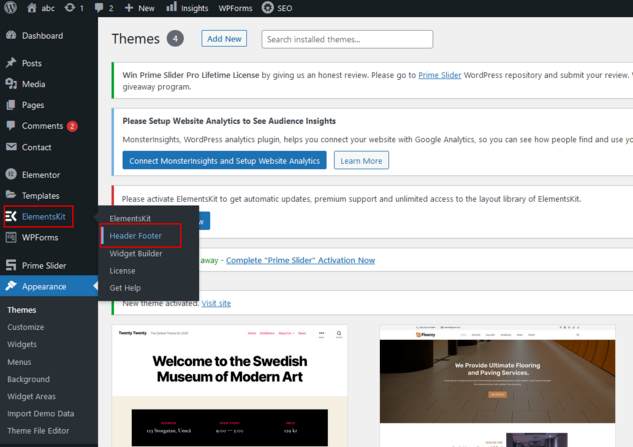
To change the header image, find the upload button. This button helps you add a new image. Click on it to start.
Your images are in the library. Browse through these images. Choose the one you like. Click to select. Once selected, the image appears in the header. Make sure it fits the space nicely.
Credit: www.webibazaar.com
Adjusting Image Settings
Modify Image Position is crucial for a nice header. Move your image up, down, or sideways. This helps to show the best part of your image. Use the options in WordPress. Try different positions. Find the one you like best.
Set Image Size carefully. Big images can slow down your site. Small images might look blurry. Choose the right size for your theme. WordPress gives options to resize. Pick a size that fits your header well. Keep your site quick and neat.
Preview And Save Changes
To edit the header background image in WordPress themes, navigate to the Customizer. Choose the “Header” option, upload your desired image, and adjust settings. Preview and save changes to see the new look instantly. This straightforward process enhances your site’s visual appeal effortlessly.
Preview Adjustments
It’s fun to see changes on your site. Click on Preview to check. Make sure everything looks right. You can see how the new image fits. If it looks good, you are ready for the next step.
Save And Publish
Happy with your changes? Click Save to keep them. Now, hit Publish. This will make your changes live. Everyone can see your new header now. It’s easy and quick. You did a great job!
Troubleshooting Common Issues
Editing the header background image in WordPress themes often requires navigating to the theme customizer. Select “Header” or “Background” sections to upload your desired image. Save changes to see the updated look instantly.
Image Not Displaying
Sometimes, the header image may not show up. Check if the image is uploaded properly. Make sure the image is in the right format like JPG or PNG. Also, verify if the image link is correct. If the problem persists, try clearing the browser cache. This often solves display issues.
Incorrect Image Sizing
The image might not fit the header well. Use a photo editing tool to resize it. The theme might have specific image dimensions. Check the theme’s documentation. If the image still looks wrong, adjust the size in the WordPress customizer. This can help make the image fit better.
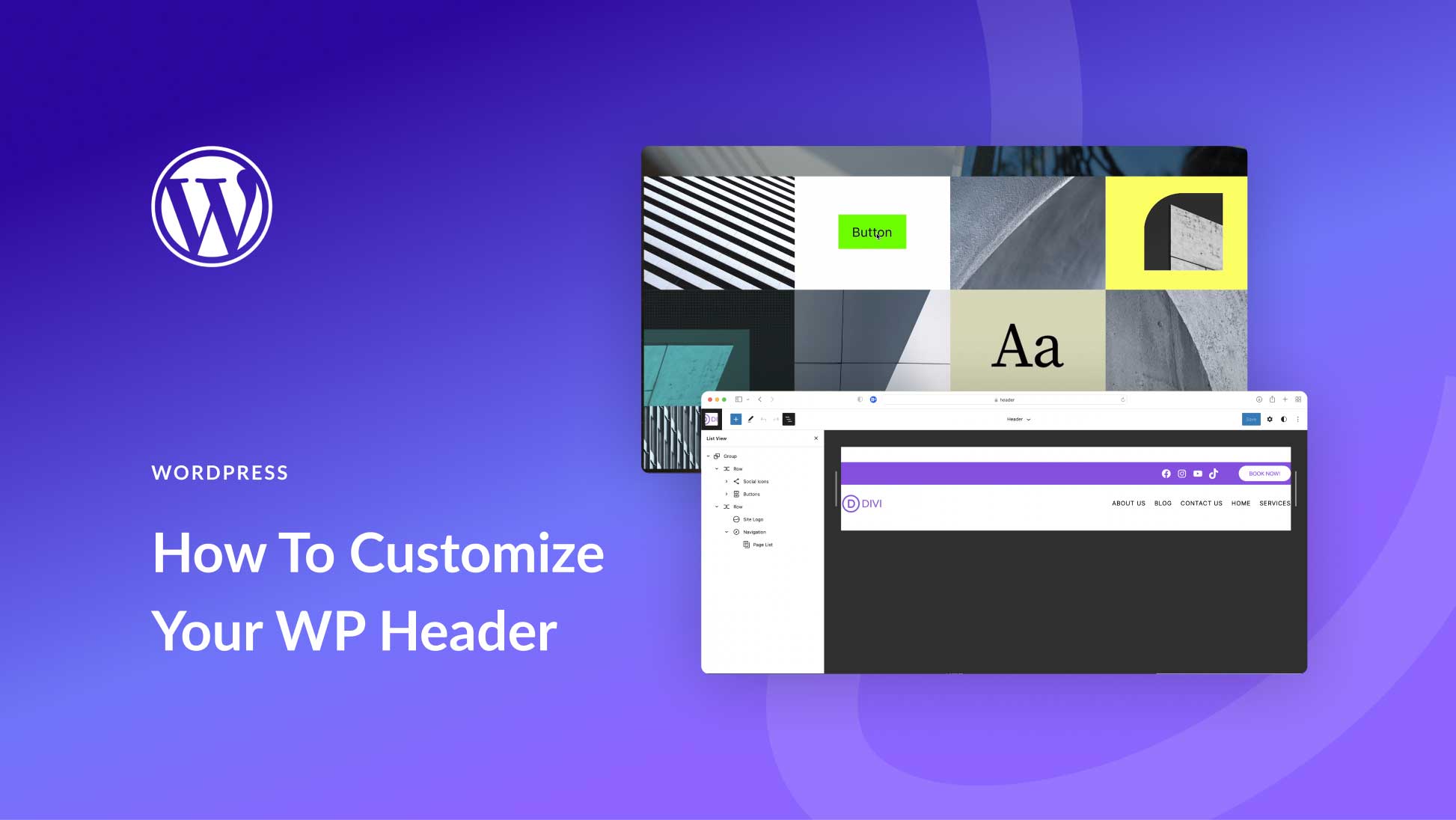
Credit: www.elegantthemes.com
Frequently Asked Questions
How Can I Change The Header Image In WordPress?
To change the header image, navigate to your WordPress dashboard. Go to Appearance > Customize > Header Image. Here, you can upload a new image or select from the media library. Make sure to save changes once you’re satisfied with the new header background.
What Size Should My Header Image Be?
The ideal size for a header image varies by theme. Generally, a size of 1200 pixels wide and 600 pixels tall works well. It’s crucial to check your theme’s documentation for specific size recommendations. This ensures the image displays correctly across different devices.
Can I Use A Video As A Header Background?
Yes, some WordPress themes support video headers. Navigate to Appearance > Customize > Header Media to upload a video. Ensure the video file is optimized for web use to maintain fast loading times. Not all themes support this feature, so check your theme’s capabilities.
Why Is My Header Image Not Displaying?
If your header image isn’t displaying, first check if it’s uploaded correctly. Ensure it’s properly set in the Header Image section under Appearance > Customize. Also, verify that the image format is compatible and that your theme supports custom header images.
Conclusion
Editing your WordPress header background image is simple. Follow the steps carefully. Choose an image that fits your theme. Customize it to match your brand. A well-designed header attracts visitors. It improves site aesthetics instantly. Remember, consistent branding is important.
Regular updates keep your website fresh. Practice these skills to enhance your WordPress experience. With patience, your site will look great. Enjoy experimenting with different styles. Your creativity is the limit! Keep learning to stay ahead. Happy editing on WordPress!