

Your website’s header is the first thing visitors notice. It sets the tone for your brand and guides people through your site.
If you want to make a strong impression or simply update your look, knowing how to edit a header in WordPress is essential. Whether you’re new to WordPress or looking for a quick way to customize your site, this guide will walk you through every step.
By the end, you’ll have the confidence to create a header that matches your style and helps your website stand out. Ready to transform your site’s header? Let’s dive in!
Credit: www.hostpapa.com
Accessing Header Settings
Accessing the header settings in WordPress is the first step to customize your site’s look. The header often holds your logo, menu, and important information. Changing it helps create a unique and professional website. WordPress offers a simple way to find and edit these settings.
Using WordPress Dashboard
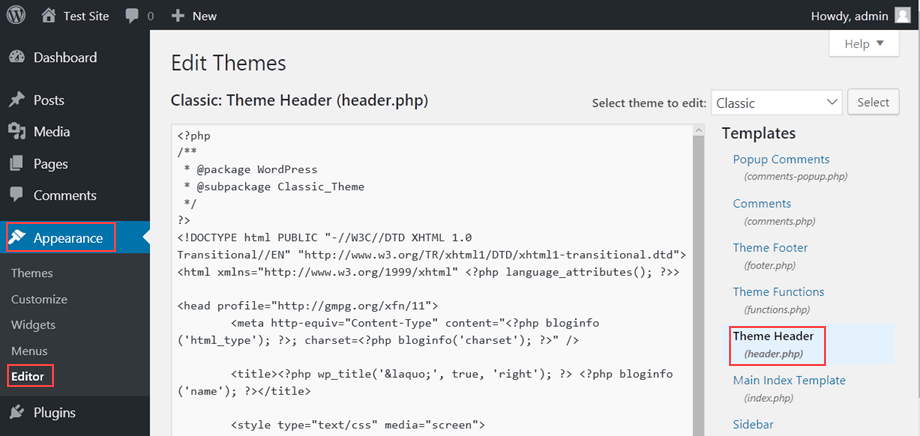
Start by logging into your WordPress dashboard. This is the control center for your website. On the left side, you will see many menu options. Look for the “Appearance” tab. Click on it to reveal more choices. This is where you manage themes and design elements.
Navigating To Customize Menu
Under “Appearance,” select the “Customize” option. This opens the WordPress Customizer tool. It shows a live preview of your site on the right. You can make changes and see them immediately. This tool is user-friendly and does not require coding skills.
Locating Header Options
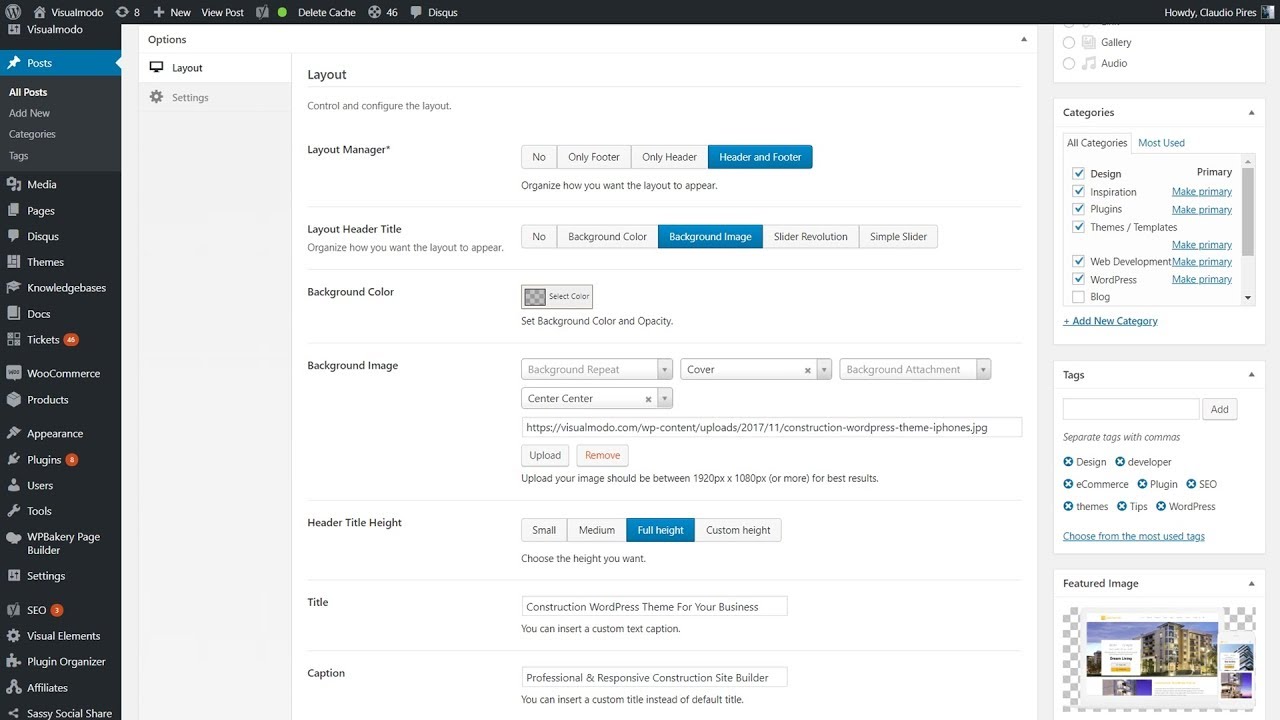
Inside the Customizer, look for a section named “Header,” “Header Options,” or “Header & Navigation.” The exact name depends on your theme. Click this section to open header settings. Here, you can change the logo, colors, layout, and more. Adjustments will appear in real-time on the preview.

Credit: hostarmada.com
Editing Header Text
Editing header text in WordPress is simple and important for your website’s identity. The header usually shows your site title and tagline. Changing these texts helps visitors recognize your site easily. You can also add custom text to make your header unique. Formatting the header text improves your site’s look and feel.
Changing Site Title And Tagline
To change your site title and tagline, go to your WordPress dashboard. Click on Appearance and then Customize. Find the Site Identity section. Here, you can edit the site title and tagline directly. After typing your new text, click Publish to save changes. These texts appear in your header and help with search engines.
Adding Custom Text
Adding custom text to your header adds a personal touch. Use the WordPress Customizer or a page builder plugin. Some themes have special header text options. You can insert a welcome message, contact info, or a call to action. Custom text can make your header more useful and inviting.
Formatting Header Text
Formatting your header text improves readability and style. In the WordPress Customizer, look for typography or header settings. Change font size, color, and style to match your brand. Use bold or italic styles sparingly to highlight important words. Proper formatting helps your header stand out without clutter.
Adding Images And Logos
Adding images and logos to your WordPress header gives your site a professional look. It helps visitors recognize your brand quickly. This section guides you through simple steps to upload and customize your header images. You will learn how to control the size and position of your logo. Also, we cover how to use transparent backgrounds for a clean design.
Uploading A Logo
To upload a logo, go to your WordPress dashboard. Click on Appearance, then Customize. Find the Header or Site Identity section. Click on Select Logo to open the media library. Choose an image or upload a new file from your computer. After selecting, click Publish to save changes. Your logo will now appear in the header area.
Adjusting Image Size And Position
Some themes allow you to change logo size directly in the customizer. Use the slider or input fields to make your logo bigger or smaller. To adjust position, look for alignment options like left, center, or right. If your theme does not offer these, use custom CSS for precise control. Keep your logo visible and balanced with the header text.
Using Transparent Backgrounds
Transparent backgrounds make your logo blend well with the header color. Save your logo as a PNG file with a transparent background. This avoids unwanted white or colored boxes around the logo. Upload the PNG file as your logo in the WordPress customizer. Check how it looks on different screen sizes. A transparent logo gives a polished, modern feel to your site.
Customizing Header Layout
Customizing the header layout in WordPress allows you to create a unique look for your website. The header is the first thing visitors see. It sets the tone and helps with navigation. Adjusting the layout helps improve user experience and site design.
WordPress offers many ways to change the header layout. You can pick different styles, move navigation menus, and add useful widgets. These options make your header both attractive and functional.
Choosing Header Styles
Start by selecting a header style that fits your website’s purpose. Many themes offer multiple header designs. Some have centered logos, others place the logo on the left or right. Pick a style that matches your brand and content.
Simple headers work well for blogs. More complex styles suit business sites. Test different styles in the Customizer to see live changes.
Adjusting Navigation Placement
Navigation menus guide visitors through your site. You can move the menu to different header areas. Place it above, below, or beside the logo. This helps visitors find pages quickly.
Some themes allow vertical or horizontal menu layouts. Choose the one that fits your site’s style. Clear navigation improves user engagement and lowers bounce rates.
Adding Widgets To Header
Widgets add extra features to your header. You can include search bars, social icons, or contact info. Widgets make your header more useful and interactive.
To add widgets, go to Appearance > Widgets or Customizer > Widgets. Drag and drop widgets into the header area if supported. Keep the header clean to avoid clutter and confusion.
Editing Header With Page Builders
Editing the header with page builders offers a visual and easy way to customize your WordPress site’s top section. These tools let you change text, images, menus, and layout without coding. You see changes live as you edit, making the process fast and intuitive.
Page builders work with most themes and give more design control than default options. Many popular builders include drag-and-drop features, ready-made templates, and flexible styling settings. This helps create a unique header that fits your brand and website style.
Using Elementor For Header
Elementor is a popular page builder with a simple interface. You start by creating a new header template in the Theme Builder section. Drag elements like logos, menus, and buttons into your header layout. Customize colors, fonts, and spacing easily.
Elementor also supports responsive design, so your header looks great on phones and tablets. After designing, publish the header and assign it to appear on your entire site or specific pages.
Editing With Beaver Builder
Beaver Builder offers a smooth editing experience for headers. You can build headers from scratch or modify existing ones. Use rows and modules to add site title, navigation menus, and call-to-action buttons.
The live editor shows changes immediately. Adjust fonts, backgrounds, and alignment with simple controls. Beaver Builder works well with many themes, ensuring your header fits the overall site design.
Other Popular Page Builders
Other page builders like Divi and WPBakery also support header editing. Divi’s visual builder lets you add custom menus, images, and text blocks easily. WPBakery uses content blocks and templates for fast header setup.
Each builder has unique features but shares the goal of simple, code-free header design. Choose the one that matches your comfort level and site needs.
Using Full Site Editing
Using Full Site Editing in WordPress allows you to customize your website’s header with ease. This feature gives you direct control over header elements without needing extra plugins. You can change text, add images, or rearrange blocks visually. The process is simple and fast, making website editing accessible for everyone.
Full Site Editing uses blocks, the basic building units of your site. Each part of the header is a block you can select and modify. This system keeps your header flexible and easy to update. Below are steps to help you edit your header using Full Site Editing.
Accessing Site Editor
Start by logging into your WordPress dashboard. Find the menu on the left side. Click on “Appearance,” then select “Editor (Beta).” This opens the Site Editor where you can edit all parts of your site.
In the Site Editor, look at the top left corner. Click the WordPress icon or the site name. Choose “Templates” or “Template Parts” to find the header. Select the header to open it for editing.
Modifying Header Blocks
Once the header loads, click on any block inside it. Blocks can be text, images, or navigation menus. After selecting a block, use the toolbar to change its content or style.
You can add new blocks by clicking the plus (+) icon. Drag blocks to rearrange the order. Adjust colors, fonts, and sizes in the block settings panel on the right side.
Saving And Publishing Changes
After editing, look for the “Save” button at the top right. Click it to keep your changes. WordPress may ask you to confirm. Confirm to save your work.
Your header updates go live immediately after saving. Visit your website to see the new header in action. You can return to the Site Editor anytime to make more changes.
Troubleshooting Header Edits
Editing a header in WordPress can sometimes be tricky. Changes might not appear as expected. Troubleshooting helps identify and fix these issues quickly. Below are common problems and solutions to ensure your header edits show correctly.
Why Header Changes Not Showing
Sometimes, you save changes but see the old header. This happens because WordPress or your browser may still use cached data. The server or caching plugins might delay the update. Also, incorrect editing methods or theme settings can block changes from appearing.
Clearing Cache
Clearing cache often solves header update problems. Start by refreshing your browser with Ctrl + F5 or Command + Shift + R. Clear cache from any caching plugins like W3 Total Cache or WP Super Cache. If your host uses server caching, clear it from the hosting dashboard. After clearing, check your site again.
Theme Restrictions On Header
Some themes limit header edits to keep design consistency. These themes may not allow direct header changes via the Customizer or editor. In such cases, use the theme’s built-in header options or child themes. Check theme documentation for specific instructions. Sometimes, custom CSS or code adjustments are needed to change the header fully.
Credit: m.youtube.com
Tips For Effective Headers
Creating effective headers in WordPress is key to capturing visitor attention. Good headers guide readers and improve user experience. Simple, clear headers work best to deliver your message quickly. Focus on making headers readable on all devices and matching your brand style.
Keeping It Simple
Use short and direct words in your headers. Avoid complex phrases that confuse readers. A simple header helps visitors understand your page instantly. Limit the number of words to keep it clean. Clear headers increase the chance that users will stay on your site.
Ensuring Mobile Responsiveness
Many people use phones to browse websites. Make sure your header looks good on small screens. Check font size and spacing to avoid crowding. Test your header on different devices for the best fit. A mobile-friendly header improves user experience and SEO rankings.
Using Consistent Branding
Headers should match your site’s colors and fonts. Consistent branding builds trust and recognition. Use the same style in all headers to create a unified look. Add your logo or brand elements carefully without cluttering. A branded header makes your site appear professional and reliable.
Frequently Asked Questions
Why Can’t I Edit The Header In WordPress?
You can’t edit the header in WordPress if your theme restricts changes or lacks header customization options. Use Appearance > Customize to check available settings. Some headers require editing via theme files or a page builder plugin. Ensure you have proper permissions and clear cache before editing.
How Do I Edit A Header?
Double-click the header area or go to the Insert menu and select “Edit Header. ” Make changes, then click outside the header or choose “Close Header” to save.
How Do I Edit The Top Banner In WordPress?
Log in to your WordPress dashboard. Go to Appearance > Customize. Select Header or Site Identity. Edit the top banner content or image. Click Publish to save changes.
How To Edit Wp_head In WordPress?
Edit wp_head by adding code to your theme’s functions. php file using the wp_head hook. Avoid editing core files directly.
Conclusion
Editing a header in WordPress is simple and quick. Just access the Customize panel in your dashboard. Choose the header section and make your changes clearly. Preview your edits before saving them to avoid mistakes. Regular updates keep your site fresh and user-friendly.
Keep practicing to feel confident with WordPress tools. This helps your website look professional and inviting.


