

Want to save time and keep your WordPress site consistent? Knowing how to duplicate a WordPress page is a simple trick that can make your work much easier.
Whether you need to create a similar layout, test changes without affecting the original, or speed up content creation, duplicating pages is a game-changer. In this guide, you’ll discover easy methods to copy your pages with just a few clicks—no technical skills required.
Stick with me, and you’ll soon master this essential WordPress skill that boosts your productivity and keeps your website looking sharp.
Credit: www.elegantthemes.com
Methods To Duplicate WordPress Pages
Duplicating WordPress pages saves time and keeps your site consistent. Different methods work best for different users. Some prefer plugins for fast cloning. Others choose manual methods for more control. WordPress also has a built-in feature to copy all content easily. Below are three common ways to duplicate pages.
Using Plugins For Quick Cloning
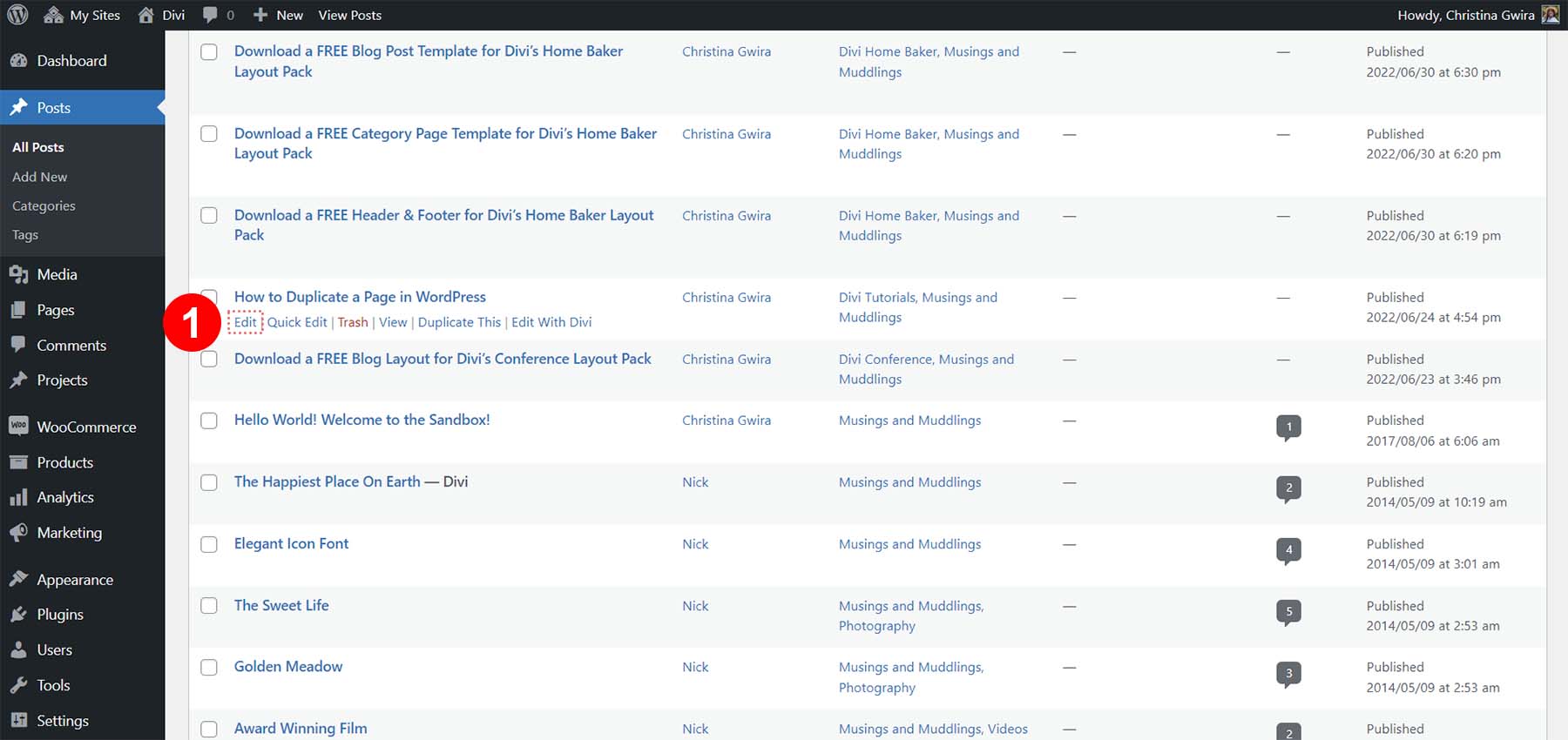
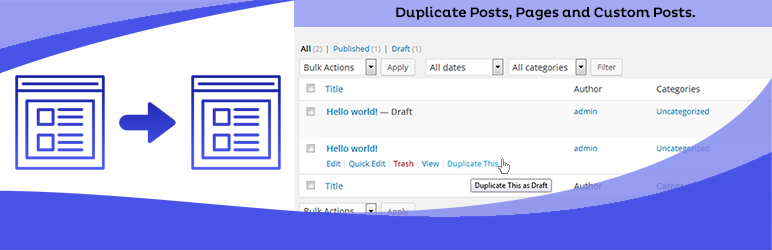
Plugins make duplicating pages fast and simple. Install a plugin like “Duplicate Page” from the WordPress plugin directory. After activation, a “Duplicate This” link appears near your pages. Click it to create a copy instantly. The new page will have the same content and settings as the original. This method requires little effort and no coding skills.
Manual Copy And Paste Technique
Manually copying content works without extra tools. Open the page you want to duplicate in the editor. Select all the content blocks and copy them. Next, create a new page and paste the content inside. Enter a new title and adjust settings like the URL. This method takes more time but gives full control over the content.
Built-in Copy All Content Feature
WordPress includes a feature to copy all blocks at once. Open the original page in the editor. Click the three-dot menu in the top right corner. Choose “Copy all blocks” from the dropdown menu. Create a new page and paste the copied blocks there. Add a new title and update any page settings manually. This method is quick and does not need plugins.
Credit: wordpress.org
Popular Plugins For Page Duplication
Duplicating pages in WordPress saves time and keeps your site consistent. Using plugins makes this task simple and fast. These popular plugins add easy options to copy your pages with just one click. They help you avoid manual work and reduce errors.
Duplicate Page Plugin
The Duplicate Page plugin is one of the easiest tools to copy your pages. After activation, it adds a “Duplicate This” link under each page. Click it to create a draft copy instantly. The new page keeps all content and settings from the original. This plugin supports posts, pages, and custom post types. It works well with most themes and page builders.
Yoast Duplicate Post
Yoast Duplicate Post is a trusted plugin with more advanced options. It lets you clone or create a new draft from existing posts or pages. You can copy the title, content, excerpt, and metadata. It also allows you to set permissions for who can duplicate content. This plugin integrates smoothly with the WordPress editor. It is updated regularly for security and performance.
Other Recommended Plugins
Several other plugins offer great page duplication features. “Page and Post Clone” provides a simple clone button for quick copies. “WP Staging” helps duplicate entire sites or pages for testing purposes. “Duplicate Page and Post” supports custom post types and multisite setups. Choose the plugin that fits your needs and site setup best.
Step-by-step Plugin Installation
Duplicating a WordPress page manually takes a few simple steps. This process helps when you want a copy without using plugins. It also gives you control over what to include in the new page. Follow these clear steps to duplicate your page easily.
Copying All Blocks From Original Page
First, open the page you want to duplicate in the WordPress editor. Click the three-dot menu in the top-right corner. Select Copy all blocks from the dropdown. This action copies every block content, including text, images, and layouts. It saves time and keeps the design consistent.
Creating A New Page
Next, go to your WordPress dashboard and select Pages > Add New. This opens a blank page editor. The new page will be empty, ready for you to paste the copied blocks. Creating a new page ensures your duplicated content has a fresh start.
Pasting Content And Adjusting Settings
Click inside the content area of the new page. Use Ctrl+V (Windows) or Cmd+V (Mac) to paste all copied blocks. After pasting, add a new title for your page. Adjust other settings like the permalink, featured image, and page attributes. These settings do not copy automatically. Finally, save or publish your new page to make it live.
Cloning A Page With Plugins
Handling page titles and permalinks is key after duplicating a WordPress page. Titles and URLs define your page’s identity and impact user experience. Proper management helps avoid confusion and SEO problems. This section guides you through renaming pages, updating slugs, and keeping SEO intact.
Renaming The Cloned Page
After duplicating, WordPress assigns the original page title with “Copy” or a number. Change the title to describe the new content clearly. Use short, relevant titles that match your page purpose. Avoid using the same title as the original to prevent confusion. Edit the title in the page editor before publishing.
Updating Url Slugs
The URL slug appears after your domain name and helps visitors find your page. WordPress duplicates the slug but adds a suffix like “-2” or “-copy”. Change this slug to a simple, readable phrase related to your page. Keep slugs lowercase and use hyphens to separate words. Update the slug in the permalink section of the editor before saving.
Ensuring Seo Best Practices
SEO depends on clear titles and clean URLs. Use keywords in your page title and slug to help search engines understand your content. Avoid duplicate titles or slugs as they can hurt your rankings. Make sure each cloned page has unique metadata and content. Check your settings and preview the page to confirm everything is correct before publishing.
Manual Page Duplication Process
Duplicating pages in WordPress varies depending on the editor you use. Each editor has a unique way to copy content efficiently. Understanding these methods saves time and keeps your design consistent. Below, learn how to duplicate pages in the Classic Editor, Gutenberg Block Editor, and with Page Builder plugins.
Classic Editor Duplication
The Classic Editor uses a simple text box for content. To duplicate a page, open the page you want to copy.
Select all the content inside the editor by pressing Ctrl+A (Cmd+A on Mac). Then, copy it with Ctrl+C (Cmd+C on Mac).
Create a new page and paste the content using Ctrl+V (Cmd+V on Mac). You must add a new title and adjust settings manually.
This method works well for basic pages but does not copy page settings or metadata.
Gutenberg Block Editor
Gutenberg uses blocks to build pages, making duplication easier. Open the page you want to copy and click the three-dot menu in the top-right corner.
Select “Copy All Content” to copy every block on the page. Next, create a new page and paste the blocks inside.
Remember to add a new title and update any page settings, as these are not duplicated automatically.
This method keeps the layout and design intact, perfect for complex pages.
Page Builder Plugins Compatibility
Many WordPress sites use page builder plugins like Elementor, Divi, or Beaver Builder. These plugins have their own duplication tools.
For example, Elementor offers a “Save as Template” feature to reuse designs easily. Divi has a built-in duplicate option for sections and pages.
Check your page builder’s documentation for exact steps. Using these tools ensures layouts and styles copy correctly.
Page builder duplication saves time and keeps your site looking consistent across pages.

Credit: wordpress.org
Handling Page Titles And Permalinks
Duplicating a WordPress page is simple, but some common issues can arise. Knowing these problems helps fix them fast. This section covers the main troubles users face and how to solve them. Follow the tips below to keep your duplicated pages clean and error-free.
Duplicate Content Warnings
Search engines may flag duplicated pages as spam. This happens when the same content appears on multiple URLs. It can hurt your SEO rankings. Use canonical tags to tell search engines which page is original. Avoid publishing many identical pages live. Change titles and content slightly on duplicates. This reduces the risk of penalties from Google and other search engines.
Plugin Conflicts
Plugins that duplicate pages can clash with other plugins or themes. Such conflicts cause errors or incomplete copies. Disable other plugins one by one to find the culprit. Update all plugins to their latest versions. Choose well-rated and regularly updated duplication plugins. Check plugin settings carefully to avoid clashes. Clear your site cache after duplicating pages to see changes immediately.
Missing Media Or Styles
Sometimes images or styles do not copy correctly to the new page. This issue makes duplicated pages look broken or empty. Ensure media files are linked properly in the new page. Some plugins offer options to include media during duplication—enable these. Check your theme settings if styles do not apply. Re-upload missing images or fix broken links manually if needed.
Duplicating Pages In Different Editors
Duplicating pages in WordPress can save time and help maintain design consistency. Following best practices ensures smooth site management and protects your search rankings. Careful duplication avoids common pitfalls and keeps your website running well.
When To Duplicate Pages
Duplicate pages only if you need a similar layout or content. Use duplication for landing pages, templates, or seasonal offers. Avoid copying pages with unique content or special settings. Always check if a new page is necessary before duplicating.
Maintaining Site Performance
Too many duplicate pages can slow your website. Delete or archive old duplicates that are no longer needed. Keep your database clean by removing drafts and unused copies. Use plugins that handle duplication efficiently to avoid extra load.
Avoiding Seo Penalties
Search engines may penalize sites with duplicate content. Change titles, meta descriptions, and URLs after duplication. Add canonical tags to show the original page. Make sure each page has unique content to rank well in searches.
Frequently Asked Questions
Is There A Way To Duplicate A Page In WordPress?
Yes, you can duplicate a WordPress page using plugins like “Duplicate Page” or by copying all blocks manually to a new page.
How Do I Duplicate An Entire Page?
Install and activate a “Duplicate Page” plugin from your WordPress dashboard. Then, go to Pages > All Pages, hover over the desired page, and click “Duplicate This” to create an exact copy instantly.
How To Duplicate A Page In WordPress Without A Plugin?
Open the page editor, click the three-dot menu, and select “Copy all blocks. ” Create a new page, paste the content, then add a new title and settings. Save the new page to complete duplication without a plugin.
How To Duplicate A Single Page In Pages?
Open the page in Pages, click the three-dot menu, and select “Duplicate Page. ” A copy appears in your document list.
Conclusion
Duplicating a WordPress page saves time and effort in content creation. Using a plugin is quick and simple, ideal for beginners. Manual copying works too but takes extra steps. Choose the method that fits your needs best. Keep your site organized by naming duplicates clearly.
Now, you can easily create copies for testing or updates. This skill helps maintain consistency across your website. Try duplicating pages to improve your WordPress workflow today.


