
Have you ever wanted to save time by copying a page on your WordPress site instead of starting from scratch? Duplicating pages can make your work faster and keep your design consistent.
But if you’re unsure how to do it or worried about messing up your site, you’re in the right place. In this guide, you’ll discover simple, step-by-step ways to duplicate WordPress pages quickly and safely. By the end, you’ll feel confident to replicate any page with ease—no coding skills needed.
Ready to make your website management easier? Let’s dive in!
Credit: www.elegantthemes.com
Benefits Of Duplicating Pages
Duplicating pages in WordPress offers several clear benefits. It makes website management easier and faster. Copying a page means you do not start from scratch every time. This helps keep your site consistent and professional. It also gives you a chance to test new ideas safely. These benefits make duplicating pages a smart choice for many website owners.
Save Time On Design
Copying a page saves time on design work. Instead of building a page from the beginning, you start with a ready layout. This reduces effort and speeds up your workflow. You can focus on updating content rather than fixing layouts. This method is especially useful for large websites with many pages.
Maintain Consistent Layouts
Using duplicates helps keep your site’s look uniform. Every page has the same style and structure. This consistency improves the user experience and makes your site appear professional. Visitors find it easier to navigate when pages look alike. It also ensures brand identity stays strong across the site.
Test Changes Safely
Duplicating pages lets you try new ideas without risks. You can make changes on the copy first. This way, the original page stays live and unchanged. Testing on a duplicate helps avoid mistakes that affect visitors. It gives you confidence before publishing updates to your site.
Credit: wordpress.org
Methods To Duplicate Pages
Duplicating pages in WordPress saves time and keeps your site consistent. You can copy a page to reuse the layout, design, or content. Different methods suit different needs. Some are quick and easy. Others give more control over the duplicate.
Using Plugins
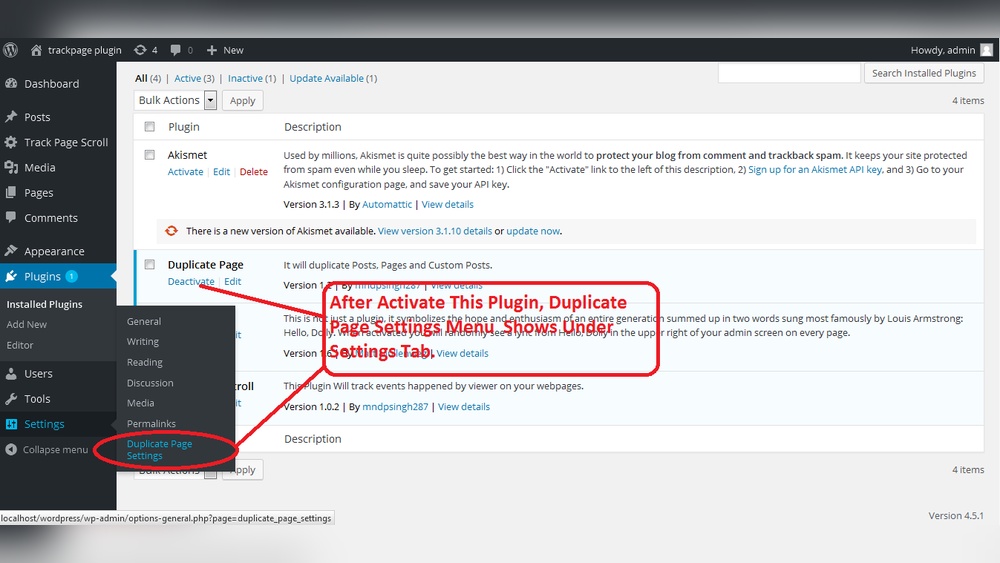
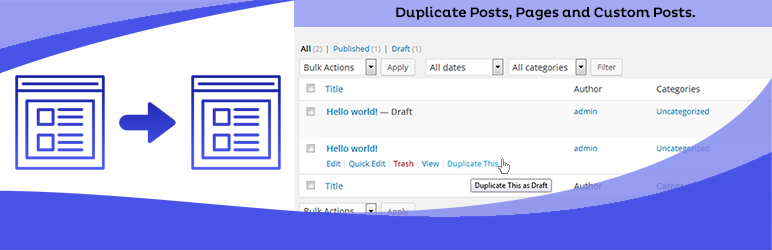
Plugins offer a simple way to duplicate pages. They add a button to clone pages with one click. Popular plugins like “Duplicate Page” or “Yoast Duplicate Post” make this easy. After activating, you see the clone option in the page list. The plugin copies all content, settings, and metadata automatically. This method requires no coding skills and is fast.
Manual Duplication
Manual duplication means copying content by hand. Open the page you want to copy. Switch to the text editor mode. Select all the code or content, then copy it. Create a new page and paste the copied content. Set the title and publish. This method works well without plugins but takes more time. You control exactly what to copy and edit.
Using Page Builders
Page builders like Elementor or Divi have built-in duplicate features. Open the page in the builder editor. Find the duplicate or save as template option. Use it to copy the entire page or sections. This method keeps all styles and layouts intact. It is useful for designers who use visual editors. No extra plugins needed if you use a page builder.
Top Plugins For Cloning Pages
Duplicating pages in WordPress can save time and keep your site consistent. Using plugins helps copy pages quickly without starting from scratch. These tools let you clone content, settings, and layouts with ease. Below are some top plugins that many users trust for cloning pages.
Duplicate Post Plugin
The Duplicate Post plugin is simple and effective. It lets you clone posts and pages with one click. You can copy the entire content, including title, body, and metadata. This plugin is easy to use and works well for beginners. It also allows you to set custom permissions for cloning.
Yoast Duplicate Post
Yoast Duplicate Post is a popular choice. It integrates smoothly with WordPress and has many features. You can duplicate, clone, or rewrite pages easily. The plugin keeps all the original content and SEO settings intact. It also offers options to control who can clone pages.
Wp Staging
WP Staging focuses on creating a full copy of your website. It helps you test changes on a staging site before going live. This plugin clones entire pages, posts, and themes quickly. It is useful for developers and site owners who want safe editing. WP Staging ensures your main site stays unchanged during testing.
Step-by-step Guide With Plugins
Duplicating pages in WordPress is simple with plugins. Plugins save time and avoid manual copying. This guide shows how to copy pages step-by-step using plugins. Follow each step carefully to create exact copies fast.
Install And Activate Plugin
Log in to your WordPress dashboard. Go to the Plugins section and click Add New. Search for a page duplication plugin like “Duplicate Page” or “Yoast Duplicate Post”. Click Install Now. After installation, click Activate to enable the plugin. The plugin will now add options to clone pages easily.
Clone A Page
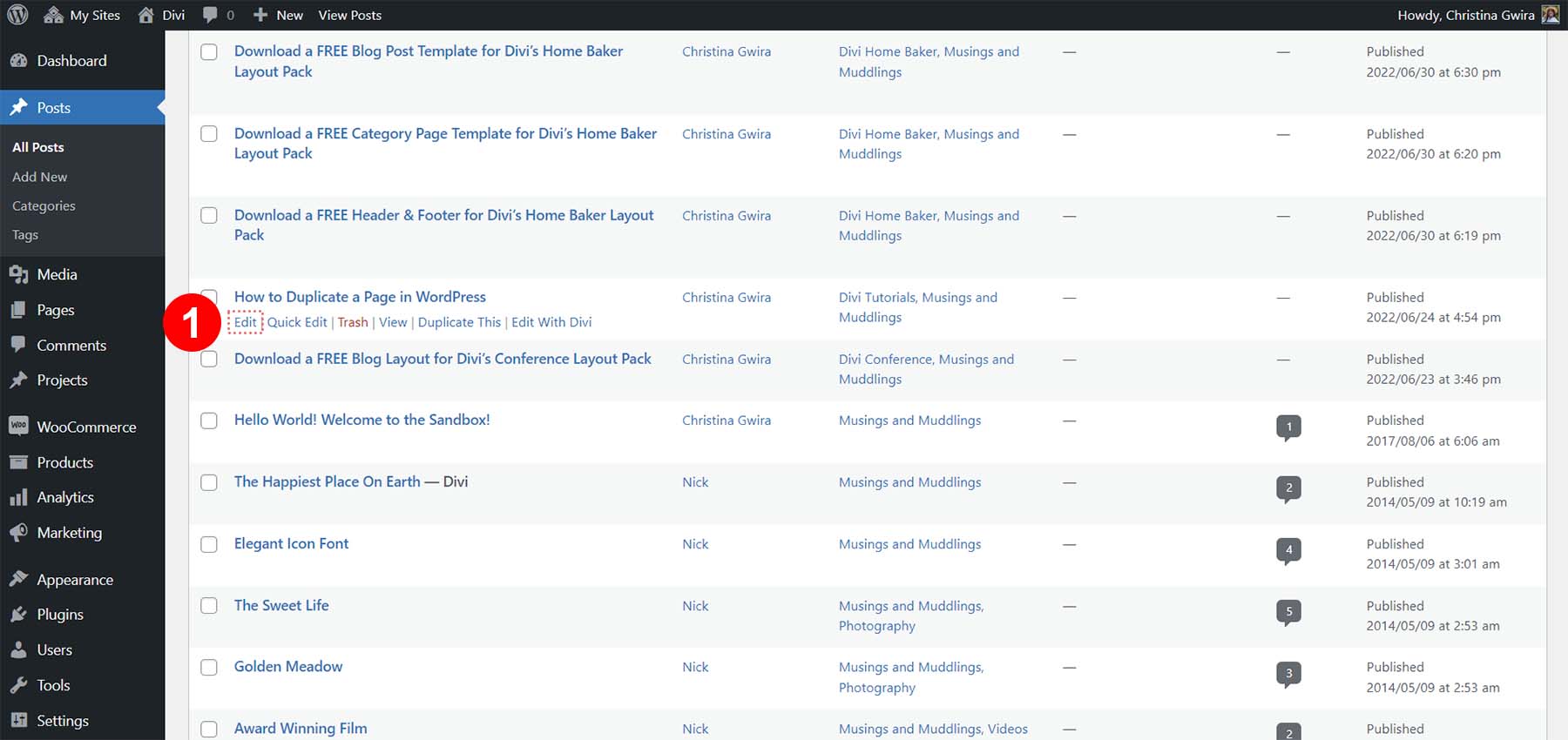
Open the Pages menu in the WordPress dashboard. Find the page you want to copy. Hover over the page title to see new options from the plugin. Click the Clone or Duplicate link. The plugin creates a copy of the page with the same content and settings. The new page appears as a draft in your list.
Edit The Duplicated Page
Go to the Pages list and find the cloned page. Click Edit to open the page editor. Change the title and content as needed. Update links, images, or any details to fit the new purpose. Save or publish the page when done. Your duplicated page is ready for visitors.
Manual Cloning Process
Duplicating a page manually in WordPress is simple and gives you full control. This process helps you copy a page without using plugins. It is useful when you want to create a similar page fast. Follow these clear steps to clone your page easily.
Copy Page Content
Open the page you want to duplicate in the WordPress editor. Select all the content inside the editor. Use the keyboard shortcut or menu option to copy it. Make sure you include text, images, and any other elements. This step saves everything you need for the new page.
Create New Page
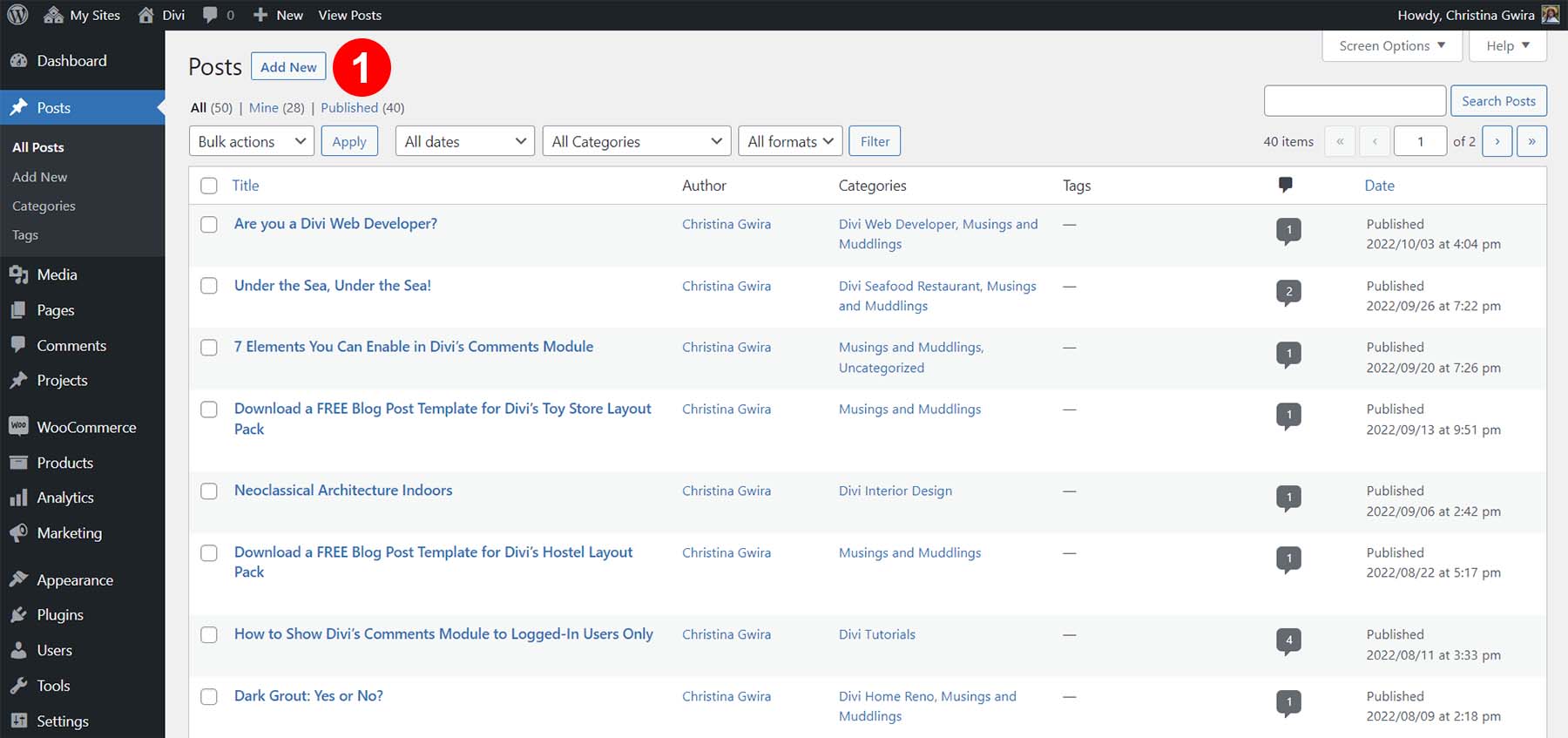
Go to the WordPress dashboard and click on “Add New” under Pages. This opens a blank page ready for your content. Give your new page a title to keep things organized. The new page will start empty, ready for you to add the copied content.
Paste And Adjust Content
Paste the copied content into the new page editor. Check if all text, images, and layouts appear correctly. Edit the content if needed to avoid duplicate titles or links. Save or publish the new page once everything looks good. This final step completes your manual page clone.
Duplicating Pages With Page Builders
Duplicating pages with page builders is a smart way to save time. It helps keep design and layout consistent across your site. Many popular page builders include built-in options for copying pages. These tools make the process quick and easy. No need to recreate pages from scratch.
Page builders like Elementor, Beaver Builder, and Divi Builder have specific methods for duplication. Each method fits the builder’s unique interface and features. Understanding these options helps you work faster and more efficiently.
Elementor Cloning
Elementor allows easy cloning of pages or sections. Open the page in Elementor editor. Right-click on the section or widget you want to duplicate. Select “Duplicate” from the menu. The copy appears instantly below the original.
To duplicate a whole page, save it as a template first. Go to the bottom left and click the arrow next to “Update.” Choose “Save as Template.” Name your template and save it. Create a new page and load the saved template. This copies your entire page design quickly.
Beaver Builder Duplication
Beaver Builder lets you save layouts for reuse. Edit the page using Beaver Builder. Click the “Tools” menu in the top bar. Select “Save Template” to save the current layout. Give it a clear name to find it later.
To duplicate, create a new page and open Beaver Builder. Click the “Templates” icon and choose your saved template. The page loads with the copied content. This saves time and keeps designs uniform.
Divi Builder Copying
Divi Builder offers a simple way to copy sections or full pages. In the Divi editor, hover over the section. Click the duplicate icon to copy the section immediately. It appears below the original.
For entire pages, use Divi’s “Portability” feature. Click the menu icon at the bottom. Choose “Portability,” then “Export.” Save the file to your computer. On a new page, open Portability again and “Import” the file. Your page content loads in seconds.
Troubleshooting Common Issues
Duplicating pages in WordPress is useful but can bring some challenges. These issues can stop your workflow or affect site performance. Knowing how to fix common problems saves time and keeps your site running smoothly.
Plugin Conflicts
Plugins often cause issues with page duplication. Some plugins may not work well together. This can stop the duplication process or create errors. To fix this, deactivate other plugins one by one. Check if the duplication works after each deactivation. Update all plugins to their latest versions. Sometimes, switching to a different duplication plugin helps.
Formatting Problems
Duplicated pages may lose some formatting. Styles, images, or layouts might not copy correctly. This happens when the page builder or editor settings differ. Fix this by checking the page settings after duplication. Reapply any missing styles or blocks. Use the same editor version for both original and duplicated pages. Clear your browser cache to see the latest changes.
Duplicate Content Seo Concerns
Duplicate pages can harm your SEO ranking. Search engines may see copied content as spam. Use noindex tags on duplicated pages to avoid SEO penalties. Add canonical tags to show the original page as primary. Limit duplicated content to avoid confusion. Rewrite some parts of the page to make it unique. This helps keep your site SEO-friendly and safe.
Credit: www.elegantthemes.com
Best Practices For Page Duplication
Duplicating pages in WordPress saves time and keeps your site consistent. Following best practices ensures your duplicates work well and do not cause problems. These tips help keep your site organized and SEO-friendly.
Rename Duplicated Pages
Give each duplicate a clear, unique name. Avoid using the original page title. This prevents confusion in your WordPress dashboard. It also helps visitors find the right page. Choose names that describe the page content.
Update Seo Settings
Change SEO titles and descriptions for each duplicate. Duplicate SEO data can hurt your search rankings. Use different keywords for every page. Check meta tags and URLs for uniqueness. This improves your site’s visibility in search engines.
Regularly Backup Your Site
Backing up your website protects your data. Duplication can sometimes cause errors or conflicts. A backup lets you restore your site quickly. Schedule backups before and after making changes. Use reliable backup plugins or hosting services.
Frequently Asked Questions
How Do I Duplicate A WordPress Page Easily?
You can duplicate a WordPress page using plugins like “Duplicate Page. ” Install, activate, then click “Duplicate” under the page you want to copy. This method saves time and keeps formatting intact without manual copying.
Can I Duplicate Pages Without A Plugin?
Yes, you can duplicate pages manually by copying the page content and creating a new page. However, this method is slower and may miss some page settings or SEO metadata.
What Are The Best Plugins To Duplicate WordPress Pages?
Popular plugins include “Duplicate Page,” “Yoast Duplicate Post,” and “Duplicate Post. ” They offer easy duplication with one click and preserve your page’s content and settings.
Will Duplicating Pages Affect My Seo Ranking?
No, duplicating pages itself doesn’t affect SEO if you avoid publishing duplicate content. Use noindex tags or modify duplicated pages to prevent search penalties.
Conclusion
Duplicating pages in WordPress saves time and effort. You can copy content quickly without starting from scratch. This helps keep your website consistent and organized. Many plugins and tools make the process simple and fast. Try different methods to find what works best for you.
Keep your site updated with ease. Duplicating pages is a useful skill for managing WordPress websites effectively.


